Overview
Cloud Service for etcd supports both automatic backup and manual backup. The result of each backup operation is displayed as a snapshot in the snapshot list. You can recover a cluster to a previous state by using a snapshot. This document introduces etcd cluster snapshot management.
Notes:
After an etcd cluster is created, a COS bucket will be automatically created and billed based on actual resource usage. Snapshots will be stored in this bucket. For COS billing details, see COS Billing Overview. Snapshots of etcd clusters in the same region are stored in the same bucket (named in the format of "tencentcloud-tke-etcd-backups-region abbreviation-account AppID"). These snapshots are isolated by cluster ID, being used as subdirectories.
Prerequisites
Directions
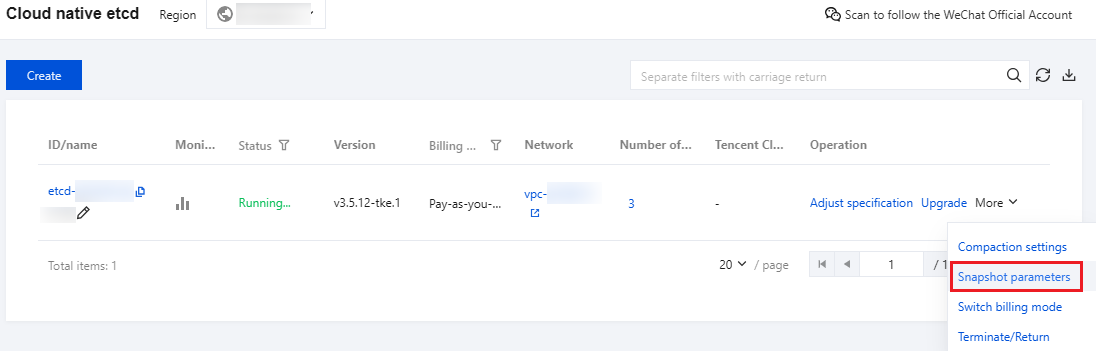
2. Select the region on the Cloud native etcd page, and choose the target etcd cluster from the cluster list below.
3. Choose More > Snapshot parameters in the operation column on the list page, or click the target cluster to enter the Snapshot management page, as shown in the figure below:
Snapshot Policy Management
Viewing a Snapshot Policy
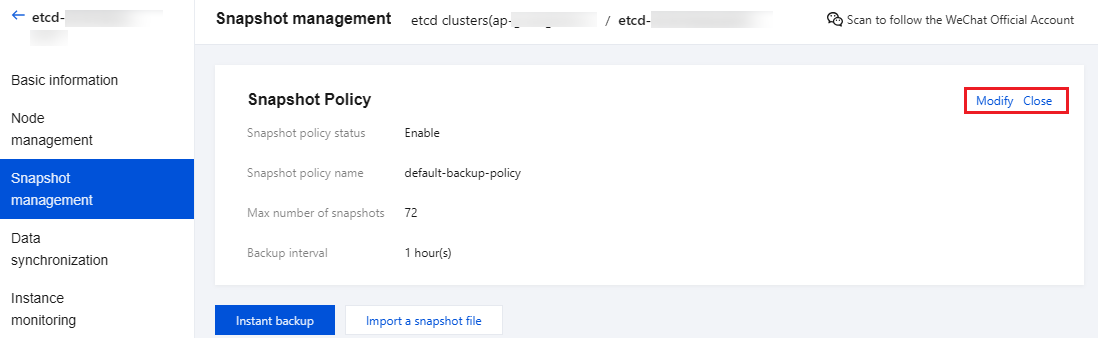
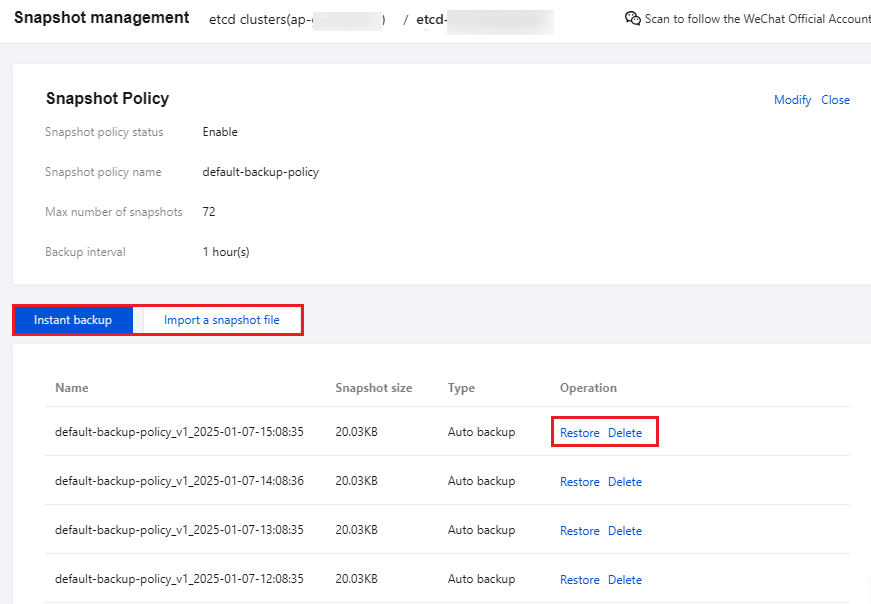
The data backup feature is enabled for etcd clusters by default during cluster creation. The system will generate a scheduled snapshot policy based on the backup parameters. You can view the policy details on the Snapshot management page, as shown in the figure below:
Modifying a Snapshot Policy
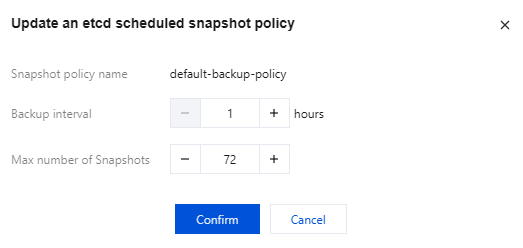
You can click Modify in the upper right corner of the Snapshot Policy area to update the scheduled snapshot policy, as shown in the figure below:
Snapshot policy name: Retain the current policy name.
Backup interval: Set the backup interval (in hours).
Max number of snapshots: Set the maximum number of snapshots (maximum value is 1000). If this number is exceeded, new snapshots cannot be uploaded to the COS bucket.
Disabling a Snapshot Policy
You can click Close in the upper right corner of the Snapshot Policy area to disable the scheduled snapshot policy. After the scheduled snapshot policy is disabled, the generated snapshots will not be deleted.
Backup Operations
Performing Scheduled Backup Operations
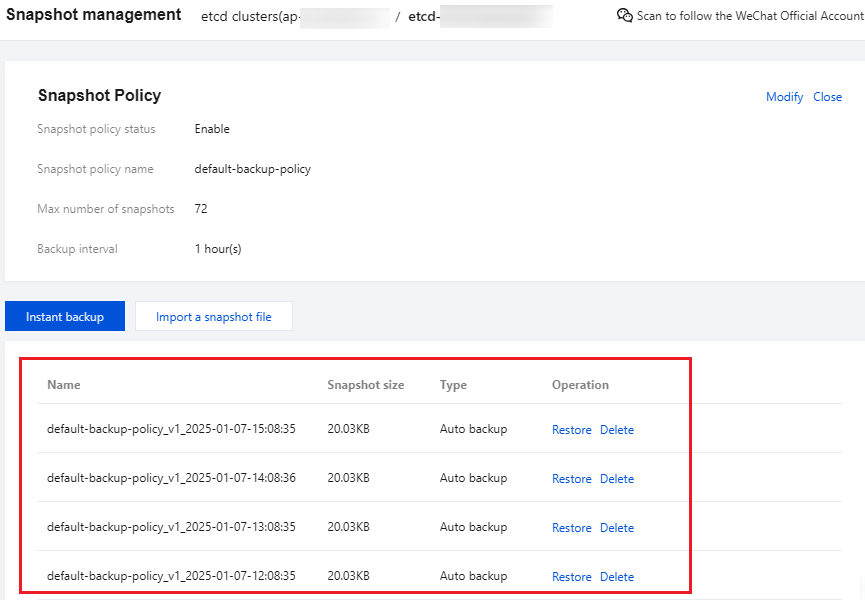
The system performs scheduled backup operations on the cluster based on the snapshot policy. You can go to the Snapshot management page to view the scheduled snapshot list, as shown in the figure below:
Performing Instant Backup Operations
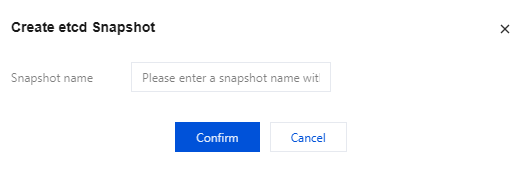
The system supports instant backup operations. You can go to the Snapshot management page, click Instant backup, and enter the snapshot name in the pop-up window. The snapshot will be displayed in the snapshot list. The operation is shown in the figure below:
Snapshot Operations
The etcd cluster snapshots support snapshot file import, restoration, and deletion operations, as shown in the figure below:
Importing a Snapshot File
You can use this method to synchronize the data from the source etcd cluster to a cloud etcd cluster. It is recommended to stop access to the source etcd cluster on the business side first, and then click Import a snapshot file, import a local snapshot file containing the data of the source etcd cluster, and synchronize the data by clicking Restore.
Warning:
Do not directly copy the db file of etcd clusters as the snapshot file. Continuous updates to the source file during file copying can cause data corruption, and data integrity cannot be guaranteed. You can execute the etcdctl snapshot save command to generate a snapshot and the etcdctl snapshot status command to verify the snapshot status.
Restoring from a Snapshot
You can click Restore in the operation column to restore a cluster to the state recorded by the snapshot.
Note:
The existing cluster data will be overwritten by the data contained in the snapshot during restoration, and the cluster will be temporarily unavailable. Operate with caution.
Deleting a Snapshot
You can click Delete in the operation column to delete a snapshot from the snapshot list and the bucket. Once a snapshot is deleted, it cannot be restored.