Note:
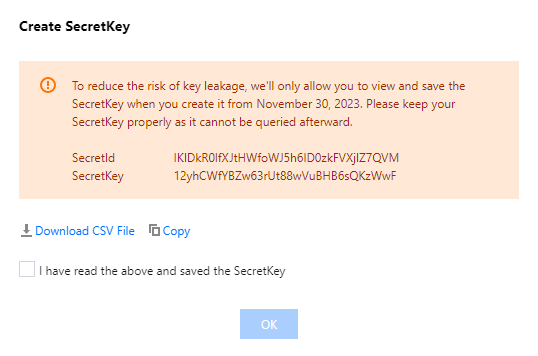
To reduce the risk of key exposure, as of November 30, 2023, the function to query SecretKey for all root accounts and sub-accounts will be closed, which can only be kept at the time of creation. Please keep your SecretKey in time.
Overview
Access keys, also known as API keys, are the security certificates required for user identity verification when accessing Tencent Cloud APIs. They are composed of both a SecretId and a SecretKey. If a user does not possess an API key, it is necessary to create one within the API key management system, otherwise, they will be unable to invoke the cloud API interface.
This document describes how to create, enable/disable and delete API keys for the root account as wel as view API key information of the root account.
Note:
SecretId: Used to identify an API caller, similar to a username. A SecretId has a uniform prefix "IKID".
SecretKey: Used to verify the identity of an API caller, similar to a password.
Note:
Access keys are utilized for API call access. Given that the root account possesses full control over its resources, you'd better not create access keys for root accounts and use them for routine tasks in order to reduce the security risks associated with access key leakage.
Prerequisites
Log in to the CAM console by using a root account. Choose Cloud Access Management > Access Key > API Keys. Directions
Creating an API Key for a Root Account
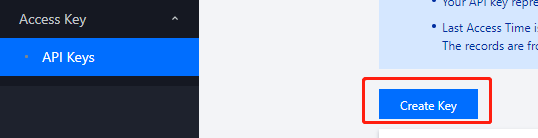
You can create an API key for a root account. After the API key is created, the root account can use APIs, SDKs, or other development tools to manage the resources under the account.
2. In the pop-up window of Create SecretKey, the key you've created will be displayed. Please keep your SecretId and SecretKey well. As of November 30, 2023, the created keys will only provide the SecretKey when created, and can not be queried afterward.
Note:
One root account can create up to 2 API keys.
The root account API key represents your account identity and granted permissions, which is equivalent to your login password. Do not disclose it to others.
API keys are important credentials for creating Tencent Cloud API requests. To keep your assets and services secure, keep your keys appropriately, and change them regularly. Please remember to delete the old keys after creating new ones.
Viewing an API Key of a Root Account
You can view and copy the SecretId of the API key of the root account. You can use APIs, SDKs, or other development tools through SecretId and SecretKey to manage resources under the account.
1. On the API Keys Management page, you can directly get and copy SecretId under the Key column. Disabling/Enabling an API Key of a Root Account
You can disable an API key of the root account. Tencent Cloud will block all requests that use the API key after it is disabled.
2. In the pop-up window, click Confirm to disable the access key.
Note:
You can click Enable in the Operation column to enable the key. After the key is enabled, you can use APIs, SDKs, or other development tools to manage the resources under the account.
Deleting an API Key of a Root Account
1. Click Disable on the API Keys Management page. If the target API key was disabled, you can go to Step 3. 2. In the pop-up window, click Disable.
3. On the API Key Management page, click Delete in the Operation column.
4. In the pop-up window, click Delete.
Note:
Please note that a deleted API key cannot be restored.
API Key Access Record Description
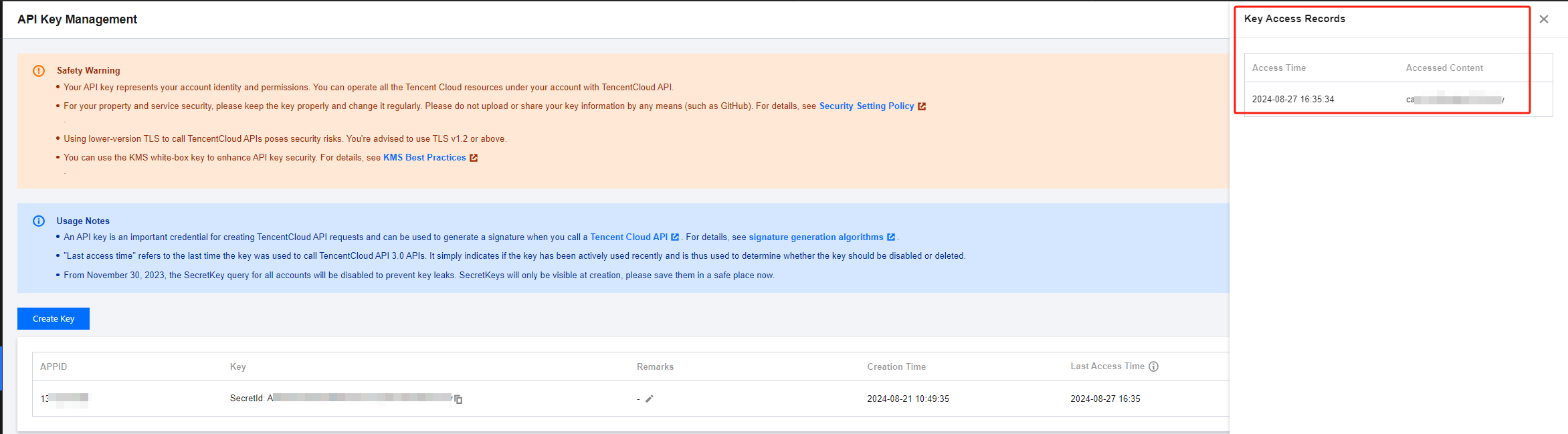
1. 1. On the API Key Management page, click More Access Records in the operation column, as shown in the following figure: Note:
More Access Records: displays the latest 20 access records from the past 3 months, including both successful and failed calls. Due to the large volume of data, there may be a delay of about 1 hour.
Access records only log requests to the server. Regardless of whether a call is successful or has the necessary permissions, all attempts are recorded.
2. On the Key Access Records page on the right, view the details of key access records.
Last Access Time: displays the last time the key was used.