UGCKit is a set of encapsulated interactive UIs, which is the UGSV demo app's theme by default. With simple modifications, you can customize your own theme and replace the icons, text, and colors.
Customizing the recording theme
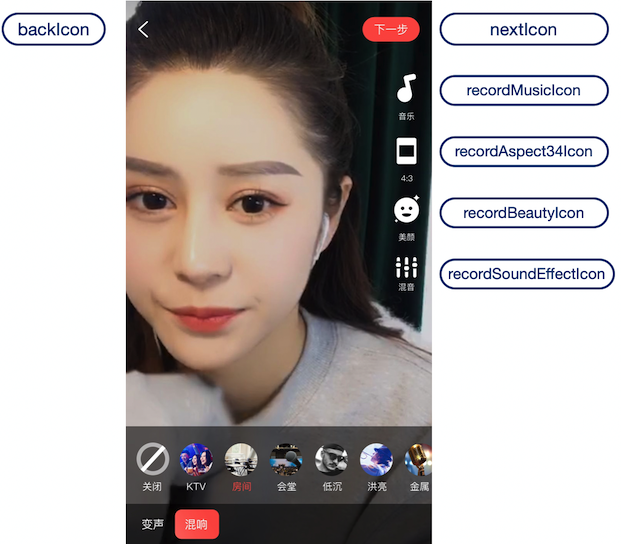
The recording UI contains the right icon toolbar, the bottom toolbar, music panel, beauty filter panel, and sound effect panel.
1. Declare a <style> in app/res/values/style.xml, specify its parent theme as RecordStyle, and change the theme to the target theme. You can find all available themes in app/ugckit/res/values.theme_style.xml.
Below is the sample code for replacing the music and beauty filter icons on the recording UI:
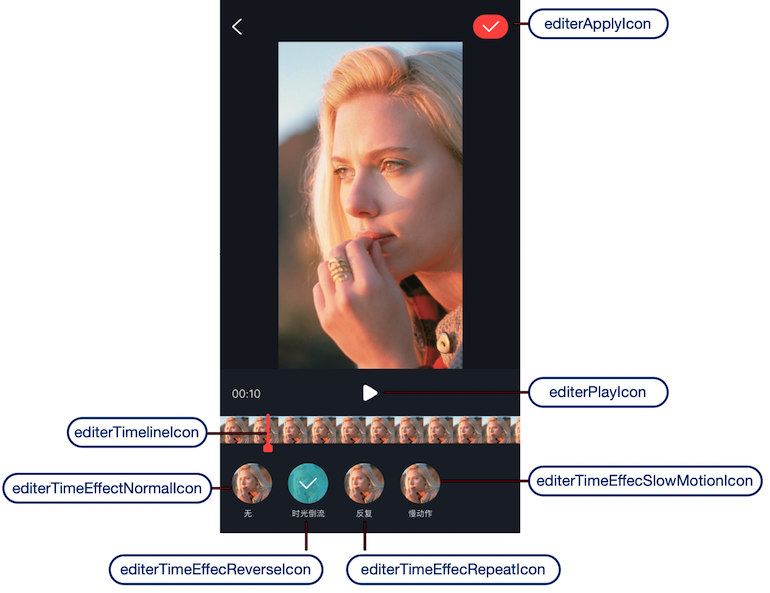
The editing UI contains the editing and clipping UI, animated effect, beauty filter, and special effect panel, and speed, filter, sticker, and bubble subtitles panels.
1. Declare a <style> in app/res/values/style.xml, specify its parent theme as EditerStyle, and change the theme to the target theme. You can find all available themes in app/ugckit/res/values.theme_style.xml.
2. Below is the sample code for replacing the playback and pause icons on the editing UI: