Overview
You can log in to the Tencent Cloud SSM console to view and edit information list, name, status, region and other details of the credential.
Prerequisites
You have created your account and password in the SSM console. Directions
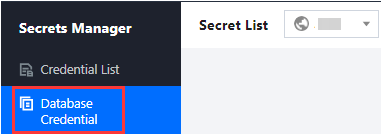
1. Log in to the SSM Console and click Database Credential on the left sidebar.
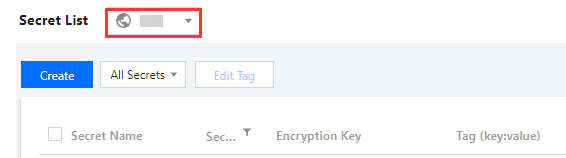
2. Click the drop-down button in the top left corner of the credential list to modify the region.
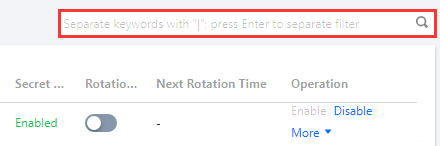
3. Search for a credential by entering keywords relevant to tags and credential names in the search box.
4. Click Secret Name to check the details of the credential.
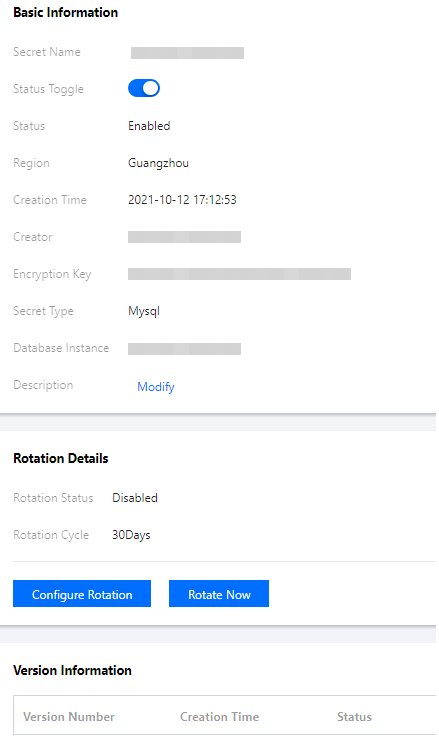
5. On the credential details page, you can modify the credential description and version information, enable/disable the credential, and set rotation. Secret Status can be changed by enabling the status toggle. If the toggle displays grayed out, the credential is disabled.
Description describes what the credential is used for. Maximum length: 2048 bytes. This is an optional field.
The "Rotation Information" section displays the rotation status, rotation cycle, end time of last rotation and start time of next rotation (this information is available only when rotation is enabled).
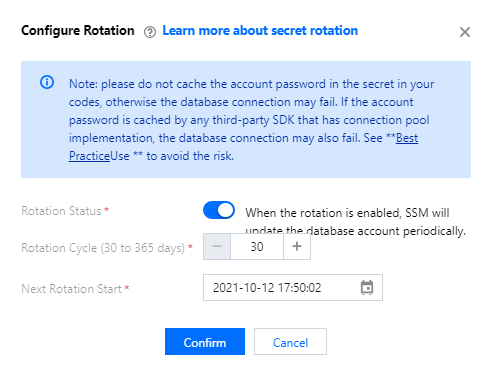
Configure Rotation: Click this button to enter the rotation information including rotation cycle (from 30 to 365 days) and start time of next rotation (from current time plus 24 hours to current time plus 365 days) in the pop-up window.
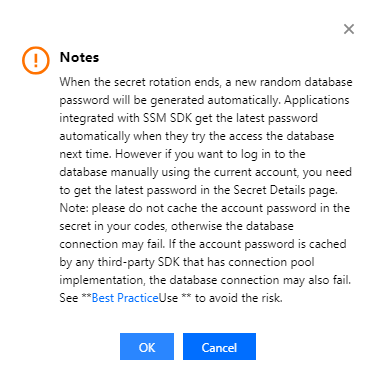
Rotate Now: Click this button to read through a pop-up notice and then click OK to start rotation.
Note:
To start rotation, the rotation status must be enabled.
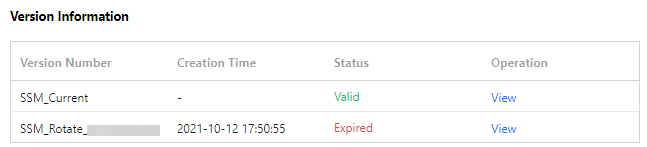
The version number of a credential will be shown in the "Version Information" section. To check the credential’s account name and password, you can click View.
Note:
The plaintext of the password is automatically obtained and updated by the SSM API. For security considerations, it is not recommended that you check the values of the managed credentials on the console.