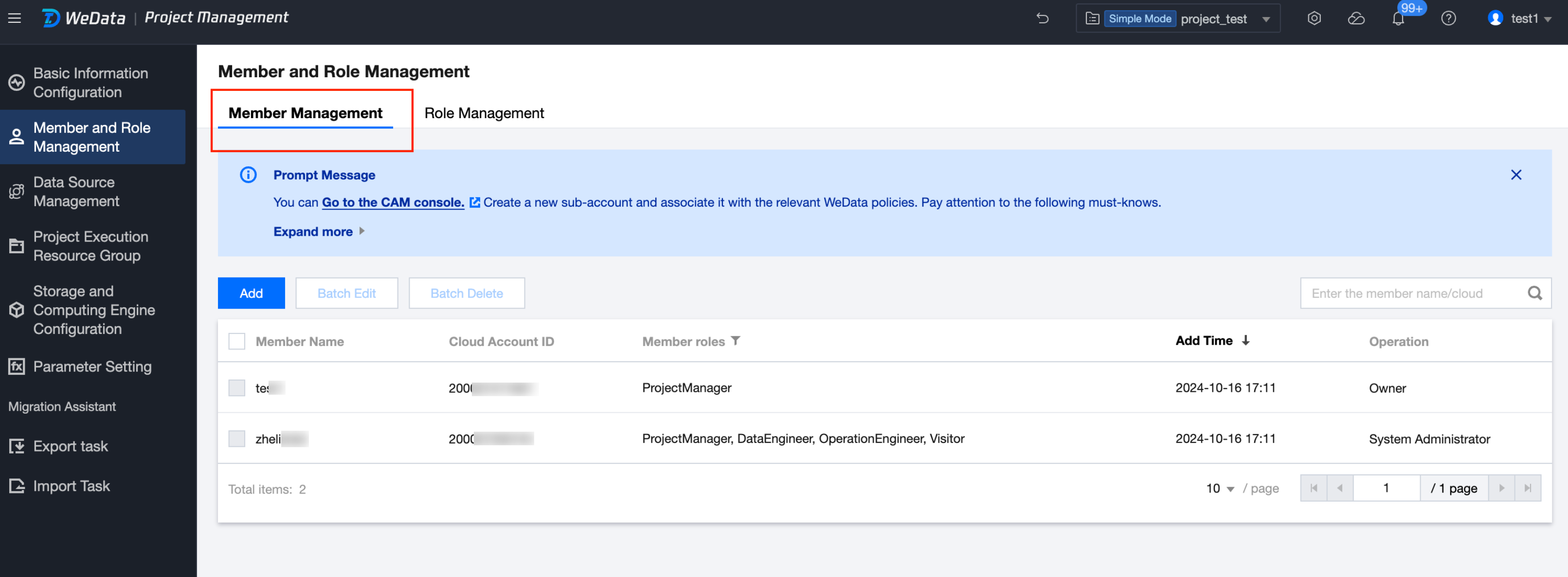
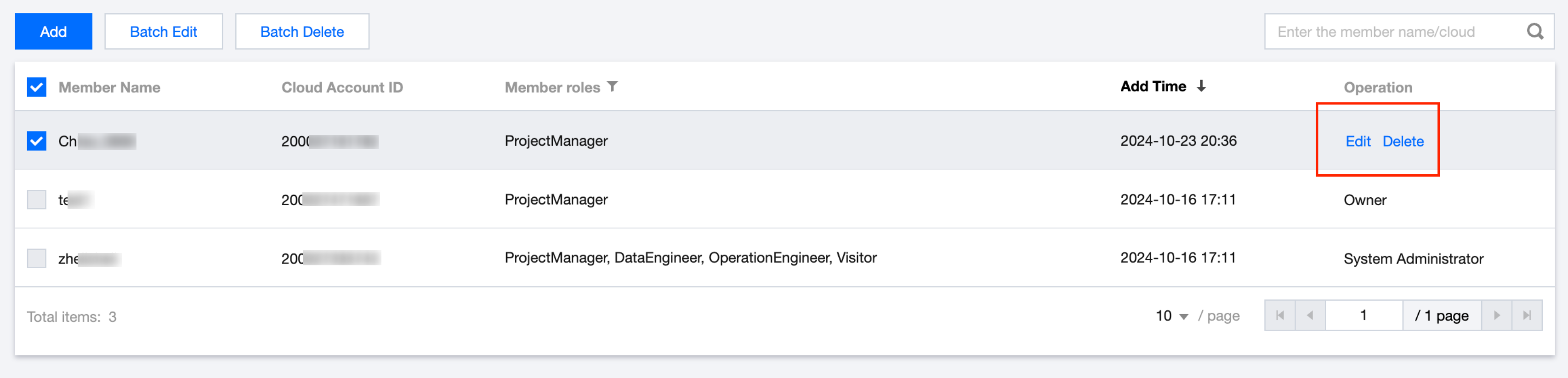
To add members for project use, click on Member and Role Management in the left navigation tree. Then, under the Member Management tab, you can view and manage the member information for this project.
Add User
If there are no available members to add or if the target member is not found, you can click the link in the prompt to go to the CAM console and create a new one. For detailed operations, see CAM How to Create a Sub-user.
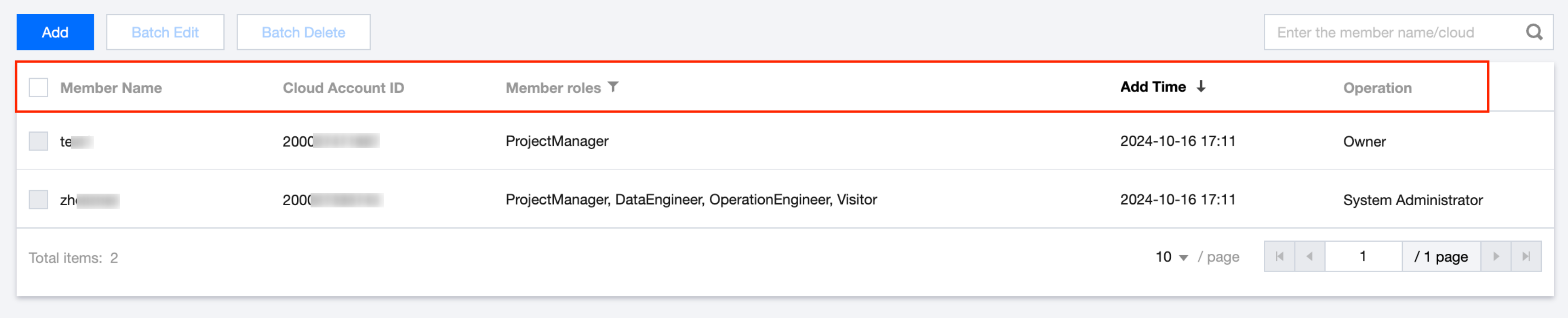
Project Member List
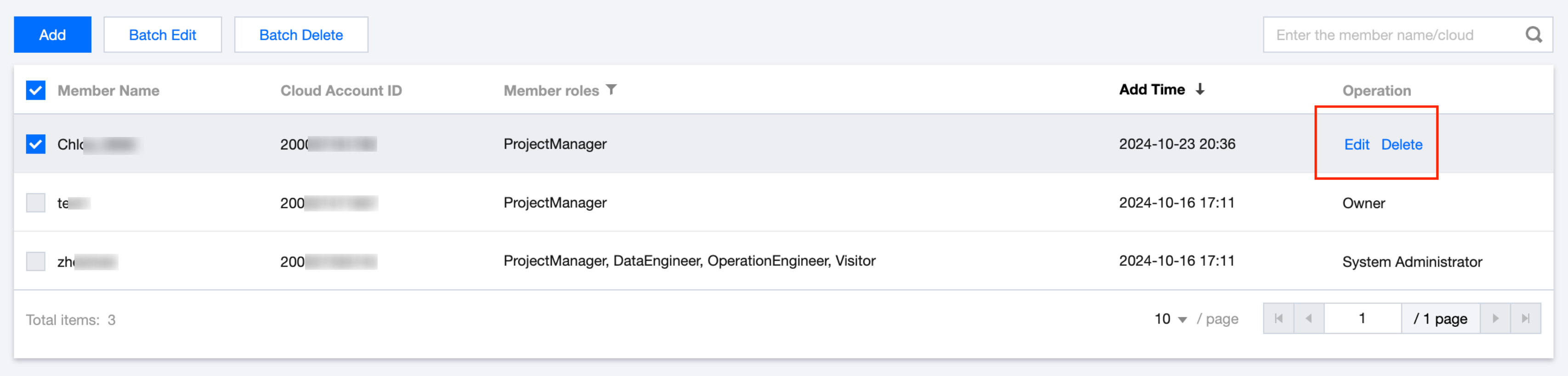
The Project Member List includes the names of all added project members, cloud account ID, member roles, addition time, and operation information. For non-owners and non-system administrator project members, members can be edited or deleted in the action column.
Add Member
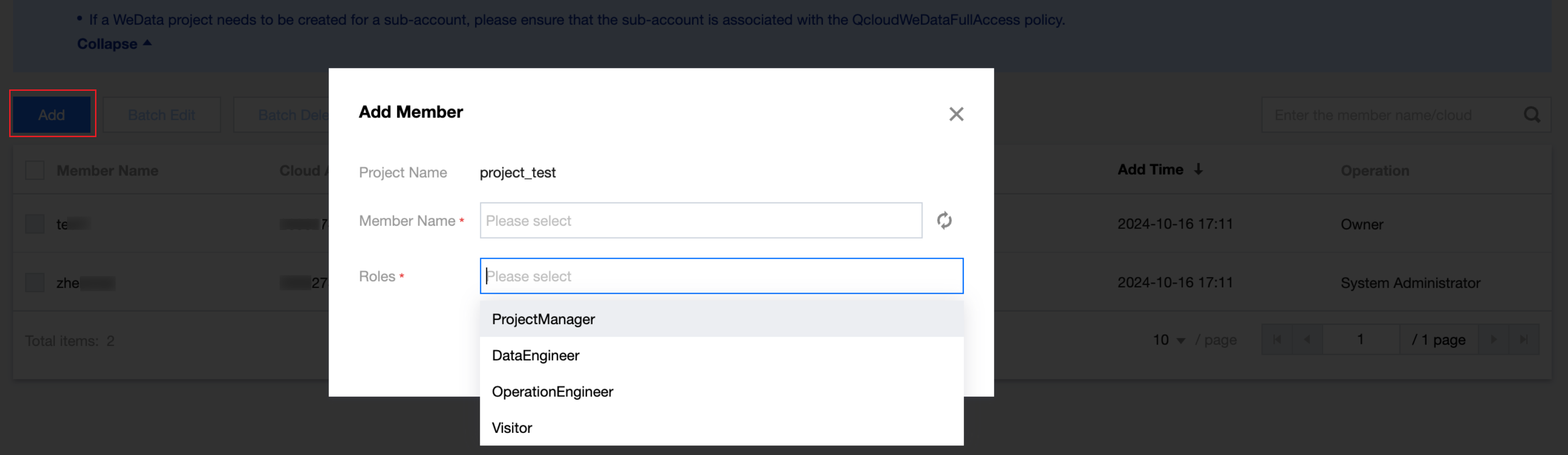
Click Add on the page to add a user member to the current project. It is necessary to select the user and configure role permissions for the user.
By default, the table owner and project administrator have data query and data modification permissions for the table under this project. Other project members (such as data engineers and operations engineers) need to be granted permissions in this module. Detailed role permissions information can be viewed through role management.
Edit
1. Select a member, then click Edit/Batch Modify in the action column.
2. In the pop-up, you can re-edit the corresponding roles for the selected members and click Confirm.
Delete
Select members, then click Delete/Batch Delete in the action column.
Confirm the member information, and click Confirm. After deleting a member, they are removed from the member list.
Note:
Deleting a member will cause tasks to fail, and tasks must be handed over.
1. Modify the person in charge during batch operations in the Orchestration Space.
2. Use advanced filtering in Task Operation and Maintenance to modify the person in charge.
3. If a member is in the personal area of the Development Space, the task needs to be exported.
Role management
Note:
Different roles have different project feature operation permissions. WeData has predefined roles such as Project Administrator, Data Engineer, Operations Engineer, and Visitor. It also supports user self-definition of roles and their permissions.
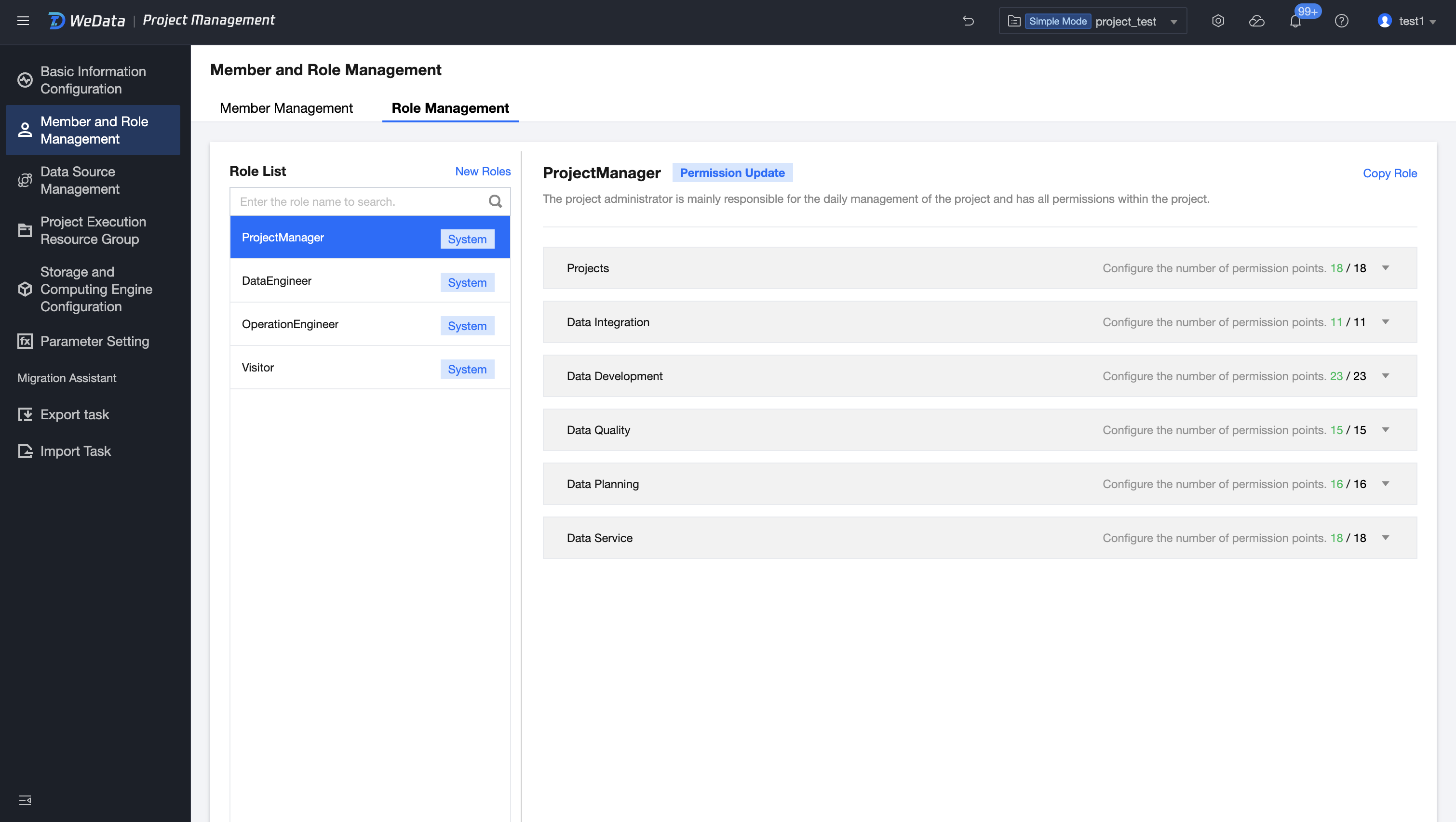
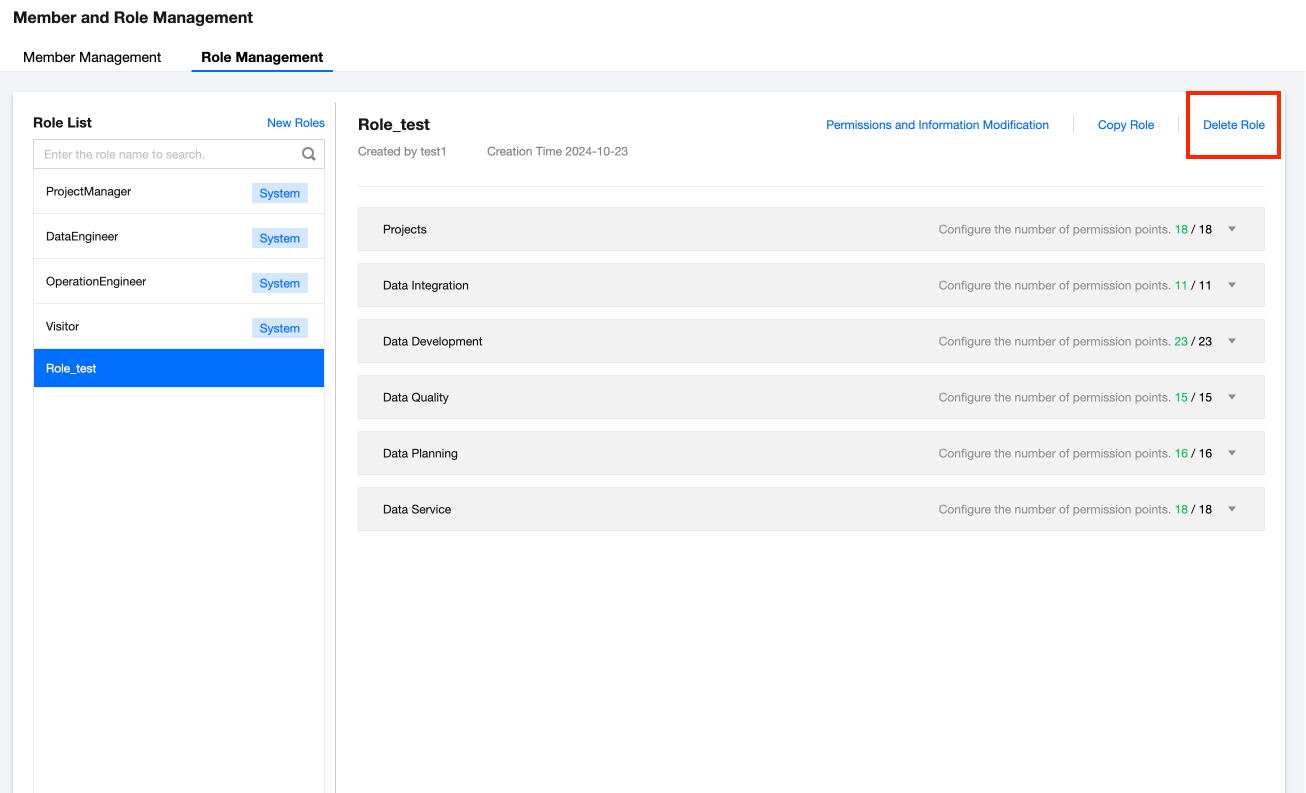
After clicking Member and Role Management in the left directory tree, you can view and manage the roles and their permissions under this project in the Role Management tab.
Role List
The Role List displays the existing roles within the current project, including predefined roles and self-defined roles.
Predefined roles and their corresponding permissions cannot be edited or deleted.
Self-defined roles and their permissions can be edited or deleted.
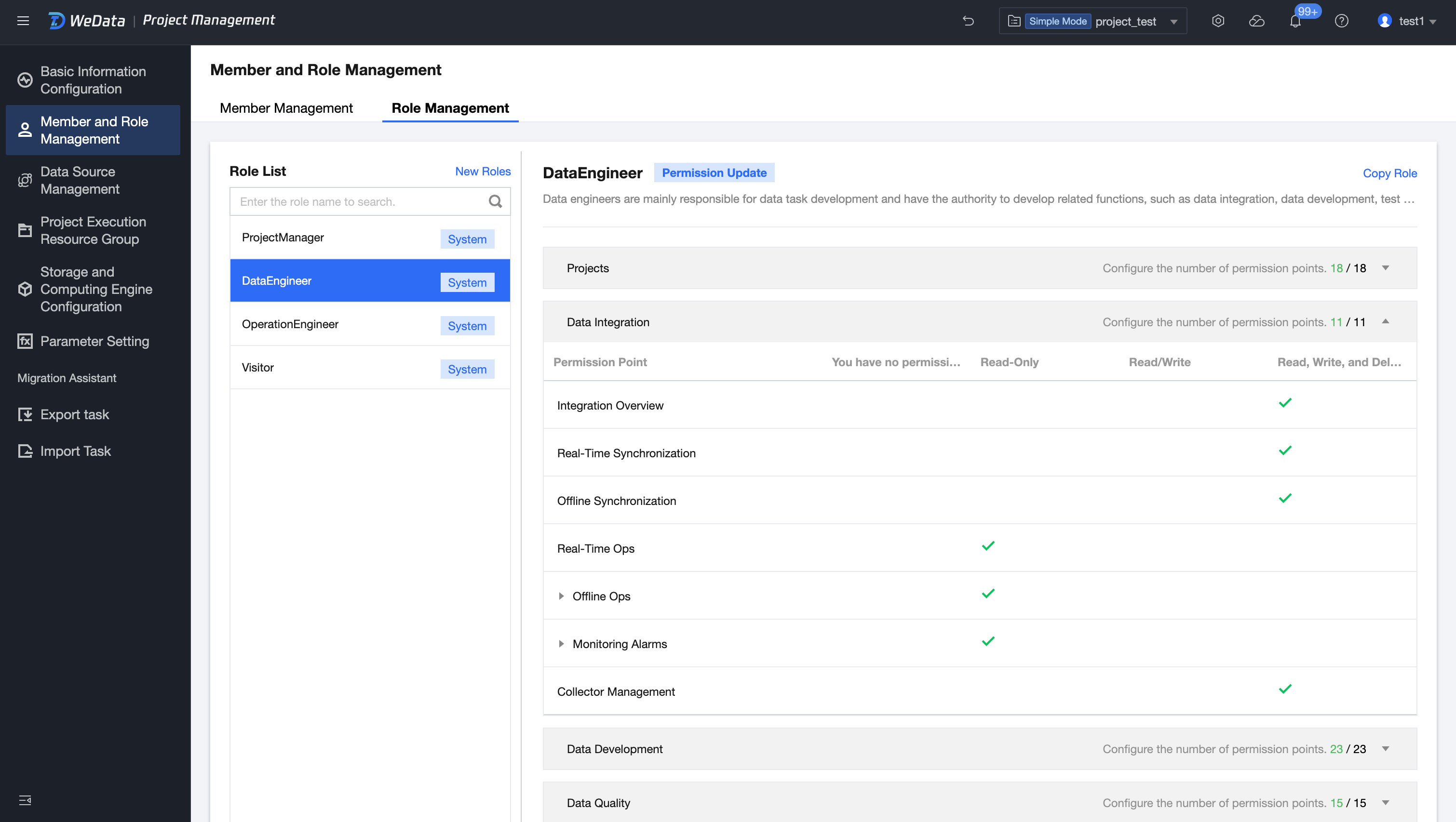
Selecting a different role allows you to view the specific permissions that role has in each feature module, including Read, Write, Delete, etc.
Note
" √ " indicates the permissions that users of this type have by default.
Add Role
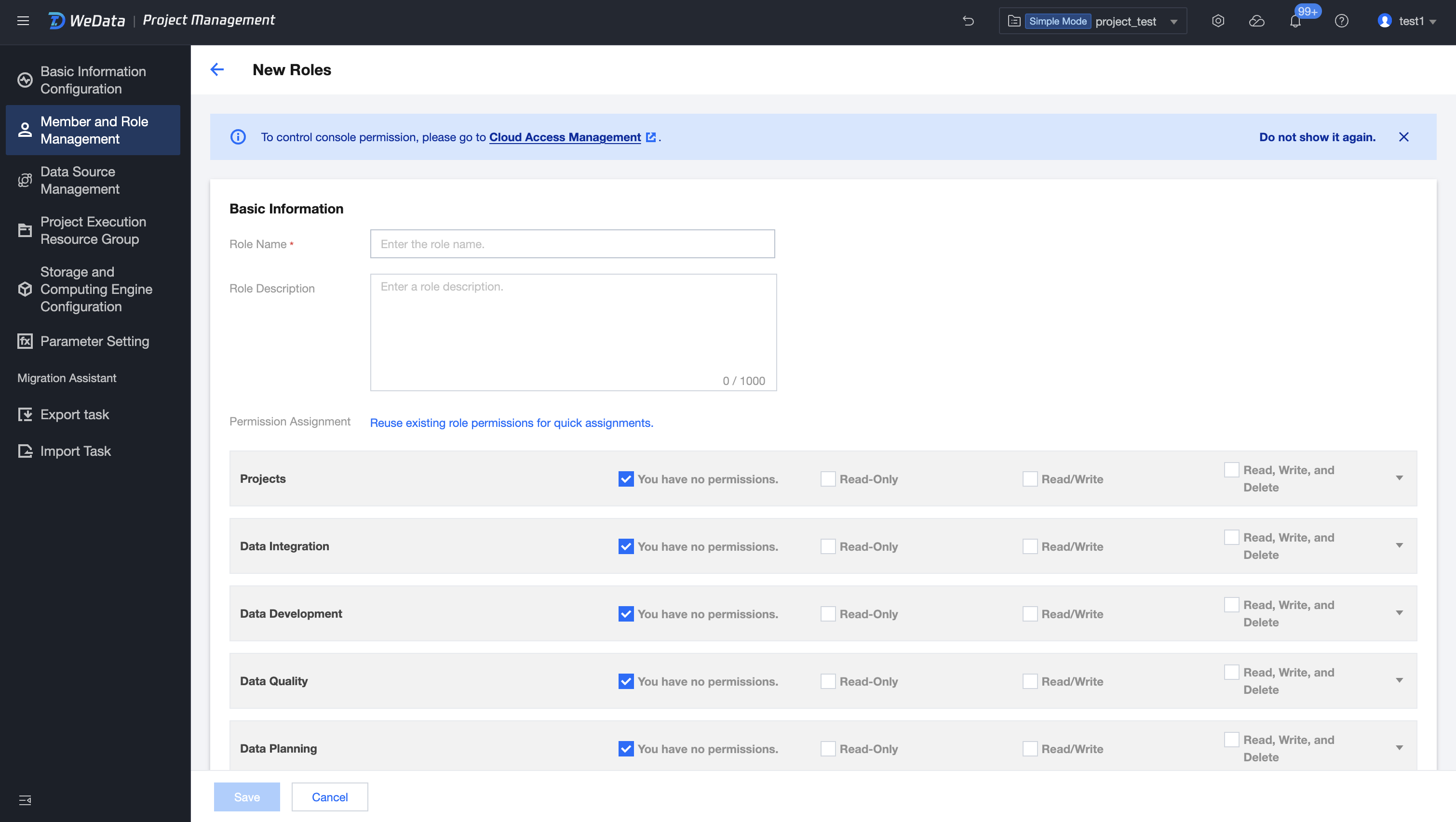
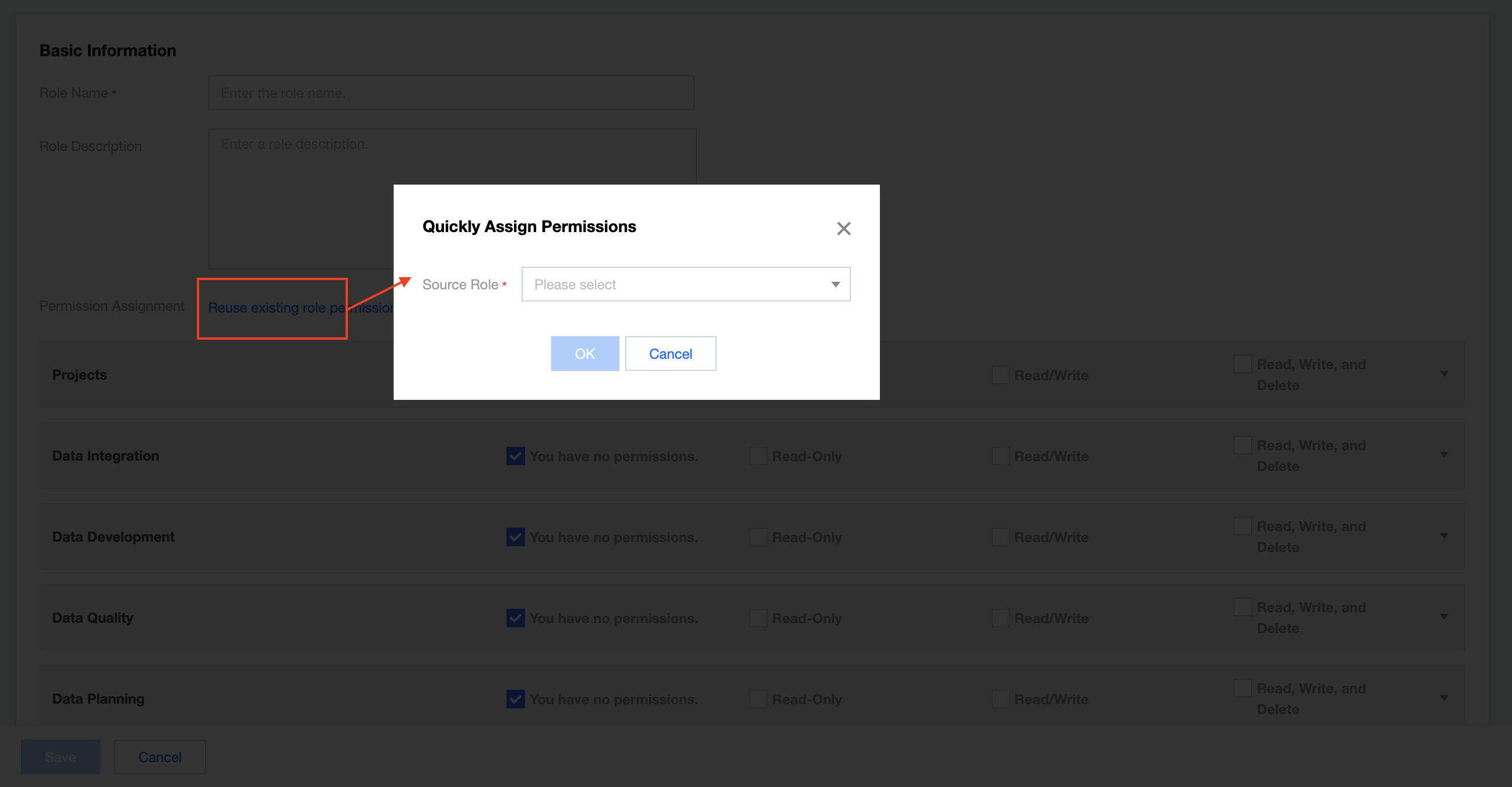
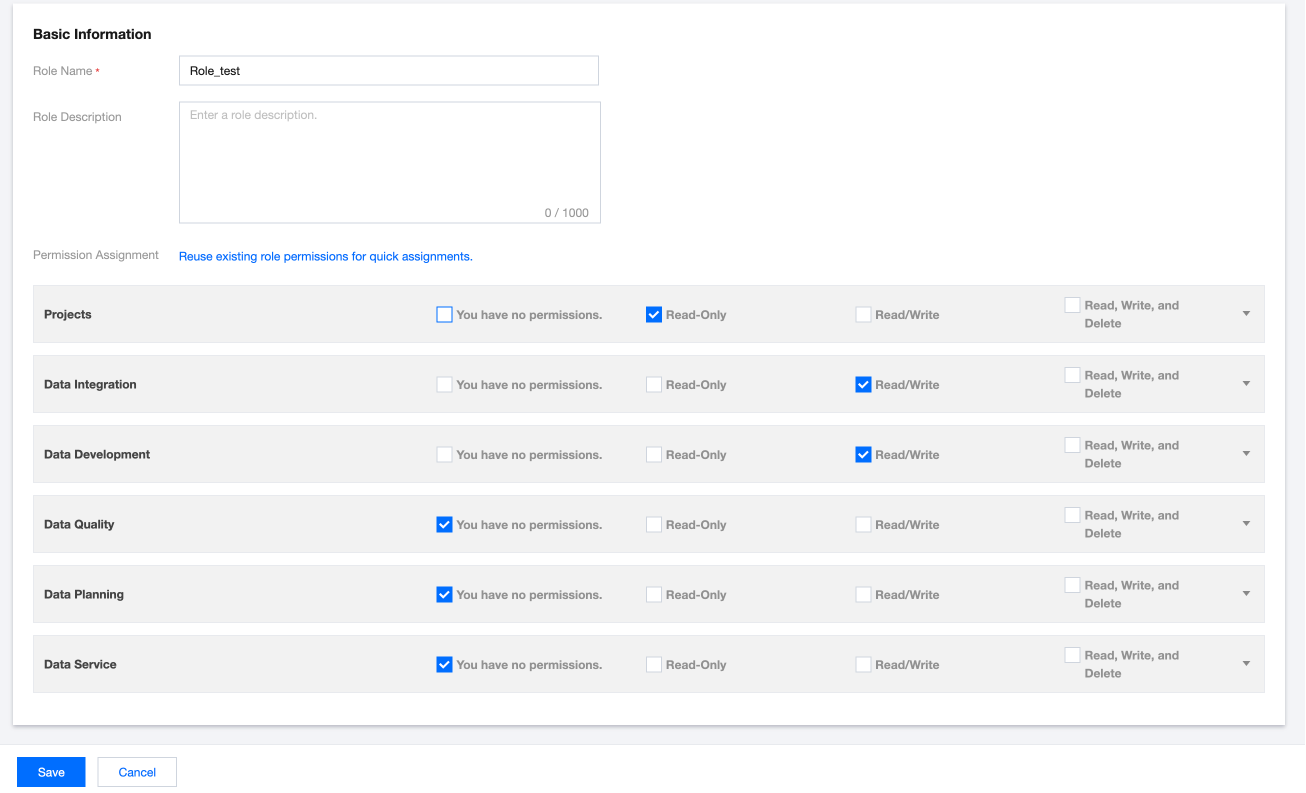
On the page, click Add Role, enter the basic information of the role in the configuration page and assign permissions. The permissions to be assigned include Project Management, DataInLong, Data Development, Data Quality, Data Planning, and Data Service's module capabilities.
In the new role's permission configuration process, you can reuse the permission settings of existing roles for quick assignment. After reuse, only partial changes are needed to flexibly design roles that meet business needs.
Copy Role
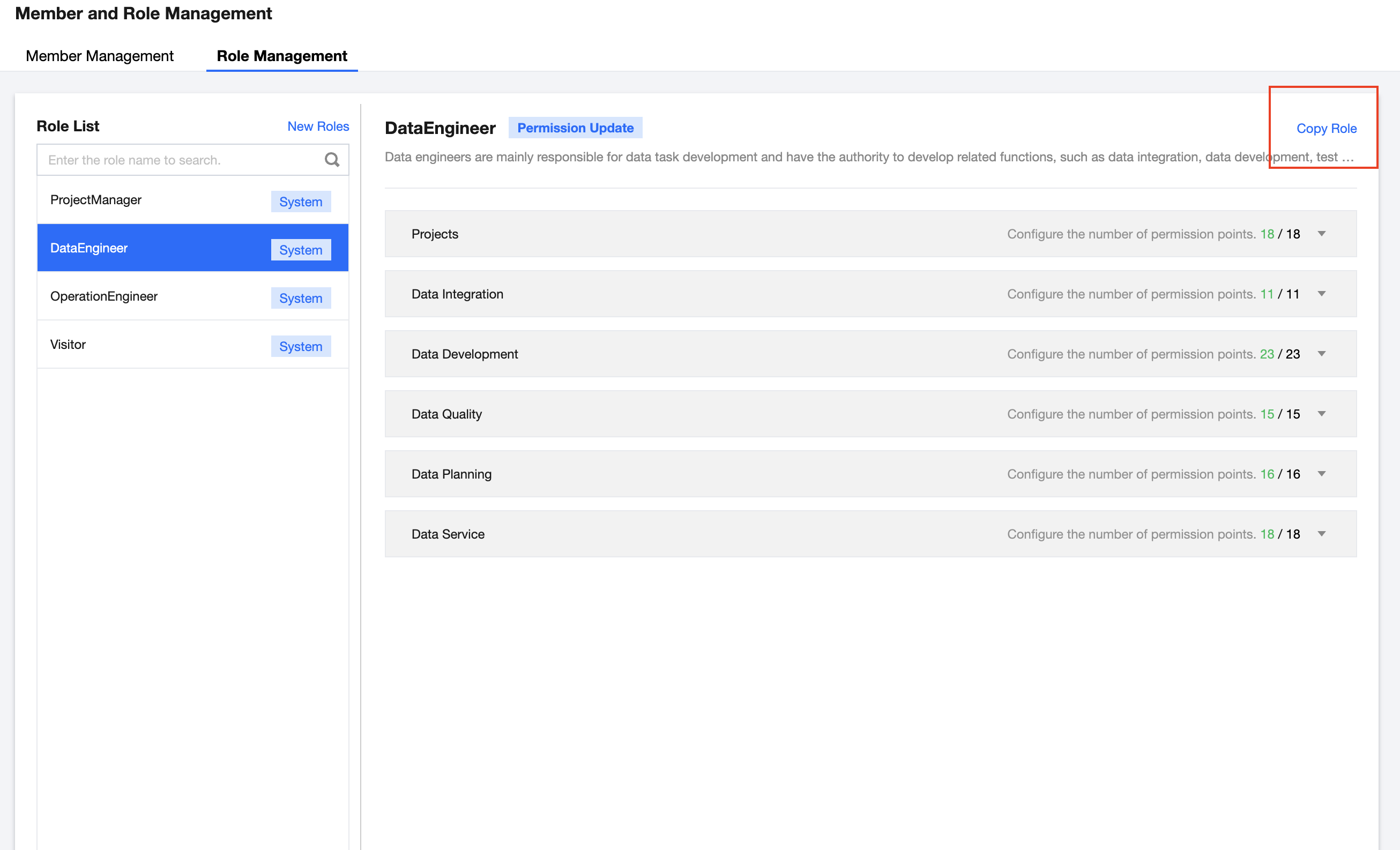
In the role list, select any role, click the upper right corner Copy Role, enter the new role name and description information in the pop-up, to quickly generate a new custom role, which has the same permission configuration as the original role. This feature is generally used to quickly generate custom roles, facilitating the configuration of custom role permissions.
Edit
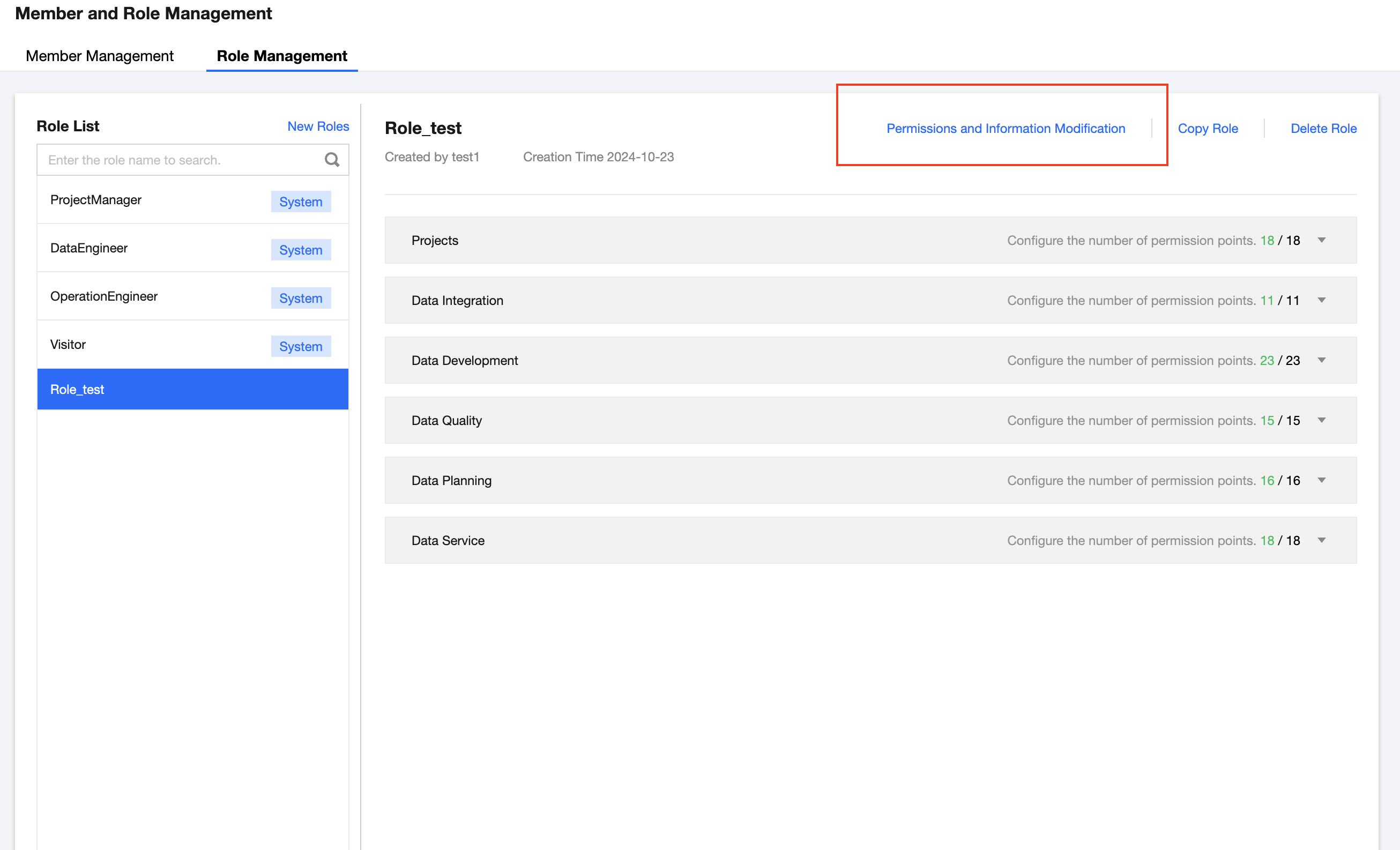
1. Select custom role members, click the upper right corner Modify Permissions and Information.
2. In the modification page, you can change the role name, description, and feature permissions. Click Save after making changes to complete the role editing.
Delete
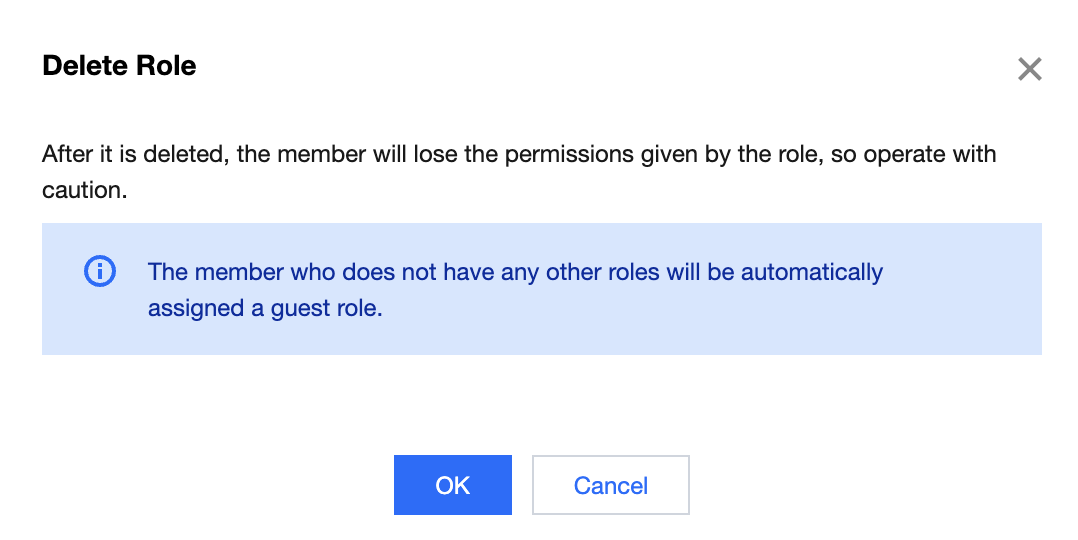
1. Select custom role members, click the upper right corner Delete Role.
2. After clicking OK in the pop-up, the corresponding custom role will be deleted.