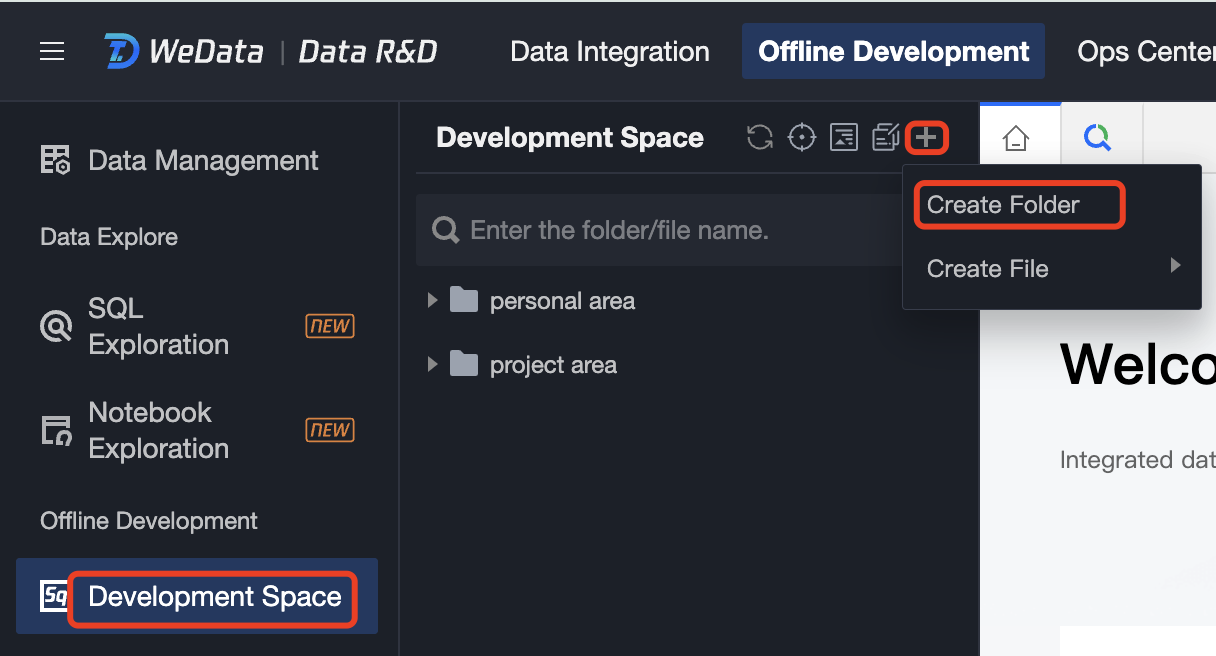
1. Enter Development Space, in the Development Space Directory Tree click the
button, in the expanded drop-down menu click Create New Folder.
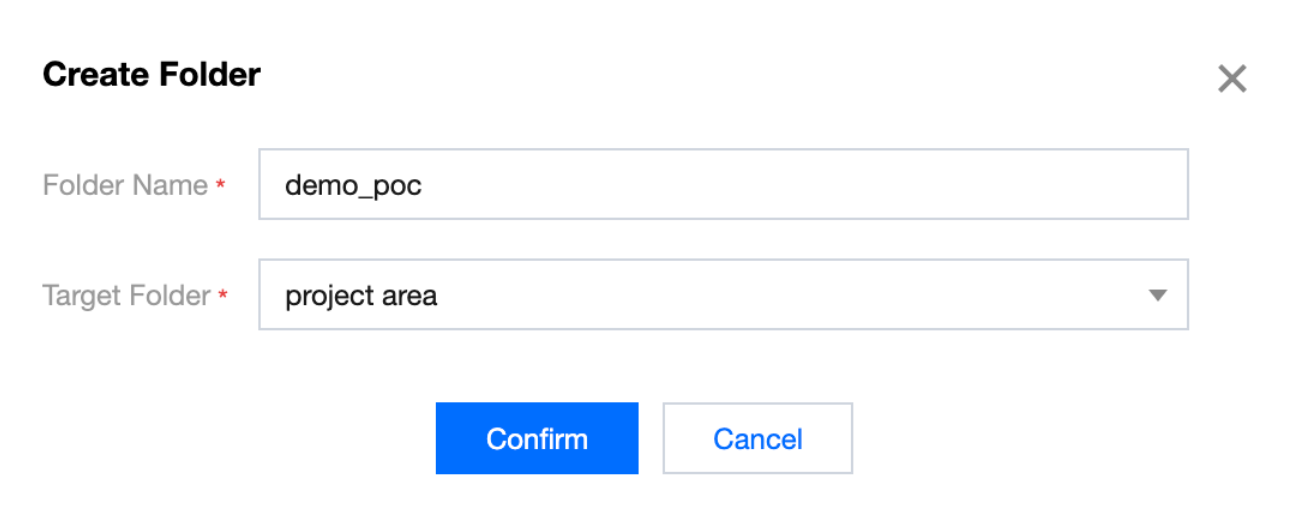
2. Enter the folder name and select the target folder, then click Confirm.
Note:
WeData supports the creation of multi-level folder hierarchies, allowing new folders to be saved to the root directory or other existing folders.
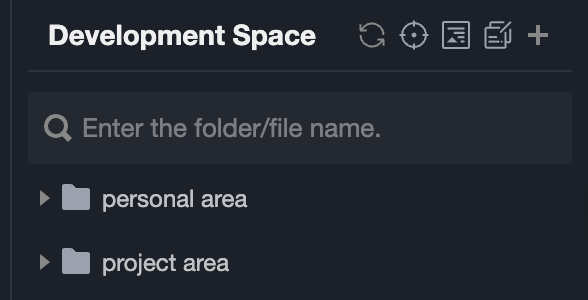
3. In the Development Space, users can freely choose to create and save folders and files in Personal Area or Project Area.
Personal Area: Folders and files created or stored in the Personal Area can only be viewed by the current user. Other users cannot view or edit them.
Project Area: Folders and files created or stored in the Project Area are shared within the project and can be viewed by all users in the current project. Non-project members cannot view them.
Step 2: Create New File
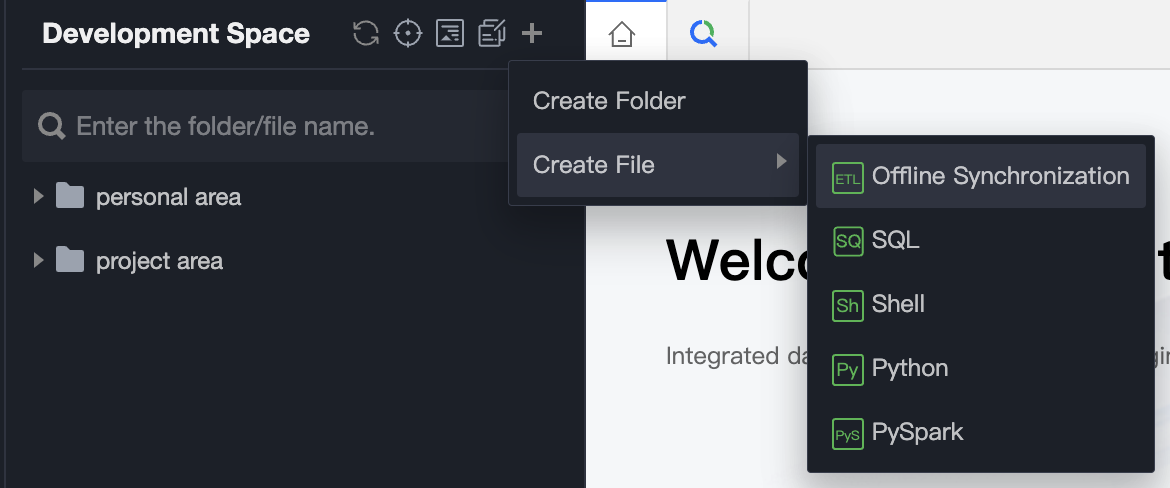
1. In the Temporary Query Page, right-click the folder name or click the top of the directory tree, and select the file type you want to create.
2. In the pop-up window, enter the script file name, select the target folder, and click Confirm.
Note:
File names can only include uppercase and lowercase letters, numbers, and underscores, and can be up to 100 characters long.
Step Three: Edit File and Run
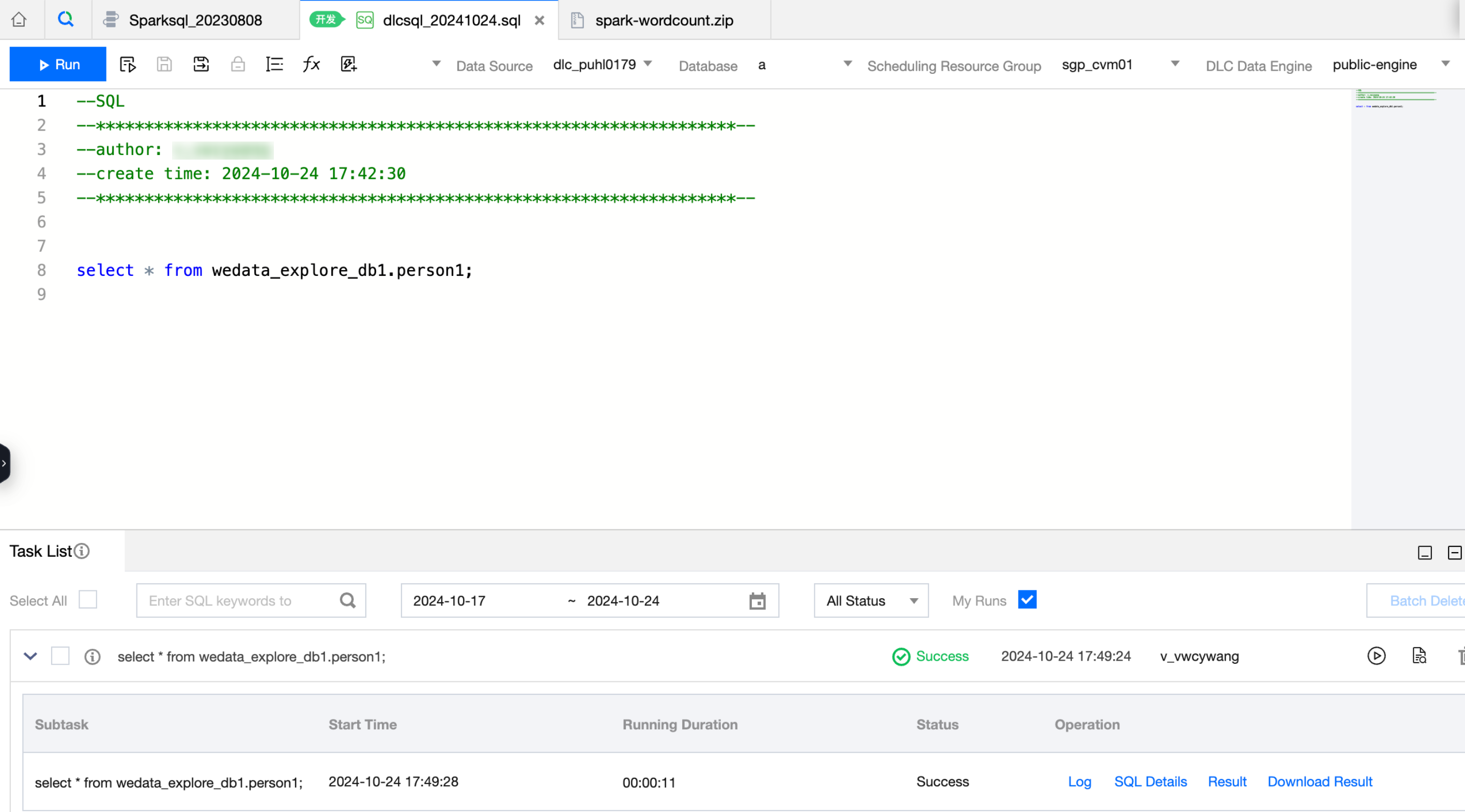
1. In the script's Tab page, enter the relevant code statements. For example, see below for SQL:
2. Click the Run button to execute the code and view the results.
Script File Type
The Development Space supports the following file types: Offline Synchronization, SQL, Shell, Python, PySpark. You can create, edit, download, delete, and more.
The suffix for offline synchronization files is ".dg", and they support creation and import. The configuration supports the entire offline synchronization process, including reading data sources, field conversion, writing data source configurations, running, advanced running, saving, formatting, and variable viewing.
SQL File
The suffix for SQL files is ".sql", and they support creation and import. They also support the editing and debugging of various SQL types, including Hive SQL, Spark SQL, JDBC SQL, DLC SQL, etc. You can select from dozens of data sources including Hive, Oracle, and MySQL, as well as run, advanced run, save, format, and view project variables.
For example: When the data source type is Spark, "Advanced Settings" are provided and support Spark SQL parameter configuration.
Currently, the supported types of data sources for SQL operations are as follows:
Task Type
Supported Data Source Types
Data Source Origin
SQL Task
Hive
System Source & Custom Definition Source
SparkSQL
System Source
Impala
System Source & Custom Definition Source
TCHouse-P
System Source
Graph Database
Self-Definition Source
TCHouse-X
Self-Definition Source
DLC
System Source & Custom Definition Source
Mysql
Self-Definition Source
PostgreSQL
Self-Definition Source
Oracle
Self-Definition Source
SQL Server
Self-Definition Source
Tbase
Self-Definition Source
IBM Db2
Self-Definition Source
Dameng Database DM
Self-Definition Source
Greenplum
Self-Definition Source
SAP HANA
Self-Definition Source
Clickhouse
Self-Definition Source
DorisDB
Self-Definition Source
TDSQL-C
Self-Definition Source
StarRocks
Self-Definition Source
Trino
System Source & Custom Definition Source
Kyuubi
System Source & Custom Definition Source
Shell File
The suffix of Shell files is ".sh". Supports creating and importing. Used for online development of Linux Shell files. Supports Shell file execution, advanced execution, viewing and referencing project variables, editing, and saving.
Supports direct execution of HDFS related commands through Shell script interface. You need to manually add the following environment variable in the Shell script:
emr-xxx needs to be replaced with the user's own EMR engine ID.
Reference resources
Supports referencing local resources in Shell scripts to execute commands, such as kjb and ktr files. For details, refer to Resource Management.
Python File
The suffix of Python files is ".py". Supports creating and importing. Used for online development of Python files. Supports Python file execution, advanced execution, viewing and referencing project variables, editing and saving. Versions support Python2 and Python3.
Reference resources
Supports referencing local resources in Python scripts to execute commands, such as kjb and ktr files. For details, refer to Resource Management.
PySpark File
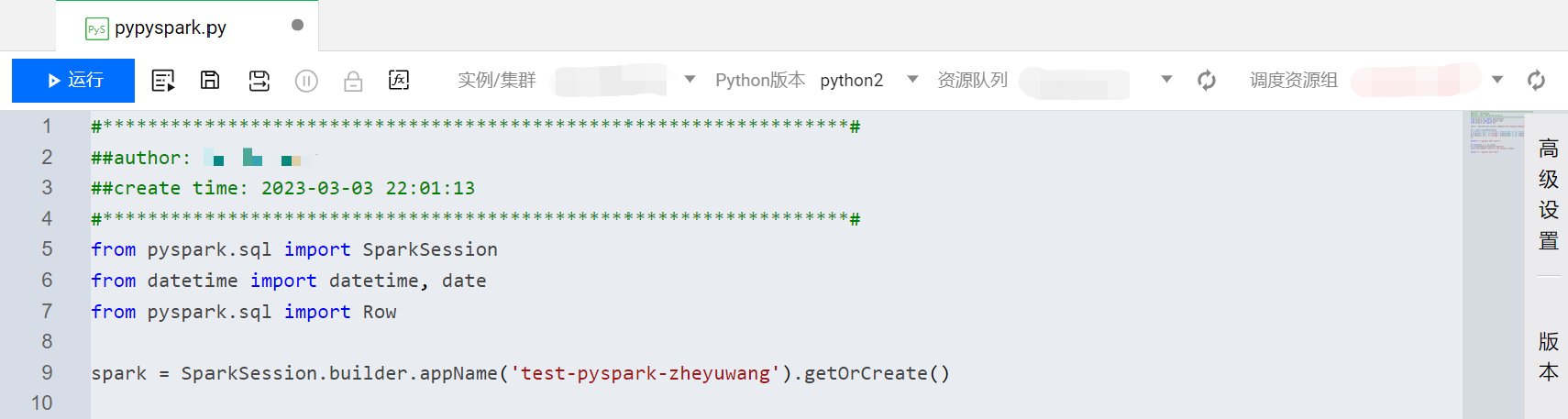
The suffix of PySpark files is ".py". Supports creating and importing. Used for online development of Python files. Supports writing Spark applications through Python. Supports execution, advanced execution, viewing and referencing project variables, editing and saving. Versions support Python2 and Python3.
Reference resources
Supports referencing local resources in PySpark scripts to execute commands, such as kjb and ktr files. For details, refer to Resource Management.