tencent cloud

Tencent HealthCare Omics Platform

Product Introduction
Overview
Strengths
Use Cases
Use Limits
Purchase Guide
Billing Overview
Product Pricing
Payment Overdue
Getting Started
Run an Analysis Workflow
Example: Rapid Application Execution in 5 Minutes
Operation Guide
Console
Work Items
File Management
Image Management
Development and Debugging
Permission Management
Resource Monitoring
Practical Tutorial
Visual Running Groups Submission and Management
Rerunning and Continuing Running
API
History
Introduction
API Category
Making API Requests
Environment Management APIs
Tencent Healthcare Omics Platform APIs
Data Types
Error Codes
FAQs
Service Agreement
Related Protocol
PRIVACY POLICY MODULE HEALTHCARE OMICS PLATFORM
DATA PROCESSING AND SECURITY AGREEMENT MODULE HEALTHCARE OMICS PLATFORM
Contact Us
ドキュメントTencent HealthCare Omics PlatformGetting StartedExample: Rapid Application Execution in 5 Minutes

Example: Rapid Application Execution in 5 Minutes

PDF
フォーカスモード
フォントサイズ
最終更新日: 2024-10-22 15:26:45

Step 1: Create a project

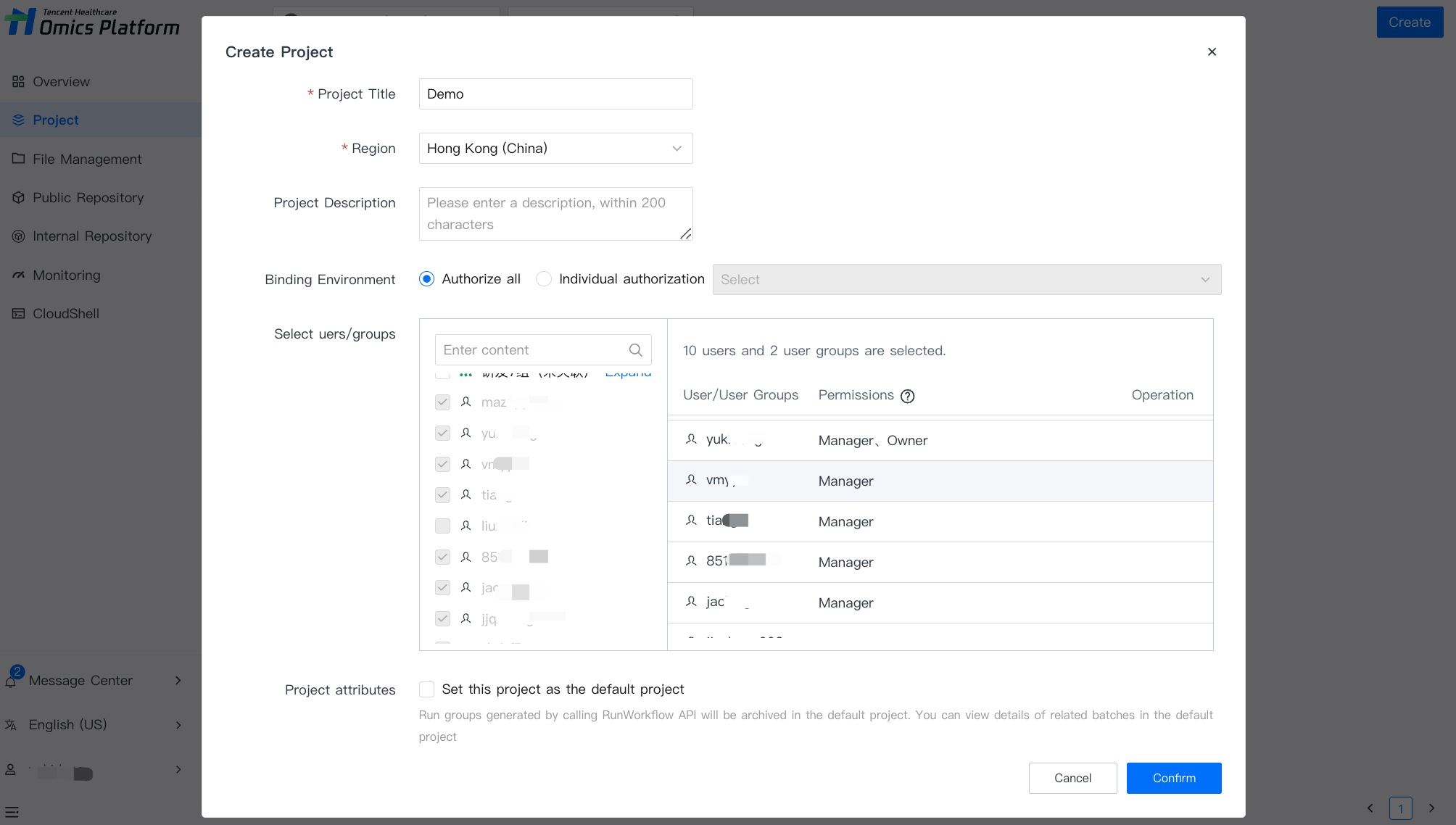
On the Project page, select Create, and enter the necessary information (the headline, region, and associated bucket) to create a new project.


Step 1: Create an application

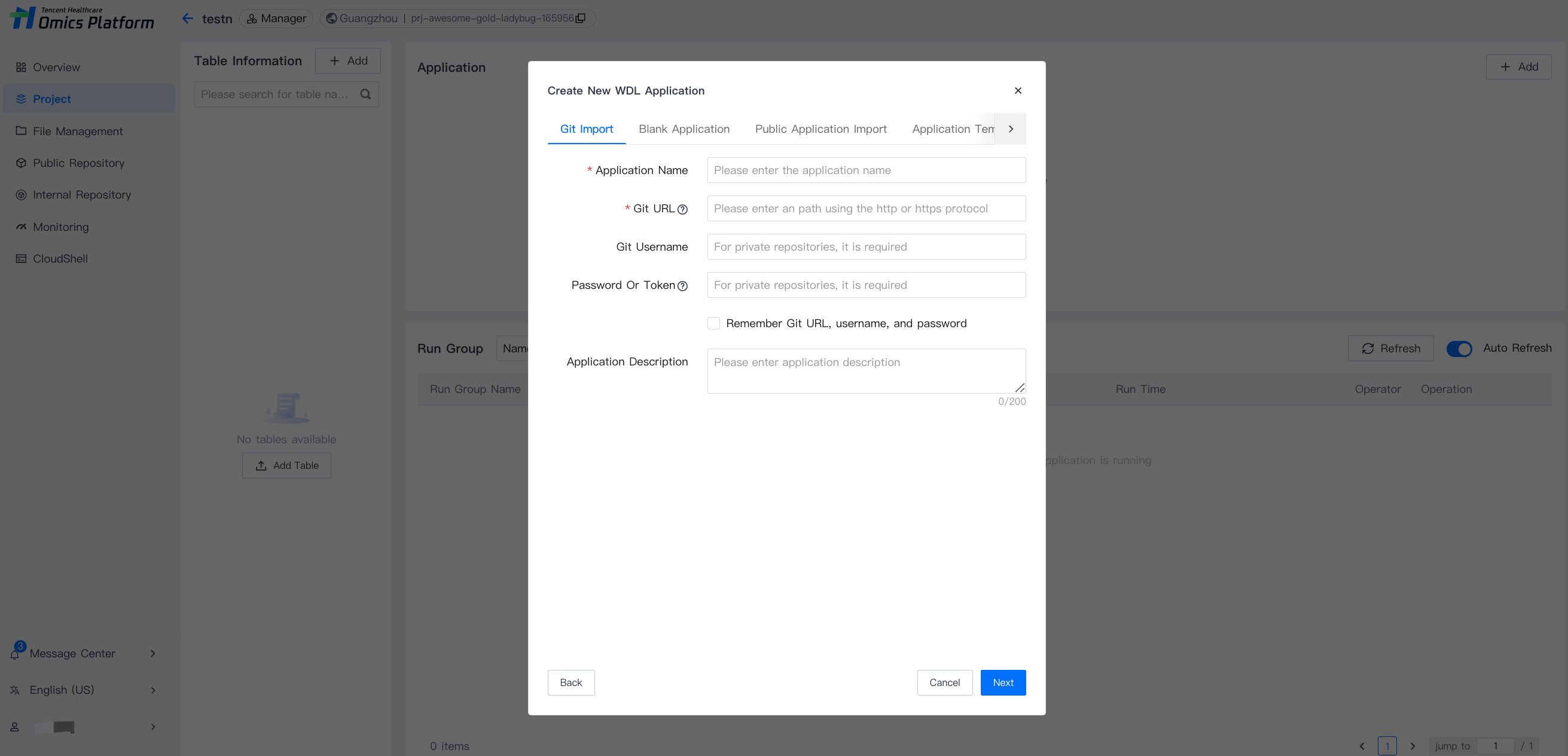
On the selected project page, select Add at the top right corner of the application column, enter the necessary information (application name, type, etc.), and submit to create a new application.


Step 3: Upload table delivery task

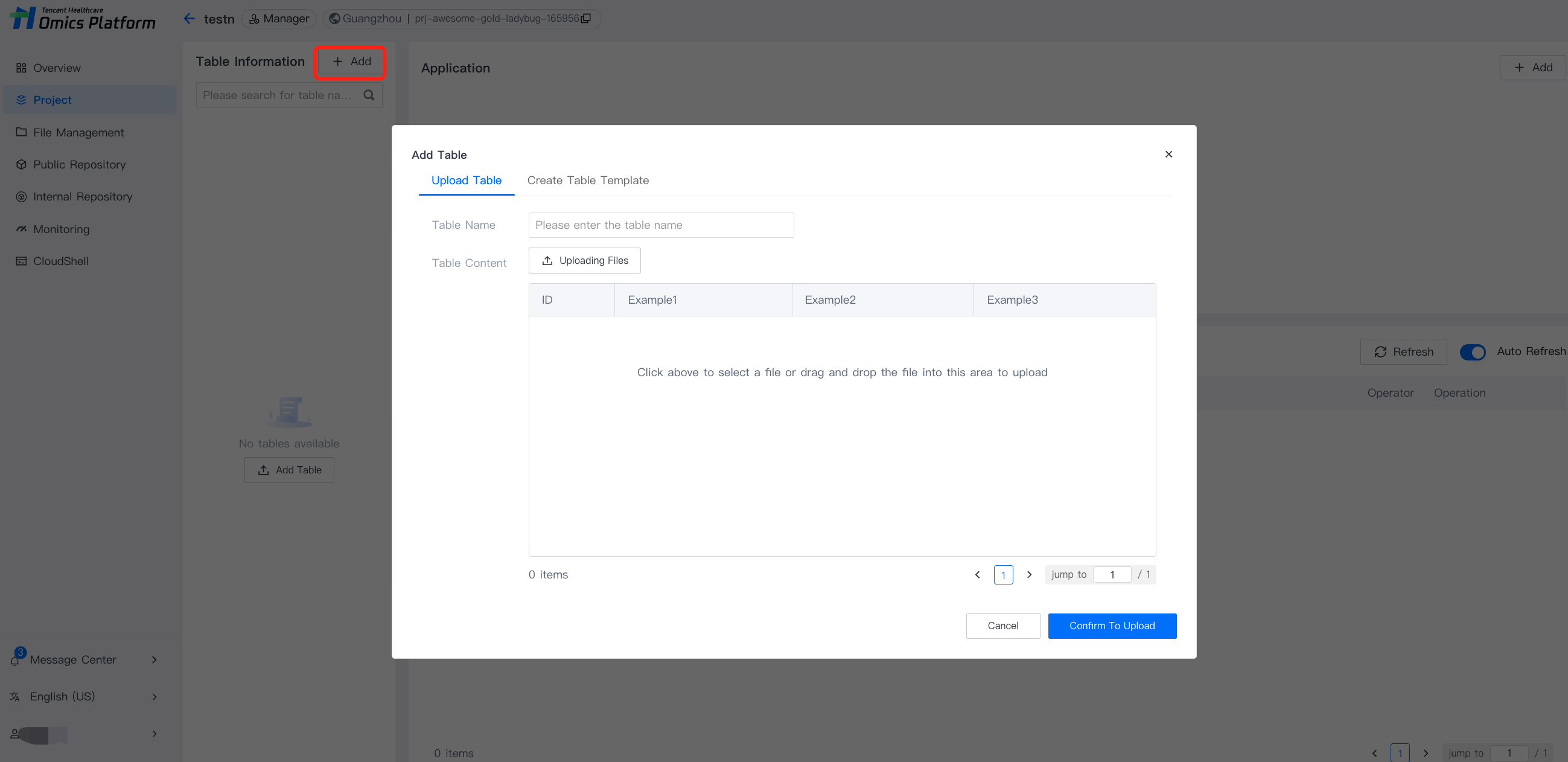
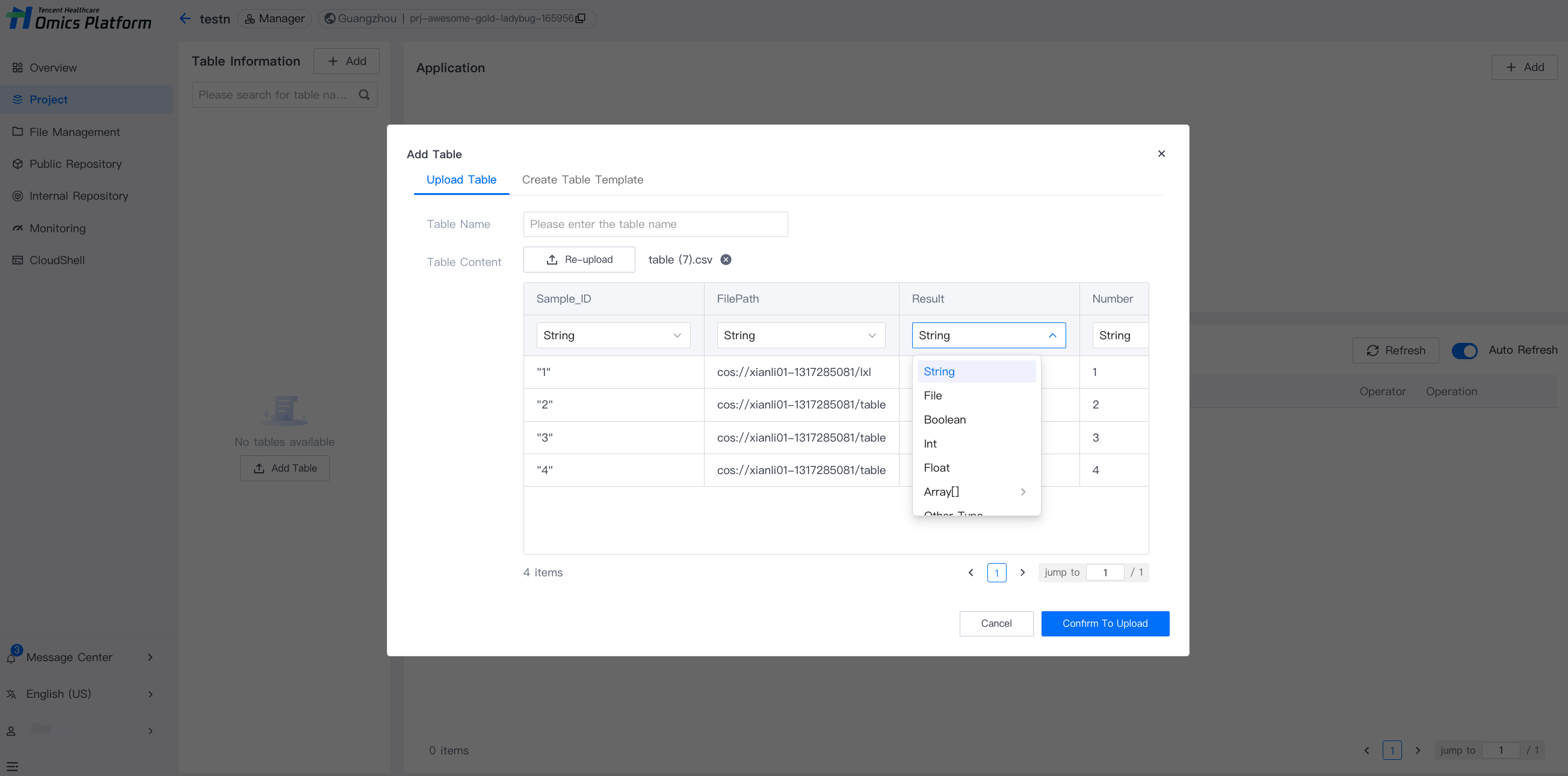
1. Add a new table. For details, see documentation: Add a New Table.


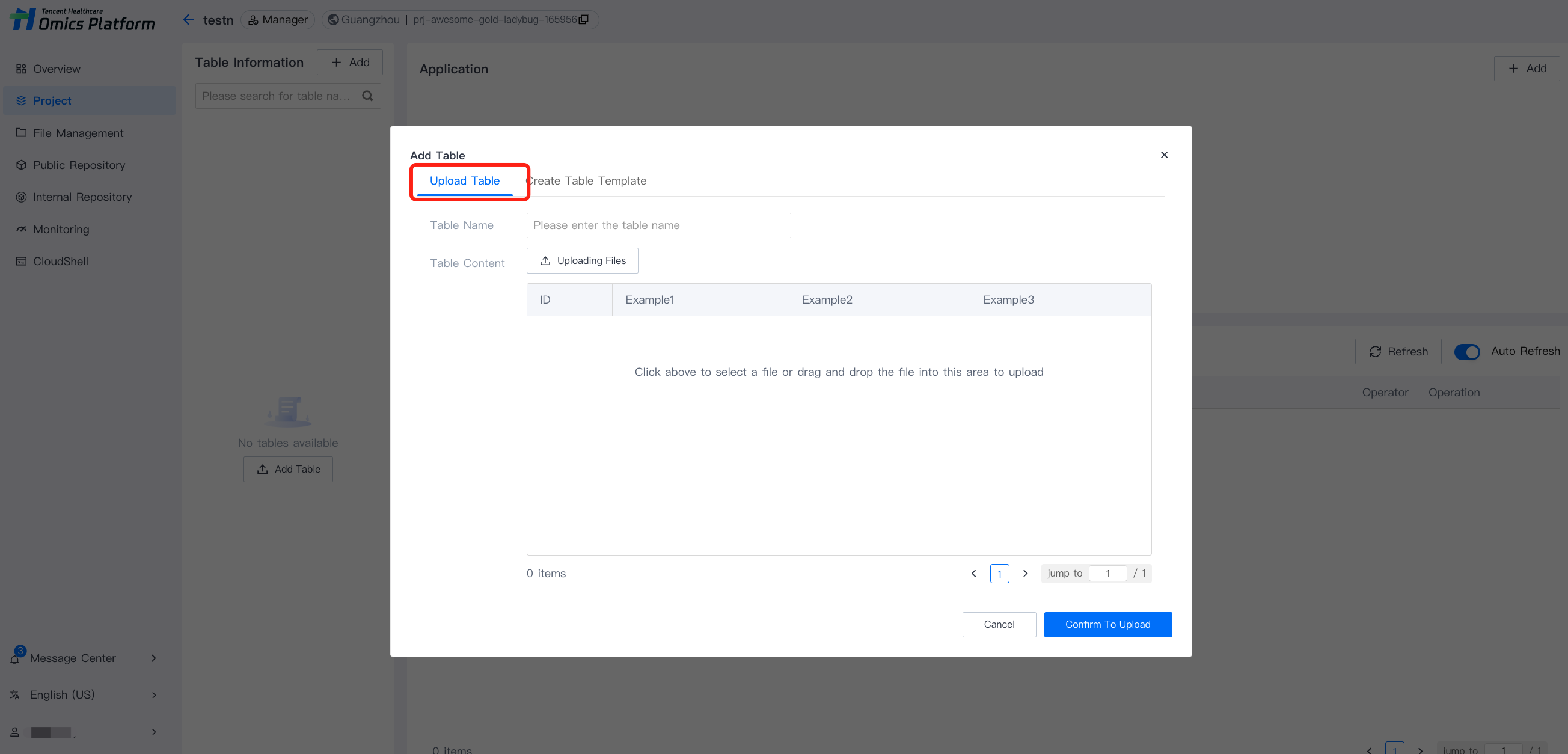
2. Upload a table. For details, see documentation: Add a New Table.


3. Select parameter type. For details, see documentation: Add a New Table.


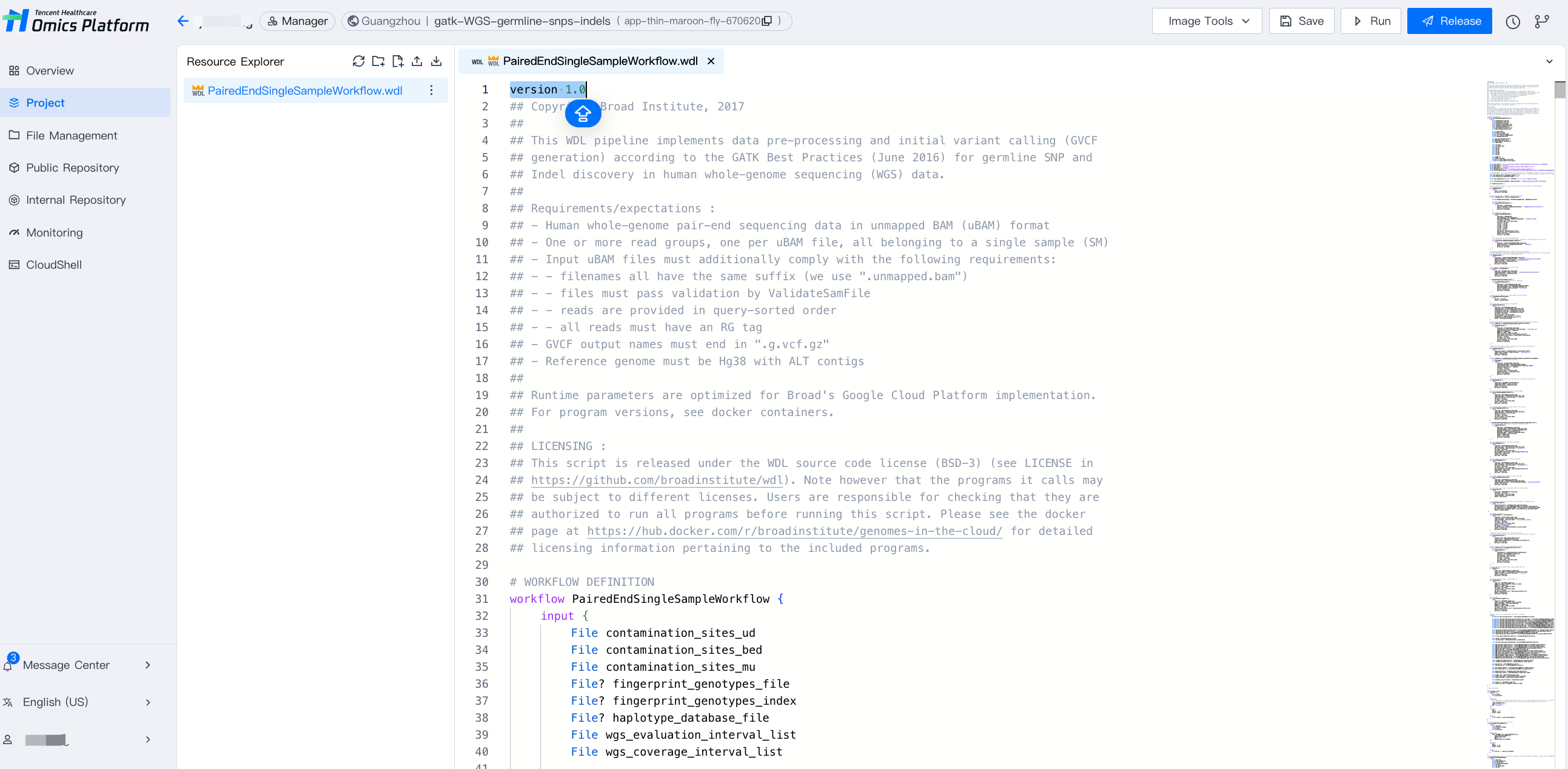
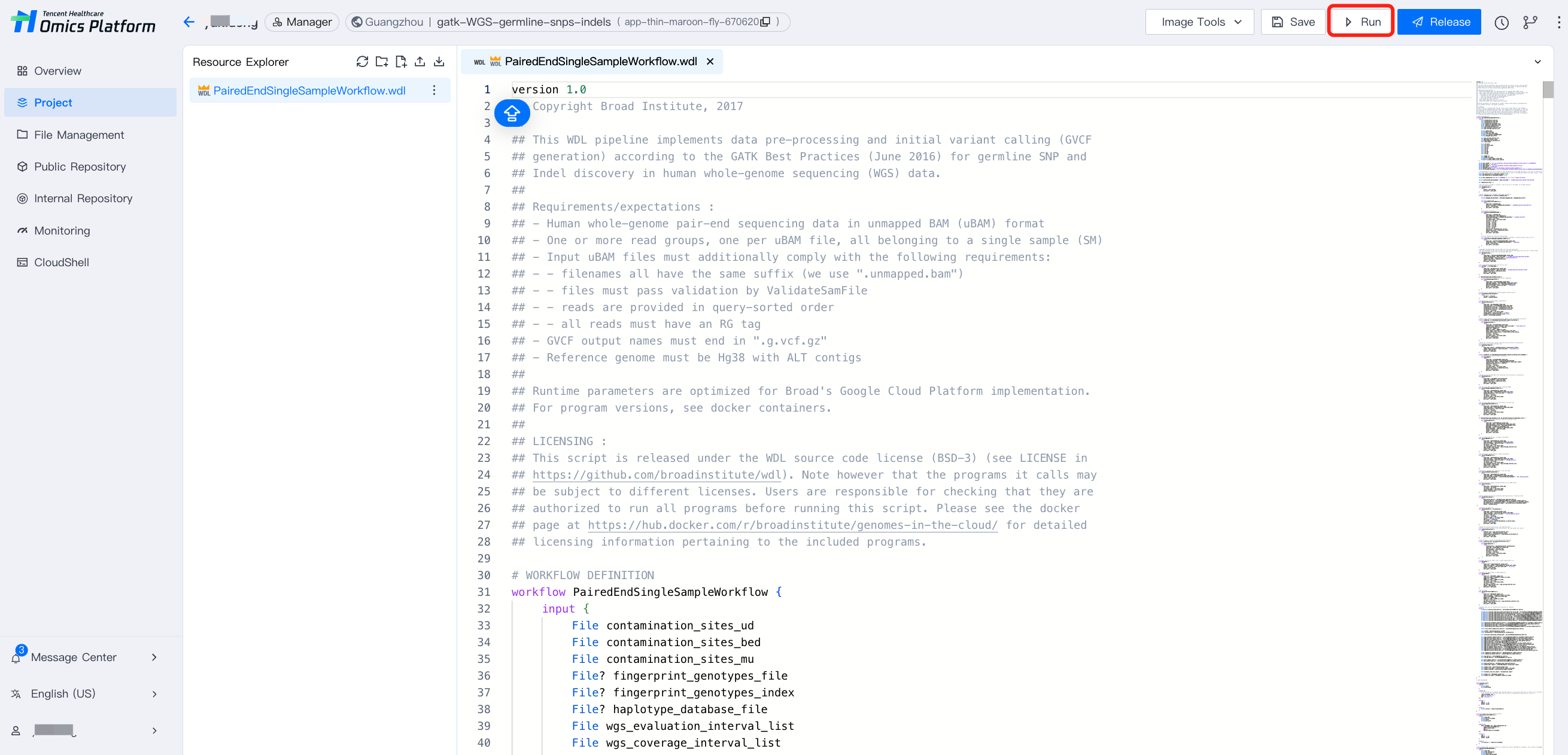
Step 4: Edit the application using WDL language

Select the parameter type. For details, see documentation: Edit Application.


Step 5: Submit and run

Click Run application to run.


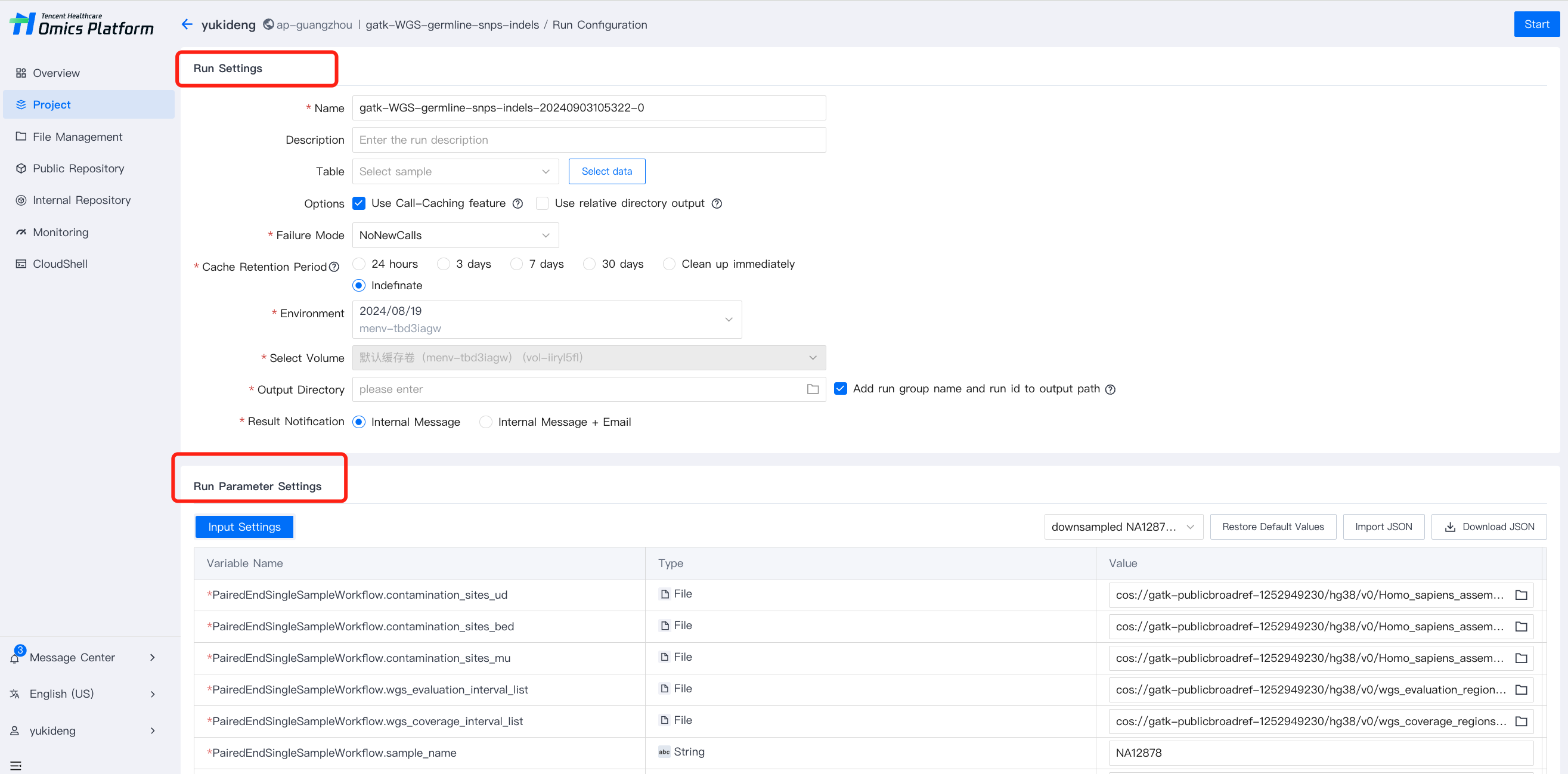
Step 6: Set running and parameters for running

1. Select the parameter type. For details, see documentation: Set running.
2. Complete the running settings and running parameter configuration, then click start at the top right corner.


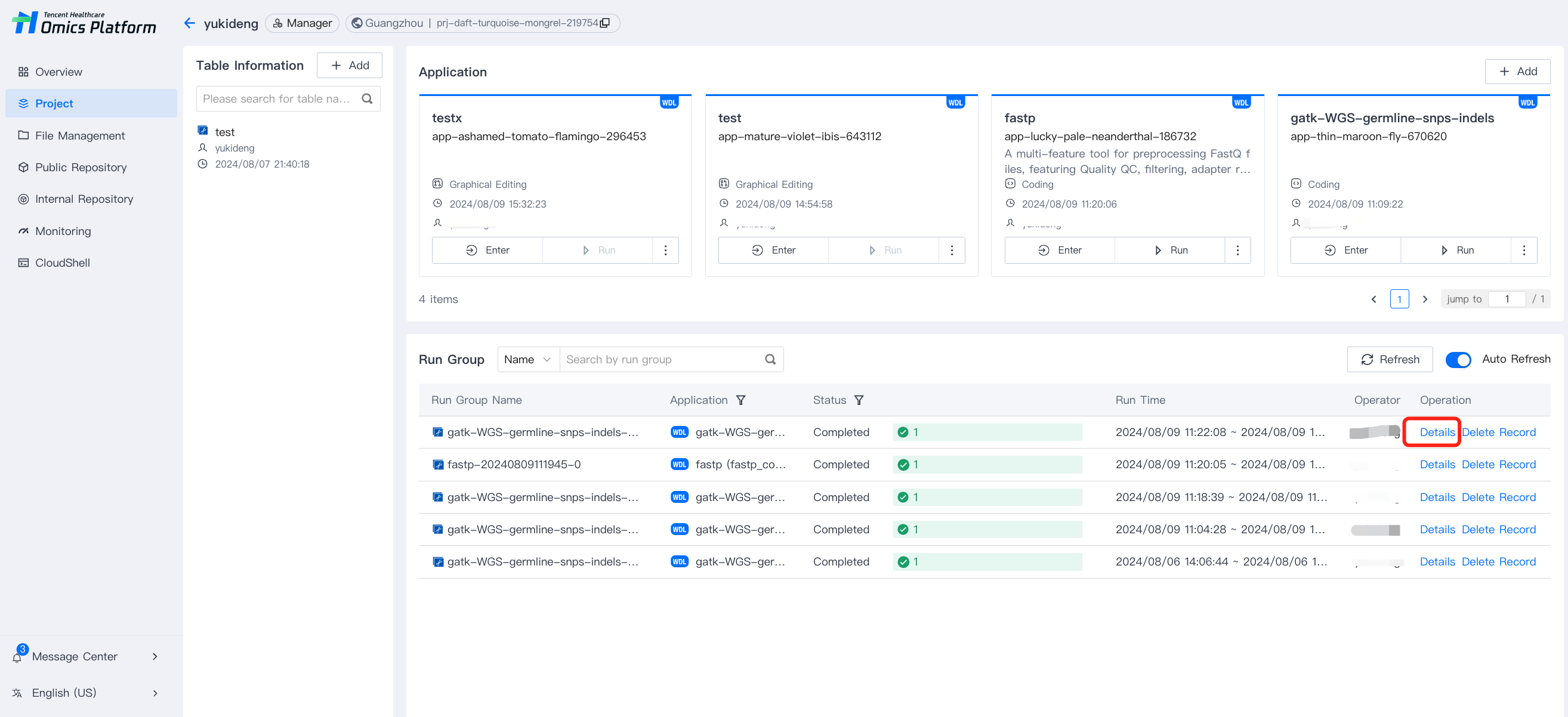
Step 7: Obtain Results

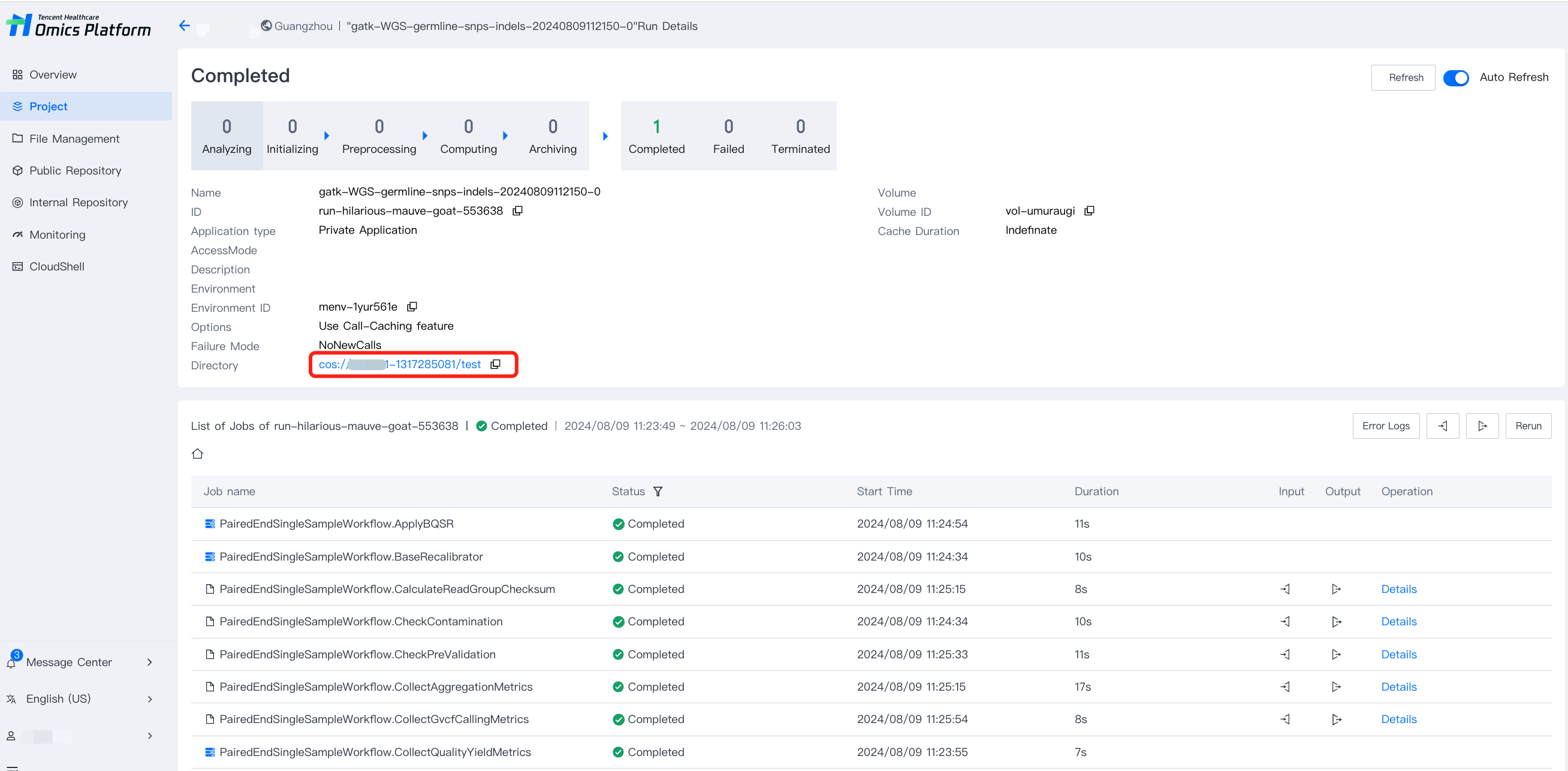
After the running of the task, it outputs the results to COS where users can download them directly. Click Details of the run group in project list page to obtain run group details.


In run group details page, Click Directory to go to COS path where output files were archived.


ヘルプとサポート

この記事はお役に立ちましたか?

フィードバック