Viewing Gateway Details
This document describes how to view the basic information and access address of a gateway instance after it is created.
Operation Steps
1. Log in to the Microservices Platform Console, and click Cloud Native Intelligent Gateway > Instance List in the left sidebar.
2. On the instance list page, click the "ID" of the newly created instance to go to the gateway instance basic information page and view the basic information of the instance.
Instance Information: You can perform the following operations in the Basic Information section:
Click Edit in the upper right corner of the Basic Information module to modify the instance name and description.
Click the edit icon next to Public Network Billing Mode to modify the public network billing mode.
Click the edit icon next to Tag to modify the bound tag information of the gateway instance.
Node Configuration:
Node Specification: the specification of each node in the gateway instance.
Node Quantity: the number of nodes in the gateway instance.
Network Configuration:
Access Port: the access port of the AI gateway.
Management port on the private network: the management port of the AI gateway. This port does not require authentication and can only be accessed through Private Link on the private network.
Private Link on the private network: the private network address of the AI gateway. Clients can access the gateway nodes of the AI gateway via the private network node address.
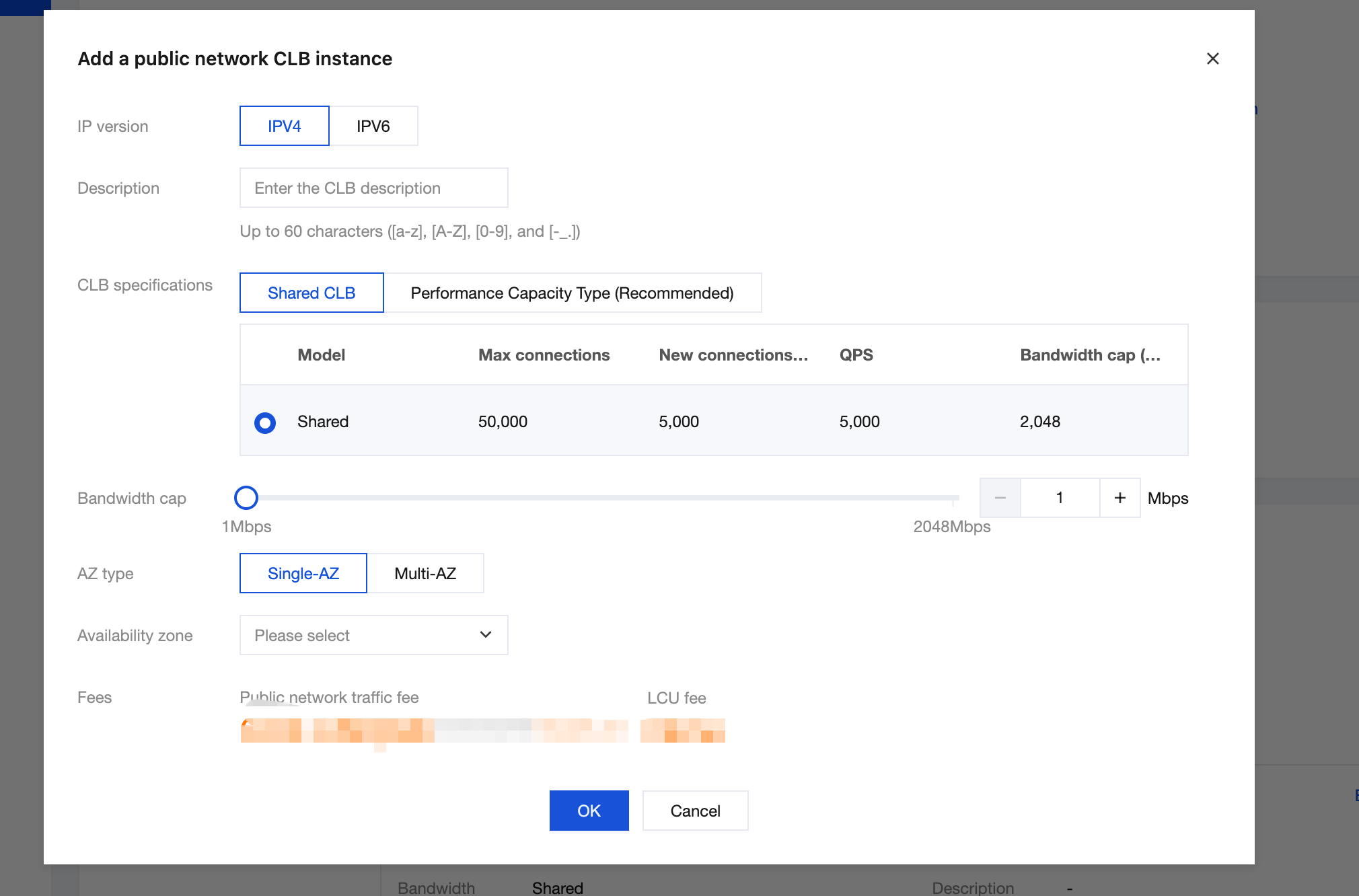
Public Load Balancer(CLB): public load balancer instance configured for the gateway instance. You can modify the public network bandwidth and configure access policies. You are advised to set access security policies for public network access.
Note:
You can select the CLB specification for Private Link and Public Load Balancer. Click Add, set the CLB specifications, and click OK.
3. On the instance details page, click the Deployment Architecture tab to display the status of gateway nodes and AZ information.
Click to switch views to the deployment architecture diagram, which displays the access layer (CLB) and the deployment status of gateway nodes.
フィードバック