Certificate Management
Scenarios
This document describes how to manage SSL Certificates required by your gateway, including operations such as creating, deleting, and editing certificates.
Prerequisite
You have completed Domains, real-name authentication, filing, and other processes. If you have not completed these, you can use Tencent Cloud's domain services. For details, see View Guide.
You already have SSL Certificates. If you do not have a certificate, you can use the certificate service provided by Tencent Cloud. For details, see View Guide.
Creating a Certificate
Step 1: Configuring DNS Resolution
1. Log in to the Microservices Platform Console, click Cloud Native Intelligent Gateway > Instance List in the left sidebar.
2. On the instance list page, click the "ID" of the newly created instance to go to the gateway instance details page.
3. View Network Configuration > public load balancer instances to obtain the access IP address.
4. According to the Quick DNS Setup Guide, resolve your domain name to the IP address in the gateway's public network proxy.
Step 2: Creating a Certificate
1. In the left sidebar, select Certificate Management and click Create.
2. Enter the certificate name, select a certificate, and enter your domain name. Only SVR certificates are supported.
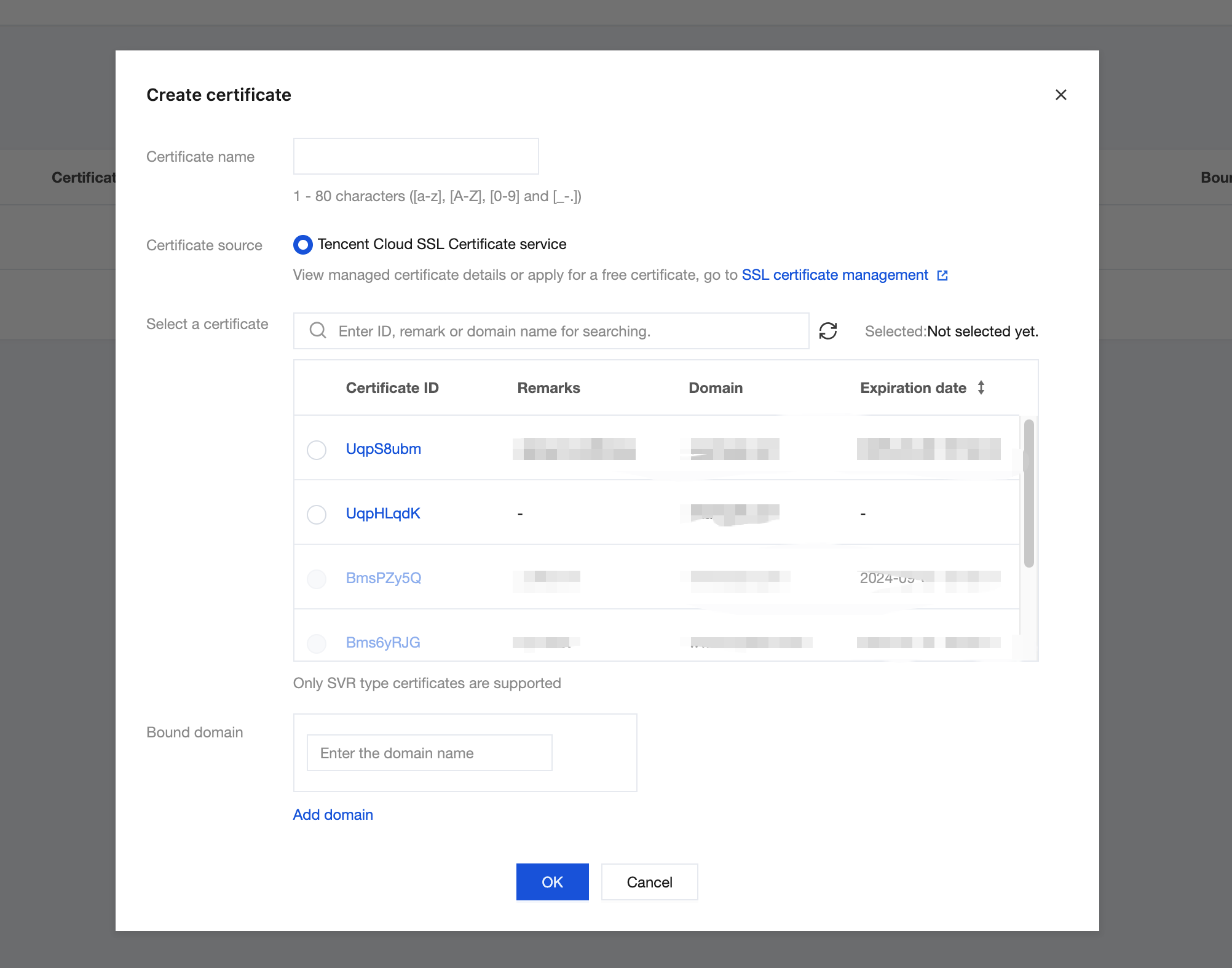
3. Click Confirm to complete certificate creation. Return to the certificate list to view the created certificate.
Step 3: Verifying Whether the Certificate Takes Effect
Access
https://domain name to verify whether the certificate takes effect.Updating the Certificate
Before the certificate expires, you can renew it.
1. On the certificate list page, select the certificate you want to update, and click Update Certificate in the operation bar.
2. In the displayed dialog box, select the updated certificate, verify the updated certificate information, click Confirm to complete the update.
Edit Certificate
You can modify the certificate name and bound domain names.
1. On the certificate list page, select the certificate you want to update, and click Edit in the operation bar.
2. In the displayed dialog box, enter the certificate name, bind a domain name, and click Confirm to complete the modification.
Deleting a Certificate
Note:
After a certificate is deleted, the domain names bound to the certificate cannot use HTTPS to access the gateway.
1. On the certificate list page, select the certificate you want to delete, and click Delete in the operation bar.
2. In the displayed dialog box, click Confirm to complete the deletion.
フィードバック