Overview
TencentDB for SQL Server supports data migration by using COS files. The migration method described in this document is also applicable to migration from an SQL Server instance purchased at another cloud service provider or self-created instance to a TencentDB for SQL Server instance on different versions.
Note:
Before migration, please make sure that the SQL Server version of the target instance is higher than that of the source instance.
For the .bak files used for migration, please make sure that each .bak file contains only one database.
The name of the migrated database cannot be the same as that of the TencentDB for SQL Server instance.
The data migration function of the legacy version has been taken offline, and this document is for the reference of existing users only. To use the new data migration feature, see Data Migration Solution Overview. Full Backup Migration
Preparing backup file
There are two ways to prepare a full backup file:
Full backup after shutdown
You shut down your SQL Server instance purchased at another cloud service provider or self-created instance, back up the entire database, and then export the backup file (which must be in .bak format). The server should be shut down until the migration is completed.
If you choose full backup migration after shutdown, you do not need to perform incremental backup migration separately.
Full backup without shutdown
Note:
Stop your own data backup and log backup jobs until the migration (full and incremental) is completed.
The backup file name cannot be customized and must follow the naming convention in the script.
After full backup is performed, you need to perform incremental backup restoration until the data on the source instance is the same as that on the target instance.
If the filename contains 2full2, it is full backup.
In the incremental restoration scenario, after backup upload and data migration are completed, the database will be in "restoring" status before the last incremental backup and restoration is performed. At this time, the database cannot be accessed, which is normal. You need to perform the last incremental backup and restoration to make the database accessible.
You do not need to shut down your SQL Server instance purchased at another cloud service provider or self-created instance. Perform full backup of the database and export the backup file.
declare @dbname varchar(100)
declare @localtime varchar(20)
declare @str varchar(8000)
set @dbname='db'
set @localtime =replace(replace(replace(CONVERT(varchar, getdate(), 120 ),'-',''),' ',''),':','')
set @str='BACKUP DATABASE [' + @dbname + '] TO DISK = N''d:\\dbbak\\' + @dbname + '_' + @localtime + '_2full2_2noreconvery2.bak'' WITH INIT'
exec(@str)
go
Uploading backup file to COS
2. Select Bucket List on the left sidebar and click Create Bucket.
3. In the creation page that pops up, enter the relevant information and click OK.
The region of the bucket needs to be the same as that of the SQL Server instance to migrate to.
Cross-region migration with COS is not supported.
4. Return to the bucket list and click the bucket name or Configuration Management in the "Operation" column.
5. Select the File List page, click Upload Files, and select one or more files for upload.
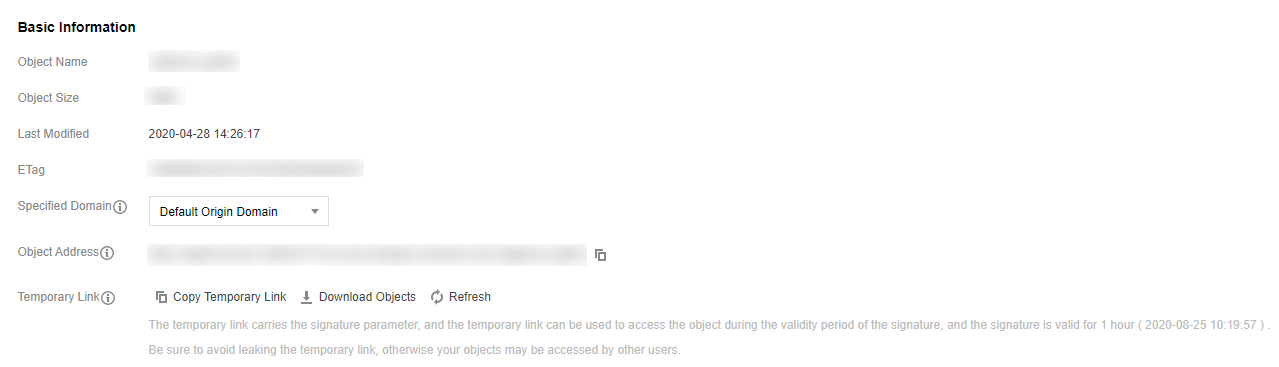
6. After the file is uploaded, click the bucket name and get the object address from the basic information in the basic configuration section.
Migrating data through source file in COS
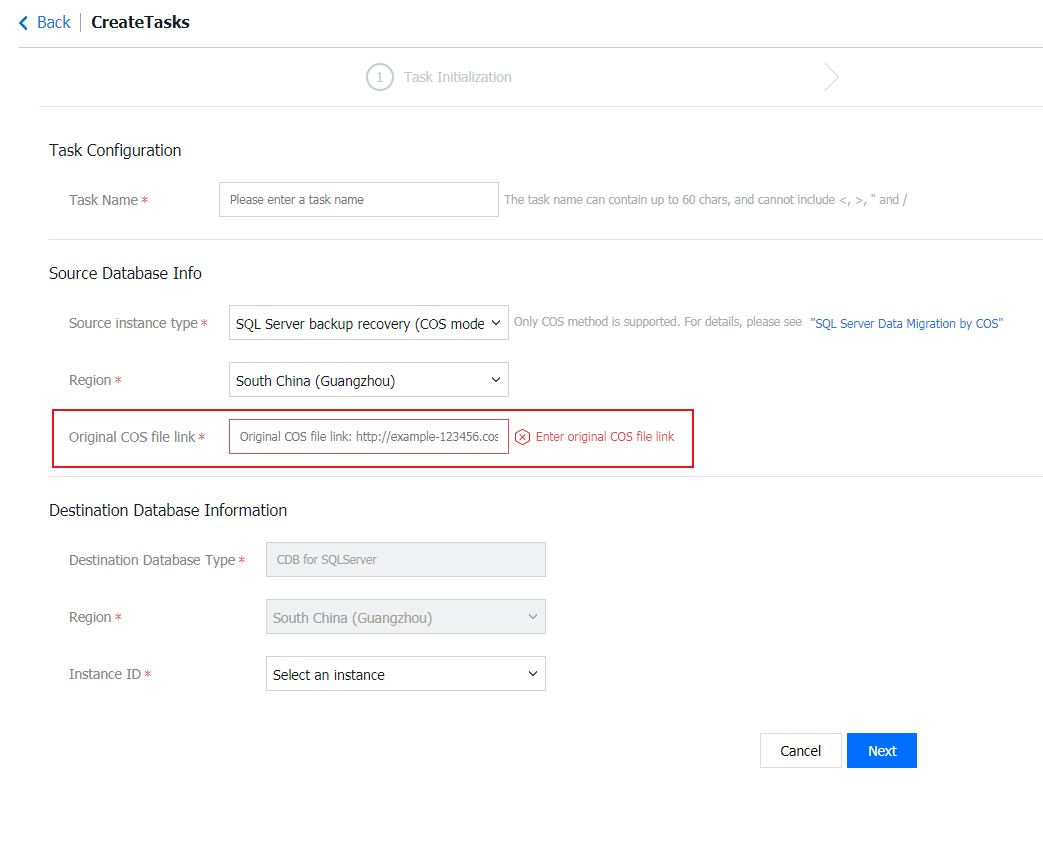
2. Select Data Migration (Legacy) on the left sidebar and click Create Task to create an offline migration task.
Task Name: custom.
Source Instance Type: select SQL Server backup recovery (COS mode).
Region: the region of the source database must be the same as that of the source file in COS.
Link to Source File in COS: you can view the file information to get the COS object address after uploading the source file.
Target Database Type and Region: they are automatically generated by the system based on the source database configuration.
Instance ID: select the target instance. You can only select an instance in the same region.
3. After completing the configuration, click Next.
4. Currently, type and database settings can be changed. Click Create Task.
5. Return to the task list. At this time, the task status is initializing. Select the task at the top of the list and click Start to sync the task.
6. After the data sync is completed (i.e., the progress bar shows 100%), you need to click Complete at the top of the list to end the sync process. You can check whether the migration is successful based on the status.
If the task status is task successful, the data migration is successful.
If the status is task failed, the data migration failed. Please check the failure information, fix it accordingly, and then migrate again.
Incremental Backup Migration
Preparing backup file
Note:
The backup file name cannot be customized and must follow the naming convention in the script.
If the filename contains 2log2, it is incremental backup.
(Optional) When there are multiple incremental backup files, all of them except the last one can be generated in the following way. They should be uploaded for data migration in sequence; otherwise, the migration will fail.
Note:
After "backup generation, backup upload, and data migration" are completed, the database will be in "restoring" status. At this time, it cannot be accessed, which is normal. You can repeat this operation until the last backup upload and migration, and then perform the next step (i.e., "last incremental backup after server shutdown").
declare @dbname varchar(100)
declare @localtime varchar(20)
declare @str varchar(8000)
set @dbname='db'
set @localtime =replace(replace(replace(CONVERT(varchar, getdate(), 120 ),'-',''),' ',''),':','')
set @str='BACKUP LOG [' + @dbname + '] TO DISK = N''d:\\dbbak\\' + @dbname + '_' + @localtime + '_2log2_2noreconvery2.bak'' WITH FORMAT, INIT'
exec(@str)
go
Shut down the server, perform incremental backup, export the backup file, upload it, and then migrate the data.
Note:
Only after this operation is performed can the database be accessed normally.
declare @dbname varchar(100)
declare @localtime varchar(20)
declare @str varchar(8000)
set @dbname='db'
set @localtime =replace(replace(replace(CONVERT(varchar, getdate(), 120 ),'-',''),' ',''),':','')
set @str='BACKUP LOG [' + @dbname + '] TO DISK = N''d:\\dbbak\\' + @dbname + '_' + @localtime + '_2log2_2reconvery2.bak'' WITH FORMAT, INIT'
exec(@str)
go
Uploading backup file and migrating data
2. After the final incremental backup file (i.e., the .bak file containing _2log2_2reconvery2) is imported, the status of the target instance will change from read-only to usable, and you can switch your business to the TencentDB for SQL Server instance.
Related APIs
|
| This API is used to create a migration task. |
| This API is used to modify an existing migration task. |
| This API is used to start a pre-migration verification task, applicable to the migration method where the migration source type is TencentDB for SQL Server. |
| This API is used to start running a migration task. |
| This API is used to terminate a migration task. |
| This API is used to complete a migration task. |
| This API is used to delete a migration task. |
| This API is used to query migration task details. |
| This API is used to query the list of eligible migration tasks based on the entered criteria. |
| This API is used to query the list of databases to be migrated. |
| This API is used to query the progress of the migration verification task, inquiry of migration check task progress, applicable to the migration method where the migration source type is TencentDB for SQL Server. |