The alarm notification channel has not been configured or verified
See Step 2 to troubleshoot and enable or verify the alarm notification channel
No user has been added to the receiving group
See Step 3 to troubleshoot and add users to the receiving group
The alarm trigger conditions have not been met
See Step 4 to troubleshoot and check whether the alarm trigger conditions have been met
Troubleshooting
Step 1: Check whether the alarm policy is enabled
1. Access the Alarm Policy page in the Tencent Cloud Observability Platform console.
2. Check whether the alarm policy is enabled.
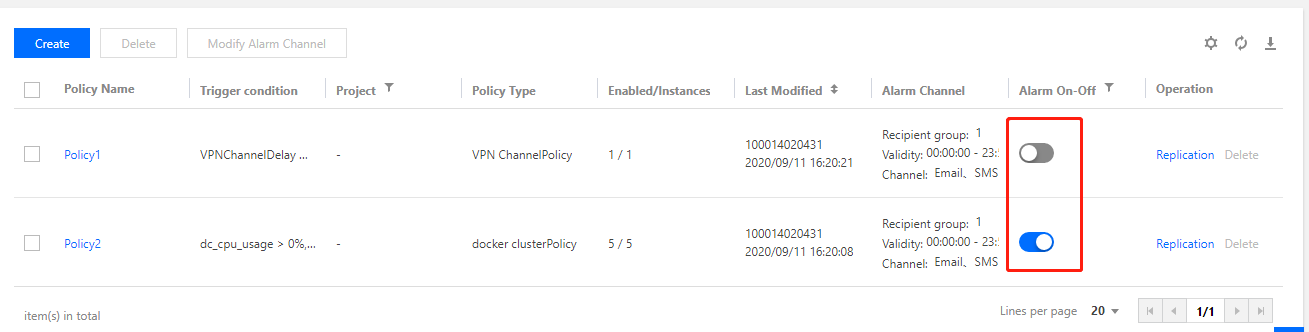
The alarm enable/disable button for policy 1 is gray in the figure below, indicating that the alarm policy has not been enabled yet. Click the gray button and then click OK to enable the policy.
The alarm enable/disable button for policy 2 is blue in the figure below, indicating that the alarm policy is enabled. Proceed to the steps below to continue troubleshooting.
Step 2: Check whether the alarm channel has been configured/verified
2. Click the corresponding user name in the user list to go to the user details page.
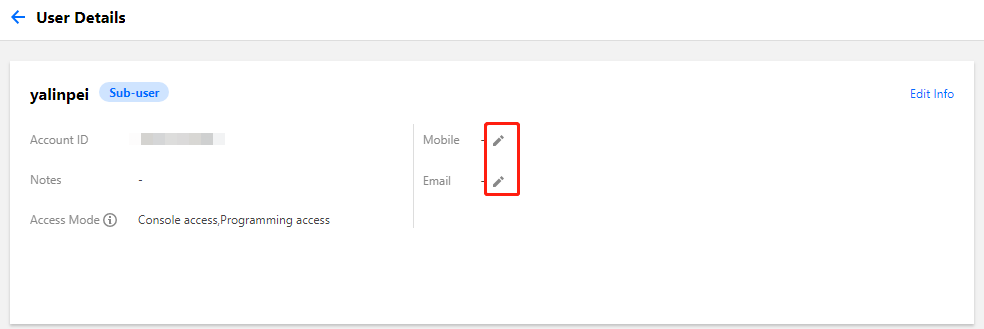
The alarm channel has not been configured: if the case shown in the figure below occurs, the alarm channel has not been configured. In this case, click
to configure a channel. After completing the configuration, verify the channel by referring to The alarm channel has not been verified below.
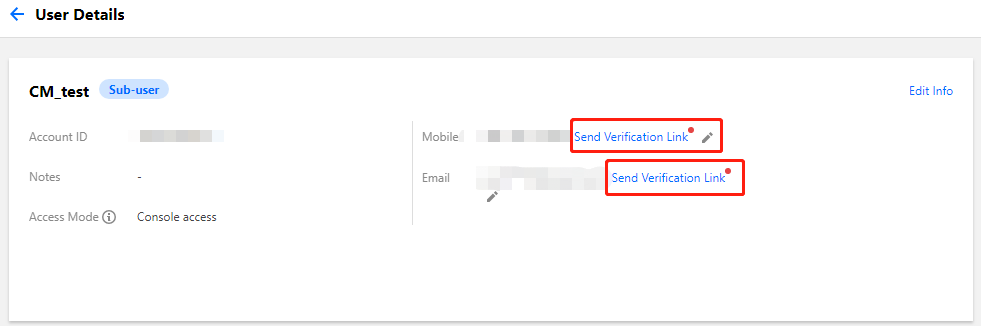
The alarm channel has not been verified: if the case shown in the figure below occurs, the alarm channel has not been verified. In this case, click the verification button.
After the verification message or email is sent, go to the corresponding channel to complete the verification.
SMS verification: check the SMS inbox on your mobile phone and click the link in the received message to complete the verification.
Email verification: log in to your inbox and click the link in the received email to complete the verification.
Step 3: Check whether you have added users to the alarm receiving group
1. Go to the Alarm Policy page in the Tencent Cloud Observability Platform console.
2. Find the target alarm policy and click its name to go to the alarm policy management page.
3. Check whether the alarm recipients contain the user who has not received alarm notifications. If the alarm receiving group is "not configured" or does not contain the user, see Creating Alarm Recipient Groups to add the user to the alarm receiving group.
Step 4: Check whether the alarm trigger conditions have been met
Checking whether the metric alarm trigger conditions have been met
For example, if the metric is CPU utilization, the comparison operator is >, the threshold is 80%, the measurement period is 5 minutes, and the duration is 2 periods, it means that the CPU utilization information is collected every 5 minutes. If the CPU utilization of a CVM is measured as above 80% for 3 consecutive periods, an alarm will be triggered. Likewise, if the duration is set to N, an alarm will be generated if the metric monitoring data reaches the threshold for the N+1 periods.
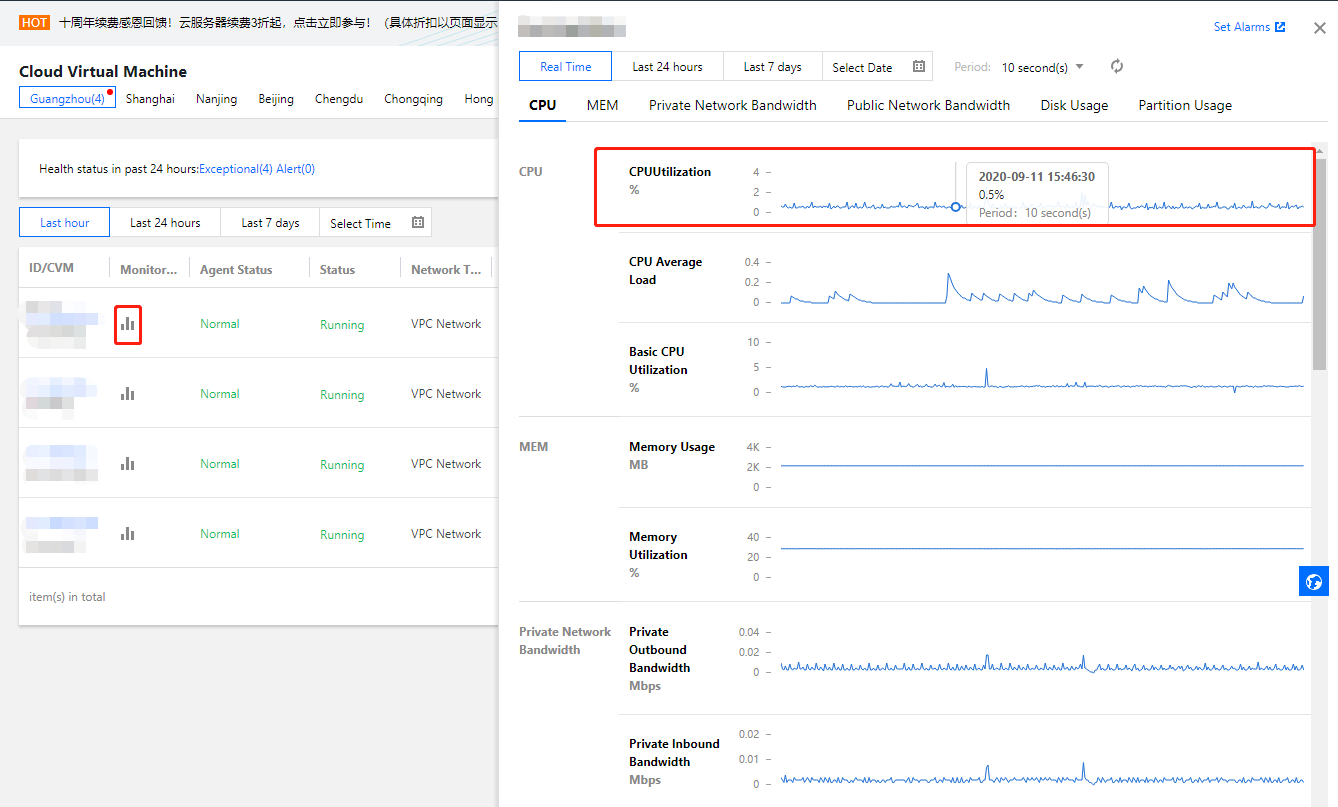
to view the metric monitoring data, and use the time filter to check whether the metric monitoring data has met the alarm trigger conditions. If no, no alarm notification will be sent.
View the CPU utilization of the CVM, as shown in the figure below:
Checking whether the event alarm trigger conditions have been met
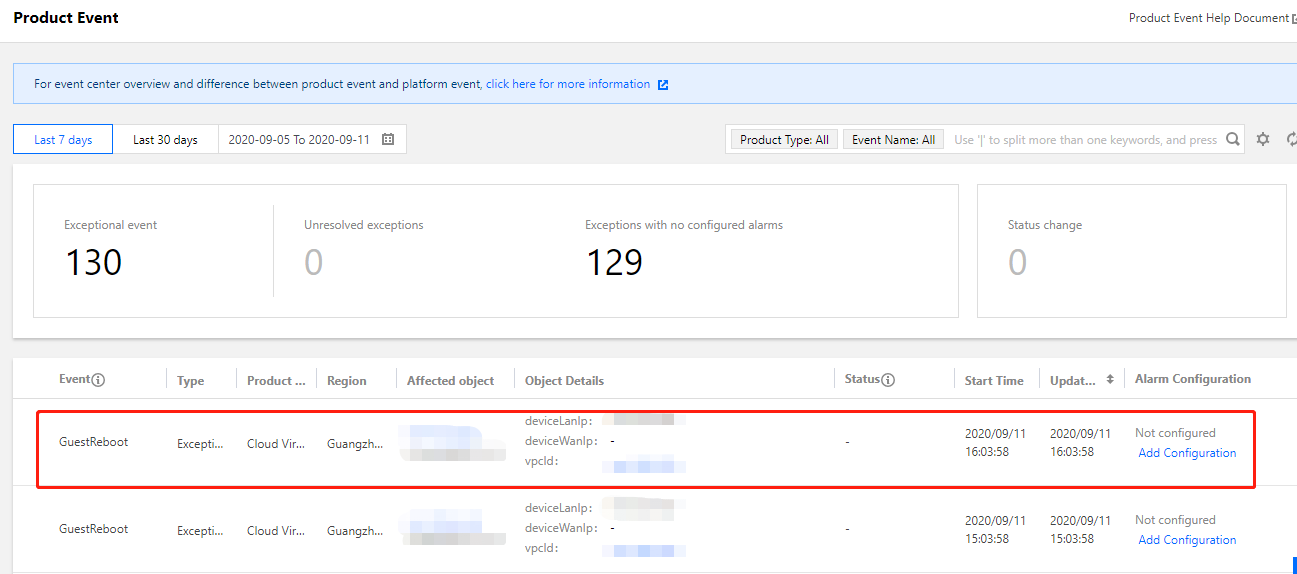
1. Go to the Product Events page in the Tencent Cloud Observability Platform console.
2. Check for event alarm records. If no records are found, the event alarm trigger conditions are not met, and therefore no alarm notifications are sent.