Data consistency check compares table data between the source and target databases through Data Transfer Service (DTS) during data migration. It provides comparison results and inconsistency details to help users quickly verify synchronization results before cutover. The data consistency check task runs independently and does not affect the normal business of the source database or the DTS tasks.
Note:
The consistency check is only for auxiliary data verification. Users are required to perform experiment operations by themselves to ensure that the results meet the migration requirements before the formal migration.
Must-Knows and Constraints
1. The data consistency check task may increase the load on the source database instance. Therefore, it is recommended to perform these operations during off-peak hours.
2. Must-knows for the built-in check.
2.1 The scope of the built-in check only compares the selected database and table objects in the source database with those migrated to the target database. If users write data to the target database during the migration, such data is excluded from the check scope.
2.2 If the user chooses to complete or terminate the DTS task before the data consistency check task is finished, the data consistency check task will fail.
3. Only a subset of conflicting keys is displayed on the console. The details shown may differ from those on the frontend, but the total number of conflicts is always accurate. Only partial details are displayed.
4. Consistency check supports five basic data types: string, hash, set, zset, and stream.
5. Redis 7.2 and Valkey 8.0 editions have optimized floating-point conversion performance. If the source end is Redis 7.2 or Valkey 8.0 and the target end is an earlier version (such as, Redis 7.0), floating-point precision discrepancies may occur in zset data types, where the earlier version displays an additional digit of precision. However, the actual stored data remains unchanged; the difference arises only during data retrieval due to conversion precision limitations, resulting in rounding behavior.
How It Works
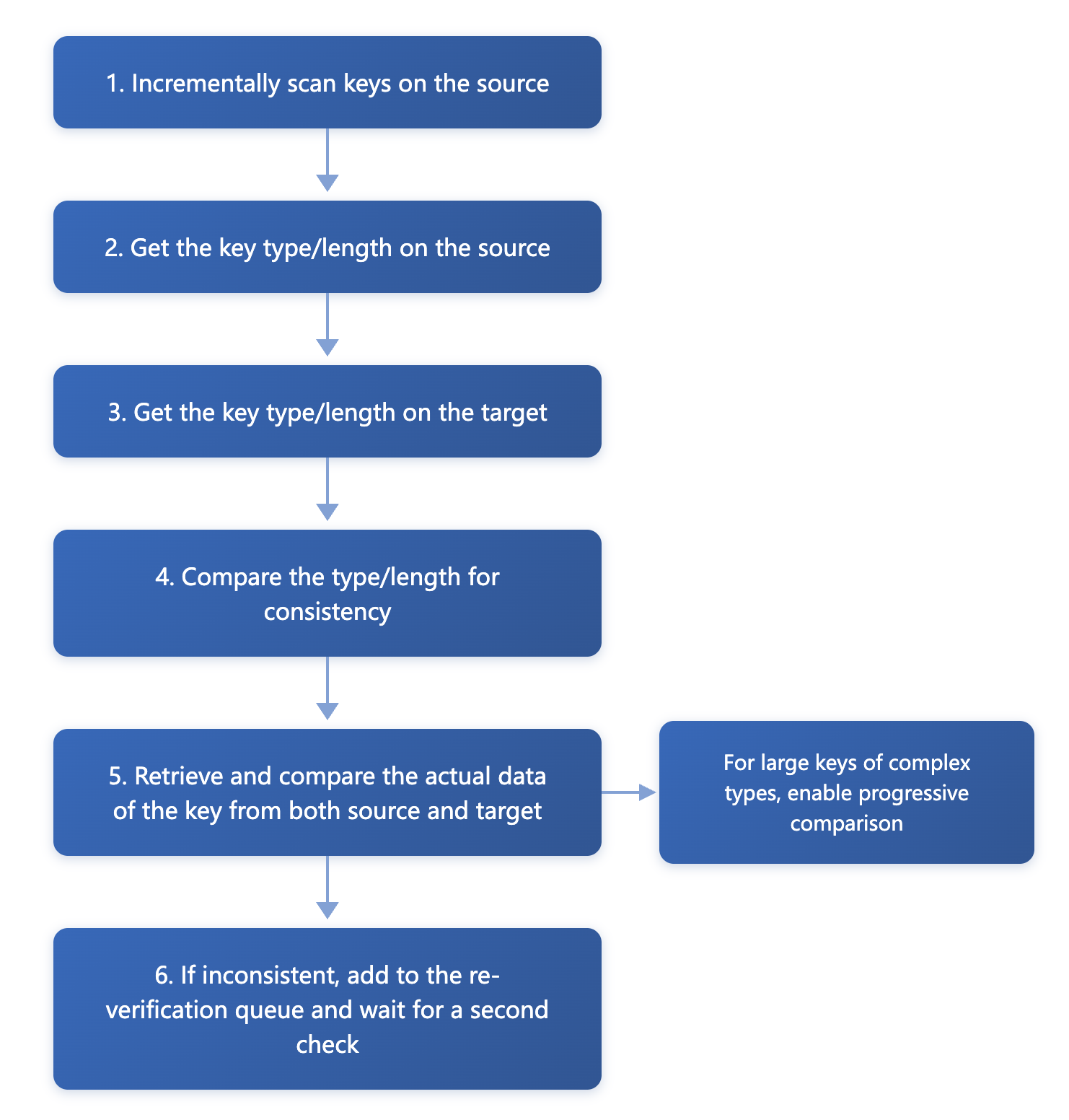
DTS performs consistency checks on databases by conducting a full comparison of data between the source and target Redis instances through multi-round comparisons.
The implementation principles are as follows:
Creating a Data Consistency Check Task
Automatic Creation
You can enable the data consistency check task when creating a DTS migration task. The data consistency check task is automatically triggered once the subsequent task proceeds to the incremental synchronization step.
Note:
The consistency check task configured in this example is a full check, which means it verifies the complete data of the selected objects.
On the Setting Up Consistency Check page, select Enable Data Consistency Check, configure the parameters, and then click Next.
Check items
Configuration Item
Description
Check Content
Full check: Perform a record-by-record comparison of all object data selected for migration from the source database to ensure the integrity of migrated data.
Verification Benchmark
Source: Use data from the source as the check benchmark.
Verification Mode
Compare Key + Value: Checks whether all data is consistent.
Compare Keys only: Only checks the existence of Keys.
Compare Value length: Only checks whether the lengths of Values are the same.
Compare Value: For Keys with a length exceeding 1000, only the length is compared, not the content.
Check the parameter configuration
Configuration Item
Description
QPS Check
Set the queries per second (QPS) limit for the check task.
QPS is the upper limit for queries per second when checking a single shard. A value of 0 indicates no limit.
Review count
Set the number of rechecks.
If the first full data check result is inconsistent, the background will re-initiate a check of the inconsistent data identified during the full check.
Recheck time interva
Set the interval for rechecks.
Check object options
Configuration Item
Description
Check Object
All migration objects: The check scope includes all objects selected for the migration task.
Manual Creation
You can create a data consistency check task for an existing DTS migration task.
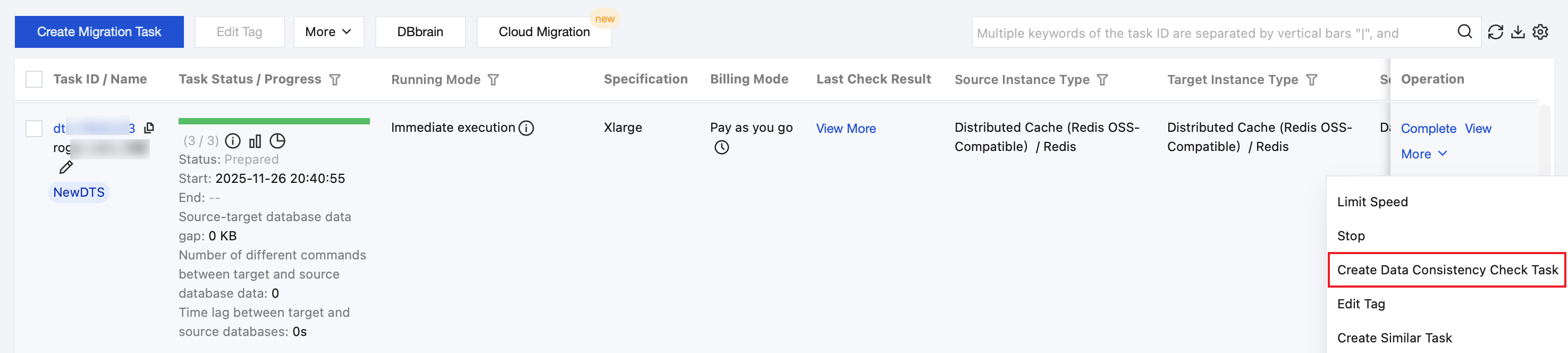
2. On the Data Migration page, select the migration task to be checked, and choose More > Create Data Consistency Check Task in the Operation column.
Note:
Data consistency checks can only be created when the migration task reaches the Incremental Sync phase. If the button on the page is grayed out, it indicates that the DTS task status does not meet the required conditions, such as the task not having entered the Incremental Sync phase, or having failed or been terminated.
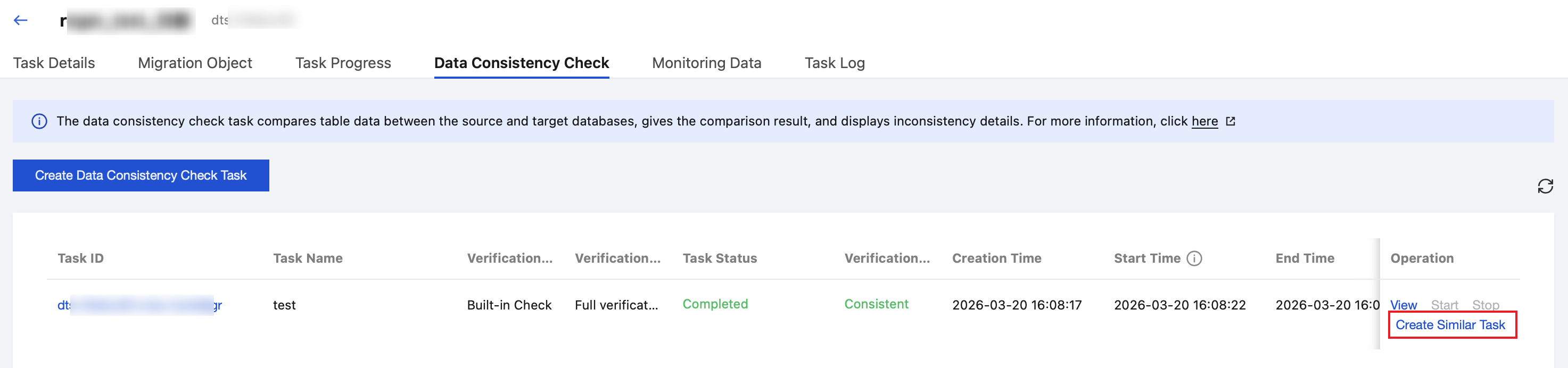
3. On the Data Consistency Check page, click Create Data Consistency Check Task.
Note:
If a consistency check task already exists, you can click Create Similar Task in the Operation column and configure the related parameters.
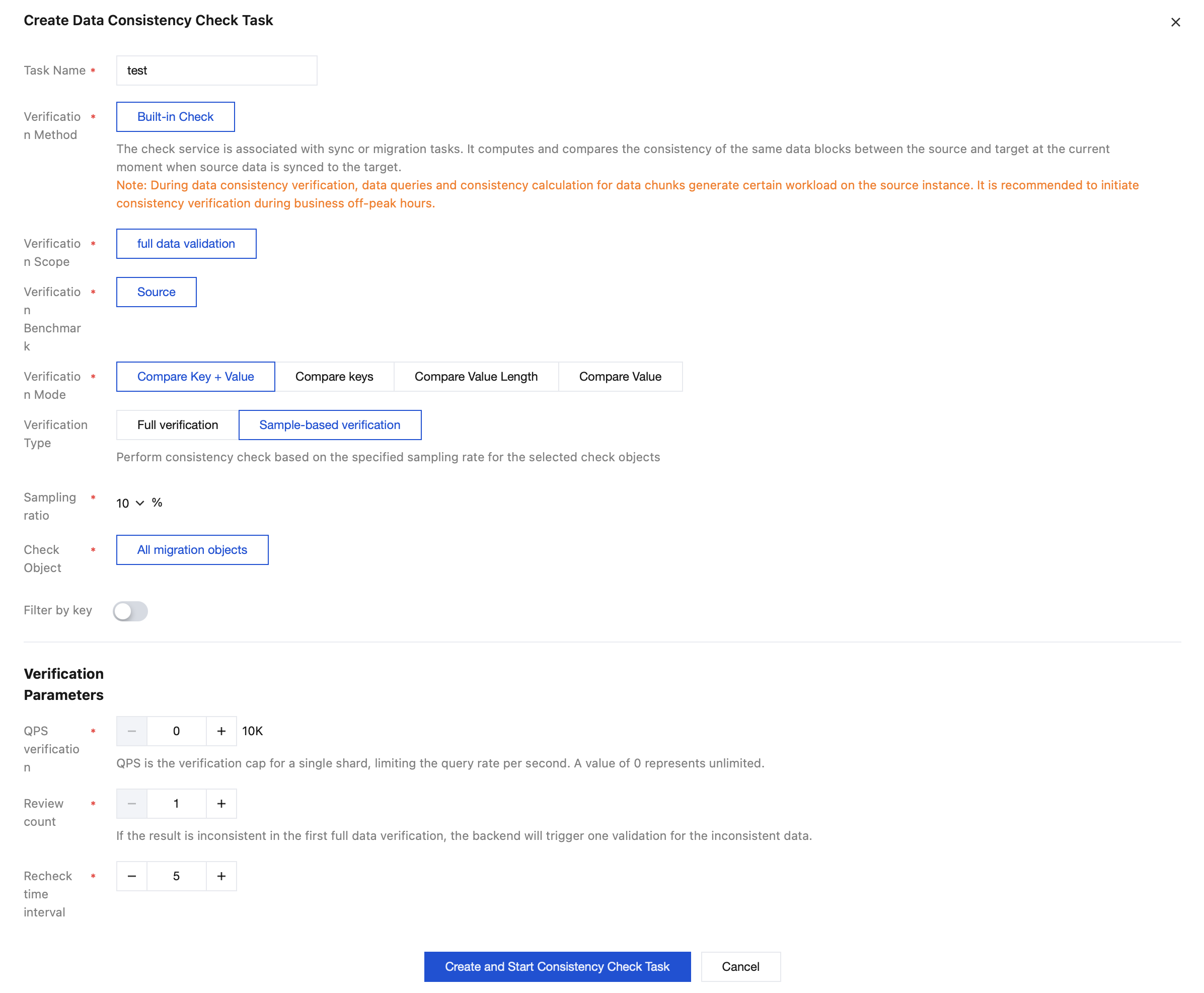
4. In the pop-up dialog box, click Create and Start Consistency Check Task after configuring the data consistency check parameters.
Parameter
Description
Task Name
Name of the created consistency check task.
Verification Method
Built-in check: The check service is built into the DTS task. Consistency verification must be initiated when the task is running. After the DTS task stops, checks cannot be initiated.
Verification Scope
Full check: Perform a record-by-record comparison of all object data selected for migration from the source database to ensure the integrity of migrated data.
Verification Benchmark
Source: Use data from the source as the check benchmark.
Verification Mode
Compare Key + Value: Checks whether all data is consistent.
Compare Keys only: Only checks the existence of Keys.
Compare Value length: Only checks whether the lengths of Values are the same.
Compare Value: For Keys with a length exceeding 1000, only the length is compared, not the content.
Verification Type
Full check: Perform a consistency check on the full data of the selected check objects.
Sampling check: Select a certain proportion of the selected check objects for checking.
Sampling ratio
Configure the sampling ratio for keys, which can be 10%, 20%, 30%, 40%, 50%, 60%, 70%, 80%, or 90%.
Note:
This parameter needs to be configured only when Verification Type is set to Sampling Check.
Check Object
All migration objects: The check scope includes all objects selected for the migration task.
Filter by key
Prefix of Keys to be checked: If you have set the key prefix rule for migration and only need to check some important Keys for consistency, you can retain the Keys to be checked in the input box.
Prefix of Keys to be filtered: If you have set the Key prefix rule for filtering and need to filter out Keys that do not require immediate consistency checks, you can add the Keys to be filtered in the input box.
Note:
The Key prefix filtering rule has been applied to the migration link. By default, data checks follow the same filtering rules as the migration link. If you need to check only a subset of data, you can modify the filtering rule based on the original one.
When migration rules and filtering rules are used together, the filtering rules take higher priority over the migration rules.
QPS verification
Set the queries per second (QPS) limit for the check task.
QPS is the upper limit for queries per second when checking a single shard. A value of 0 indicates no limit.
Review count
Set the number of rechecks.
If the first full data check result is inconsistent, the background will re-initiate a check of the inconsistent data identified during the full check.
Recheck time interva
Set the interval for rechecks.
Viewing the Data Consistency Check Results
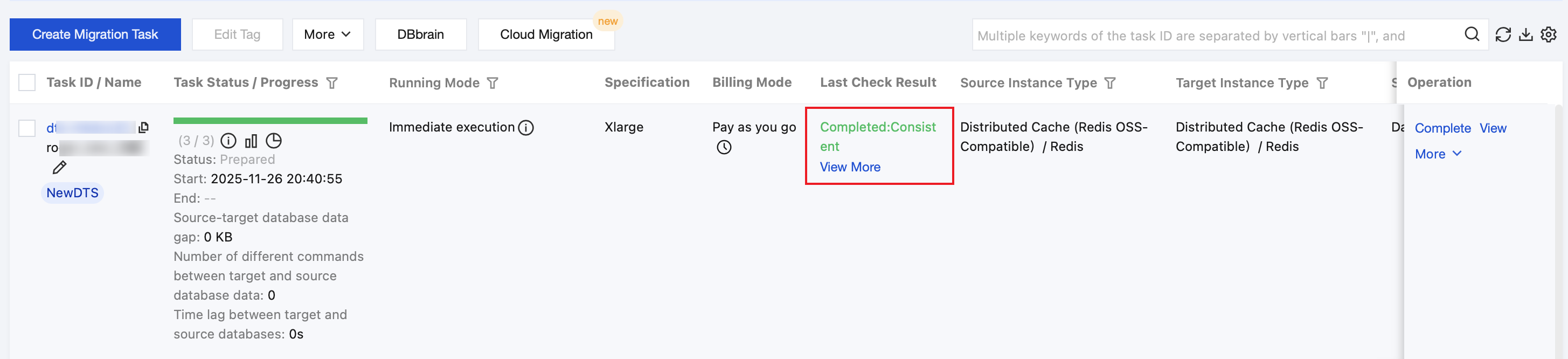
1. On the migration task homepage, view the check result (consistent or inconsistent) in the Last Check Result column, and click View More to go to the check details page.
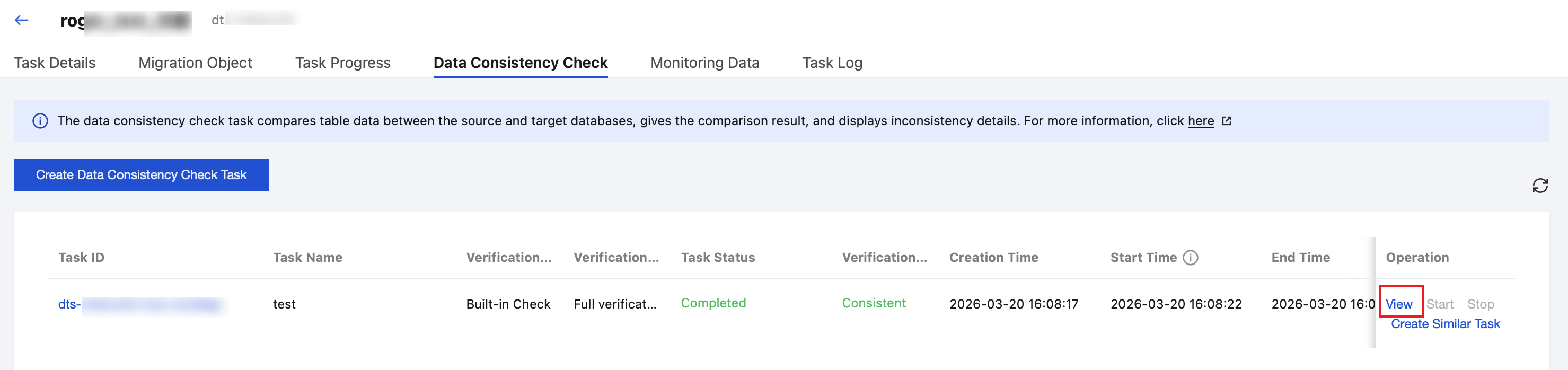
2. Click View to view the check results.
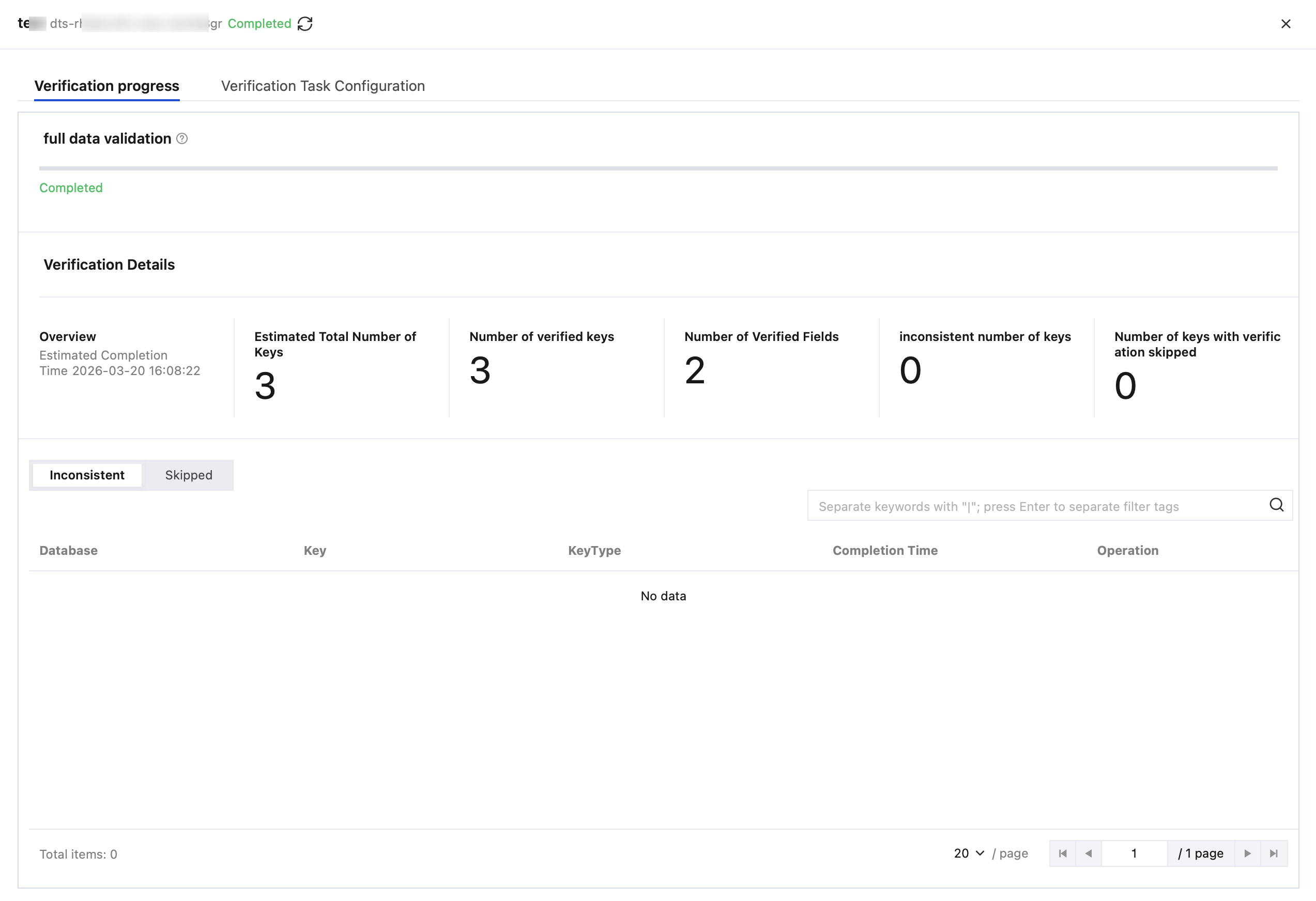
3. View the estimated total number of keys, the number of checked keys, the number of checked fields, the number of inconsistent keys, and the number of skipped keys.
4. View inconsistency details.
4.1 In the Inconsistent section, click View in the Operation column of the corresponding Key to view inconsistent data details.
4.2 View inconsistency details in the pop-up dialog box.
4.2.1 On the right side of the dialog box, click
to download inconsistency details.
In the pop-up dialog box, click Download to download the inconsistent information.
5. View the keys skipped during the check.
In the Skipped section, you can view the keys skipped during the check and the reasons why they were not checked.