Modifying the Number of Topic Replicas
Download
フォーカスモード
フォントサイズ
After a topic is successfully created, you can modify the number of topic replicas based on business requirements.
Constraints and Limitations
The number of replicas is also counted in the number of partitions. For example, if you create 1 topic with 6 partitions and 2 replicas, the total partition quota consumed is 1 x 6 x 2 = 12. When the total number of partitions for all topics under an instance reaches the upper limit of partitions, the number of replicas cannot be increased. You can increase the number of partitions to increase the quota.
When changing the number of replicas, data migration will be involved and cluster performance may experience fluctuations. It is recommended to perform this operation during off-peak hours.
The number of topic replicas can be 1, 2, or 3. To ensure data reliability, 2 replicas are enabled by default. Setting to a single replica may cause unavailability. Proceed with caution.
Operation Steps
1. Log in to the TDMQ for CKafka (CKafka) console.
2. In the left sidebar, click Instance List, and click ID/Name of the target instance to go to the instance details page.
3. On the instance details page, click the Topic List tab. On the topic list page, click More > Change the number of replicas in the Operation column.
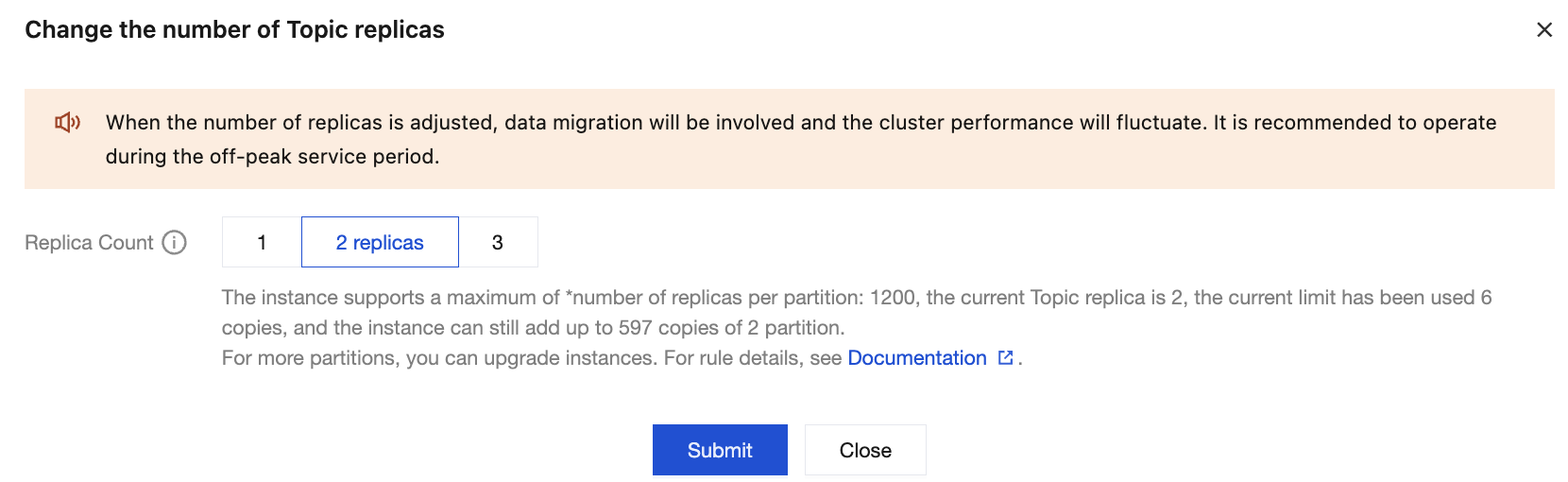
4. After modifying the number of replicas in the pop-up window, click Submit and wait for the changes to complete.
フィードバック