Integrating SDK
Download
フォーカスモード
フォントサイズ
Overview
This document describes how to configure a Unreal Engine project for the GME APIs for Unreal Engine.
SDK Download
1. Download the applicable demo and SDK. For more information, see SDK Download Guide.
2. Locate the SDK resources for Unreal Engine on the page.
3. Click Download. After decompression, the downloaded SDK resources include the following files:
File name | Description | Purpose |
GMESDK.uplugin | .uplugin file | Plugin configuration file |
Resources | Plugin resource file | Plugin resource file |
Source | SDK file | SDK library files and code files for various platforms, such as header files |
Platforms supported by the SDK for Unreal Engine:
SDK for Unreal Engine has integrated Windows, macOS, Android, and iOS platform architectures. If you need console platform architectures, contact us.
Project Configuration
Step 1: Import Plugins files
If no
Plugins folder exists in the root directory of the game project (the directory of the *.uproject file), create one first and copy the GME SDK to the Plugins folder. Then, you will see the directory structure as shown below: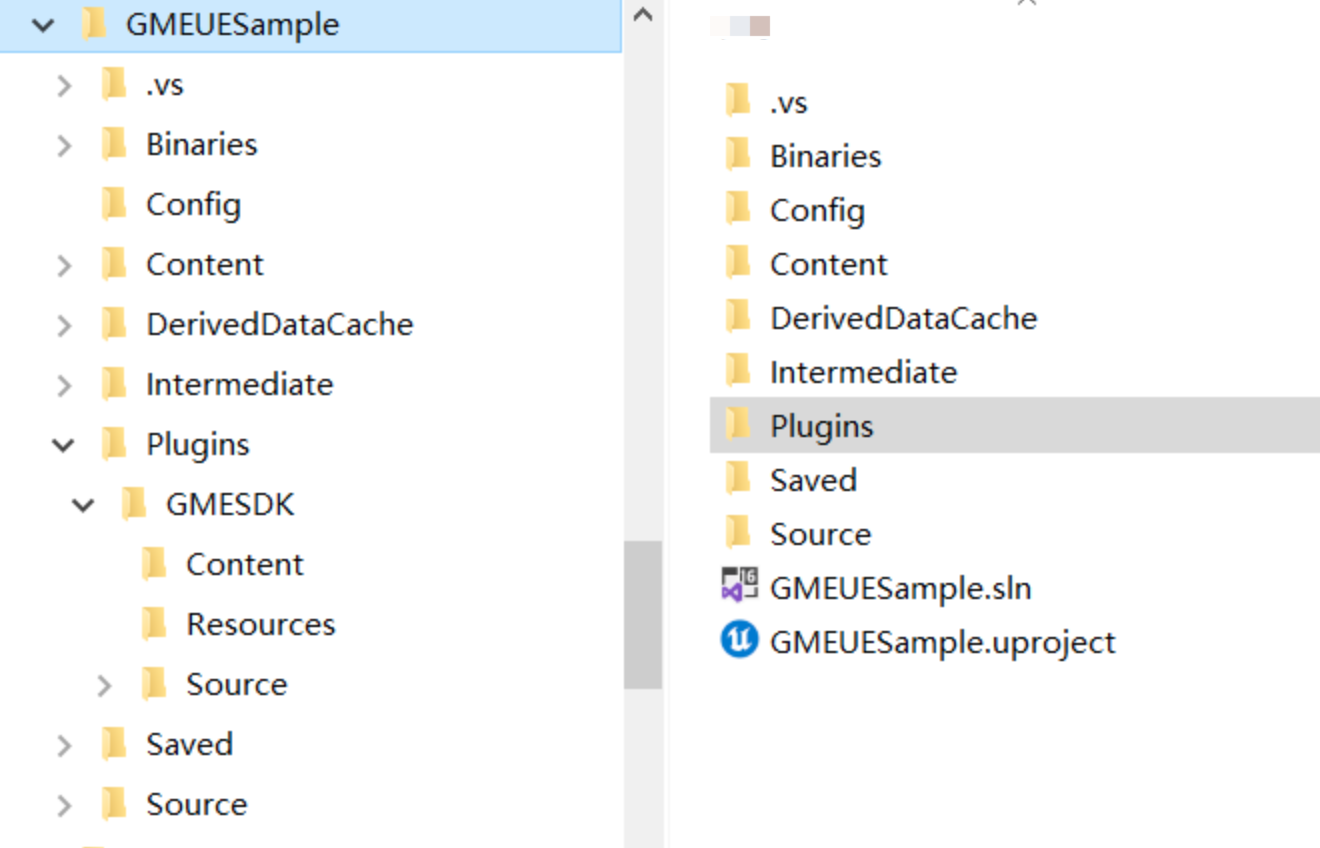
Step 2: Compile the plugin
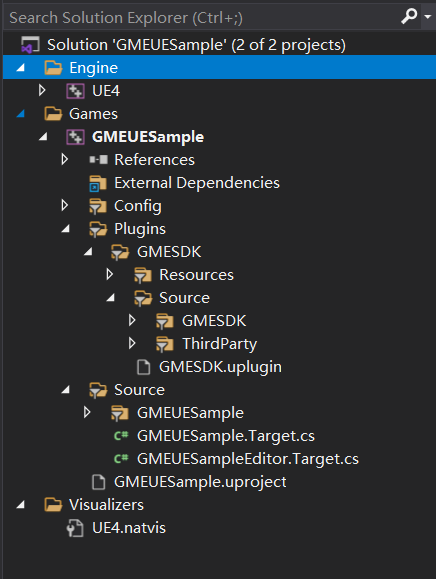
Refresh the C++ project in Visual Studio/Xcode, open it, and you will see the directory structure like the following. Then, compile the game.
Step 3. Complete compilation
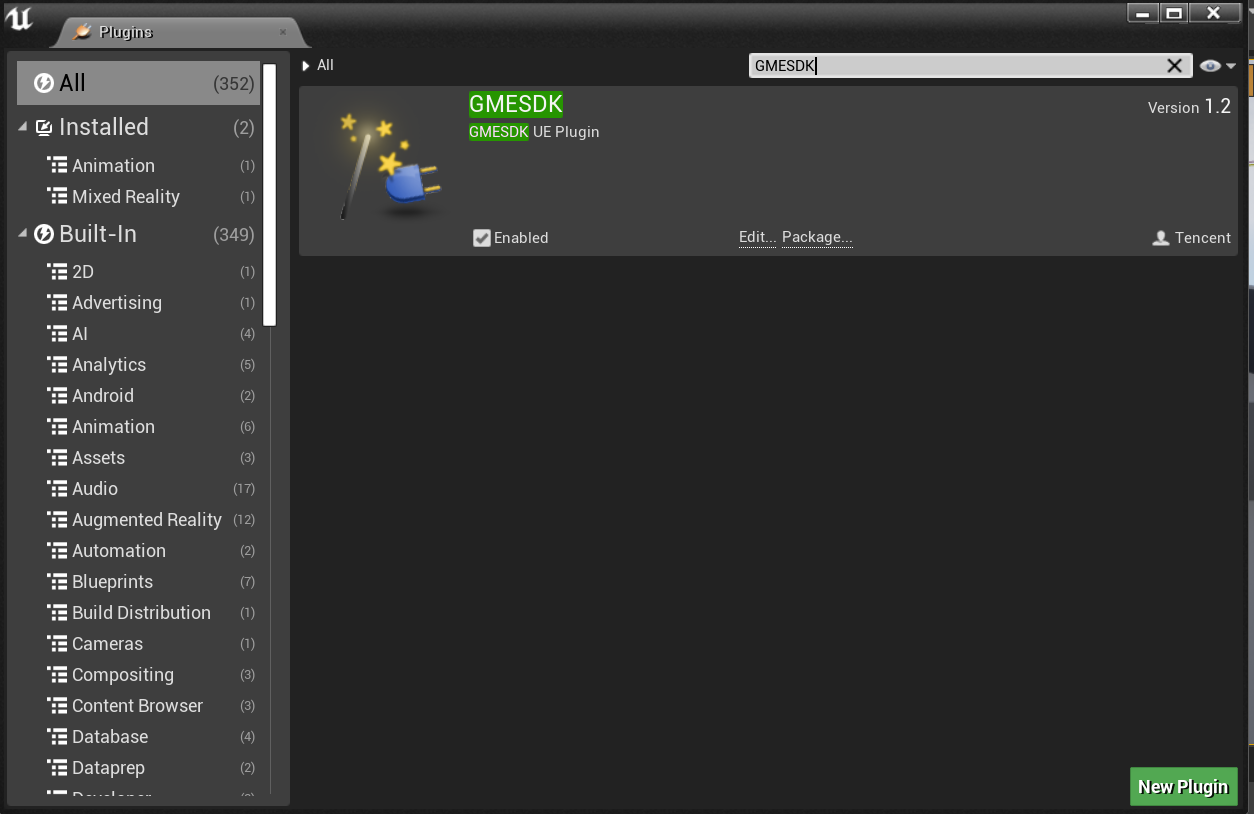
After completing the compilation, restart Unreal Engine Editor. In Unreal Engine Editor, open the plugin manager, and you can see that the GME SDK has been imported into the project. Make sure that the GME SDK is enabled.
Step 4. Add GME SDK dependencies
Add GME SDK dependencies to the
.build.cs file of the game project.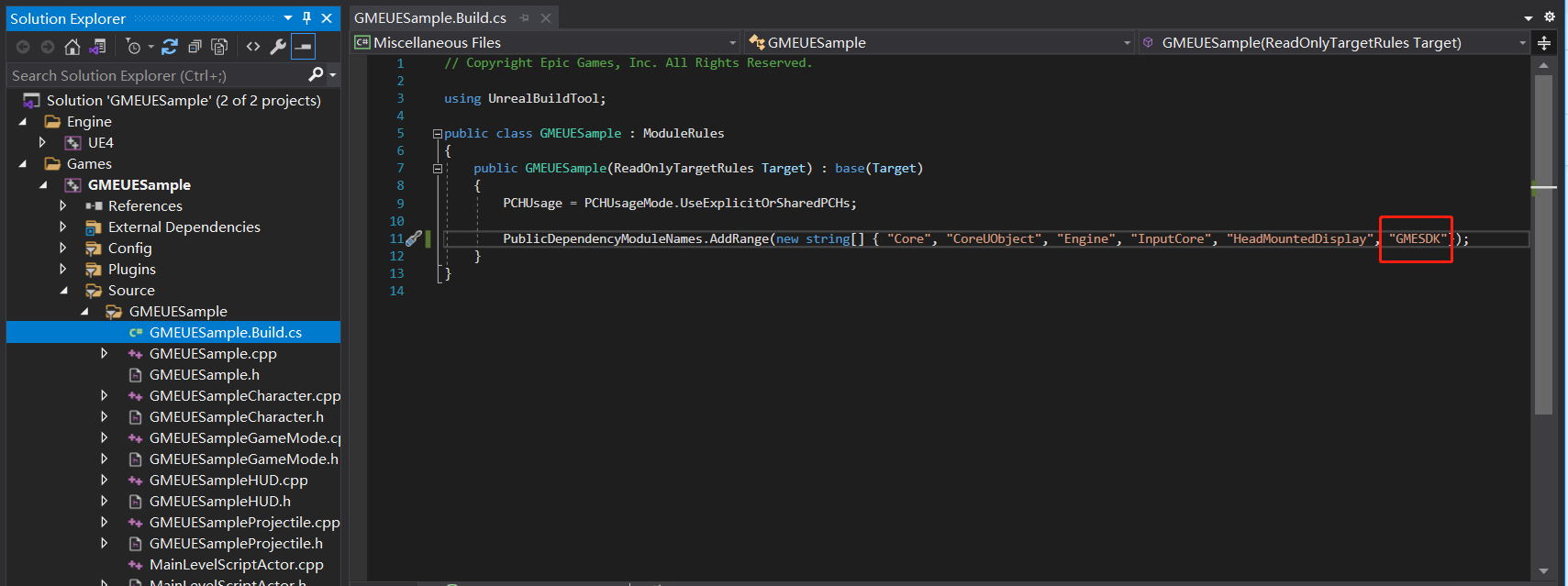
Adaptations of Different Unreal Engine Versions
Unreal Engine 4.21 and later
If you are using Unreal Engine 4.21 or later, you need to add the following code after downloading the GME sample code for Unreal Engine:
AUEDemoLevelScriptActor::AUEDemoLevelScriptActor(){PrimaryActorTick.bCanEverTick = true;}
Note:
Tick is disabled by default and must be enabled manually.
Unreal Engine 4.26
If you are using Unreal Engine 4.26, you need to download the adaptation file and import it into the project. The downloaded file contains two folders:
Source and Plugins.For a demo project, import both folders into the project in an overwriting manner.
If you only need the GME SDK, import the
Plugins folder only.フィードバック