tencent cloud

Tencent Real-Time Communication

お知らせ・リリースノート
製品アップデート情報
Tencent Cloudオーディオビデオ端末SDKの再生アップグレードおよび承認チェック追加に関するお知らせ
TRTCアプリケーションのサブスクリプションパッケージサービスのリリースに関する説明について
製品の説明
製品概要
基礎概念
製品の機能
製品の強み
ユースケース
性能データ
購入ガイド
Billing Overview
無料時間の説明
Monthly subscription
Pay-as-you-go
TRTC Overdue and Suspension Policy
課金に関するよくあるご質問
Refund Instructions
初心者ガイド
Demo体験
Call
コンポーネントの説明(TUICallKit)
Activate the Service
Run Demo
クイック導入
オフライン通知
Conversational Chat
クラウドレコーディング(TUICallKit)
AI Noise Reduction
インターフェースのカスタマイズ
Calls integration to Chat
Additional Features
No UI Integration
Server APIs
Client APIs
Solution
ErrorCode
公開ログ
よくある質問
ライブ配信
Billing of Video Live Component
Overview
Activating the Service (TUILiveKit)
Demo のクイックスタート
No UI Integration
UI Customization
Live Broadcast Monitoring
Video Live Streaming
Voice Chat Room
Advanced Features
Client APIs
Server APIs
Error Codes
Release Notes
FAQs
RTC Engine
Activate Service
SDKのダウンロード
APIコードサンプル
Usage Guidelines
クライアント側 API
高度な機能
RTC RESTFUL API
History
Introduction
API Category
Room Management APIs
Stream mixing and relay APIs
On-cloud recording APIs
Data Monitoring APIs
Pull stream Relay Related interface
Web Record APIs
AI Service APIs
Cloud Slicing APIs
Cloud Moderation APIs
Making API Requests
Call Quality Monitoring APIs
Usage Statistics APIs
Data Types
Appendix
Error Codes
コンソールガイド
アプリケーション管理
使用統計
監視ダッシュボード
開発支援
Solution
Real-Time Chorus
よくあるご質問
課金関連問題
機能関連
UserSig関連
ファイアウォールの制限の対応関連
インストールパッケージの圧縮に関するご質問
AndriodおよびiOS関連
Web端末関連
Flutter関連
Electron関連
TRTCCalling Web関連
オーディオビデオ品質関連
その他のご質問
旧バージョンのドキュメント
TUIRoom(Web)の統合
TUIRoom (Android)の統合
TUIRoom (iOS)の統合
TUIRoom (Flutter)の統合
TUIRoom (Electron)の統合
TUIRoom APIのクエリー
クラウドレコーディングと再生の実現(旧)
Protocols and Policies
セキュリティコンプライアンス認証
セキュリティホワイトペーパー
情報セキュリティの説明
Service Level Agreement
Apple Privacy Policy: PrivacyInfo.xcprivacy
TRTC ポリシー
プライバシーポリシー
データ処理とセキュリティ契約
用語集

Console Webhook Configuration

PDF
フォーカスモード
フォントサイズ
最終更新日: 2025-10-31 11:22:03
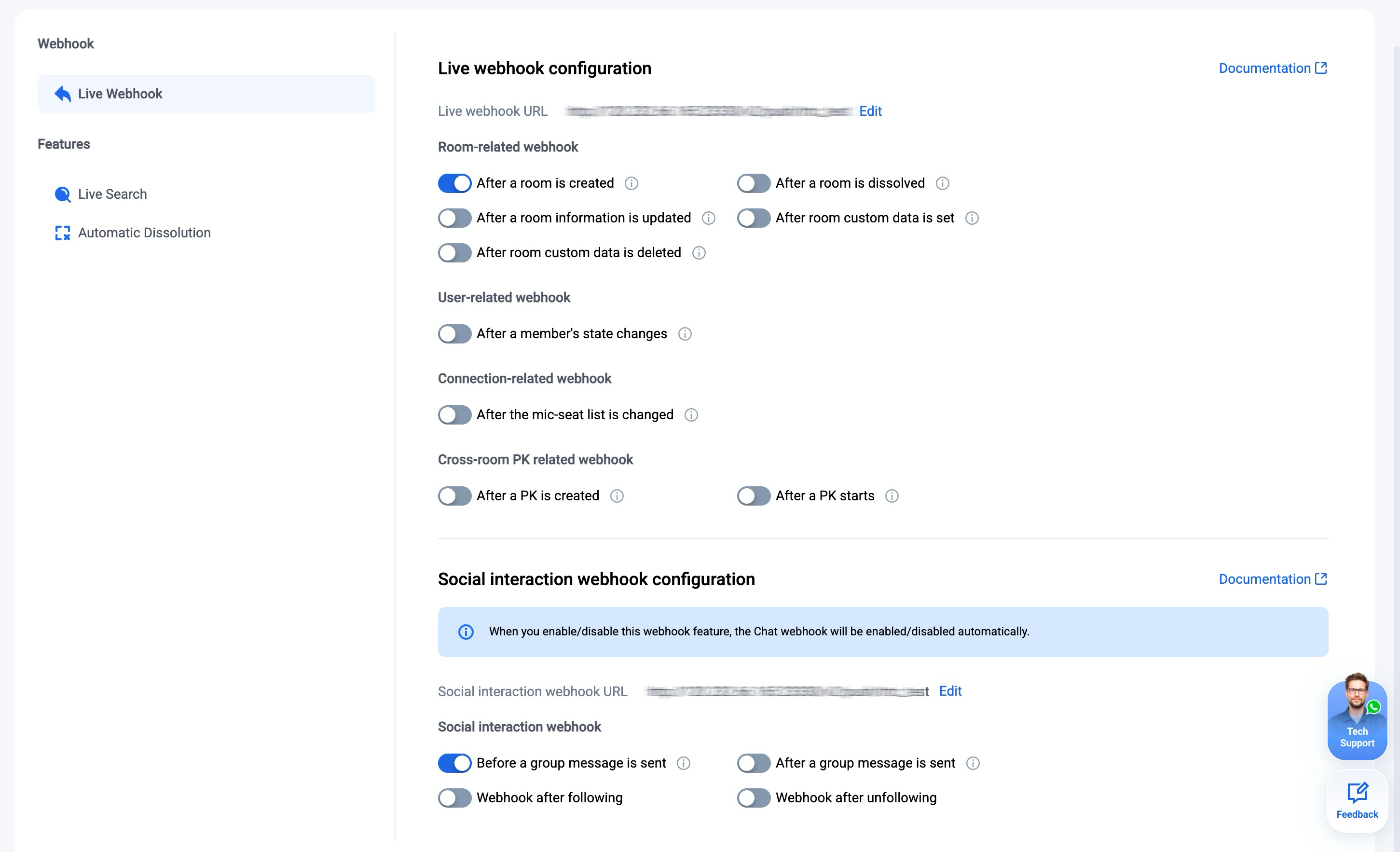
Log in to the TencentRTC Live console, select the target application to enter the application management page. In the left navigation bar, choose Live > Configuration > Live Webhook. You can configure the webhook URL and enable the webhooks based on your actual business needs.

Configure Webhook URL

1. On the Live Webhook page, edit the webhook URL in the Live webhook configuration area.
2. In the pop-up Live webhook configuration dialog box, enter the webhook URL.
Note:
The new callback URL takes effect after 2 minutes of successful modification.
The callback URL must start with http:// or https://.
If you have not applied for a domain name, you can directly configure an IP, such as http://123.123.123.123/imcallback.
Only can be used English letters (a-z, case-insensitive), numbers (0-9), and "-" (hyphen in English, i.e., middle hyphen).
Do not use spaces or special characters, such as !, $, &, ?.
- "-" cannot appear consecutively, be registered individually, or be placed at the beginning and ending.
Domain name length not exceeding 63 characters.
The callback URL in IM includes port 80/443 by default. When replacing the callback URL, port adjustment is involved. Avoid mutually prefixed ports before and after replacement, such as changing https://xxx:443 to https://xxx:4433 or https://xxx to https://xxx:4433.
3. Click Confirm to save the configuration.

Configure Event Webhook

1. On the Live webhook page, you can directly enable/disable the webhook switch in the Live webhook configuration area.

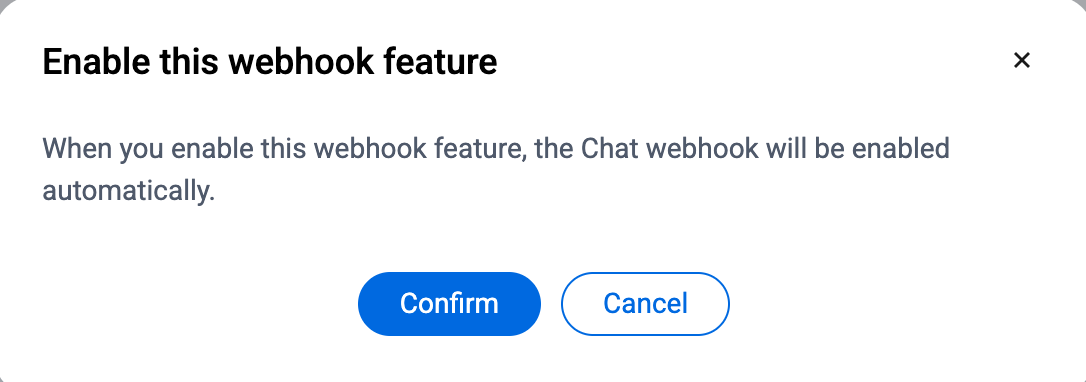
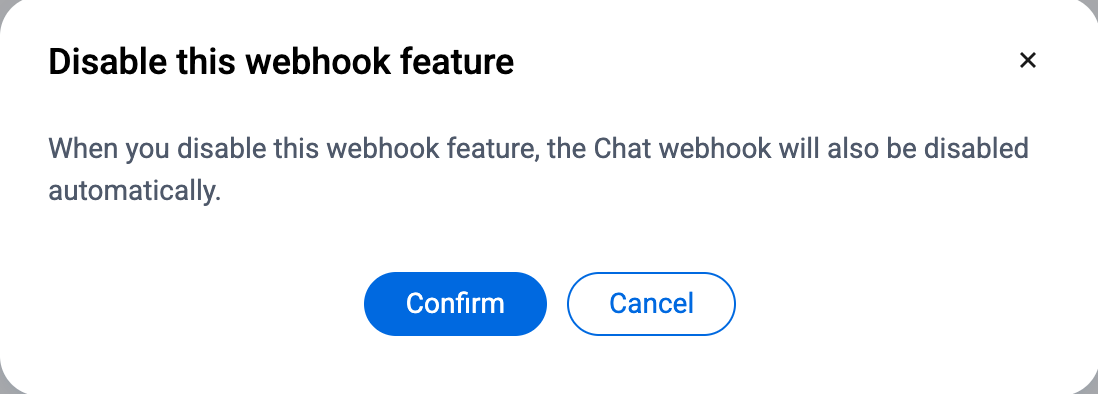
2. Since the social interaction webhook shares the same functionality as the Chat webhook, in the social interaction webhook area, enabling/disabling the required webhooks will require a confirmation popup to take effect after enabling/disabling.

ヘルプとサポート

この記事はお役に立ちましたか?

フィードバック