製品アップデート情報
Tencent Cloudオーディオビデオ端末SDKの再生アップグレードおよび承認チェック追加に関するお知らせ
TRTCアプリケーションのサブスクリプションパッケージサービスのリリースに関する説明について
UILiveKit Voice Chat Room is a ready-to-use interface providing all the core functionalities for starting a live stream. It enables you to integrate a host broadcasting flow into your app with simple steps.Pre-Live Preview | Seat Management | Audience Interaction | Live Room Management |
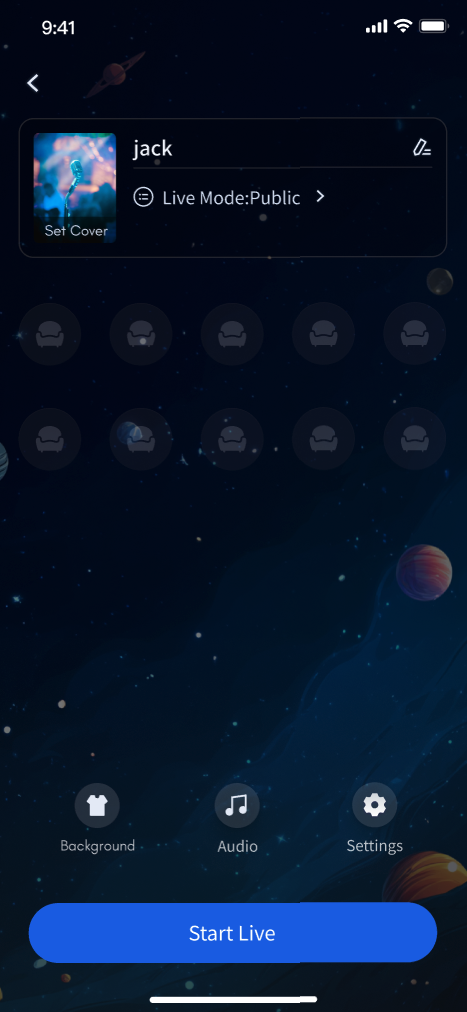 | 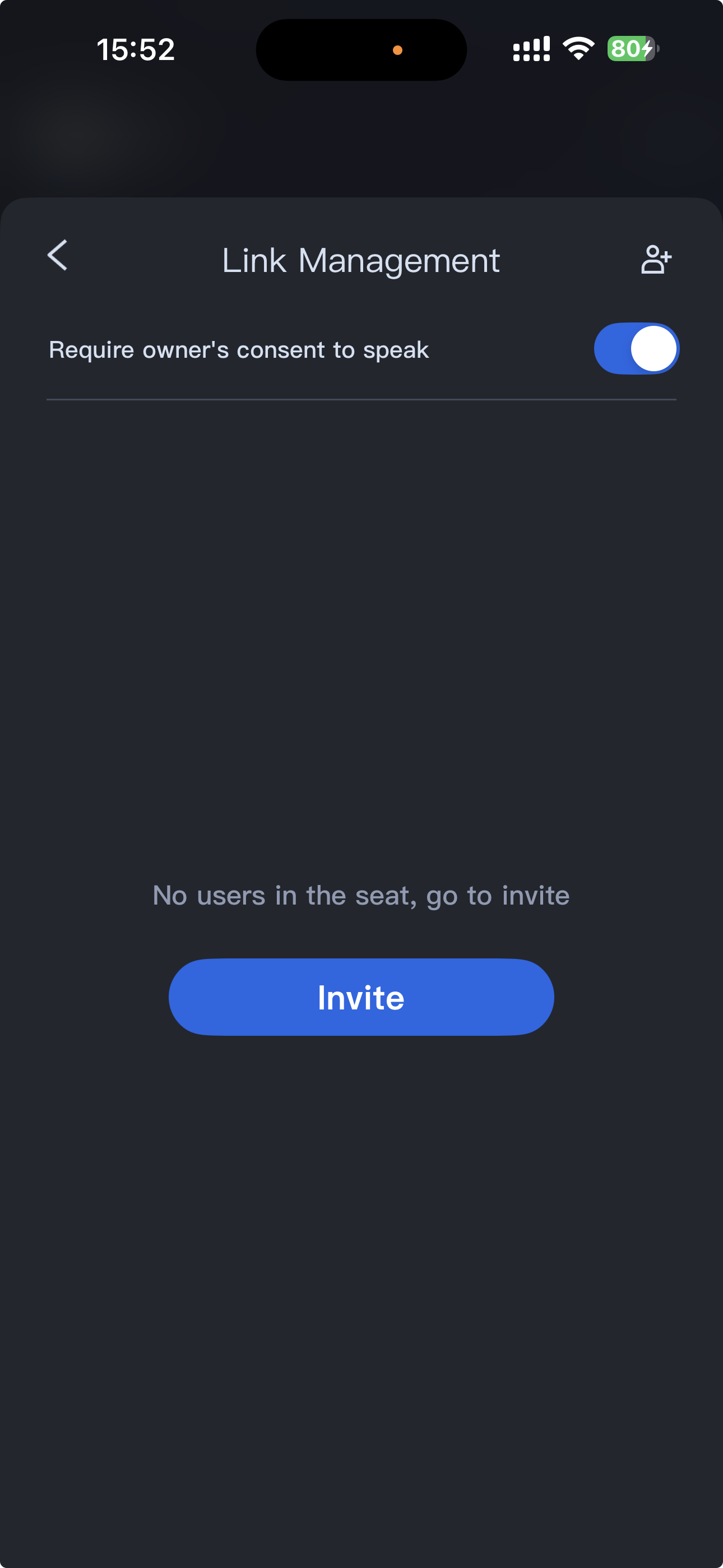 | 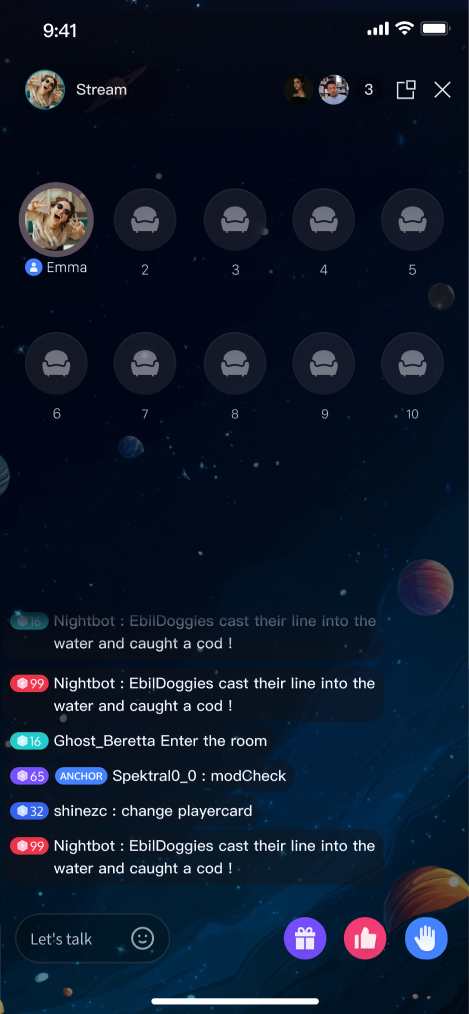 | 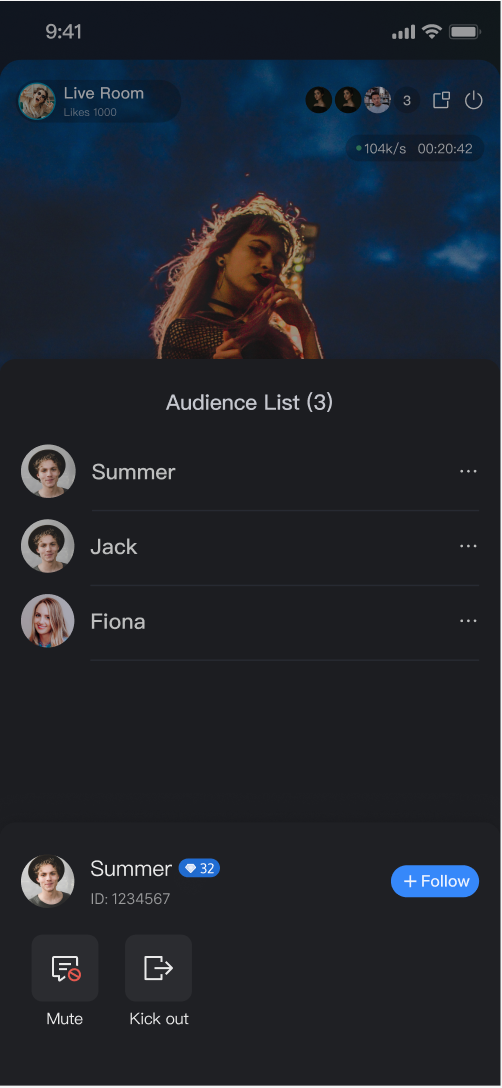 |
TUILiveKit.Once completed, your project will successfully introduce TUILiveKit dependency.TUIVoiceRoomWidget provides a complete UI and business logic for the host side of the voice chat room. This component does not support floating window mode. If you require floating window functionality, see Add Floating Window (Host Page). TUIVoiceRoomWidget (based on your business logic), then use one of the following methods to navigate to the host page or embed it in your Widget tree:import 'package:tencent_live_uikit/tencent_live_uikit.dart';// Navigate to the Anchor webpageNavigator.push(context, MaterialPageRoute(builder: (BuildContext context) {final roomId = "test_voice_room_id";final params = RoomParams();params.maxSeatCount = 10;params.seatMode = TUISeatMode.applyToTake;return TUIVoiceRoomWidget(roomId: roomId, behavior: RoomBehavior.prepareCreate, params: params);}));
// --- Choose one of the following integration methods based on your Widget tree structure ---// Example parametersfinal roomId = "test_voice_room_id";final params = RoomParams();params.maxSeatCount = 10;params.seatMode = TUISeatMode.applyToTake;// [Option 1] As the only child Widget (single subtree)// Suitable for containers like Container, Padding that typically contain only one child WidgetContainer(child:TUIVoiceRoomWidget(roomId: roomId, behavior: RoomBehavior.prepareCreate, params: params) // Integrate Anchor page here)// [Option 2] As one of multiple child Widgets (multi-subtree)// Suitable for layouts like Column, Row, Stack that can contain multiple child WidgetsStack(children: [YourOtherWidget(), // Your other child WidgetTUIVoiceRoomWidget(roomId: roomId, behavior: RoomBehavior.prepareCreate, params: params), // Integrate Anchor page hereYourOtherWidget(), // Your other child Widget])
Parameter Name | Type | Description | |
roomId | | String | Globally unique live streaming room ID. |
behavior | | RoomBehavior | Enter Room behavior: autoCreate: Automatically create a live streaming room and enter the room.prepareCreate: Enter the pre-live preview page first, then create and enter the live room after the user clicks Start Live.join: Audience members enter the room. |
params | | RoomParams | Anchor Live streaming Parameter. See RoomParams below. |
Parameter Name | Type | Description |
maxSeatCount | int | Maximum number of seats in the live room. |
seatMode | TUISeatMode | Audience seat mode: applyToTake: Audience must apply and be approved by the host to take a seat.freeToTake: Audience can take a seat freely without host approval. |
TUIVoiceRoomOverlay provides a host page with floating window support. During live streaming, you can switch to in-app floating window mode. TUIVoiceRoomOverlay is built using Flutter’s official Overlay API. To integrate:import 'package:tencent_live_uikit/tencent_live_uikit.dart';// Navigate to the Anchor webpageNavigator.push(context, MaterialPageRoute(builder: (BuildContext context) {final roomId = "test_voice_room_id";final params = RoomParams();params.maxSeatCount = 10;params.seatMode = TUISeatMode.applyToTake;returnTUIVoiceRoomOverlay(roomId: roomId, behavior: RoomBehavior.prepareCreate, params: params);}));
TUIVoiceRoomOverlay does not support embedding as a child widget into container widgets (such as Container, Stack). It can only be used as a standalone page redirect. Because it internally uses Overlay, LiveKit needs to control the entire Overlay webpage to switch the floating window mode.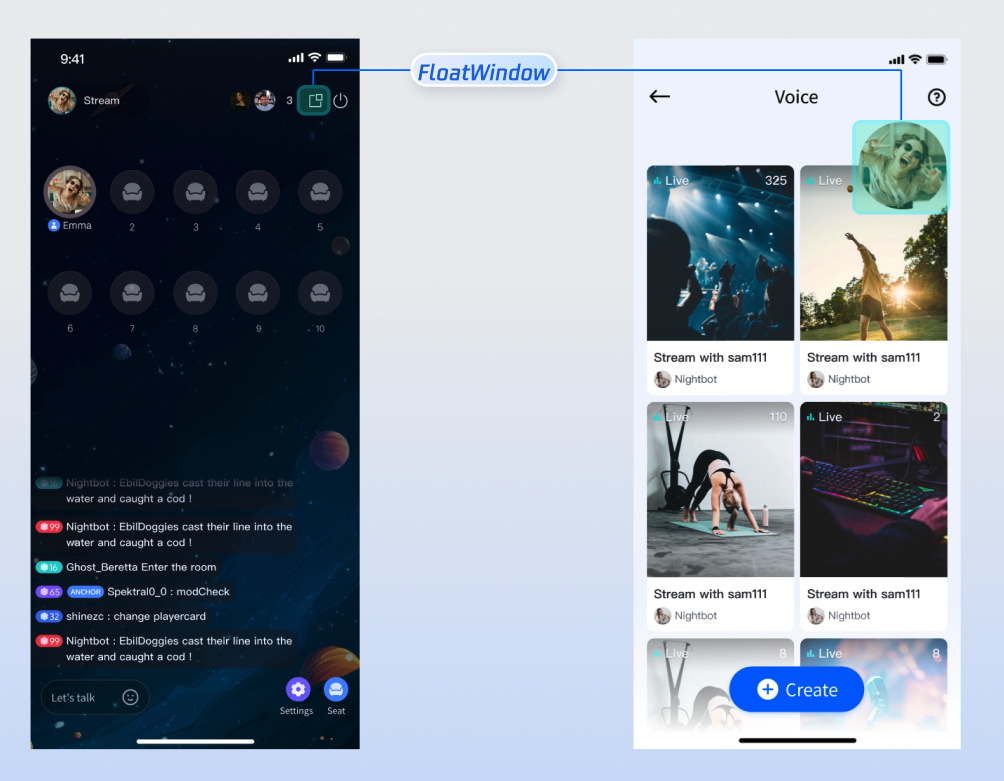
livekit/lib/common/language/i10n/ directory to modify the text: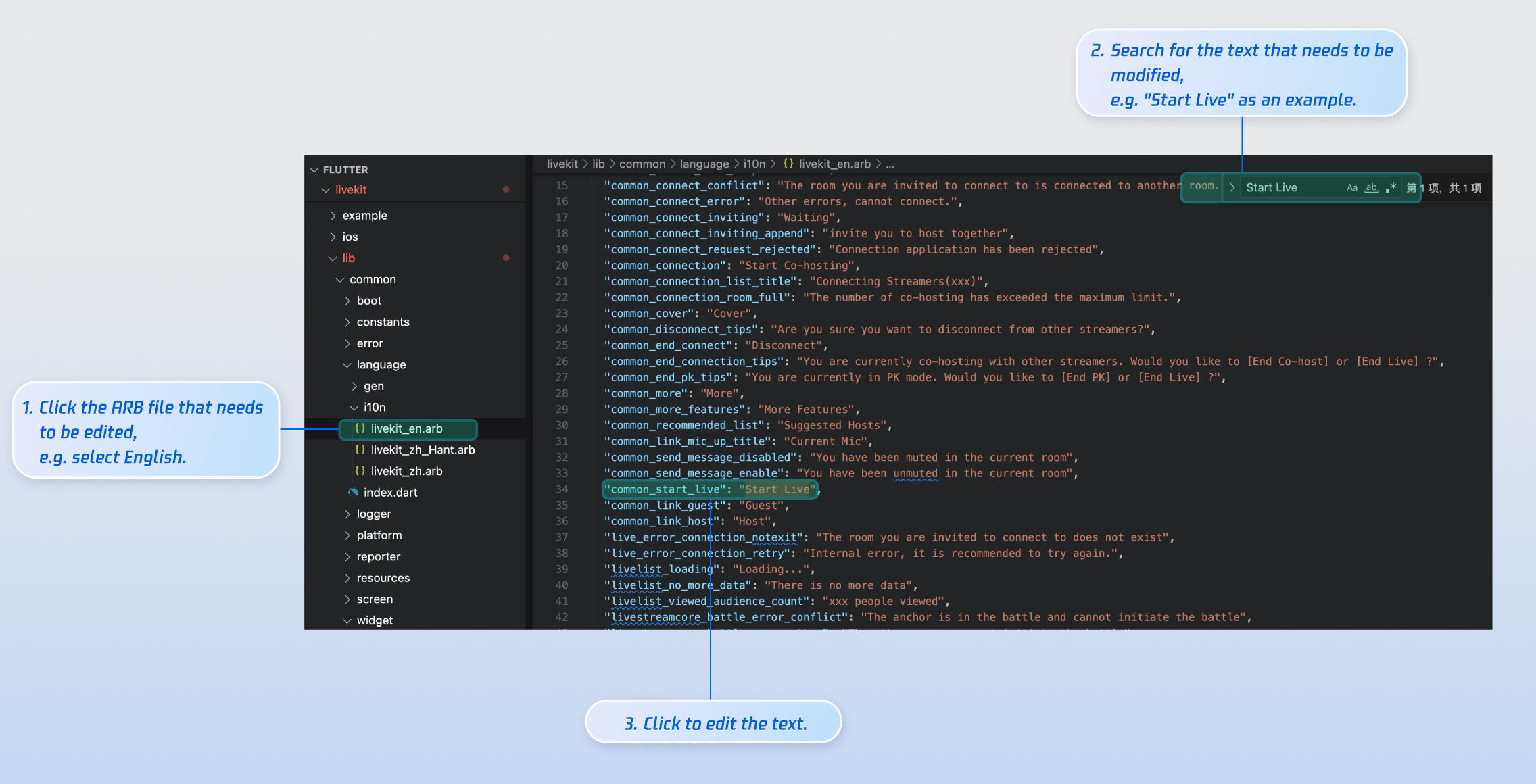
livekit_en.arb: English Text.livekit_zh.arb: Simplified Chinese Text.livekit_zh_Hant.arb: Traditional Chinese Text.flutter gen-l10n in your terminal to regenerate the localization code. Once complete, the files in livekit/lib/common/language/gen/ will be updated.livekit/assets/images/ directory. To update icons, simply replace the PNG files in this folder.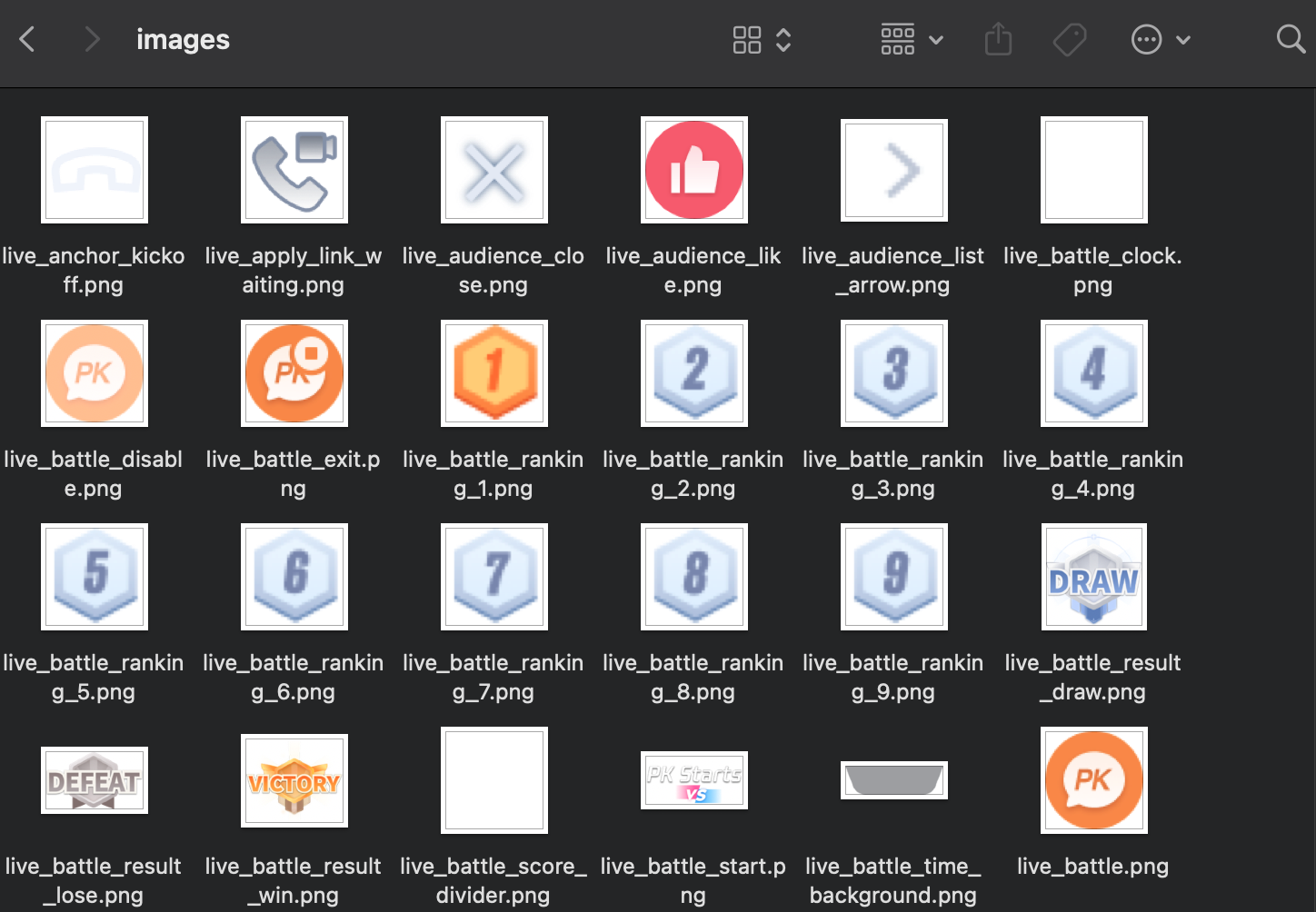
Feature | Description | Integration Guide |
Audience Viewing | Enables users to join as audience members, listen to the host, take seats, and view live chat (bullet comments). | |
Live Stream List | Displays a list of live rooms and their details. | |
Gift System | Support custom gift asset configuration, billing system integration, and gift-sending in PK scenarios. |
TUIVoiceRoomOverlay, ensure that pop-ups (such as BottomSheet, Dialog, etc.) use a context from the rootNavigator. We recommend using Global.appContext().Overlay is displayed on the secondaryNavigator, pop-ups that use the secondaryNavigator context will be covered by the Overlay. On the same Navigator, Overlay layers are displayed above regular pages.フィードバック