Backup Vault
마지막 업데이트 시간:2026-03-06 15:36:06
Backup Vault
마지막 업데이트 시간: 2026-03-06 15:36:06
With the increasing demands for enterprise data security and compliance requirements, database backup management faces new challenges: traditional backup data access permissions are highly coupled with business permissions, making it prone to accidental deletion of backup data due to misoperations. Tencent Cloud's native database TDSQL-C for MySQL supports the backup vault feature. By creating an independent backup vault, encrypting backup files within the safe, and implementing a backup vault locking mechanism, it builds an enterprise-level security defense line for backup data, ensuring the security and compliance of database backups.
This article introduces the backup vault feature and related operations.
Feature Application Scenarios
The backup vault feature can help enterprises achieve separation of duties for backup data, that is, strictly separating database management permissions and backup management permissions. The specific separated permissions are as follows:
Database team/Business team: have full management and usage permissions for production database instances (create/delete databases, read/write), and only have read and usage (recovery) permissions for database backups.
Security team: have full management permissions for database backups (restore, delete, modify retention periods), ensuring backup data is not accidentally or maliciously deleted to meet stringent regulatory requirements.
Feature Entry Description
This article introduces the backup vault feature and related operations.
Feature Entry | Description |
Backup Vault | A backup logical container used to store backup copies independent of the source cluster. |
Vault Encryption | Each backup vault supports enabling encryption, and the enabled backup vault is protected by encryption keys. |
Vault Locking | Used to protect backup files stored in the backup vault from accidental or malicious deletion. After backups enter the locked safe, they cannot be deleted by anyone within the lifecycle of the backup vault. |
Lock Cooldown End Date | The period during which modifications to the backup vault configuration are supported. After the cooling-off period expires, no one can modify the safe configuration. |
Use Limits of the Feature
Clusters with Transparent Data Encryption enabled do not support shipping backup files to the backup vault.
Feature Support Versions
TDSQL-C for MySQL clusters with instance mode of provisioned resources/Serverless in versions 5.7 and 8.0 support using this feature.
Billing Instructions for Features
This feature is currently free to use. The subsequent commercialization billing policy and timeline will be notified separately. You can follow the Service Announcements.
Feature Operation Guide
Feature Operation Overview and Quick Navigation:
Create Backup Vault
1. Log in to the TDSQL-C for MySQL console, in the left sidebar, select Backup Vault, on the backup vault page, select the desired region at the top, and then click Create.

2. On the page, complete the following configurations, and click OK.

Parameter | Description | |
Basic Vault Information | Vault name | Enter the name of the Backup Vault, which supports a length of less than 60 characters and can include Chinese/English/digits/"-"/"_"/".". |
| Vault Description | Enter the description of the Backup Vault, supporting up to 100 characters. |
| Vault Lifecycle | Enter the lifecycle of the Backup Vault, range: 7 days - 7320 days (20 years). Note: Upon entering the Backup Vault, the retention period of backup files automatically changes to the lifecycle of the Backup Vault. After the lifecycle of the Backup Vault is modified, the retention period of existing backup files in the Backup Vault will be uniformly updated to the latest lifecycle of the Backup Vault. The lifecycle of backup files in the Backup Vault is calculated from the creation time of the task that copies them to the Backup Vault. |
Vault Encryption | Encryption | Choose whether to enable the encryption button (disabled by default). After enabling, the Backup Vault is protected by encryption keys. If you choose not to enable encryption at this time, you can also configure it after creating the Backup Vault. For the operation, refer to the "Backup Vault Encryption Settings" guide below. Note: After Backup Vault encryption is enabled, it can be disabled. Once disabled, backup files already in the Backup Vault remain encrypted, while new backup files entering the Backup Vault are not encrypted. After re-enabling, users can change keys. After encryption is enabled for the Safe, all backups delivered to the Safe, including snapshot backups, logical backups, redolog backups, and binlog backups, are encrypted. |
| KMS Service Status | If you have not enabled the KMS service or performed KMS key authorization before, as prompted on the page, click Enable after the KMS service status, and then click Authorize after the KMS key authorization to complete the corresponding enabling or authorization operation to unlock the subsequent settings of the data encryption feature. |
| KMS Service Status | |
| Select Key | Select a secret key: Use key auto-generated by Tencent Cloud: The system automatically generates a key, which is shared by all users. Use an existing custom key: You can select custom keys you created. region: If you use an existing custom key, you need to select the region where the existing key is located. Key: If you are using an existing custom key, you can select an existing key by its name. If no key has been created, click Go to Create to create one in the Key Management Service KMS console, and then select it again. |
Vault Locking Rules | Vault Lock | Select whether to enable the safe locking feature (disabled by default). Once enabled, backup files in the backup vault will have immutability security controls. |
| Lock Cooldown End Date | If safe locking is enabled, you need to set a lock retention expiration date, which can be any time between 3 and 15 days from the time of setting. Note: During the cooling period, you can reset the lock retention expiration date, remove safe locking, modify the backup vault lifecycle, and change vault encryption. After the cooling period ends, no one can modify the lock configuration, such as the backup vault lifecycle, removing the lock, or vault encryption. After the backup vault is locked, write and restore operations for backup files remain unaffected. However, no one can delete backup files stored in this vault. |
3. After creation, it can be viewed in the backup vault list.
Shipping Cluster Backup Files to Backup Vault
After a backup vault is created, you need to ship backup files from clusters under your account to the vault for secure storage. You can set up automatic shipping of cluster backup files to the vault, or manually select specific backup files for shipping. Once shipped, you can view the backup list on the details page of the corresponding vault. For details, see the following procedure.
Scenario 1: Set Up Automatic Shipping of Backup Files to the Backup Vault
Note:
After backup files are configured for automatic shipping to the backup vault, the retention period of the corresponding backup files will align with the lifecycle of that backup vault.
When configuring backup files for automatic shipping to a backup vault, you can select backup vaults in the same region as the source cluster that have been created under your Tencent Cloud account. Multiple vaults can be selected at the same time, with a maximum of 3.
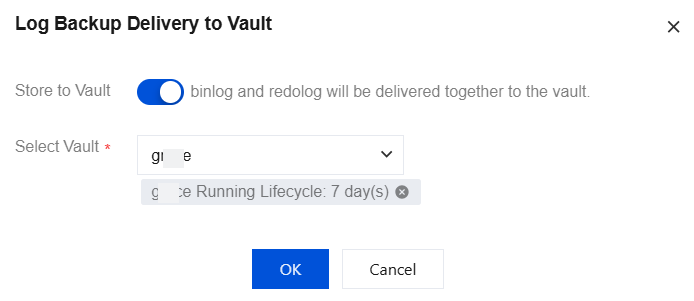
When log backups are configured for automatic shipping to the backup vault, binlog and redo logs are shipped to the vault together by default.
1. Log in to the TDSQL-C for MySQL console, in the cluster list, click the target cluster ID to enter the Cluster Management page.
2. Click Backup Management to go to the cluster backup page.

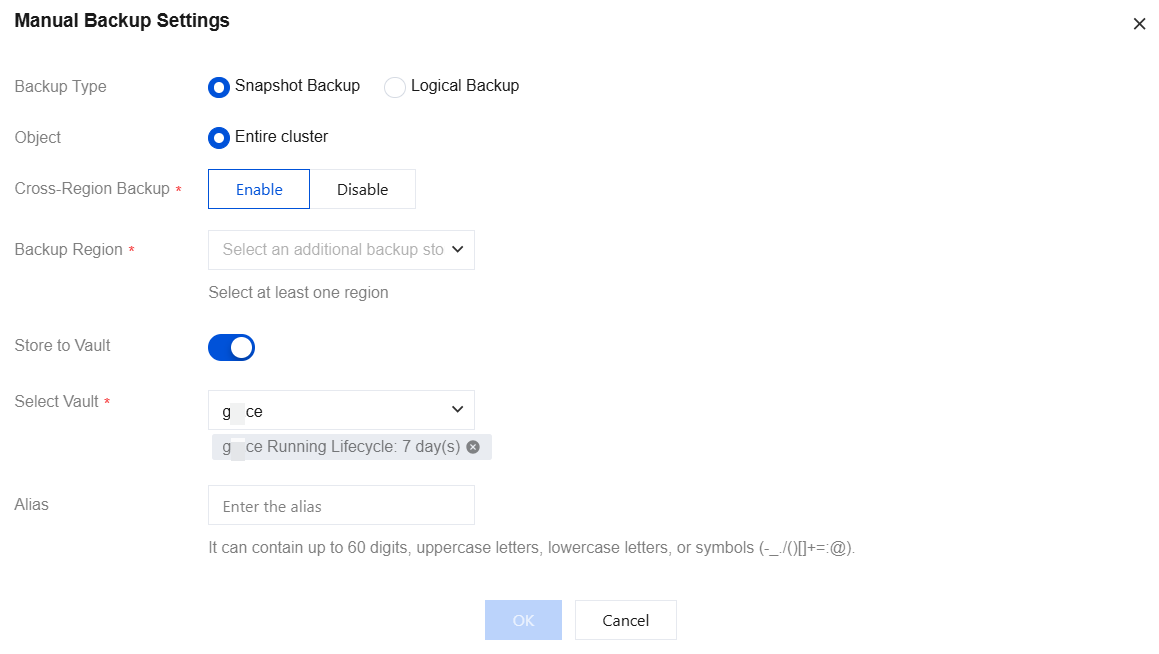
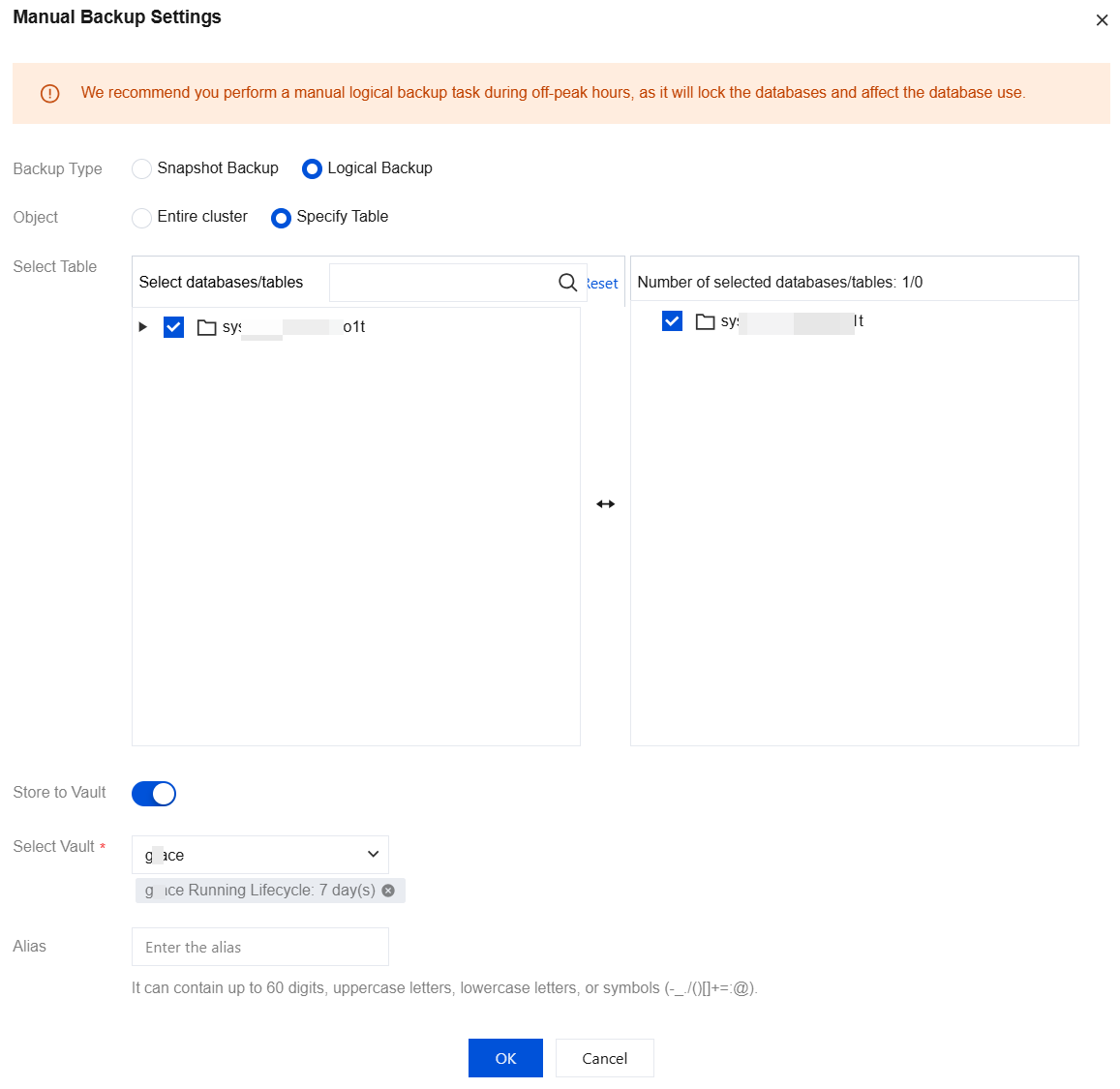
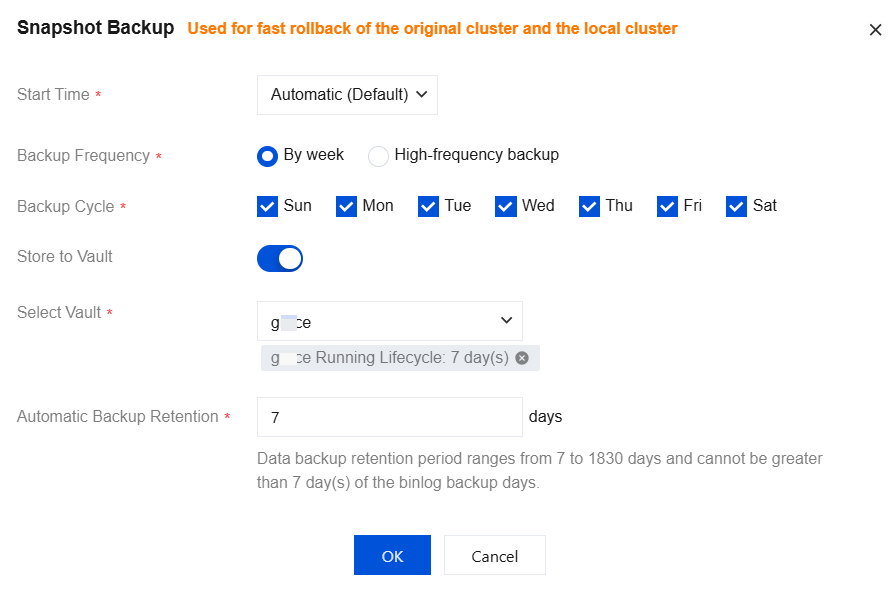
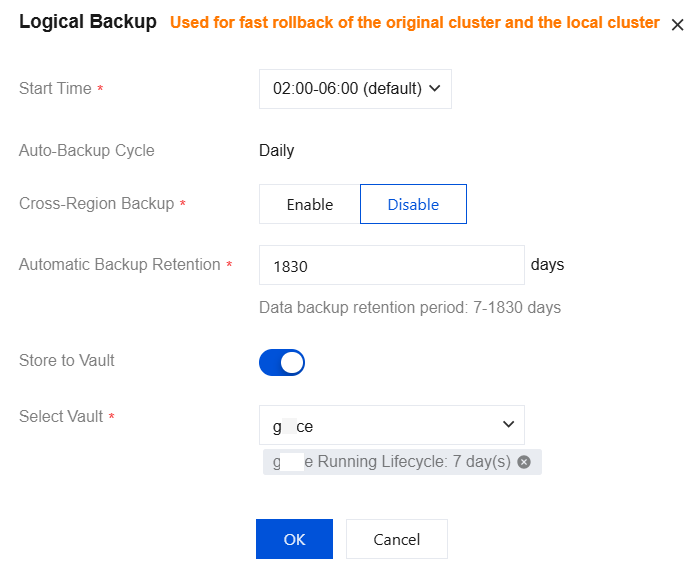
3. You can configure backup files generated during manual backup, automatic backup, and log backup operations for automatic shipping to the backup vault. For operations on each type of backup file, see the following screenshots.
Manual Snapshot Backup - Entire Cluster
Manual Logical Backup - Entire Cluster

Manual Logical Backup - Specified Database/Tables
Automatic Snapshot Backup
Automatic Logical Backup
Log Backup
Scenario II: Manually Shipping Backup Files to the Backup Vault
1. Log in to the TDSQL-C for MySQL console, in the cluster list, click the target cluster ID to enter the Cluster Management page.
2. Click Backup Management to go to the cluster backup page.
3. Click Transfer to Vault.
4. In the pop-up window, complete the following configurations, and click OK.

Parameter | Description |
Select Vault | Select an existing backup vault. Only one backup vault can be selected per manual shipping task. |
Backup File | Manually select specified backup files in the current cluster and ship them to the backup vault. Multiple files can be selected simultaneously, with a maximum of 20 backup files. Note: Only backup files of manual full snapshot backup and manual logical backup types are supported for selection. When a backup file in the cluster is being shipped (that is, the shipping is not yet completed), this backup file cannot be selected for other shipping tasks. |
Scenario 3: View Backup List (In Backup Vault)
1. Log in to the TDSQL-C for MySQL console, select Backup Vault in the left sidebar to go to the backup vault page.
2. Locate the target backup vault and click its Vault ID/Vault Name to go to the backup vault details page.

3. After going to the backup vault details page, you can view the backup files stored in the current backup vault.
Backup Vault Encryption Settings
Note:
If the backup vault is already in the locked state, you cannot enable or disable backup vault encryption, nor modify the encryption key.
If you did not enable backup vault encryption when the backup vault was created and now need to enable it, or if you need to disable encryption for a backup vault, you can refer to the following steps.
1. Log in to the TDSQL-C for MySQL console, select Backup Vault in the left sidebar to go to the backup vault page.
2. Locate the target backup vault and click Edit/Lock in its actions column.

3. On the backup vault edit page, you can view the current backup vault encryption policy under the Vault Encryption field and perform operations as needed.
3.1 If backup vault encryption was not enabled when the backup vault is created, the encryption feature remains disabled. You can enable the encryption feature, which requires verifying the authorization status of the KMS service and KMS key. After both are authorized, select a key ("Use key auto-generated by Tencent Cloud" or "Use an existing custom key") and click OK to complete the activation. Once enabled, the backup vault will be protected by encryption keys.
3.2 If you need to disable encryption for a backup vault, the encryption feature is currently enabled, and you can disable it by clicking the button.
Backup Vault Lock Settings
If you did not enable vault locking when creating the backup vault and now need to enable it, you can refer to the following steps.
1. Log in to the TDSQL-C for MySQL console, select Backup Vault in the left sidebar to go to the backup vault page.
2. Locate the target backup vault and click Edit/Lock in its actions column.
3. In the redirected page, enable Vault Lock, set the Lock Cooldown End Date, and then click OK.
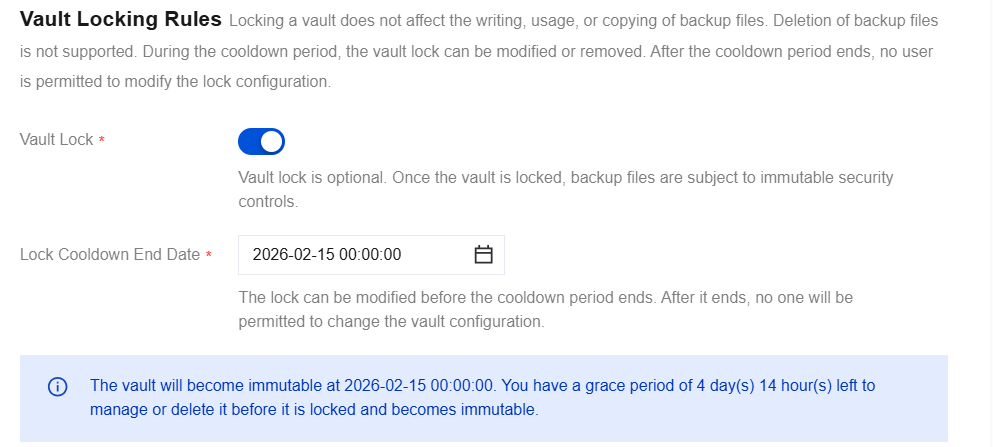
Edit Backup Vault
If you did not enable vault locking when the backup vault is created, or if the backup vault is within the cooling period, editing is supported to modify the corresponding settings.
When vault locking is not enabled: you can modify the backup vault lifecycle, vault locking, and vault encryption via the edit option.
When the backup vault is within the cooling period: you can modify the backup vault lifecycle, vault lock cooling period, remove the lock, and vault encryption via the edit option.
You can refer to the following steps to go to the backup vault edit page.
1. Log in to the TDSQL-C for MySQL console, select Backup Vault in the left sidebar to go to the backup vault page.
2. Locate the target backup vault and click Edit/Lock in its actions column.
Remove Backup Vault Locking
Note:
After the vault lock is removed, the backup files in the vault are no longer protected from deletion. All accounts with access to this backup vault can delete backup files within the vault and modify the vault's lifecycle.
Relocking is supported after the vault lock is removed. Relocking means reapplying lock settings to the backup vault. For the operation, refer to Backup Vault Lock Settings.
When your backup vault has vault locking enabled and is within the lock cooling period, you can follow the steps below to remove the backup vault lock.
1. Log in to the TDSQL-C for MySQL console, select Backup Vault in the left sidebar to go to the backup vault page.
2. Locate the target backup vault and click Edit/Lock in its actions column.
3. In the redirected page, disable the Vault Lock button.

4. In the pop-up window, click OK.
Delete Backup Vault
When a backup vault is left blank and no backup files are automatically shipping to it (you can change the target vault in the cluster's backup settings), you can delete the backup vault.
1. Log in to the TDSQL-C for MySQL console, select Backup Vault in the left sidebar to go to the backup vault page.
2. Locate the target backup vault and click Delete in its actions column.

3. In the pop-up window, click OK.
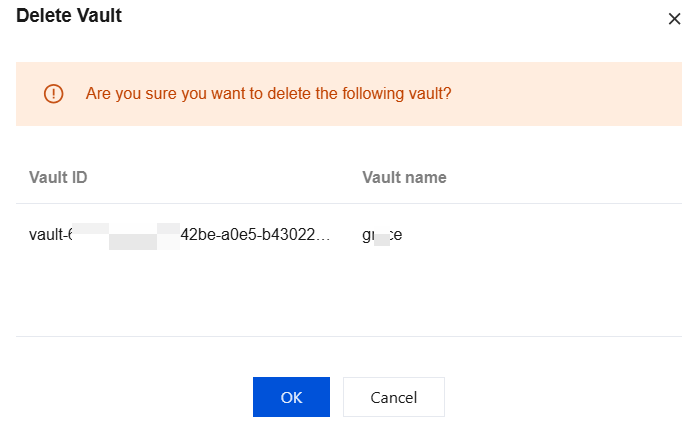
Appendix: Supported Actions for Backup Vault Across Different Scenarios
Support for editing backup vaults and deleting backup vaults in different scenarios:
Scenario | Edit Vault (Locking/Encryption/Lifecycle) | Delete Backup Vault |
The backup vault is unlocked during creation. | ✅ | ✅ (Conditional) |
The backup vault is locked but still within the cooling-off period. | ✅ | ✅ (Conditional) |
The backup vault is locked but the cooling-off period has passed. | ❌ | ✅ (Conditional) |
Note:
The conditions for deleting a backup vault are: the backup vault contains zero backup files, and no backup auto-delivery links are associated with it.
Supported operations for backup files in backup vaults:
Operation | Lock During Cooling-Off Period / Permanent Lock | Unlocked | ||||
| Snapshot backup | Logical backup | binlog & redo | Snapshot backup | Logical backup | binlog & redo |
Rollback | ✅ | ✅ | ✅ | ✅ | ✅ | ✅ |
Delete | ❌ | ❌ | ❌ | ✅(Manual Snapshot Backup) | ✅(Manual Logical Backup) | ❌ |
Download | ❌ | ❌ | ❌ | ❌ | ❌ | ❌ |
Note:
For the rollback operation of backup files in the backup vault, you can choose to roll back to a new cluster or the original cluster. If the original cluster has been destroyed, only rolling back to a new cluster is supported.
피드백