2. Click Project List on the left menu to find the target project that needs OPS operation.
3. After selecting the project, click to enter the Data Development Module.
4. Click Task Operation and Maintenance on the left menu.
Offline Synchronization Task Operations and Maintenance
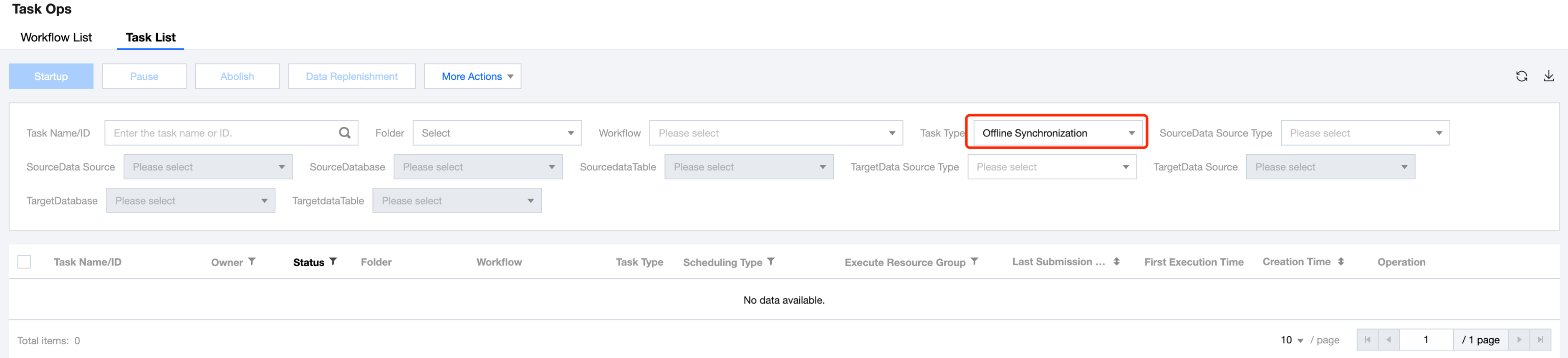
Click Task List to enter the list page. Select Offline Synchronization as the task type to view the offline synchronization tasks submitted in the Orchestration Space.
Feature Overview
Information
Description
Task Name/ID
Support copying task names and IDs. Click the task name to jump to the Task Detail Page > Task Lineage.
Owner
Displays the name of the Responsible Person for the compute tasks, specifying the responsibility for task operations. By default, it is the user who created the compute task.
Status
Running status of a computing task, allowing users to determine whether the task is running as expected. There are a total of 5 statuses: Scheduling In Progress, Paused, Offline, Expired.
Scheduling In Progress: The computing task is in a normal "Scheduling In Progress" state, and task instances will be generated according to the schedule.
Paused: The computing task is paused and in a "Paused" state. No new instances will be generated, but existing instances will continue to run.
Offline: The computing task is offline and in an "Offline" state. No new instances will be generated. To reschedule, please go to the Orchestration Space and resubmit.
Expired: The task is in an "Expired" state, indicating that the current time has exceeded the task's configured effective time. Expired tasks cannot be started or paused.
Folder
The folder directory to which the computing task belongs in the Orchestration Space, making it easy to identify the task's ownership for unified management.
Workflow
The workflow name to which the computing task belongs in the Orchestration Space, making it easy to identify and manage the task. Clicking the workflow name will navigate to the corresponding workflow’s configuration page.
Task Type
Task Type of the computing task.
Scheduling Type
Scheduling period of the computing task.
Execution Resource Group
Execution Resource Group configured for the computing task.
Last Submission Time
Displays the date and time when the compute task was last modified and updated for operations and maintenance. The format is yyyy-MM-dd HH:mm:ss.
First Execution Time
Displays the date and time when the compute task first ran to generate an instance according to the scheduling period. The format is yyyy-MM-dd HH:mm:ss.
Creation Time
Displays the date and time when the compute task was first submitted for operations and maintenance. The format is yyyy-MM-dd HH:mm:ss.
Task Operation and Maintenance:
Operation
Description
Startup
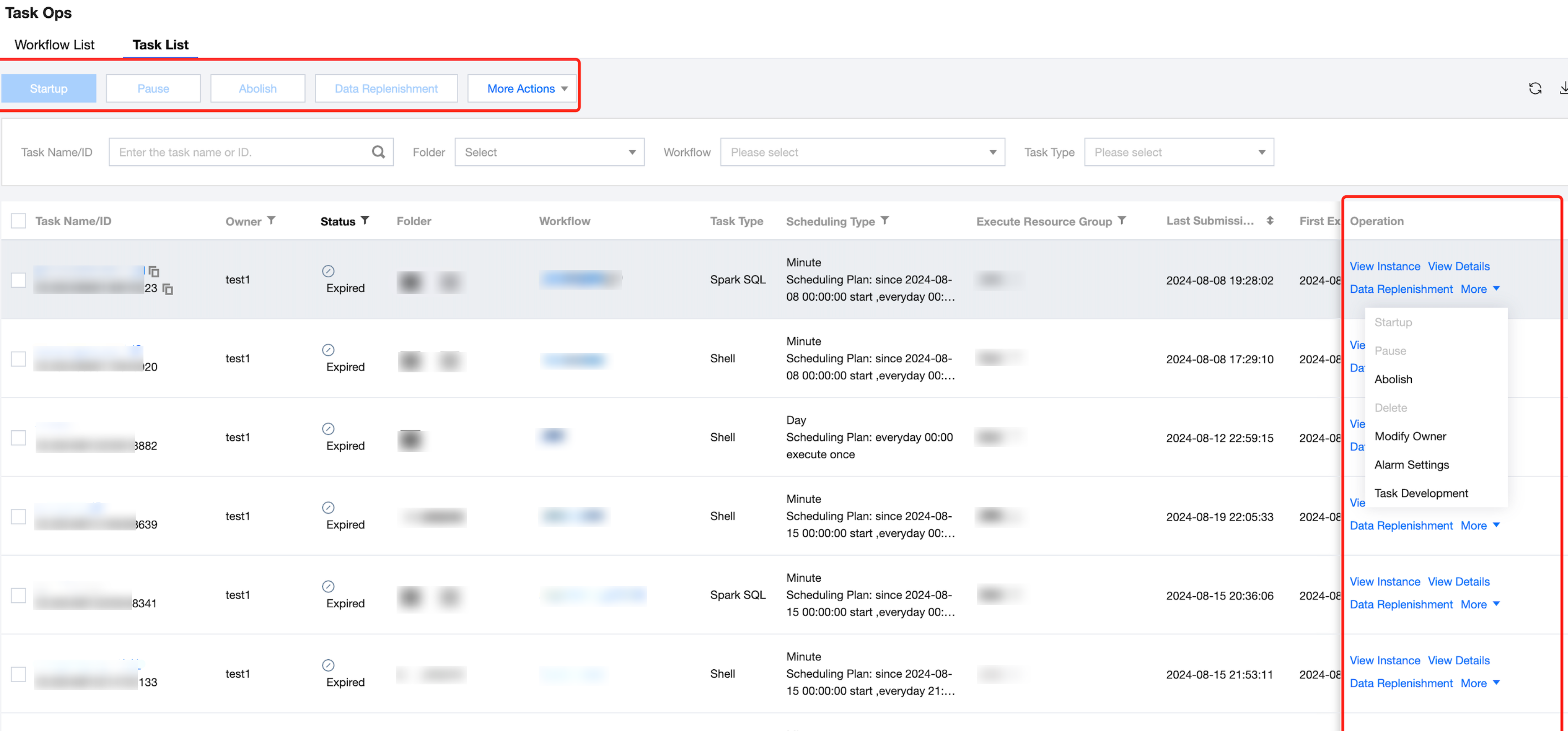
Divided into batch operations and single task operations. For batch operations, check the box in front of the task name, then use the feature button above; for single task operations, click the action items in the Operation column of the task list.
Only effective for tasks in the "Paused" state. After starting the task, it will be in normal scheduling and instances will be generated according to the scheduling period.
Pause
Only effective for tasks in the "Scheduling In Progress" state. After pausing the task, no new instances will be generated. You can choose whether to terminate the generated instances during the pause operation.
Abolish
Suspension: Only effective for tasks in the "Scheduling In Progress," "Paused," and "Expired" states.
Decommission: After decommissioning a task, its status will be set to "Offline" and no instances will be generated. To re-execute, it needs to be resubmitted in the Orchestration Space.
Data Replenishment
For task scheduling failed instances, execute supplements for historical missing instances and fill in missing or failed data processing task cycles.
Modify Owner
Modify the person in charge of the task to clarify the responsibility for compute task operations and maintenance. Multiple persons can be added to the same task at once.
Alarm settings
Set up alarm monitoring for the task's running status, so that operation and maintenance personnel can quickly detect abnormal task operations and respond promptly.
Task Development
Jumps to the corresponding compute node configuration interface in the Orchestration Space. It is a quick channel for Task Operation and Maintenance - Compute Task Node Editing.
Delete
Only computing tasks with the status "Offline" can be deleted. You can send a notification to the person in charge of the task upon deletion. If multiple computing tasks are selected, other tasks with different statuses will not be deleted by default. There are two ways to delete:
After deletion, downstream tasks will run normally.
After deletion, downstream tasks will all fail.
Viewing Instance
Jump to the corresponding computing task's Generated Instances List page. You can check the instance's running status, running time, and perform feature operations on the instance.
View Details
Jump to the Task Details page. It supports basic operations and viewing task basic information. See the description below for details on the Task Details page.
Task Details Page
The Task Details page is a collection of task information and operations, including basic information, basic operations, execution status of historical instances, and task lineage. Task operation and maintenance can be performed on this page.
The Task Details page contains three tabs: Execution History, Execution Curve, and Task Lineage.
Content
Description
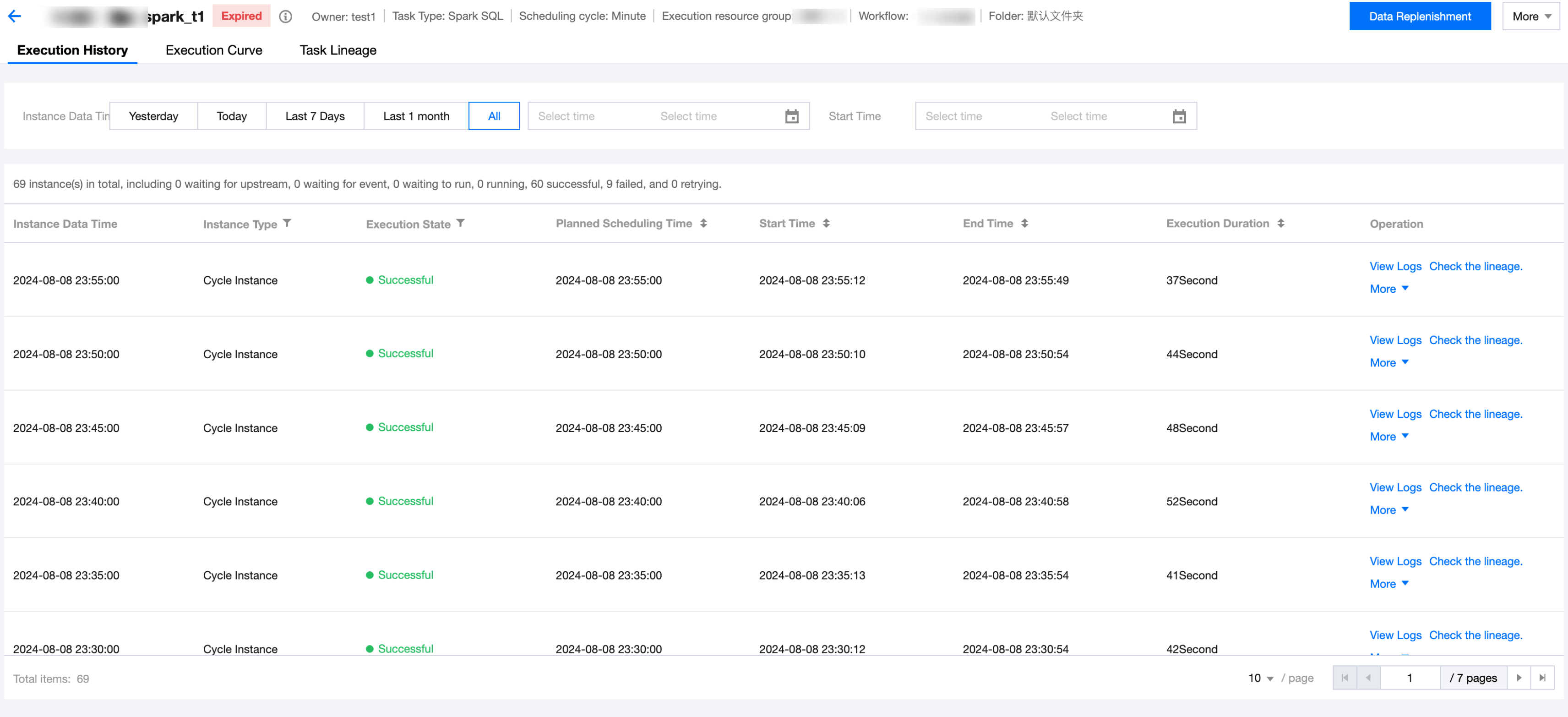
Execution History
Displays the basic information of historical task instances.
Filter: Supports filtering instances by instance data time and start time.
Statistics: Statistics of the total number of instances within the filter range, including the number of instances in each state (waiting for upstream, waiting for event, waiting to run, running, successful, and failed).
Instance List: Displays basic information and operations of instances.
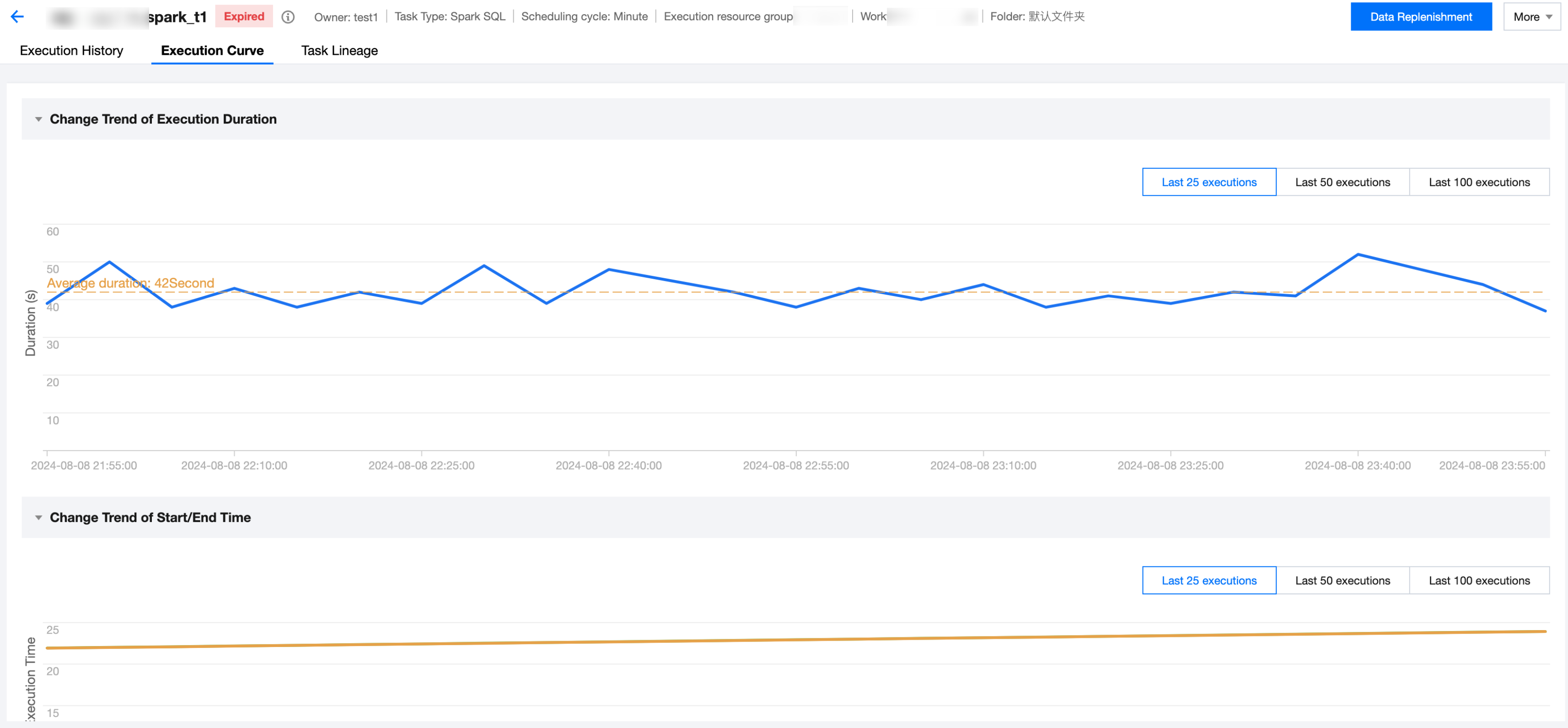
Execution Curve
Display the Execution Time Curve of Task History Instances.
Execution Duration Trend: View the execution duration trend of the last 25, 50, and 100 instances. Users can understand the changes in the execution duration of historical instances, assisting in determining whether there are anomalies in instance execution.
Start/End Time Change Trend: View the change trend of the start and end times for the last 25, 50, and 100 instances.
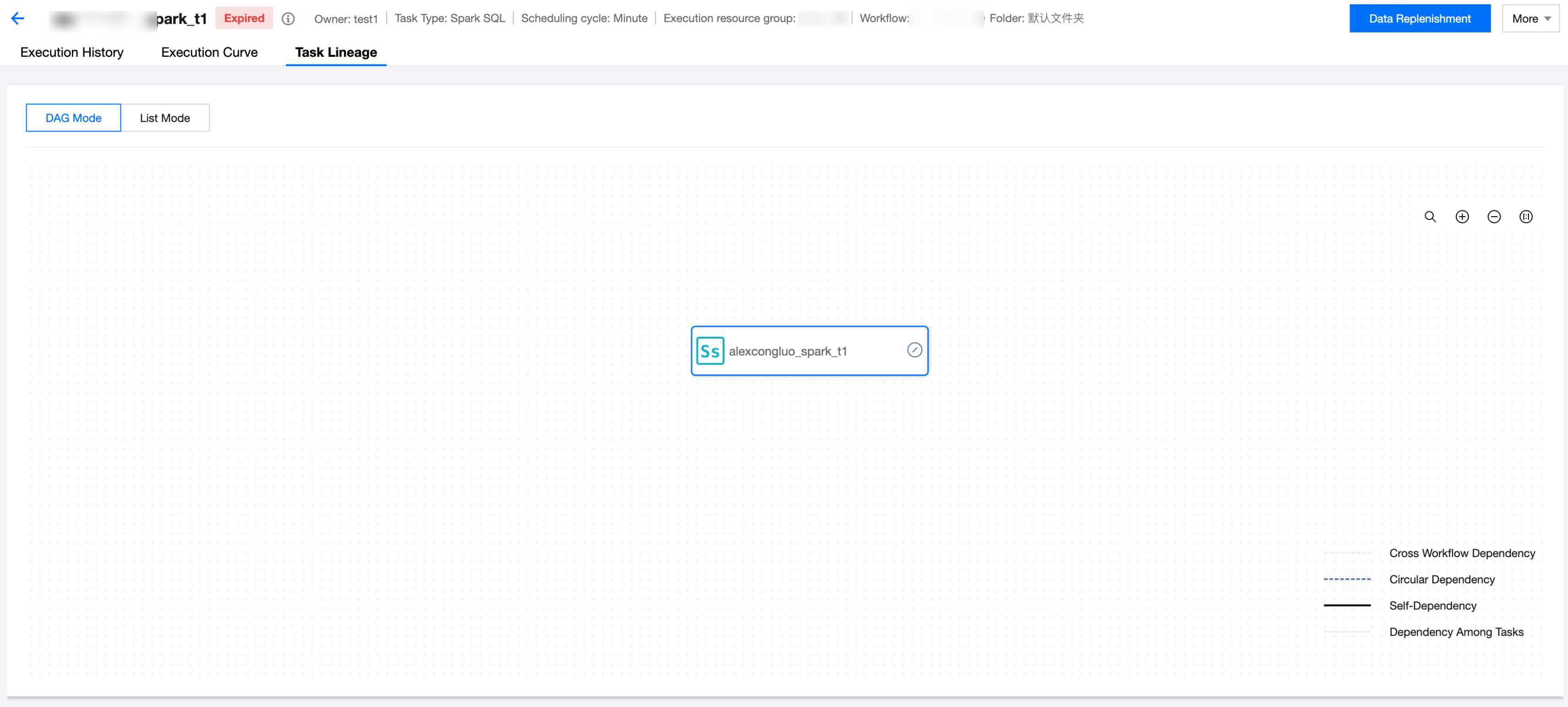
Task Lineage
Display the lineage information of the current task.
Divided into DAG Pattern and List Mode. For complex lineage relationships and scenarios with many nodes, the List Mode is recommended.