tencent cloud

Tencent Cloud Observability Platform

Release Notes and Announcements
Release Notes
Product Introduction
Overview
Strengths
Basic Features
Basic Concepts
Use Cases
Use Limits
Purchase Guide
Tencent Cloud Product Monitoring
Application Performance Management
Mobile App Performance Monitoring
Real User Monitoring
Cloud Automated Testing
Prometheus Monitoring
Grafana
EventBridge
PTS
Quick Start
Monitoring Overview
Instance Group
Tencent Cloud Product Monitoring
Application Performance Management
Real User Monitoring
Cloud Automated Testing
Performance Testing Service
Prometheus Getting Started
Grafana
Dashboard Creation
EventBridge
Alarm Service
Cloud Product Monitoring
Tencent Cloud Service Metrics
Operation Guide
CVM Agents
Cloud Product Monitoring Integration with Grafana
Troubleshooting
Practical Tutorial
Application Performance Management
Product Introduction
Access Guide
Operation Guide
Practical Tutorial
Parameter Information
FAQs
Mobile App Performance Monitoring
Overview
Operation Guide
Access Guide
Practical Tutorial
Tencent Cloud Real User Monitoring
Product Introduction
Operation Guide
Connection Guide
FAQs
Cloud Automated Testing
Product Introduction
Operation Guide
FAQs
Performance Testing Service
Overview
Operation Guide
Practice Tutorial
JavaScript API List
FAQs
Prometheus Monitoring
Product Introduction
Access Guide
Operation Guide
Practical Tutorial
Terraform
FAQs
Grafana
Product Introduction
Operation Guide
Guide on Grafana Common Features
FAQs
Dashboard
Overview
Operation Guide
Alarm Management
Console Operation Guide
Troubleshooting
FAQs
EventBridge
Product Introduction
Operation Guide
Practical Tutorial
FAQs
Report Management
FAQs
General
Alarm Service
Concepts
Monitoring Charts
CVM Agents
Dynamic Alarm Threshold
CM Connection to Grafana
Documentation Guide
Related Agreements
Application Performance Management Service Level Agreement
APM Privacy Policy
APM Data Processing And Security Agreement
RUM Service Level Agreement
Mobile Performance Monitoring Service Level Agreement
Cloud Automated Testing Service Level Agreement
Prometheus Service Level Agreement
TCMG Service Level Agreements
PTS Service Level Agreement
PTS Use Limits
Cloud Monitor Service Level Agreement
API Documentation
History
Introduction
API Category
Making API Requests
Monitoring Data Query APIs
Alarm APIs
Legacy Alert APIs
Notification Template APIs
TMP APIs
Grafana Service APIs
Event Center APIs
TencentCloud Managed Service for Prometheus APIs
Monitoring APIs
Data Types
Error Codes
Glossary

Configuring Trigger Condition Template

PDF
Modo Foco
Tamanho da Fonte
Última atualização: 2024-01-27 17:35:59

Overview

You can set an alarm rule for a specific Tencent Cloud service through a trigger condition template and then reuse the alarm rule to set alarm policies for other products, eliminating the need to set the same alarm rule repeatedly. When using a trigger template to set triggers for an alarm policy, you can edit the template and then apply it to the corresponding alarm policy. This allows you to quickly modify alarm policies and rules in a unified manner, improving OPS efficiency. This document describes how to configure a trigger template.

Notes

An alarm trigger condition is a semantic condition consisting of metric, comparison, threshold, statistical period, and duration. For example, if the metric is CPU utilization, the comparison is >, the threshold is 80%, the statistical period is 5 minutes, and the duration is 2 periods, then the data on CPU utilization of a CVM instance will be collected once every 5 minutes, and an alarm will be triggered if the CPU utilization exceeds 80% for three consecutive periods.
You can set a repeated notification policy for each alarm rule, so an alarm notification will be sent repeatedly at specified frequency when an alarm is triggered. Frequency options: do not repeat, once every 5 minutes, once every 10 minutes, and other exponentially increased frequencies. Exponential increase means that when an alarm is triggered for the first time, second time, fourth time, eighth time, ..., or 2 to the power of Nth time, an alarm notification will be sent to you. In other words, the alarm notification will be sent less and less frequently with longer time intervals in between, reducing the disturbance caused by repeated alarm notifications.
The default logic for repeated alarm notifications is as follows:
The alarm notification will be sent to you at the configured frequency for 24 hours after an alarm is triggered.
Following 24 hours after an alarm is triggered, the alarm notification will be sent once every day by default.
Note:
A trigger condition template is used to set triggers for one specific Tencent Cloud service.
After a trigger condition template is modified, the corresponding alarm policy that has already been applied will be synced to the latest trigger.

Directions

Creating trigger condition template

2. On the left sidebar, click Trigger Condition Template to enter the trigger template list page.
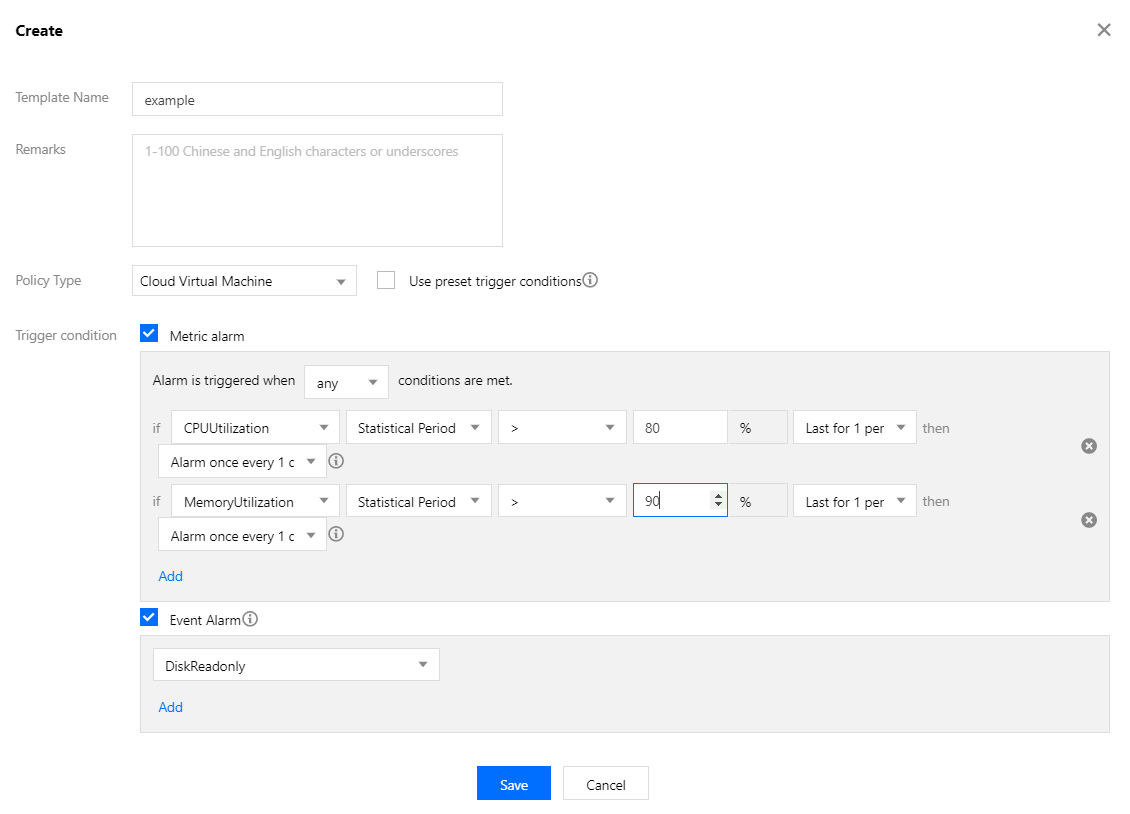
3. Click Create. In the pop-up window, configure the following items:
Template Name: enter a template name.
Remarks: enter template remarks.
Policy Type: select a monitored service, such as CVM.
Use preset trigger conditions: select this option to enable preset trigger conditions for the corresponding monitored service.
Trigger condition: this includes metric alarm and event alarm. You can click "Add" to set multiple alarms.


4. Click Save to create the trigger condition template.

Editing trigger condition template

2. On the left sidebar, click Trigger Condition Template to enter the trigger template list page.
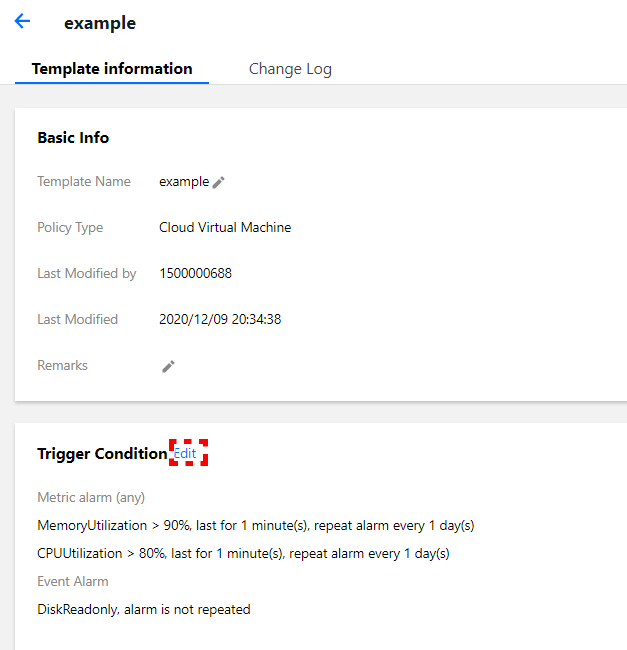
3. Click the name of the template to be edited to enter the details page.
4. Click Edit to modify the basic information of the trigger condition template and alarm trigger condition.


Note:
After a trigger condition template associated with alarm policies is edited, the modification applies to all associated alarm policies.

Deleting trigger condition template

2. On the left sidebar, click Trigger Condition Template to enter the trigger template list page.
3. Find the template to be deleted and click Delete in the "Operation" column on the right.


4. Click Delete in the pop-up dialog box.
Note:
After a trigger condition template associated with alarm policies is deleted, all alarm policies associated with the template become invalid.

Copying trigger condition template

2. On the left sidebar, click Trigger Condition Template to enter the trigger template list page.
3. Find the template to be copied and click Copy in the "Operation" column on the right.


4. Click Copy in the pop-up dialog box.
Note:
When a trigger condition template is copied, only the triggers and rules of the template are copied. If the copied template is associated with an alarm policy, the association relationship is not copied.
Ajuda e Suporte

Esta página foi útil?

comentários

