tencent cloud

VPN Connections

Release Notes and Announcements
Release Notes
Announcements
Product Introduction
Overview
Components
Application Scenarios
Use Limits
Related products
Purchase Guide
Billing Overview
Purchase Methods
Expiration Notifications
Getting Started
IPSec VPN
SSL VPN
Operation Guide
VPN Gateway
VPN Tunnel
Customer Gateway
SSL VPN Server
SSL VPN Client
Binding an Anti-DDoS Instance
Alarming and Monitoring
SSL VPN Configuration Guide
IPSec VPN Configuration Guide
Operations Overview
Practical Tutorial
IPsec VPN
SSL VPN
API Documentation
FAQs
Concepts
Scenarios
Generic class
Billing
About IPsec gateways
About SSL
Troubleshooting
VPN Tunnel Unconnected
VPN Tunnel Connected Yet Private Network Unconnected
IPSec VPN Error Description for Negotiation Failure
Service Agreement
Service Level Agreement
Contact Us
Glossary

Step 5: Configure a Routing Table

PDF
Modo Foco
Tamanho da Fonte
Última atualização: 2024-01-09 14:20:07
After you complete Step 4, the VPN tunnel is successfully configured. Next, you need to configure a route table to route the traffic of subnet A to the VPN gateway so that the IP range in subnet A can communicate with the IP range in the IDC.
2. In the left sidebar, click Subnet. Choose the region where your VPC resides and your VPC, i.e. Guangzhou and TomVPC in this example, and click the associated route table of the subnet A to go to the details page.
3. Click + New.
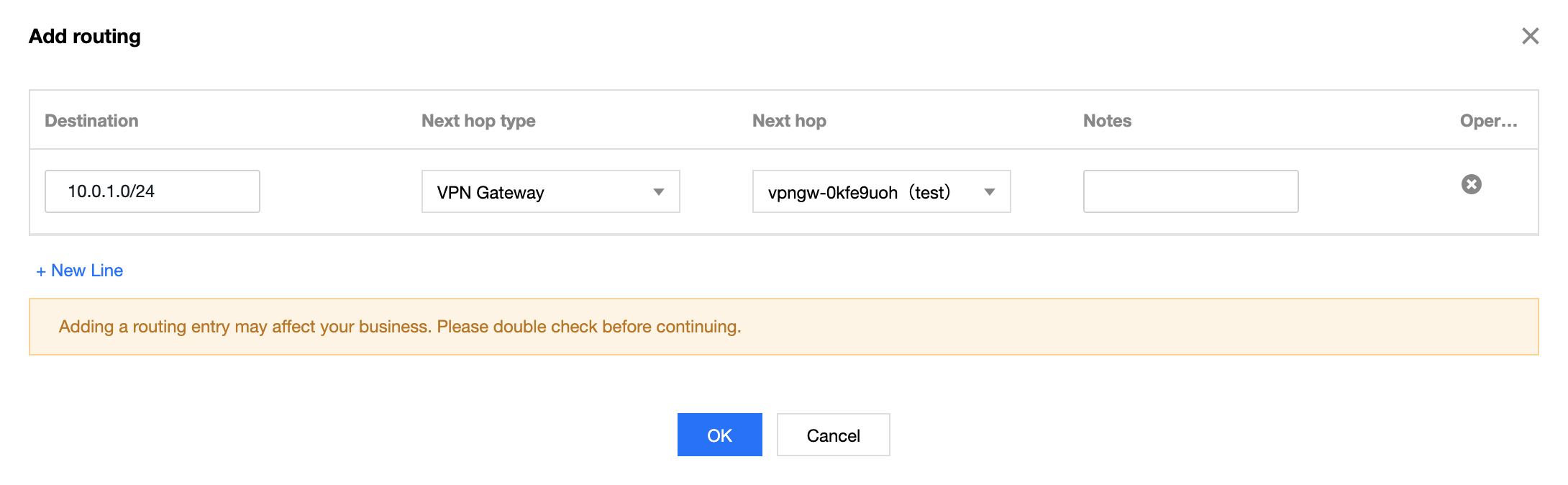
4. In the Create Route Table pop-up window, enter the destination IP range (10.0.1.0/24). Select VPN Gateway for next hop type, and the new VPN gateway TomVPNGw for next hop.

Ajuda e Suporte

Esta página foi útil?

comentários