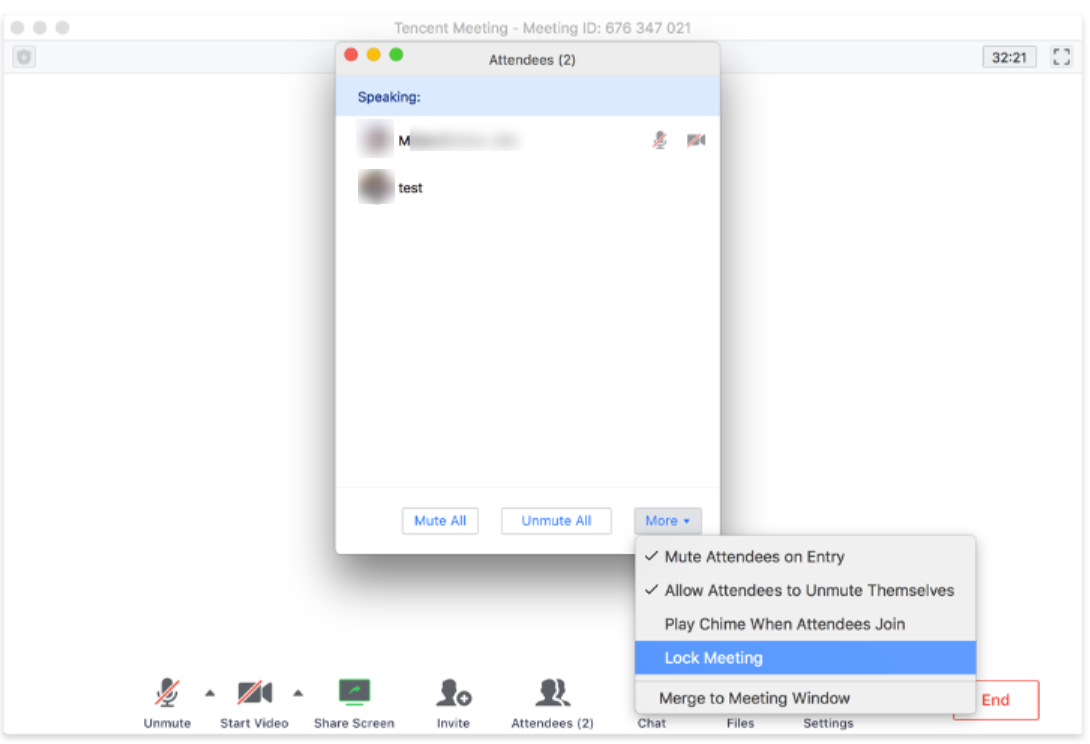
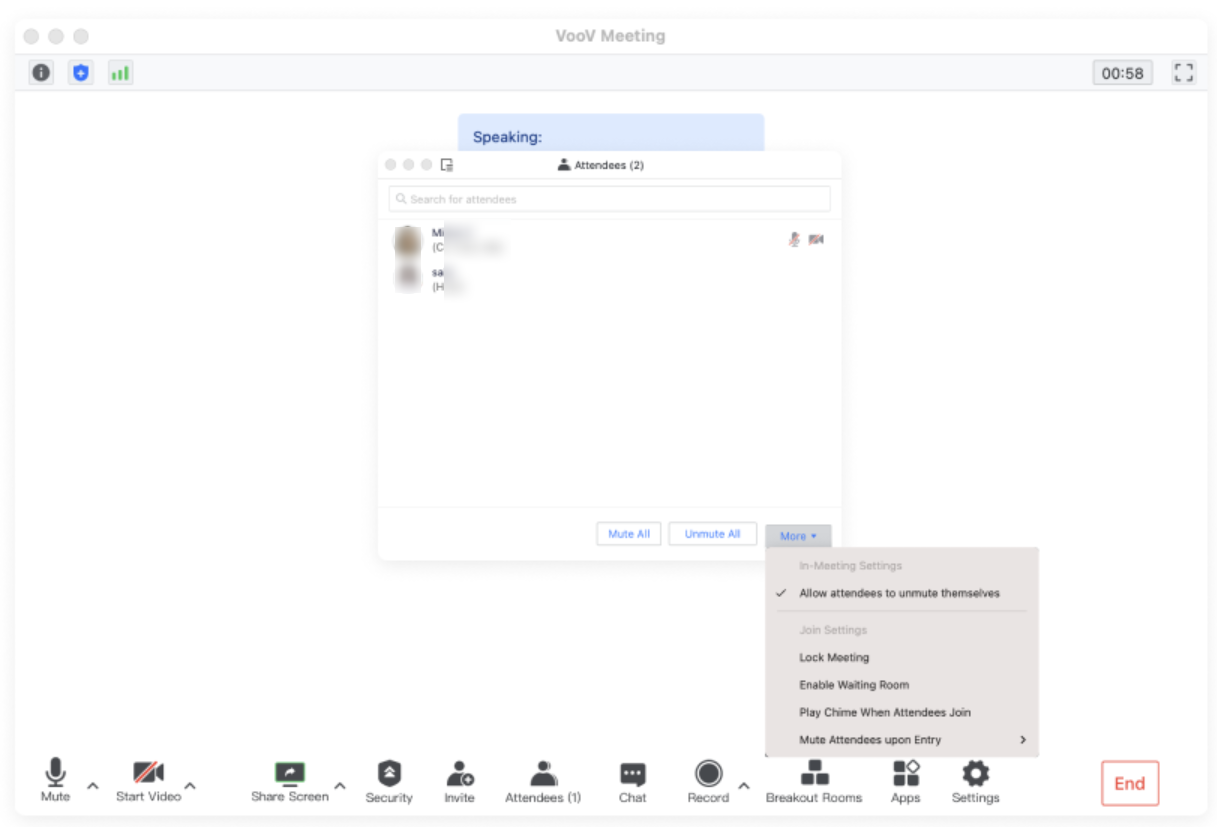
The meeting host is allowed to mute or unmute anyone during the meeting. In addition, the meeting can be locked once all of the invited attendees are joined. This feature ensures your meeting security.
1. Click Attendees and click the More button on the Attendees panel.
2. Decide if you want to mute attendees on entry or lock the meeting.
Enlarging the Video Screen
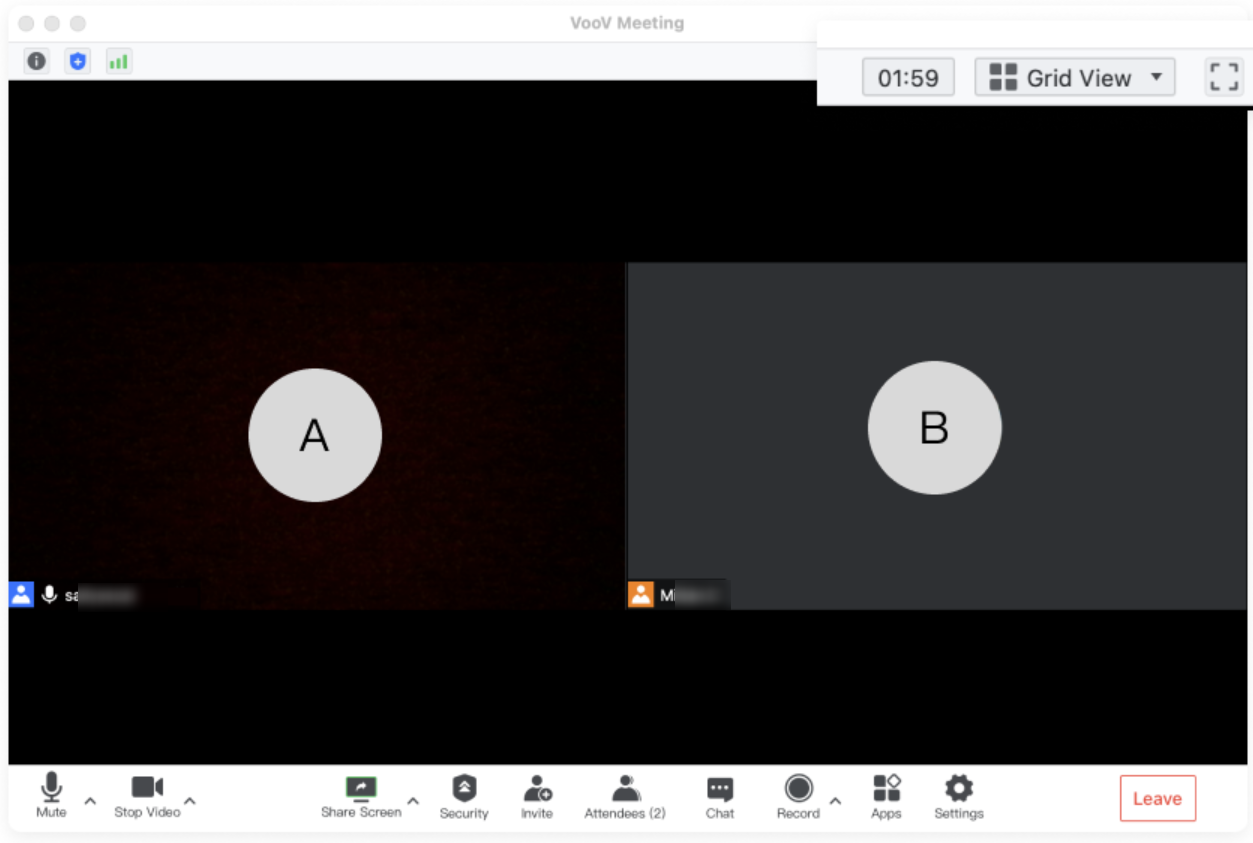
When the video is on, attendees can choose to show the videos in gallery view or to enlarge an individual screen.
1. Click the icon "Grid View" on the top right corner to display the videos side-by-side.
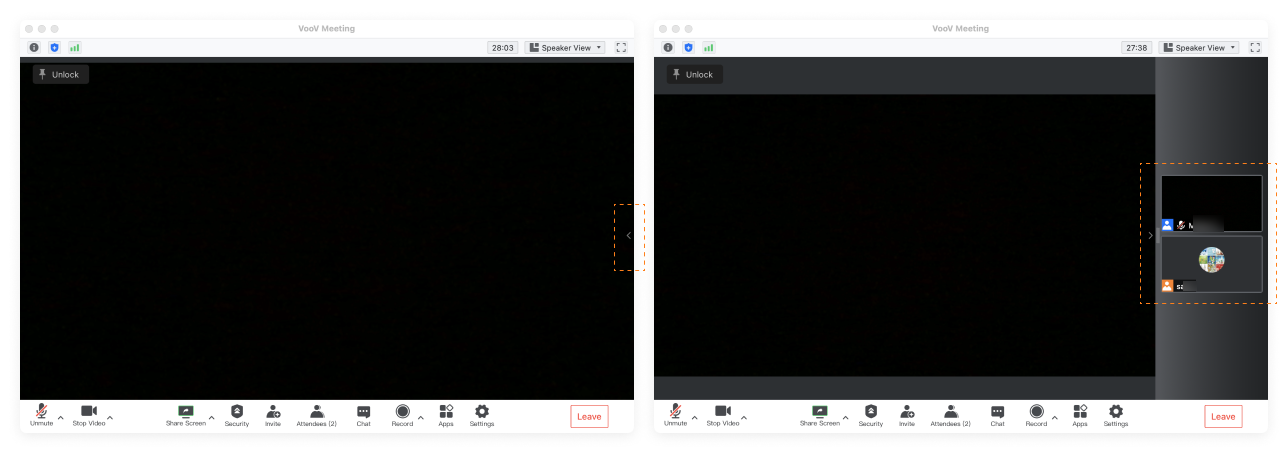
2. Double click the video screen of an attendee to enlarge it.
3. Decide if you want to display the video screen list from the drawer on the right side.
Microphone Controls
Role: Organizer/Co-Host/Attendee
Checking the Mic Status of Attendees
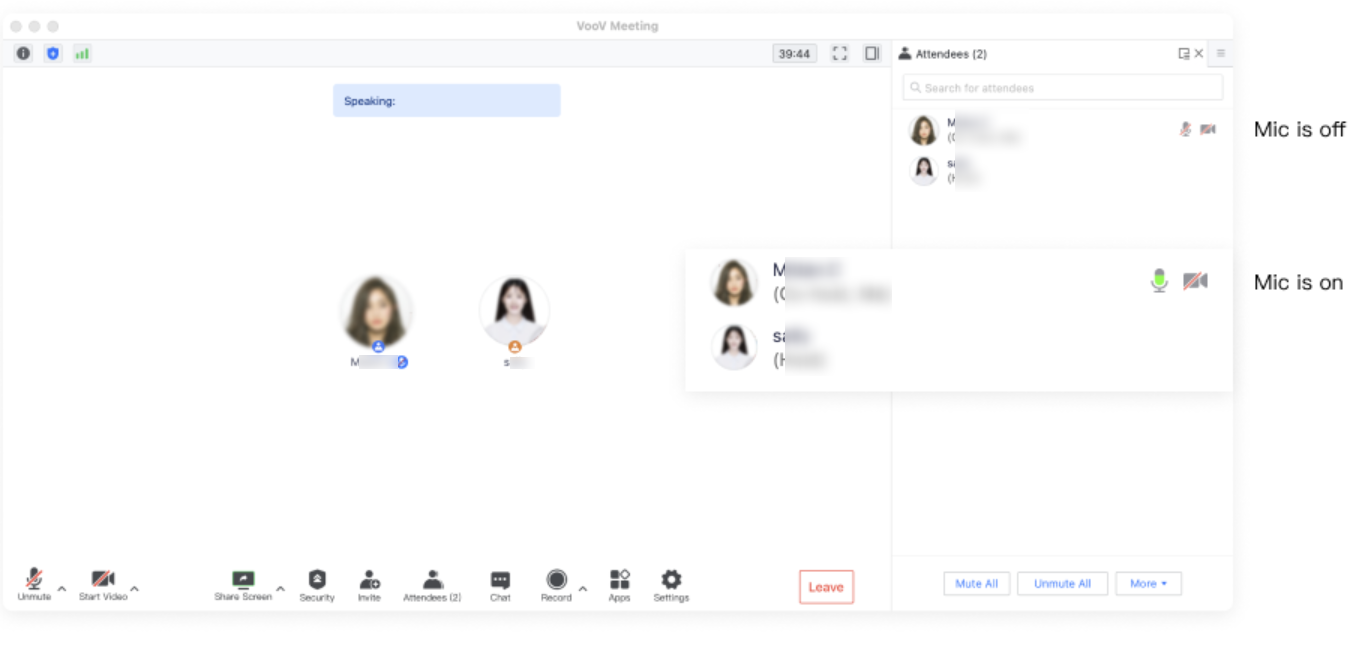
You can check the mic status of each attendee. If an attendee is speaking, their mic icon will turn green.
1. Click Attendees to check if attendees are muted or unmuted.
2. If the user's mic is enabled, the mic icon will be turned on.
Muting and Unmuting Attendees
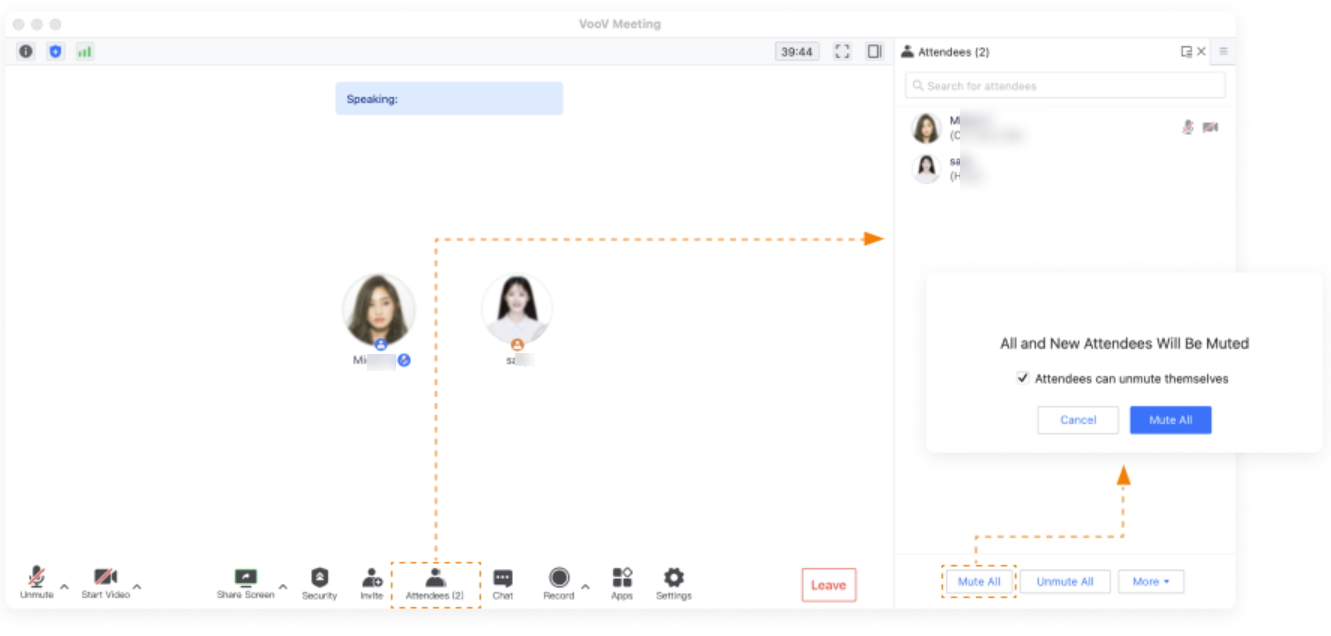
Hosts are allowed to mute or unmute attendees during the meeting. We recommend muting all attendees to reduce background noise.
1. If the meeting organizer selected the "Mute All" option, all attendees will be muted by default until the meeting organizer turns this option off. We suggest enabling Allow Attendees to Unmute Themselves when you Mute All.
2. Hosts can unmute any attendee with their consent during online meetings.
Renaming Attendees
Role: Organizer/Co-Host/Attendee
Renaming Attendees
We suggest changing your alias before joining the meeting. This will help attendees recognize each other. This especially applies to large-scale conferences with attendees from multiple organizations.
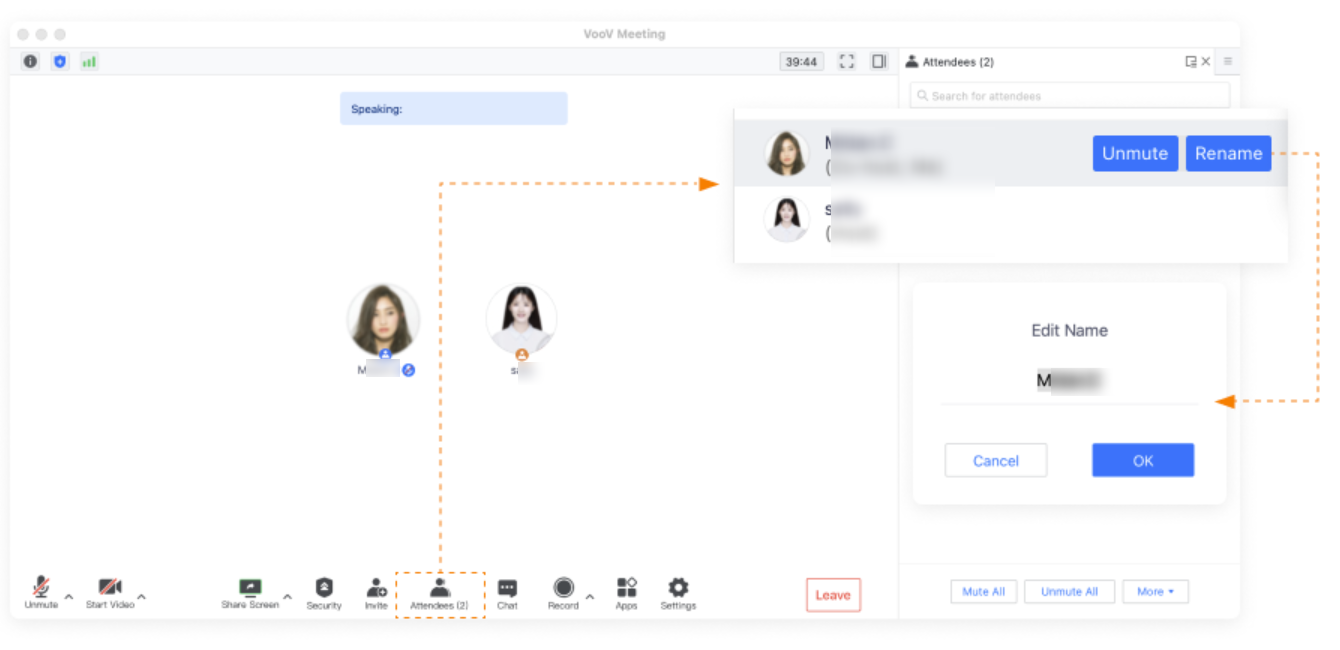
1. Select an attendee from the list to change their display name.
2. Click Rename to update their name.
3. Only the meeting organizer and co-host can rename others. Attendees can only rename themselves.