Live Stream List (Android)
Download
Modo Foco
Tamanho da Fonte
LiveListStore is the core module of AtomicXCore responsible for managing the live room list, creating and joining rooms, and maintaining room state. With LiveListStore, you can implement comprehensive live streaming lifecycle management in your application.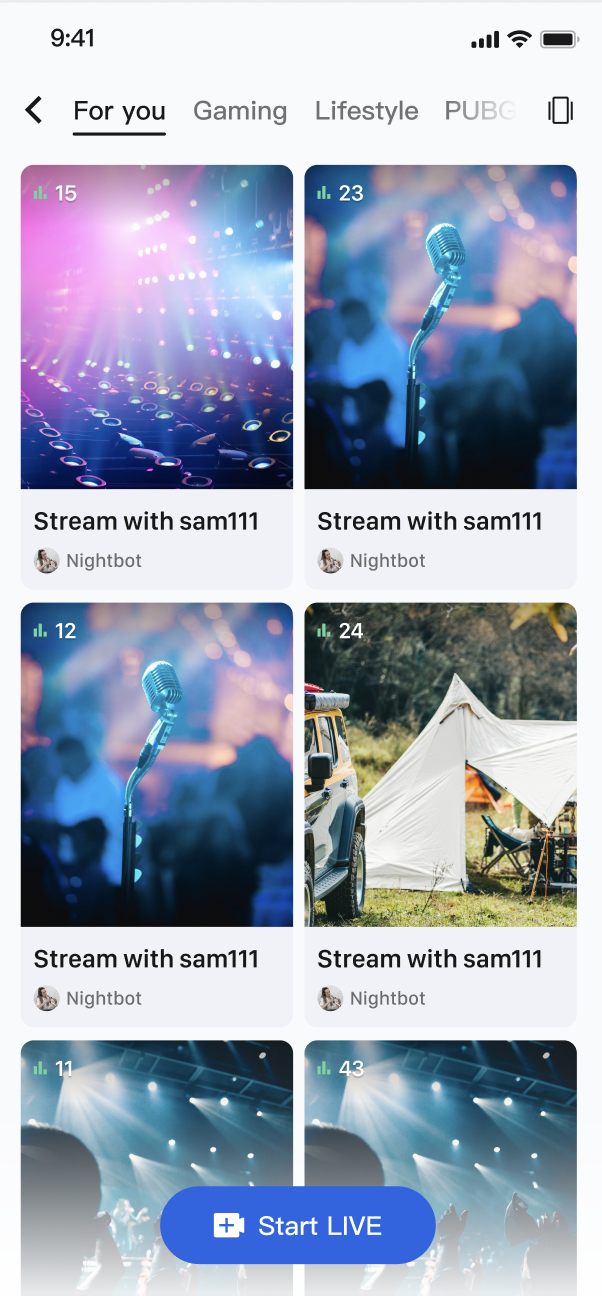
Core Features
Live Room List Fetching: Retrieve all currently public live rooms, returned one page at a time.
Live Lifecycle Management: Provides a complete set of interfaces for the entire live streaming workflow, including room creation, going live, joining, leaving, and ending a live session.
Real-Time Event Listening: Listen for key events such as live session end or users being removed from a room.
Core Concepts
Core Concept | Type | Core Responsibility & Description |
LiveInfo | struct | Represents the complete information model of a live room. Includes the live room ID ( liveID), name (liveName), owner information (liveOwner), and custom metadata (metaData), among other properties. |
LiveListState | struct | Represents the current state of the live list module. The core property liveList is a StateFlow containing the fetched live room list; currentLive represents the information of the live room the user is currently in. |
LiveListEvent | enum | Handles global live room events, including .onLiveEnded (live ended) and .onKickedOutOfLive (user removed from live), for responding to key room state changes. |
LiveListStore | class | The core management class for interacting with the live room list and room lifecycle. It is a global singleton responsible for all operations such as creating, joining, and updating live room information. |
Implementation
Step 1: Component Integration
Video Live Streaming:Refer to Quick Start to integrate AtomicXCore and complete the implementation of the Host Video Streaming and Audience Join and Watch features.
Voice Chat Room:Refer to Quick Start to integrate AtomicXCore and complete the implementation of the Host Audio Streaming and Audience Join and Watch features.
Step 2: Implement Audience Entry from Live Room List
Create a page to display the live room list using
UICollectionView to lay out live room cards. When a user taps a card, retrieve the liveID for that room and navigate to the audience viewing page.import AtomicXCoreimport SnapKitimport RTCRoomEngineimport Combineclass LiveListViewController: UIViewController, UICollectionViewDataSource, UICollectionViewDelegate, UICollectionViewDelegateFlowLayout {private let liveListStore = LiveListStore.sharedprivate var cancellables = Set<AnyCancellable>()private var liveList: [LiveInfo] = []private var collectionView: UICollectionView!override func viewDidLoad() {super.viewDidLoad()setupUI()bindStore()fetchLiveList()}private func bindStore() {// Subscribe to state to automatically receive list updatesliveListStore.state.subscribe(StatePublisherSelector(keyPath: \\LiveListState.liveList)).receive(on: DispatchQueue.main).sink { [weak self] fetchedList inself?.liveList = fetchedListself?.collectionView.reloadData()}.store(in: &cancellables)}private func fetchLiveList() {liveListStore.fetchLiveList(cursor: "", count: 20) { result inif case .failure(let error) = result {print("Failed to fetch live room list: \\(error.localizedDescription)")}}}// Called when the user taps a cell in the listfunc collectionView(_ collectionView: UICollectionView, didSelectItemAt indexPath: IndexPath) {let selectedLiveInfo = liveList[indexPath.item]// Create the audience viewing page and pass in the liveIDlet audienceVC = YourAudienceViewController(liveId: selectedLiveInfo.liveID)audienceVC.modalPresentationStyle = .fullScreenpresent(audienceVC, animated: true)}// --- UICollectionViewDataSource, Delegate, and UI setup methods ---private func setupUI() {let layout = UICollectionViewFlowLayout()// ... (Customize your layout as needed)collectionView = UICollectionView(frame: view.bounds, collectionViewLayout: layout)collectionView.dataSource = selfcollectionView.delegate = selfcollectionView.register(UICollectionViewCell.self, forCellWithReuseIdentifier: "LiveCell")view.addSubview(collectionView)}func collectionView(_ collectionView: UICollectionView, numberOfItemsInSection section: Int) -> Int {return liveList.count}func collectionView(_ collectionView: UICollectionView, cellForItemAt indexPath: IndexPath) -> UICollectionViewCell {let cell = collectionView.dequeueReusableCell(withReuseIdentifier: "LiveCell", for: indexPath)cell.backgroundColor = .lightGray // Customize your cell style// let liveInfo = liveList[indexPath.item]// ... (e.g.: cell.titleLabel.text = liveInfo.liveName)return cell}func collectionView(_ collectionView: UICollectionView, layout collectionViewLayout: UICollectionViewLayout, sizeForItemAt indexPath: IndexPath) -> CGSize {// Adjust cell size for single or double column layout as neededlet width = (view.bounds.width - 30) / 2return CGSize(width: width, height: width * 1.2)}}
LiveInfo Parameter Reference
Parameter Name | Type | Description |
liveID | String | Unique identifier for the live room |
liveName | String | Title of the live room |
coverURL | String | URL of the live room cover image |
liveOwner | Personal information of the room owner | |
totalViewerCount | Int | Total number of viewers in the live room |
categoryList | [NSNumber] | List of category tags for the live room |
notice | String | Announcement information for the live room |
metaData | [String: String] | Developer-defined metadata for implementing complex business scenarios |
Advanced Features
Scenario 1: Category Filtering for Live Room List
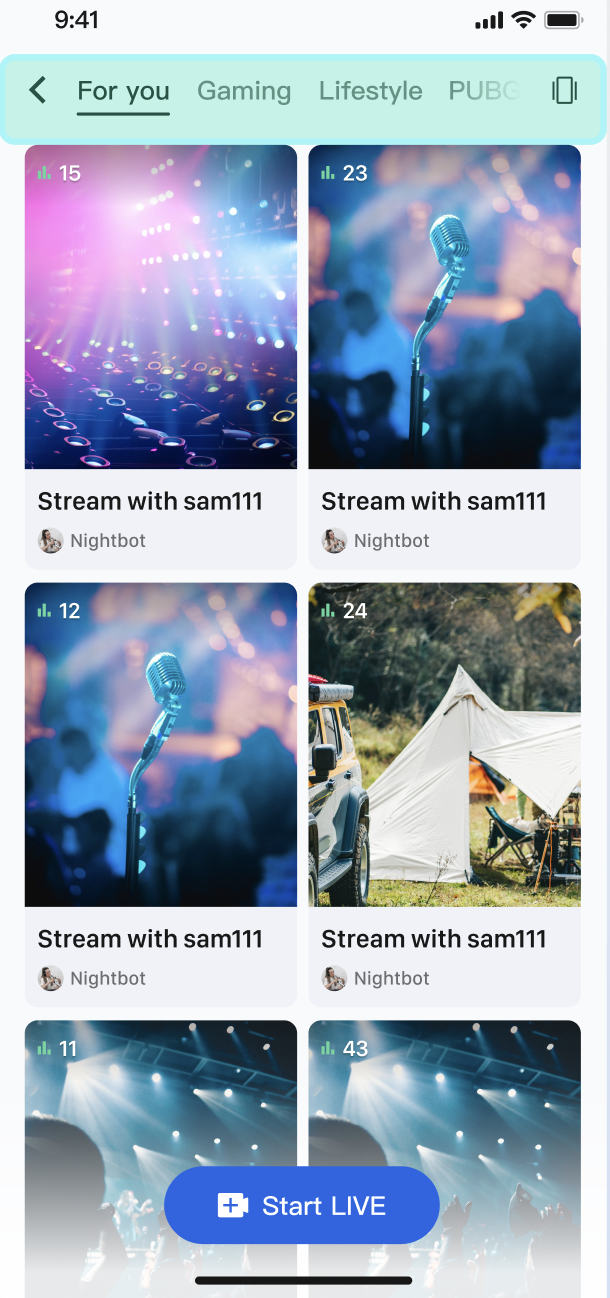
On the live plaza page, users can select category tags such as "Hot", "Music", "Games", etc. When a tag is selected, the live room list dynamically filters to display only rooms in the chosen category, helping users quickly discover relevant content.
Implementation
Use the
categoryList property in the LiveInfo model. When the host sets a category at the start of the stream, the LiveInfo object returned by fetchLiveList includes this category data. After fetching the full live room list, filter it on the client side based on the selected category and update the UI.Code Example
The following example shows how to extend a
LiveListManager in LiveListViewController to handle data fetching and category filtering:import AtomicXCoreimport Combine// 1. Data manager for fetching and filteringclass LiveListManager {private let liveListStore = LiveListStore.sharedprivate var cancellables = Set<AnyCancellable>()private var fullLiveList: [LiveInfo] = []// Publisher for the filtered live listlet filteredLiveListPublisher = CurrentValueSubject<[LiveInfo], Never>([])init() {liveListStore.state.subscribe(StatePublisherSelector(keyPath: \\LiveListState.liveList)).receive(on: DispatchQueue.main).sink { [weak self] fetchedList inself?.fullLiveList = fetchedList// By default, publish the complete listself?.filteredLiveListPublisher.send(fetchedList)}.store(in: &cancellables)}func fetchFirstPage() {liveListStore.fetchLiveList(cursor: "", count: 20) { _ in }}/// Filter the live list by categoryfunc filterLiveList(by categoryId: NSNumber?) {guard let categoryId = categoryId else {// Show the full list if no category is selectedfilteredLiveListPublisher.send(fullLiveList)return}let filteredList = fullLiveList.filter { liveInfo inliveInfo.categoryList.contains(categoryId)}filteredLiveListPublisher.send(filteredList)}}// 2. Use the manager in your LiveListViewControllerclass LiveListViewController: UIViewController, UICollectionViewDataSource, UICollectionViewDelegate {private let manager = LiveListManager()private var cancellables = Set<AnyCancellable>()private var liveList: [LiveInfo] = []private var collectionView: UICollectionView!override func viewDidLoad() {super.viewDidLoad()// ... setupUI ...// Bind datamanager.filteredLiveListPublisher.receive(on: DispatchQueue.main).sink { [weak self] filteredList inself?.liveList = filteredListself?.collectionView.reloadData()}.store(in: &cancellables)// Fetch the first pagemanager.fetchFirstPage()}// Handle category selection (e.g., UISegmentedControl)@objc func categorySegmentDidChange(_ sender: UISegmentedControl) {let selectedCategoryId: NSNumber? = 1 // Example: "Music" category ID is 1manager.filterLiveList(by: selectedCategoryId)}// ... (UICollectionView related code)}
Scenario 2: Swipe-to-Play for Live Room List

Users can switch between live rooms by swiping up or down. When a new live room is centered on the screen, its video will automatically start preview playback; when it is swiped away or no longer visible on the screen, playback will automatically stop to save bandwidth and device resources.
Note:
Swipe-to-Play is currently only supported for Video Live Streaming.
Interaction Flow
Implementation
LiveCoreView supports multiple instances. Create a separate LiveCoreView for each UICollectionViewCell. By listening to the scroll delegate methods of UICollectionView, you can control when the LiveCoreView in each cell should start or stop streaming, enabling "play on swipe in, stop on swipe out".Code Example
Create a custom
LiveFeedCell containing a LiveCoreView. Then, manage playback state in your view controller:import UIKitimport AtomicXCore// 1. Custom UICollectionViewCell with LiveCoreViewclass LiveFeedCell: UICollectionViewCell {private var liveCoreView: LiveCoreView?func setLiveInfo(_ liveInfo: LiveInfo) {// Create a new LiveCoreView for the new live infoliveCoreView = LiveCoreView(viewType: .playView)guard let liveCoreView = liveCoreView else { return }contentView.addSubview(liveCoreView)liveCoreView.frame = contentView.bounds}func startPlay(roomId: String) {liveCoreView?.startPreviewLiveStream(roomId: roomId, isMuteAudio: false)}func stopPlay(roomId: String) {liveCoreView?.stopPreviewLiveStream(roomId: roomId)}}// 2. Manage playback in the ViewControllerclass LiveFeedViewController: UIViewController, UICollectionViewDataSource, UICollectionViewDelegate {private var collectionView: UICollectionView!private var liveList: [LiveInfo] = []private var currentPlayingIndexPath: IndexPath?// Called when scrolling stopsfunc scrollViewDidEndDecelerating(_ scrollView: UIScrollView) {let page = Int(scrollView.contentOffset.y / view.frame.height)let indexPath = IndexPath(item: page, section: 0)// Switch playback only when the centered cell changesif currentPlayingIndexPath != indexPath {playVideo(at: indexPath)}}// Called when a cell is about to leave the screenfunc collectionView(_ collectionView: UICollectionView, didEndDisplaying cell: UICollectionViewCell, forItemAt indexPath: IndexPath) {if let liveCell = cell as? LiveFeedCell {let liveInfo = liveList[indexPath.item]liveCell.stopPlay(roomId: liveInfo.liveID)}}private func playVideo(at indexPath: IndexPath) {if let cell = collectionView.cellForItem(at: indexPath) as? LiveFeedCell {let liveInfo = liveList[indexPath.item]cell.startPlay(roomId: liveInfo.liveID)currentPlayingIndexPath = indexPath}}// ... (Other UICollectionViewDataSource methods)func collectionView(_ collectionView: UICollectionView, cellForItemAt indexPath: IndexPath) -> UICollectionViewCell {let cell = collectionView.dequeueReusableCell(withReuseIdentifier: "LiveFeedCell", for: indexPath) as! LiveFeedCellcell.setLiveInfo(liveList[indexPath.item])return cell}}
API Documentation
For detailed information on all public interfaces, properties, and methods of LiveListStore and related classes, refer to the official API documentation included with the AtomicXCore framework. The relevant Stores used in this document are as follows:
Store/Component | Feature Description | API Documentation |
LiveCoreView | Core view component for live video stream display and interaction. Responsible for video stream rendering and view widget handling, supporting scenarios such as host streaming, audience co-hosting, and host linking. | |
LiveListStore | Full lifecycle management of live rooms: create, join, leave, destroy rooms; query room list; modify live information (name, announcement, etc.); listen to live status (such as being removed or ended). |
FAQs
Is the list data for voice chat rooms and video live rooms the same?
Yes. The data is unified; you do not need to fetch them separately.
LiveListStore is a global singleton that manages the lifecycle of all "live" rooms in your application, including both video live rooms and voice chat rooms.How do I distinguish between voice chat rooms and video live rooms in the live room list?
LiveListStore does not differentiate between room business types. You must filter and categorize the list after fetching, at the application or UI layer.We recommend two approaches:
Approach 1 (Recommended): Use seatLayoutTemplateID for differentiation.
This template ID defines the room layout. For supported template IDs and effects, refer to Run And Test.
Step 1: Specify ID when creating a room
When calling
LiveListStore.shared.createLive, set the seatLayoutTemplateID property of LiveInfo based on your business scenario:Voice chat rooms: Use template IDs in the range 1–199.
Video live rooms: Use template IDs in the range 200–999.
Step 2: Filter when fetching the list
On the client side, after receiving the list in
LiveListStore.state.liveList, determine the business scenario by checking the template ID range.Note:
If the seatLayoutTemplateID does not match your business scenario (voice chat room or video live room), seat layout features may not work as expected.
Approach 2: Add a business prefix to
liveID. This is an optional, application-layer convention to help you filter rooms quickly.
Step 1: Add prefix when creating a room
When generating liveID and calling createLive, assign different prefixes for each business type. For example: video live room IDs start with "Live_" (e.g., Live_12345), voice chat room IDs start with "voice_" (e.g., voice_67890).
Step 2: Check prefix when fetching the list
On the client side, after fetching the list, distinguish rooms by checking the liveID prefix.
Ajuda e Suporte
Esta página foi útil?
Você também pode entrar em contato com a Equipe de vendas ou Enviar um tíquete em caso de ajuda.
comentários