CVM intra-host network occupation fault is a common issue, that malicious attacks, program errors, improper configuration, and other issues may cause. It will result in the occupation of a large amount of CVM network resources and impact normal business operations. For businesses that rely on high availability and low delay, network occupation faults will cause great inconvenience and loss to users.
To improve network reliability and stability in CVM, network occupation fault experiments are required. Through the experiments, the system's capability for normal operation in network occupation can be verified and issues in network occupation scenes can be revealed in advance so that system architecture can be optimized and contingency plans can be prepared.
Experiment Implementation
Step 1: Experiment Preparations
Prepare several CVM instances that are available for the experiment.
Step 2: Experiment Orchestration
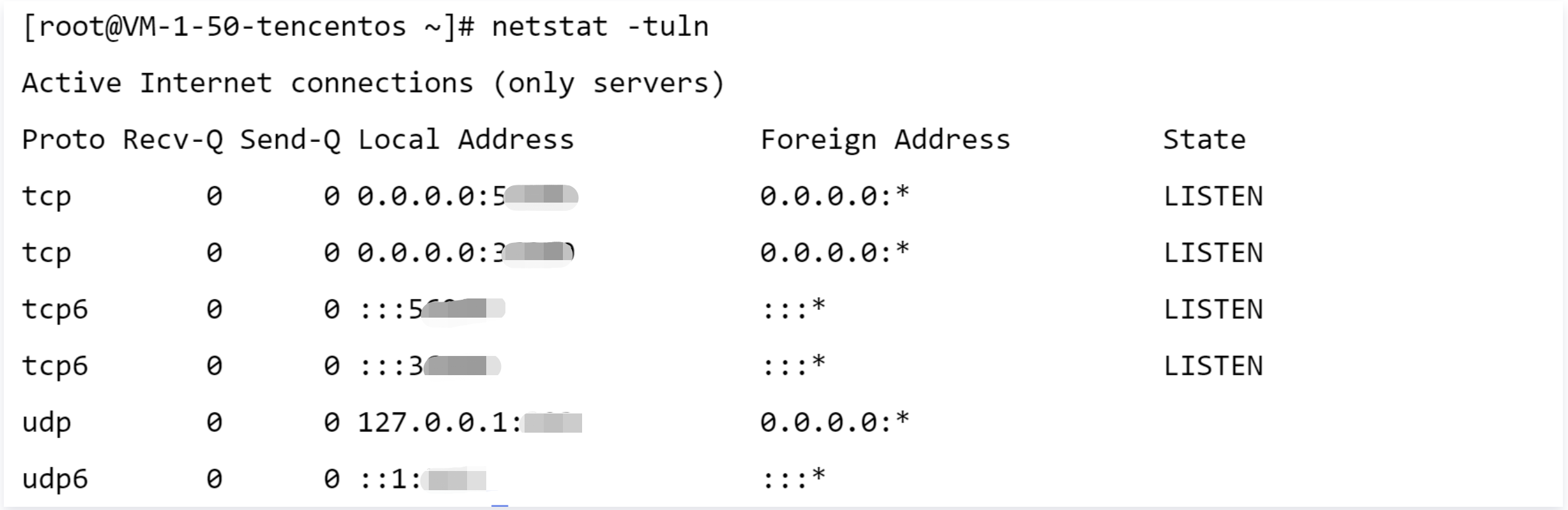
1. Check port occupancy status before fault injection. Check network port usage in the current system of the target machine through a netstat -tuln command.
2. Click Create a New Experiment, fill in the experiment information, and add target CVM instances.
4. Configure fault action parameters, and click Confirm. Here, the port is set to 8080.
Note:
The port number range is 1 to 65535. 1 to 1023 is for a reserved port, which is usually used for common system services. Try to avoid the use of the same. You can select an unoccupied port from ports 1024-65535 for simulation. After a simulation ends, please clean up and recover the network environment in time to ensure normal system operation. You can check occupied ports through a netstat -tuln command.
5. After configuring action parameters, click Next. Configure guardrail policies and monitoring metrics considering actual situations, and click Submit to complete experiment creation.
Step 3: Experiment Execution
1. Go to experiment details, and click Go to the action group for execution.
2. Click Execute to start an experiment.
3. Click the Action Card to check the details for the action execution results.
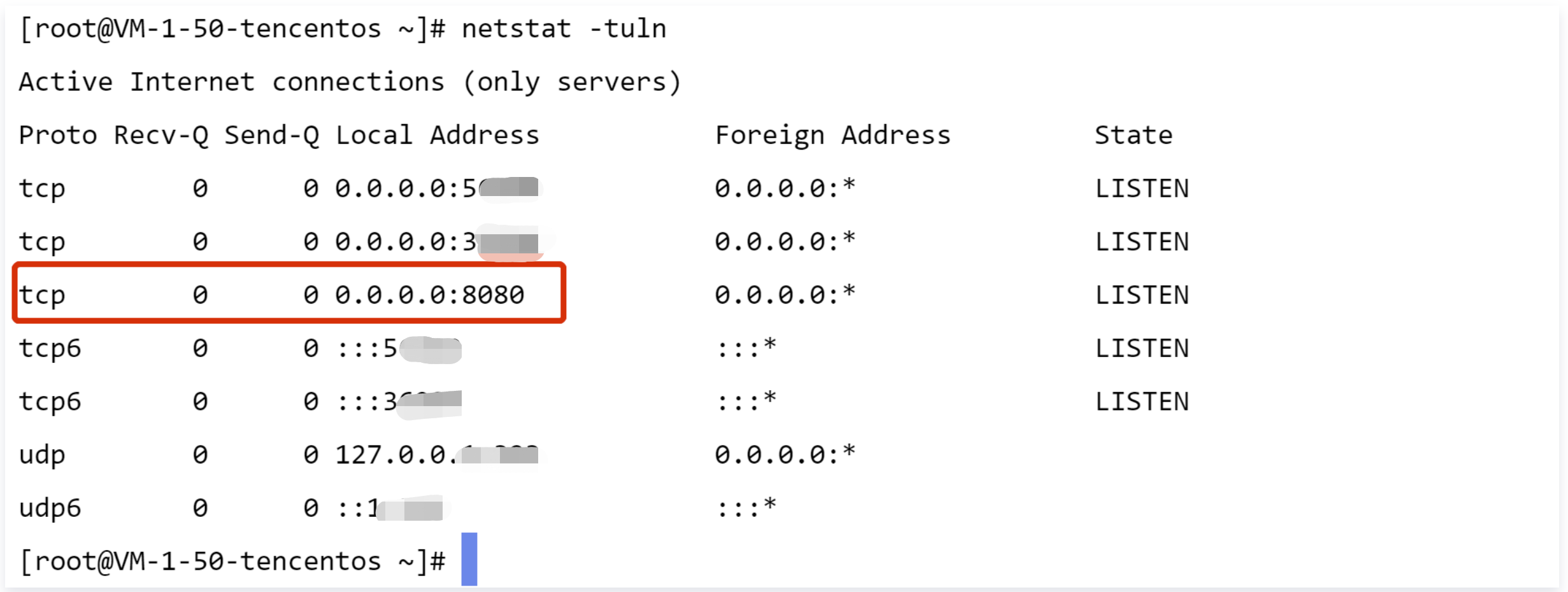
4. Check the host network status after fault injection. You can see that port 8080 has been occupied.
5. Execute a recovery action, and check the execution logs of the recovery action.
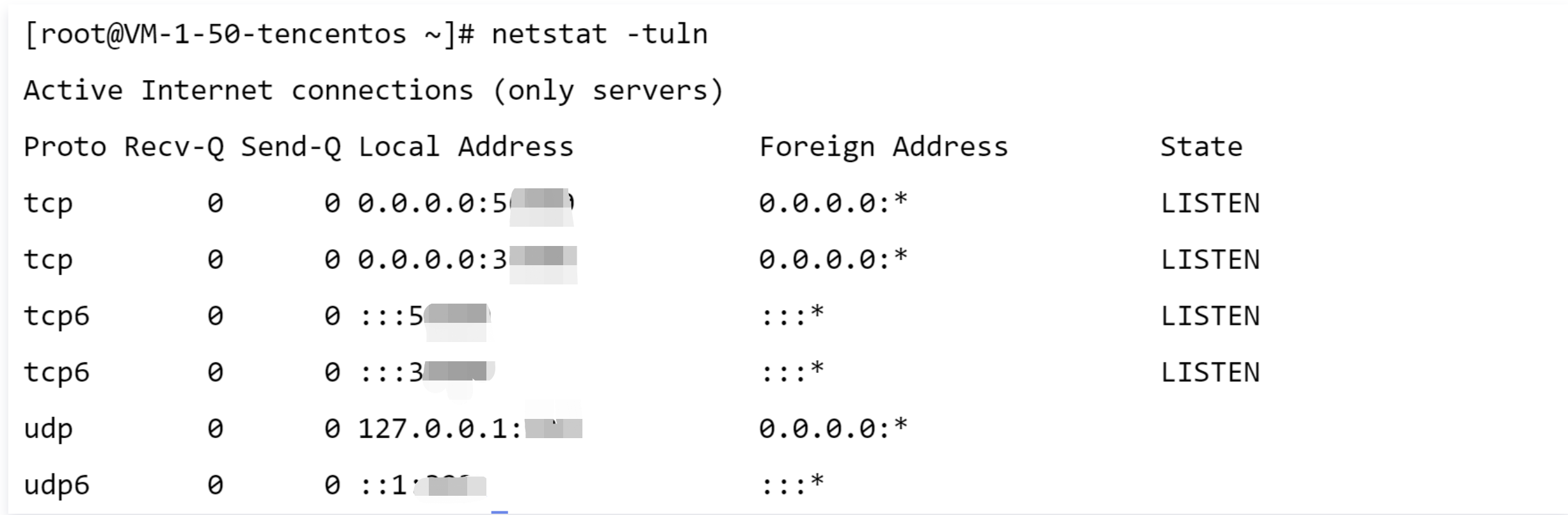
6. Check the result of recovery from a fault. Through comparison, we can see that the fault has been cleared and the occupied port 8080 has been released.