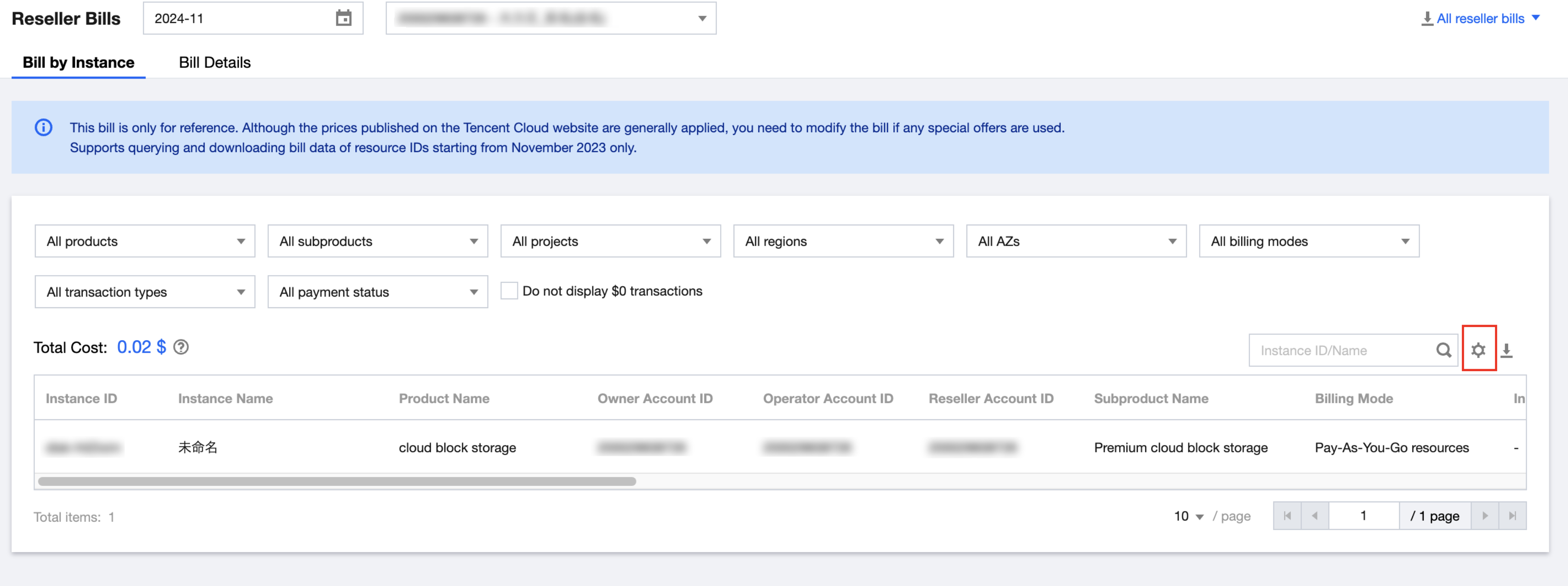
The bill is viewed from the distributor's perspective, displaying data of cloud service consumption by second-level resellers and their end customers.
Bills are generated on the 5th of each month. The complete bill for the current month can be viewed or downloaded after billing on the 5th of the next month (all time is UTC+8, Beijing Time).
The data displayed on the Resource ID Bill page for the current month and in the download file is as of the day before the current date. The Resource ID Bill only supports querying and downloading data starting from November 2023.
The bill data for prepaid products displayed on the Detailed Bill page for the current month is generated about 1 hour after purchase. The bill data for pay-as-you-go products is generated about 1 hour after the product settlement cycle. The data in the downloaded files is ending about 7 hours before the current time.
3. Select Bill Month and Reseller UIN/Name to display the bill of the designated reseller for the corresponding month.
4. Click Resource ID Bill or Detailed Bill to switch to view bills at different levels.
5. Click the options in the filter area to filter and display bill data by product, project, region, and other fields.
Set Fields To Be Displayed in the List
1. Click "Settings" on the top right of the list to customize the displayed fields as needed.
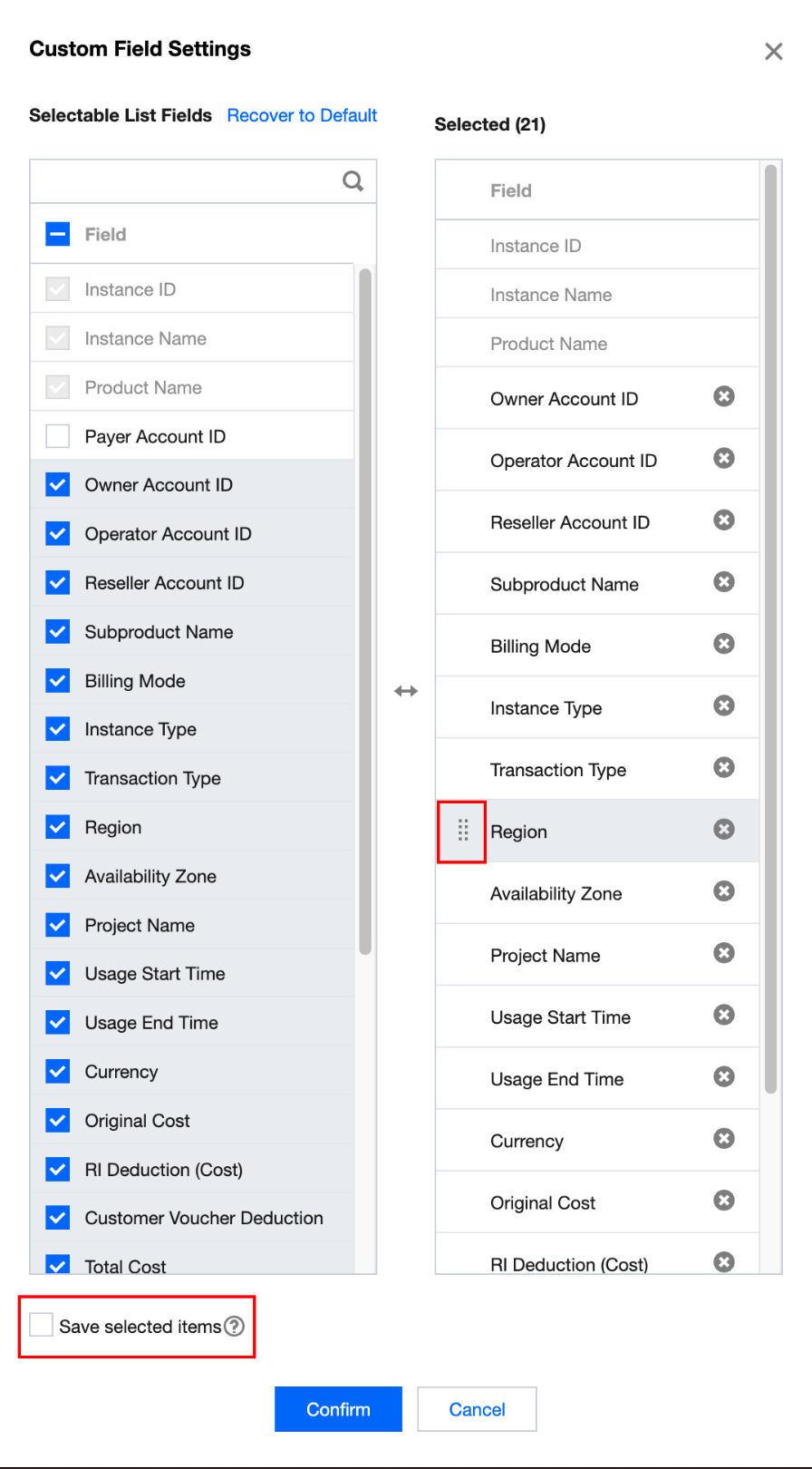
2. In the pop-up window, select or deselect the corresponding fields, hold and drag the "selected" fields up or down to arrange the displayed fields in the table. Then click OK to display according to the saved content and sequence.
Note:
If you do not select "Save Options", the settings will only take effect for this operation. Default settings will be restored after the page is refreshed.
The settings only take effect on the interface display, but not on bill downloading.
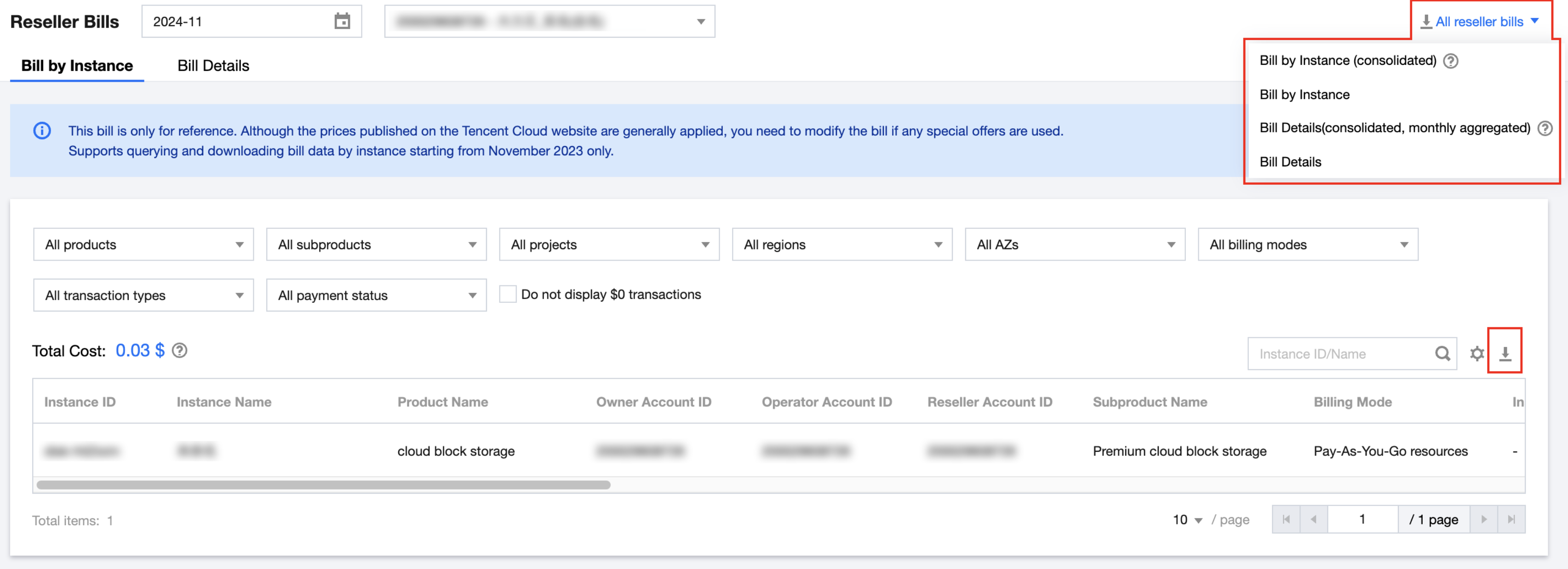
1. On the Second-level Reseller Bill page, click All Reseller Bills on the top right of the page to download all reseller bills. It supports bills at 4 levels: resource ID bill (consolidated), resource ID bill, detailed bill (consolidated and aggregated by month), and detailed bill. For details on the difference between them, see Bill Level Descriptions.
2. Click
on the top right of the data table to download the currently selected reseller's bill for the corresponding month. Bills at 2 levels are supported: resource ID bill and detailed bill.
Note:
The data filtering only takes effect on the interface display, but not on bill downloading.