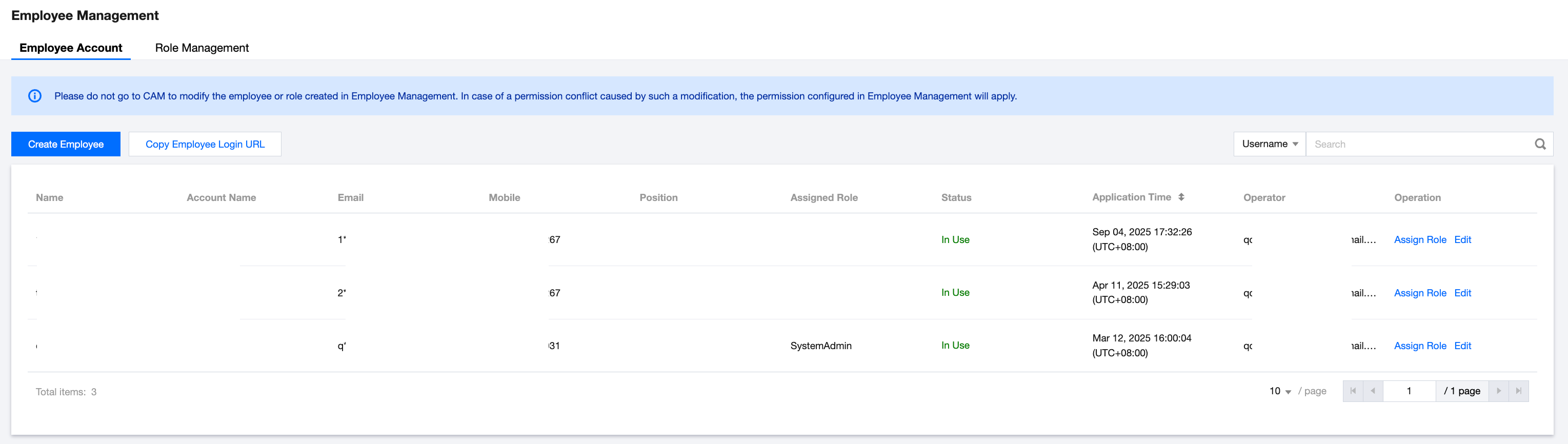
This document describes how to view and add new employee accounts in the partner center console.
Applicable Objects
This article is applicable to resellers, distributors, and second-level resellers. The term "reseller" is used in the following copywriting.
Prerequisites
Reseller identity already available.
Adding an Employee Account
Resellers can create employee accounts and assign roles. After assigning a role, the newly created employee account will automatically obtain the corresponding permissions of that role.
Upon success of creating an employee account, the reseller needs to inform the employee account name and password via offline method.
Operation Steps
2. Select Organization > Employee Management from the left-side menu.
3. Enter the employee account page and click Create Employee.
Note:
Note: If an employee's sub-account is Activated but employee information is not entered, you must complete and assign roles to the employee information before the sub-account can continue to use (the employee account name must match the sub-account name). Meanwhile, you need to revoke the authorized permissions of the employee's sub-account to avoid data inconsistency with the decentralized management of the partner center.
4. Fill in the employee information and click Confirm.
Note:
employee account name must be unique and cannot be modified after submission. Fill in carefully.
5. System prompts: Employee created successfully.
6. Click Assign Roles in the Action column, select the name of the role in the get role list, then click Confirm to assign roles to the newly-added employee account.
Note:
For newly-added employee accounts, roles must be assigned. An employee account can be assigned up to three roles.
7. After creating an employee account and assigning roles, the reseller can inform the employee login information via offline method.
|
Employee login address | Click Copy Employee Login Address to get the login link, which will automatically include the root account ID. |
Employee Account | Copy the corresponding account name to obtain it. |
Employee initial password | The initial password rule is a composite of the last four digits of the mobile number and "@Tencent". If the employee's mobile number is 131xxxx4532, the initial password is 4532@Tencent. |
Employee-Related Operations
Query employee list: You can query the employee list by specific query condition.
Edit employee: Click Edit in the operation column of the employee list to edit the employee details.
Assign roles: See step 6 in the previous context to assign roles to employee accounts.