Overview
You can create, delete, modify, view, configure and manage distribution policies (Subscription) in the Tencent Kubernetes Engine Distributed Cloud Center console. You can bind distribution policies to target clusters (subscribers) and resources (feeds), and you can view the topology map and distribute instances among clusters.
Directions
Creating a Subscription
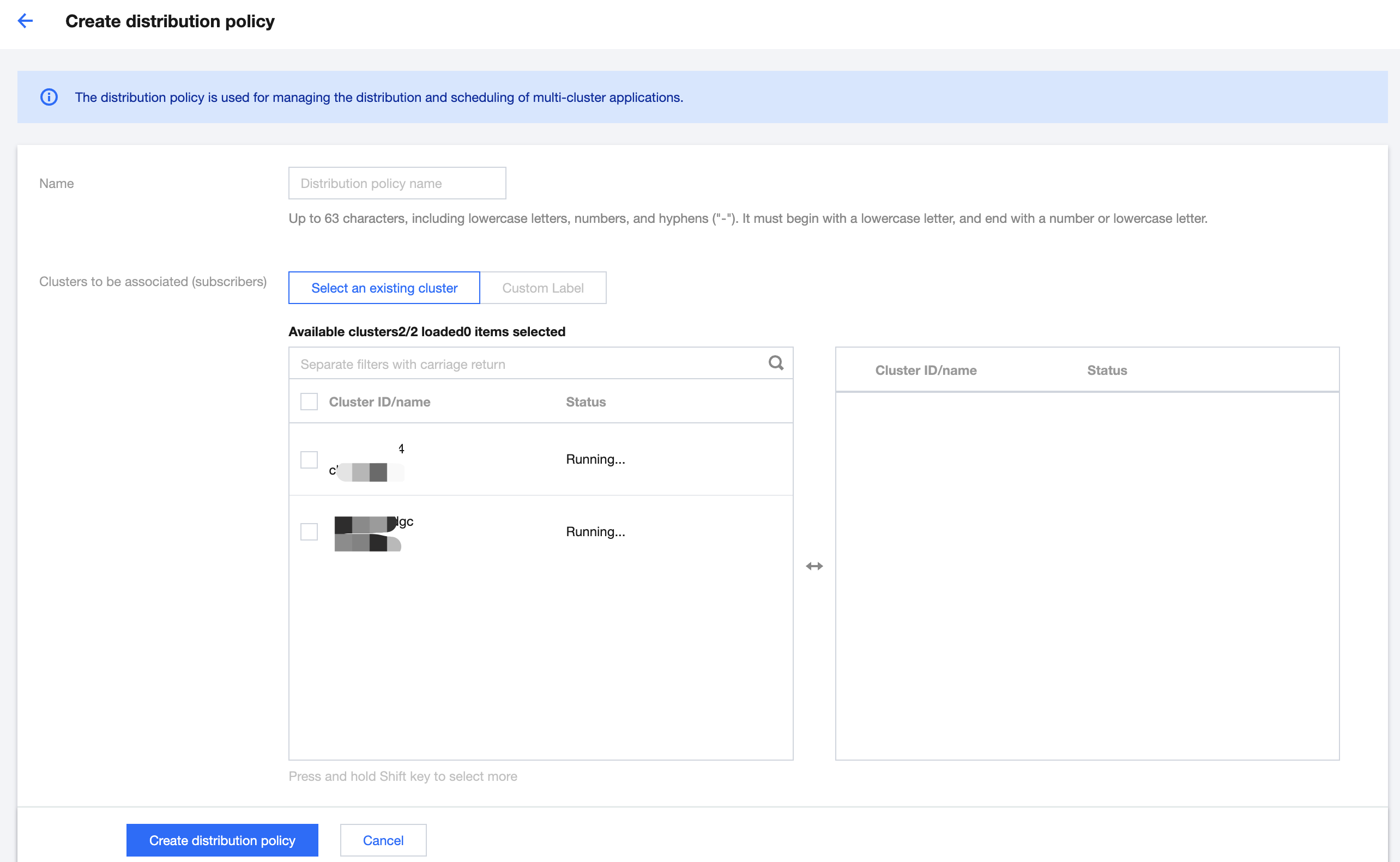
1. log in to TDCC Console, and navigate to Distributed Application Management > Subscription page. 2. Click Create to open the Create a Subscription page:
Distribution Cluster: Add the target clusters you want to distribute to, or configure a LabelSelector Tag to select appropriate clusters. (Choose one of the two methods)
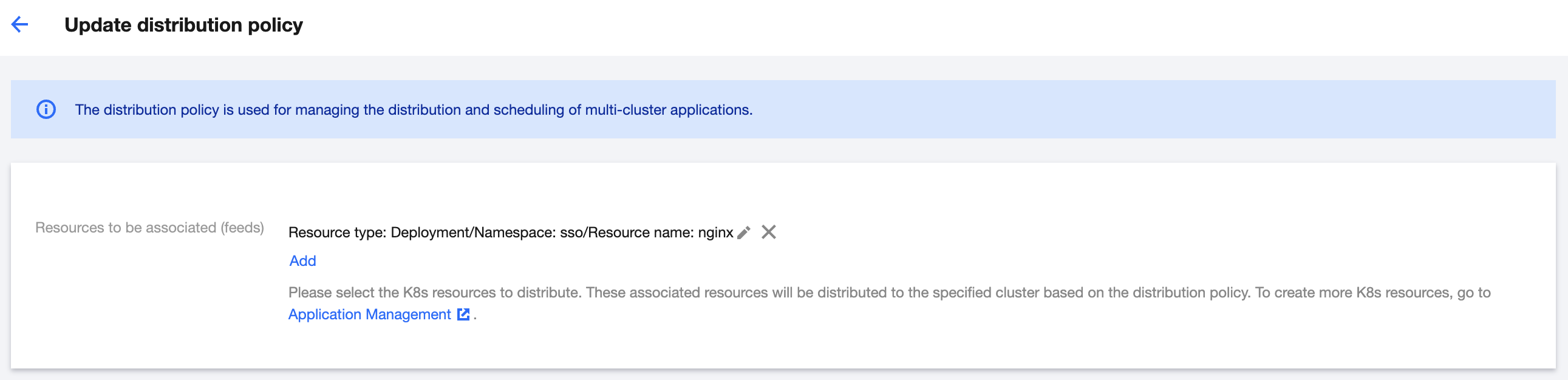
Associated Resources: Add the K8s application resources associated with the policy. The associated K8s resources will be published to the specified clusters according to the Subscription. For information on how to create K8s application resources, see Application Management. 3. Click the Creating a Subscription button to complete the creation, then go to the list page to confirm that the Subscription has been successfully created.
Viewing a Subscription
1. Log in to the TDCC Console, and navigate to Distributed Application Management > Subscription page. 2. On the list page, you can view and configure the associated clusters and K8s resources.
Name: The name of the Subscription.
Number of Associated Clusters: The number of clusters associated with the Subscription.
Number of Associated Resources: The number of resources associated with the Subscription.
Creation Time: The creation time of the Subscription.
Operations: The operations supported by this Subscription, including associating clusters, associating resources, deleting, etc.
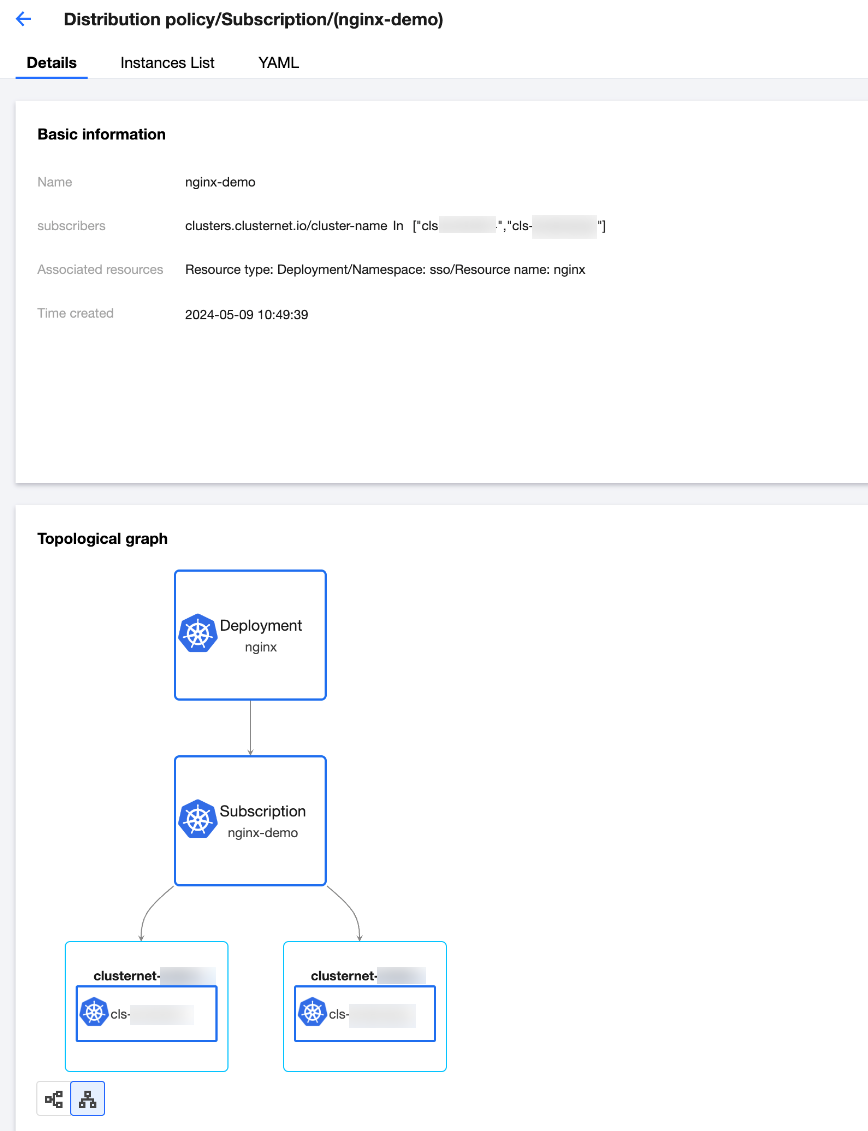
3. Click the name of the Subscription to enter the Details page:
Topology Diagram: Graphically displays the application resources, target clusters, Localization/Globalization, and other related status information associated with the policy.
Basic Information: Displays detailed information about the Subscription.
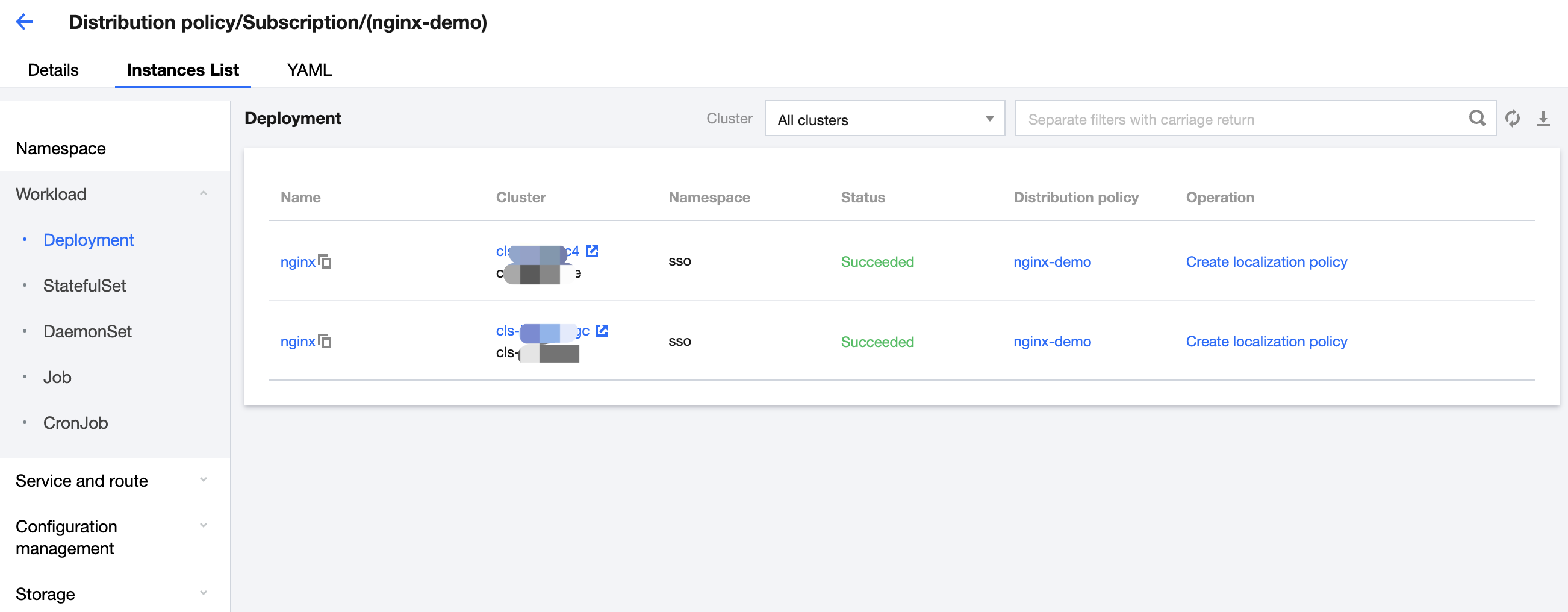
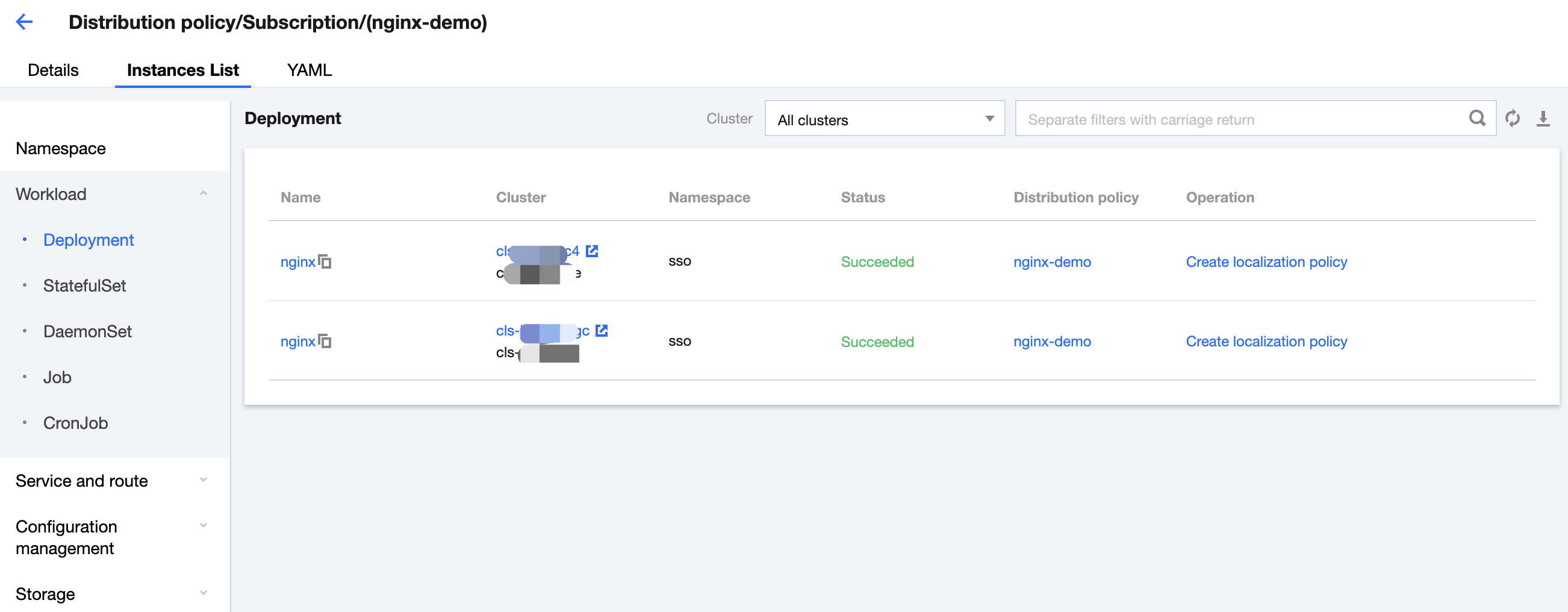
4. Click the Instance List tab to view instances running in the target cluster:
Instance Name: The name of the K8s resource distributed to the target cluster. Clicking the name will redirect you to the details page of the application.
Cluster: The name of the target cluster where the instance is located. Clicking the cluster name will redirect you to its management page.
Namespace: The namespace where the instance is located.
Status: The status information of the instance.
Updating Localization/Globalization: Supports creating, updating, and deleting differentiation policies, Localization/Globalization configuration instructions can be found in Localization/Globalization. Modifying the Subscription
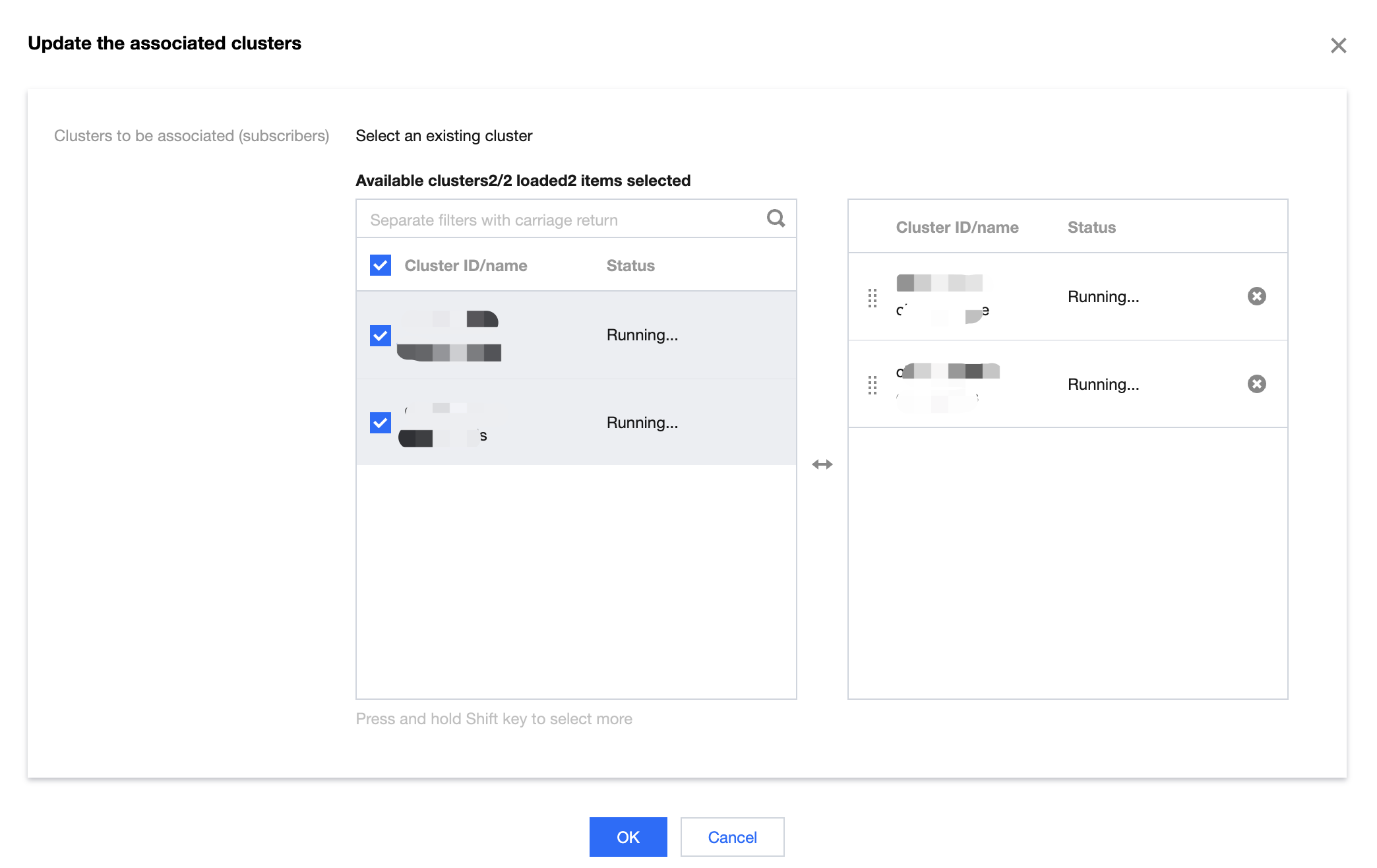
1. Log in to the TDCC Console, go to Distributed Application Management > Subscription page. 2. Click Associating with Cluster. In the pop-up dialog box, configure the target clusters associated with the policy, and click OK to save. Supports multiple selections or leaving it empty.
3. Click Associating with Resources. In the pop-up dialog box, configure the K8s resources associated with the policy, and click OK to save. Supports multiple selections or leaving it empty.
Configuring Differentiated Policy
1. To configure K8s objects for a specific cluster individually, click to enter the Details > Instance List Tab page, find the K8s object instance you want to modify, click Creating Localization/Globalization to configure the policy, for more information on differentiated Policy, refer to Localization/Globalization. 2. To modify or cancel the differentiated configuration, click to enter the Details > Instance List Tab page, on the designated distribution instance, click Updating Localization/Globalization or Deleting Localization/Globalization to perform the specified action.
Deleting a Subscription
1. log in to the TDCC Console, and navigate to Distributed Application Management > Subscription page. 2. Select the policy you want to delete, click Delete.
Note
All K8s resources distributed to the target clusters are deleted if you delete the associated Subscription.