Configuring Alarm Recipient
Baixar
Modo Foco
Tamanho da Fonte
You can add an alarm recipient and configure specific reminder events. When an event is triggered, the specified contact will receive relevant SMS messages and emails. Events include over-limit delivery notification, rate limit notification, and template and signature review notification.
Note:
Up to 5 alarm recipients can be added under each application.
Adding Alarm Recipient
1. Log in to the SMS console.
2. Select Application Management > Notifications & Alarms on the left sidebar.
3. Select the Current Application as the target application to be manipulated.
4. Click Add Alarm Recipient.
5. Enter the name, mobile number, and email address of the contact and select the target events.
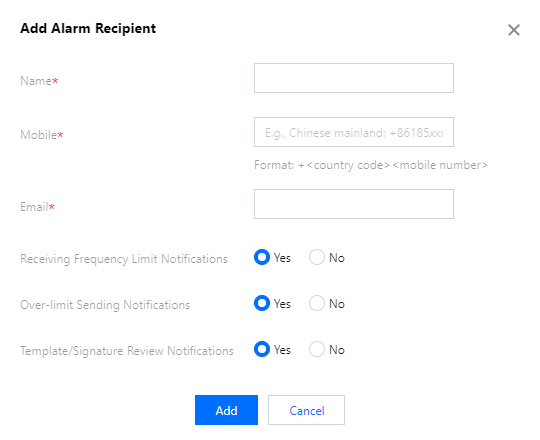
6. Click Add.
Editing Alarm Recipient
1. Log in to the SMS console.
2. Select Application Management > Notifications & Alarms on the left sidebar.
3. Select the Current Application as the target application to be manipulated.
4. Click Edit in the row of the contact.
5. Click Modify to modify the name, mobile number, and email address of the contact and the events.
Deleting Alarm Recipient
Note:
Once deleted, an alarm recipient cannot be recovered; therefore, please do so with caution.
1. Log in to the SMS console.
2. Select Application Management > Notifications & Alarms on the left sidebar.
3. Select the current application as the target application to be manipulated.
4. Click Delete in the row of the contact.
5. In the pop-up window, click OK.
Ajuda e Suporte
Esta página foi útil?
Você também pode entrar em contato com a Equipe de vendas ou Enviar um tíquete em caso de ajuda.
comentários