Accessing COS Using a Pre-Signed URL
Download
Modo Foco
Tamanho da Fonte
COS supports object upload and download using pre-signed URLs, which are signed links with signatures embedded. You can control the effective time of a pre-signed URL based on the validity period of the corresponding signature.
You can use pre-signed URLs to download objects, obtain temporary URLs for sharing files and folders temporarily, or set a long signature validity period to obtain long-term URLs for sharing files for a long time. For more information, see [Sharing Files](#Sharing Files).
You can also use pre-signed URLs to upload objects. For more information, see [Uploading Files](#Uploading Files).
Sharing Files (Downloading Files)
COS supports object sharing. You can use pre-signed URLs to share files and folders with other users for a limited time. A pre-signed URL is in fact an object URL concatenated with a signature. For the signature generation algorithm, see Request Signature.
A bucket is set to Private Read by default. If you download an object by using the object URL directly, an access failure message will be displayed. Instead, you can concatenate a valid signature to the object URL to obtain a pre-signed URL. The signature carries identity information, and therefore, you can successfully download the object by using the pre-signed URL.
Note:
If you need to use a permanent key to generate a pre-signed URL, you are advised to limit the permission of the permanent key only to uploads and downloads to avoid risks. In addition, the validity period of the generated URL must be set to the shortest period required to complete the current upload or download operation. This is because the request will be interrupted when the validity period of the specified pre-signed URL expires. In addition, the checkpoint restart is not supported, and therefore the failed request needs to be re-executed after a new URL is applied for.
// Object URLhttps://test-12345678.cos.ap-beijing.myqcloud.com/test.png// Pre-signed URL (object URL concatenated with a signature value)https://test-12345678.cos.ap-beijing.myqcloud.com/test.png?q-sign-algorithm=sha1&q-ak=xxxxx&q-sign-time=1638417770;1638421370&q-key-time=1638417770;1638421370&q-header-list=host&q-url-param-list=&q-signaturexxxxxfxxxxxx6&x-cos-security-token=xxxxxxxxxxxx
The following are a few methods of file sharing. In these methods, signatures are automatically generated for you and are concatenated to object URLs to generate temporary links that can be used directly for download and preview.
Obtaining temporary links quickly (valid for 1-2 hours)
You can quickly obtain temporary links of objects via the console or COSBrowser.
Console (web page)
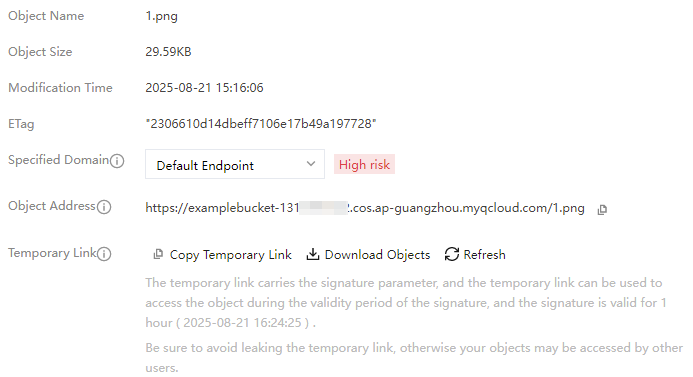
1. Log in to the COS console, click a desired bucket name, go to the file list page, and click Details corresponding to a target object.

2. On the object details page, copy the temporary link, which is valid for 1 hour.
COSBrowser (client)
For operation details, see Generating file URL. Temporary links are valid for up to 2 hours when obtained by using root account keys and up to 1.5 days when obtained by using sub-account keys.
Obtaining temporary links with custom validity periods
Using an SDK to obtain pre-signed URLs in batches
Applicable scenario: users with basic programming skills need to obtain temporary links in batches
Temporary links obtained via the console and COSBrowser have a short validity period. If you need temporary links with longer validity periods, use an SDK to generate pre-signed URLs and control the URL validity periods by specifying the signature validity period. For the pre-signed URL generation method, see the directions for an SDK in the programming language that you are familiar with in Download via Pre-Signed URL.
You can use a temporary key or a permanent key to generate a pre-signed URL. The difference between the two methods is that the validity period of a temporary key is up to 36 hours but a permanent key does not expire, which indirectly affects the validity period of the pre-signed URL.
Using a permanent key to generate a pre-signed URL (any validity period)
A permanent key does not expire. The validity period of a pre-signed URL depends on the signature validity period you set. You can call the SDK's pre-signed URL directly. The operation steps are as follows:
1. Enter information such as
secret_id, secret_key, and region to initialize the client.2. Enter your bucket name, object name, and signature validity period to generate a pre-signed URL with a custom validity period. See the documentation for the SDK in a desired language for details:
Using a temporary key to generate a pre-signed URL (valid for less than 36 hours)
In frontend direct upload scenarios, temporary keys are often required. For more information about temporary keys, see:
The maximum validity period of a temporary key is 36 hours. The validity period of a pre-signed URL is either the validity period of the signature or that of the temporary key that you set, whichever is smaller. For example, if you set the validity period of the signature to X and the validity period of the temporary key to Y, the actual effective time of the link is T:
T=min(X,Y); because X is less than or equal to 36, we can infer that T is also less than or equal to 36.
To use a temporary key to generate a pre-signed URL, perform the following steps:
1. Get a temporary key.
2. Once the temporary key is obtained, you can use a function similar to the permanent key to generate a pre-signed URL. Note that to initialize the client with a temporary key, you need to enter the SecretId, SecretKey, and token, and carry the parameter
x-cos-security-token. See the documentation for the SDK in a desired language for details:Sharing a Folder
Folders are a special type of object. You can share a folder via the console or COSBrowser. For more information, see Sharing a Folder.
Uploading Files
If you want any third party to be able to upload an object to your bucket, but you don't want them to use CAM accounts or temporary keys, signatures can be provided by pre-signed URLs for temporary upload operations. Anyone who receives a valid pre-signed URL can upload an object.
Note:
If you need to use a permanent key to generate a pre-signed URL, you are advised to limit the permission of the permanent key only to uploads and downloads to avoid risks. In addition, the validity period of the generated URL must be set to the shortest period required to complete the current upload or download operation. This is because the request will be interrupted when the validity period of the specified pre-signed URL expires. In addition, the checkpoint restart is not supported, and therefore the failed request needs to be re-executed after a new URL is applied for.
Method 1. Generating a pre-signed URL via SDK
SDKs in various programming languages provide pre-signed URL generation methods. For more information about the methods, see Upload via Pre-Signed URL. Select a method according to the programming language that you are familiar with.
Method 2. Manually constructing a pre-signed URL
A pre-signed URL is in fact an object URL concatenated with a signature. Therefore, you can use an SDK or signature generation tool to generate a signature and concatenate the object URL and the signature to form a pre-signed URL for object upload. However, this method is generally not recommended because of the complexity of the signature generation algorithm.
Ajuda e Suporte
Esta página foi útil?
Você também pode entrar em contato com a Equipe de vendas ou Enviar um tíquete em caso de ajuda.
comentários