tencent cloud

Cloud Object Storage

Release Notes and Announcements
Release Notes
Announcements
Product Introduction
Overview
Features
Use Cases
Strengths
Concepts
Regions and Access Endpoints
Specifications and Limits
Service Regions and Service Providers
Billing
Billing Overview
Billing Method
Billable Items
Free Tier
Billing Examples
Viewing and Downloading Bill
Payment Overdue
FAQs
Getting Started
Console
Getting Started with COSBrowser
User Guide
Creating Request
Bucket
Object
Data Management
Batch Operation
Global Acceleration
Monitoring and Alarms
Operations Center
Data Processing
Content Moderation
Smart Toolbox
Data Processing Workflow
Application Integration
User Tools
Tool Overview
Installation and Configuration of Environment
COSBrowser
COSCLI (Beta)
COSCMD
COS Migration
FTP Server
Hadoop
COSDistCp
HDFS TO COS
GooseFS-Lite
Online Tools
Diagnostic Tool
Use Cases
Overview
Access Control and Permission Management
Performance Optimization
Accessing COS with AWS S3 SDK
Data Disaster Recovery and Backup
Domain Name Management Practice
Image Processing
Audio/Video Practices
Workflow
Direct Data Upload
Content Moderation
Data Security
Data Verification
Big Data Practice
COS Cost Optimization Solutions
Using COS in the Third-party Applications
Migration Guide
Migrating Local Data to COS
Migrating Data from Third-Party Cloud Storage Service to COS
Migrating Data from URL to COS
Migrating Data Within COS
Migrating Data Between HDFS and COS
Data Lake Storage
Cloud Native Datalake Storage
Metadata Accelerator
GooseFS
Data Processing
Data Processing Overview
Image Processing
Media Processing
Content Moderation
File Processing Service
File Preview
Troubleshooting
Obtaining RequestId
Slow Upload over Public Network
403 Error for COS Access
Resource Access Error
POST Object Common Exceptions
API Documentation
Introduction
Common Request Headers
Common Response Headers
Error Codes
Request Signature
Action List
Service APIs
Bucket APIs
Object APIs
Batch Operation APIs
Data Processing APIs
Job and Workflow
Content Moderation APIs
Cloud Antivirus API
SDK Documentation
SDK Overview
Preparations
Android SDK
C SDK
C++ SDK
.NET(C#) SDK
Flutter SDK
Go SDK
iOS SDK
Java SDK
JavaScript SDK
Node.js SDK
PHP SDK
Python SDK
React Native SDK
Mini Program SDK
Error Codes
Harmony SDK
Endpoint SDK Quality Optimization
Security and Compliance
Data Disaster Recovery
Data Security
Cloud Access Management
FAQs
Popular Questions
General
Billing
Domain Name Compliance Issues
Bucket Configuration
Domain Names and CDN
Object Operations
Logging and Monitoring
Permission Management
Data Processing
Data Security
Pre-signed URL Issues
SDKs
Tools
APIs
Agreements
Service Level Agreement
Privacy Policy
Data Processing And Security Agreement
Contact Us
Glossary

Accessing COS over HDFS in CDH Cluster

PDF
Modo Foco
Tamanho da Fonte
Última atualização: 2025-10-27 17:44:13

Overview

CDH (Cloudera's distribution, including Apache Hadoop) is one of the most popular Hadoop distributions in the industry. This document describes how to access a COS bucket over the HDFS protocol, a flexible, cost-effective big-data solution, in a CDH environment to separate big data computing from storage.
Note:
To access a COS bucket over the HDFS protocol, you need to enable metadata acceleration first.
Currently, the support for big data modules by COS is as follows:
Module Name
Supported
Service Module to Restart
YARN
Yes
NodeManager
YARN
Yes
NodeManager
Hive
Yes
HiveServer and HiveMetastore
Spark
Yes
NodeManager
Sqoop
Yes
NodeManager
Presto
Yes
HiveServer, HiveMetastore, and Presto
Flink
Yes
None
Impala
Yes
None
EMR
Yes
None
Self-built component
To be supported in the future
No
HBase
Not recommended
None

Versions

This example uses software versions as follows:
CDH 5.16.1
Hadoop 2.6.0

How to Use

Configuring the storage environment

1. Log in to Cloudera Manager (CDH management page).
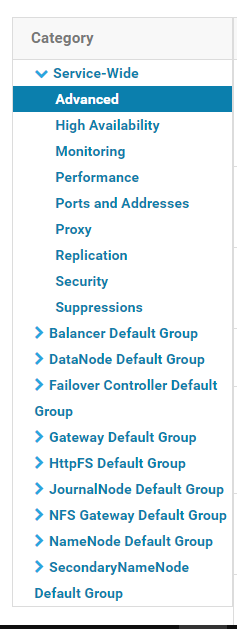
2. On the homepage, select Configuration > Service-Wide > Advanced as shown below:


3. Specify your COS settings in the configuration snippet Cluster-wide Advanced Configuration Snippet(Safety Valve) for core-site.xml.
<property>
<name>fs.AbstractFileSystem.ofs.impl</name>
<value>com.qcloud.chdfs.fs.CHDFSDelegateFSAdapter</value>
</property>
<property>
<name>fs.ofs.impl</name>
<value>com.qcloud.chdfs.fs.CHDFSHadoopFileSystemAdapter</value>
</property>
<!--Temporary directory of the local cache. For data read/write, data will be written to the local disk when the memory cache is insufficient. This path will be created automatically if it does not exist-->
<property>
<name>fs.ofs.tmp.cache.dir</name>
<value>/data/emr/hdfs/tmp/chdfs/</value>
</property>
<!--appId-->
<property>
<name>fs.ofs.user.appid</name>
<value>1250000000</value>
</property>
The following lists the required settings (to be added to core-site.xml). For other settings, see Mounting COS Bucket to Compute Cluster.
Configuration Item
Value
Description
fs.ofs.user.appid
1250000000
User `appid`
fs.ofs.tmp.cache.dir
/data/emr/hdfs/tmp/chdfs/
Temporary directory of the local cache
fs.ofs.impl
com.qcloud.chdfs.fs.CHDFSHadoopFileSystemAdapter
The implementation class of CHDFS for `FileSystem` is fixed at `com.qcloud.chdfs.fs.CHDFSHadoopFileSystemAdapter`.
fs.AbstractFileSystem.ofs.impl
com.qcloud.chdfs.fs.CHDFSDelegateFSAdapter
The implementation class of CHDFS for `AbstractFileSystem` is fixed at `com.qcloud.chdfs.fs.CHDFSDelegateFSAdapter`.
4. Take action on your HDFS service by clicking. Now, the core-site.xml settings above will apply to servers in the cluster.
5. Place the latest client installation package in the path of the JAR package of the CDH HDFS service and replace the relevant information with the actual value as shown below:
cp chdfs_hadoop_plugin_network-2.0.jar /opt/cloudera/parcels/CDH-5.16.1-1.cdh5.16.1.p0.3/lib/hadoop-hdfs/
Note:
The SDK JAR file needs to be put in the same location on each server in the cluster.

Data migration

Use Hadoop Distcp to migrate your data from CDH HDFS to a COS bucket. For details, see Migrating Data Between HDFS and COS.

Using CHDFS for big data suites

MapReduce

Directions
1. Configure HDFS as instructed in Data migration and put the client installation package of COS in the correct HDFS directory.
2. On the Cloudera Manager homepage, find YARN and restart the NodeManager service (recommended). You can choose not to restart it for the TeraGen command, but must restart it for the TeraSort command because of the internal business logic.
Sample
The example below shows TeraGen and TeraSort in Hadoop standard test:
hadoop jar ./hadoop-mapreduce-examples-2.7.3.jar teragen -Dmapred.map.tasks=4 1099 ofs://examplebucket-1250000000/teragen_5/

hadoop jar ./hadoop-mapreduce-examples-2.7.3.jar terasort -Dmapred.map.tasks=4 ofs://examplebucket-1250000000/teragen_5/ ofs://examplebucket-1250000000/result14
Note:
Replace the part after ofs:// schema with the mount point path of your CHDFS instance.

Hive

MR engine
Directions
1. Configure HDFS as instructed in Data migration and put the client installation package of COS in the correct HDFS directory.
2. On the Cloudera Manager homepage, find HIVE and restart the Hiveserver2 and HiveMetastore roles.
Sample
To query your actual business data, use the Hive command line to create a location as a partitioned table on CHDFS:
CREATE TABLE `report.report_o2o_pid_credit_detail_grant_daily`(
`cal_dt` string,
`change_time` string,
`merchant_id` bigint,
`store_id` bigint,
`store_name` string,
`wid` string,
`member_id` bigint,
`meber_card` string,
`nickname` string,
`name` string,
`gender` string,
`birthday` string,
`city` string,
`mobile` string,
`credit_grant` bigint,
`change_reason` string,
`available_point` bigint,
`date_time` string,
`channel_type` bigint,
`point_flow_id` bigint)
PARTITIONED BY (
`topicdate` string)
ROW FORMAT SERDE
'org.apache.hadoop.hive.ql.io.orc.OrcSerde'
STORED AS INPUTFORMAT
'org.apache.hadoop.hive.ql.io.orc.OrcInputFormat'
OUTPUTFORMAT
'org.apache.hadoop.hive.ql.io.orc.OrcOutputFormat'
LOCATION
'ofs://examplebucket-1250000000/user/hive/warehouse/report.db/report_o2o_pid_credit_detail_grant_daily'
TBLPROPERTIES (
'last_modified_by'='work',
'last_modified_time'='1589310646',
'transient_lastDdlTime'='1589310646')
Perform a SQL query:
select count(1) from report.report_o2o_pid_credit_detail_grant_daily;
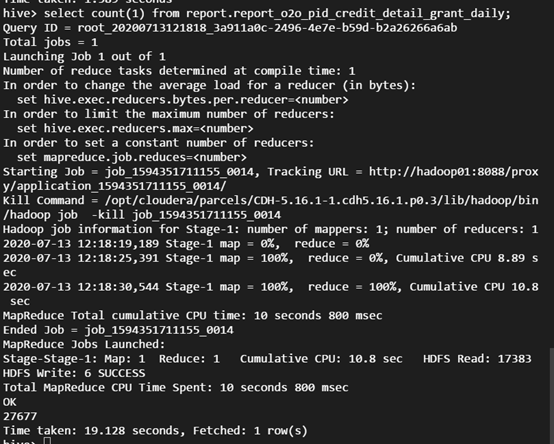
The output is as shown below:


Tez engine

You need to import the client installation package of COS as part of a Tez tar.gz file. The following example uses apache-tez.0.8.5:
Directions
1. Locate and decompress the Tez tar.gz file installed in the CDH cluster, e.g., /usr/local/service/tez/tez-0.8.5.tar.gz.
2. Put the client installation package of COS in the directory generated after decompression and recompress it to output a compressed package.
3. Upload this new file to the path as specified by tez.lib.uris, or simply replace the existing file with the same name.
4. On the Cloudera Manager homepage, find HIVE and restart hiveserver and hivemetastore.

Spark

Directions
1. Configure HDFS as instructed in Data migration and put the client installation package of COS in the correct HDFS directory.
2. Restart NodeManager.
Sample
The following uses the conducted Spark example word count test as an example.
spark-submit --class org.apache.spark.examples.JavaWordCount --executor-memory 4g --executor-cores 4 ./spark-examples-1.6.0-cdh5.16.1-hadoop2.6.0-cdh5.16.1.jar ofs://examplebucket-1250000000/wordcount
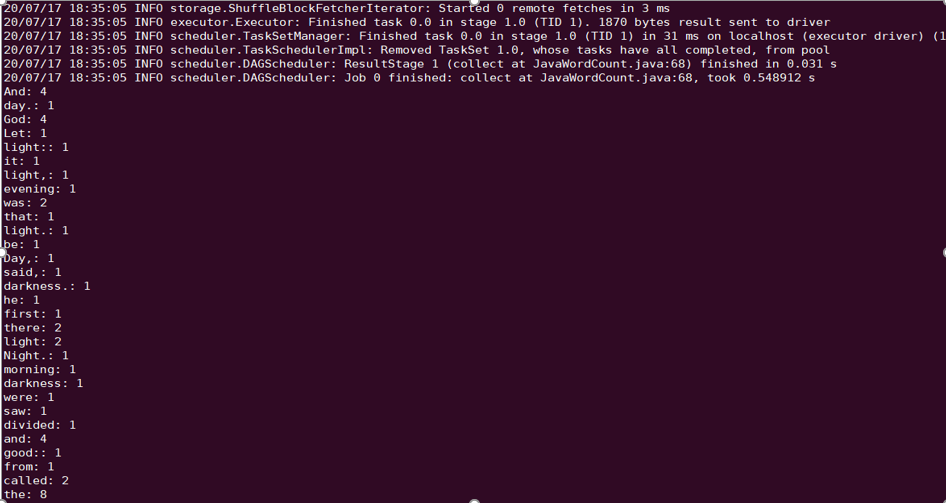
The output is as shown below:


Sqoop

Directions
1. Configure HDFS as instructed in Data migration and put the client installation package of COS in the correct HDFS directory.
2. Put the client installation package of COS in the sqoop directory, for example, /opt/cloudera/parcels/CDH-5.16.1-1.cdh5.16.1.p0.3/lib/sqoop/.
3. Restart NodeManager.
Sample
For example, to export MySQL tables to COS, refer to Import/Export of Relational Database and HDFS.
sqoop import --connect "jdbc:mysql://IP:PORT/mysql" --table sqoop_test --username root --password 123 --target-dir ofs://examplebucket-1250000000/sqoop_test
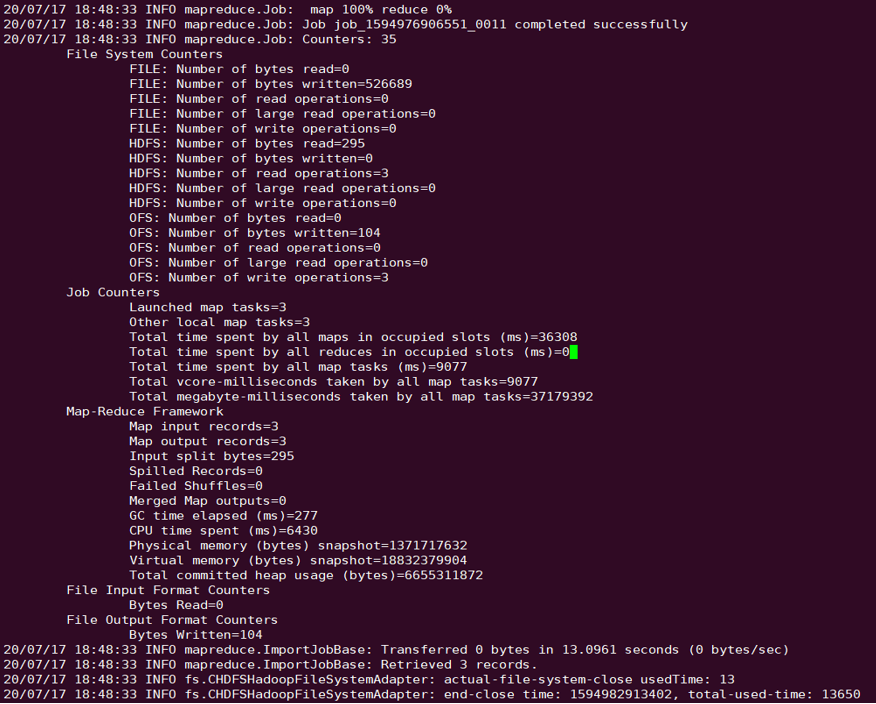
The output is as shown below:


Presto

Directions
1. Configure HDFS as instructed in Data migration and put the client installation package of COS in the correct HDFS directory.
2. Put the client installation package of COS in the presto directory, for example, /usr/local/services/cos_presto/plugin/hive-hadoop2.
3. Presto does not load the gson-2...jar JAR file (only used for COS), from Hadoop Common, so you need to manually put it into the presto directory, for example, /usr/local/services/cos_presto/ plugin/hive-hadoop2.
4. Restart HiveServer, HiveMetaStore, and Presto.
Sample
The example below queries the COS scheme table as a HIVE-created Location:
select * from chdfs_test_table where bucket is not null limit 1;
Note:
chdfs_test_table is a table with location as "ofs scheme".

The output is as shown below:


Ajuda e Suporte

Esta página foi útil?

comentários