tencent cloud

Cloud Object Storage

Release Notes and Announcements
Release Notes
Announcements
Product Introduction
Overview
Features
Use Cases
Strengths
Concepts
Regions and Access Endpoints
Specifications and Limits
Service Regions and Service Providers
Billing
Billing Overview
Billing Method
Billable Items
Free Tier
Billing Examples
Viewing and Downloading Bill
Payment Overdue
FAQs
Getting Started
Console
Getting Started with COSBrowser
User Guide
Creating Request
Bucket
Object
Data Management
Batch Operation
Global Acceleration
Monitoring and Alarms
Operations Center
Data Processing
Content Moderation
Smart Toolbox
Data Processing Workflow
Application Integration
User Tools
Tool Overview
Installation and Configuration of Environment
COSBrowser
COSCLI (Beta)
COSCMD
COS Migration
FTP Server
Hadoop
COSDistCp
HDFS TO COS
GooseFS-Lite
Online Tools
Diagnostic Tool
Use Cases
Overview
Access Control and Permission Management
Performance Optimization
Accessing COS with AWS S3 SDK
Data Disaster Recovery and Backup
Domain Name Management Practice
Image Processing
Audio/Video Practices
Workflow
Direct Data Upload
Content Moderation
Data Security
Data Verification
Big Data Practice
COS Cost Optimization Solutions
Using COS in the Third-party Applications
Migration Guide
Migrating Local Data to COS
Migrating Data from Third-Party Cloud Storage Service to COS
Migrating Data from URL to COS
Migrating Data Within COS
Migrating Data Between HDFS and COS
Data Lake Storage
Cloud Native Datalake Storage
Metadata Accelerator
GooseFS
Data Processing
Data Processing Overview
Image Processing
Media Processing
Content Moderation
File Processing Service
File Preview
Troubleshooting
Obtaining RequestId
Slow Upload over Public Network
403 Error for COS Access
Resource Access Error
POST Object Common Exceptions
API Documentation
Introduction
Common Request Headers
Common Response Headers
Error Codes
Request Signature
Action List
Service APIs
Bucket APIs
Object APIs
Batch Operation APIs
Data Processing APIs
Job and Workflow
Content Moderation APIs
Cloud Antivirus API
SDK Documentation
SDK Overview
Preparations
Android SDK
C SDK
C++ SDK
.NET(C#) SDK
Flutter SDK
Go SDK
iOS SDK
Java SDK
JavaScript SDK
Node.js SDK
PHP SDK
Python SDK
React Native SDK
Mini Program SDK
Error Codes
Harmony SDK
Endpoint SDK Quality Optimization
Security and Compliance
Data Disaster Recovery
Data Security
Cloud Access Management
FAQs
Popular Questions
General
Billing
Domain Name Compliance Issues
Bucket Configuration
Domain Names and CDN
Object Operations
Logging and Monitoring
Permission Management
Data Processing
Data Security
Pre-signed URL Issues
SDKs
Tools
APIs
Agreements
Service Level Agreement
Privacy Policy
Data Processing And Security Agreement
Contact Us
Glossary

uni-app Direct Upload Practice

PDF
Modo Foco
Tamanho da Fonte
Última atualização: 2026-02-09 15:12:38

Introduction

This document describes how to upload files directly to a Cloud Object Storage (COS) bucket in uni-app without relying on an SDK, using simple code.
Note:
This document is based on the PostObject and PutObject interfaces of the XML API.

Solution Description

Implementation Process

1. Select a file on the front end, and the front end will send the suffix to the server.
2. The server-side generates a timestamp-based random COS file path based on the suffix, computes the corresponding PostObject policy signature, and returns the URL and signature information to the frontend.
3. frontend calls the PostObject interface or the PutObject interface to directly upload files to COS.

Solution strengths

Path security: The random COS file path is determined by the server, which can effectively avoid the problem of existing files being overwritten and security risks.
Multi-platform compatibility: Using the file selection and upload interfaces provided by uni-app, one codebase can be compatible across multiple platforms (Web/Mini Programs/App).

Prerequisites

1. Log in to the COS console and create a bucket to obtain the Bucket (bucket name) and Region (region name). For details, see the Creating a bucket documentation.
2. Log in to the CAM console to obtain your project's SecretId and SecretKey.
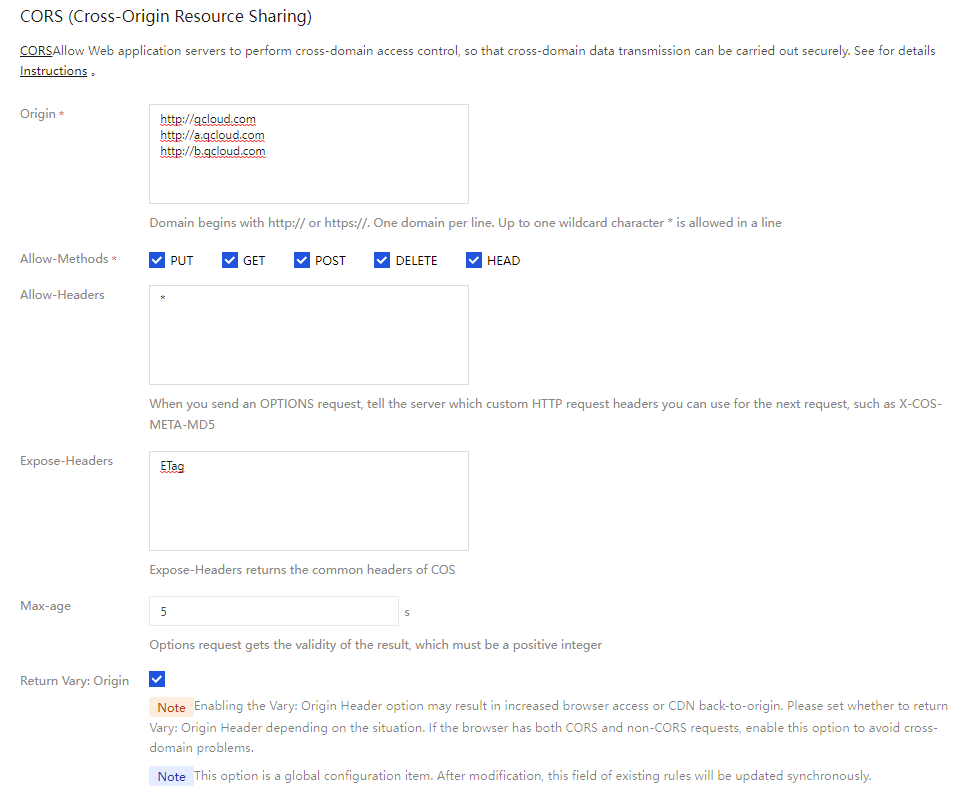
3. Go to the details page of the newly created bucket. On the Security Management > Cross-Origin Access CORS Settings page, click Add Rule. A configuration example is shown in the figure below. For details, see the Setting Cross-Origin Access documentation.


Practical Steps

Note:
Before official deployment, it is recommended that you add a layer of permission verification for the website itself on the server-side.

Frontend Upload

1. Refer to the post-policy example (PostObject server-side interface) or the put-sign example (PutObject server-side interface) to generate a random file path, compute the signature, and return them to the frontend.
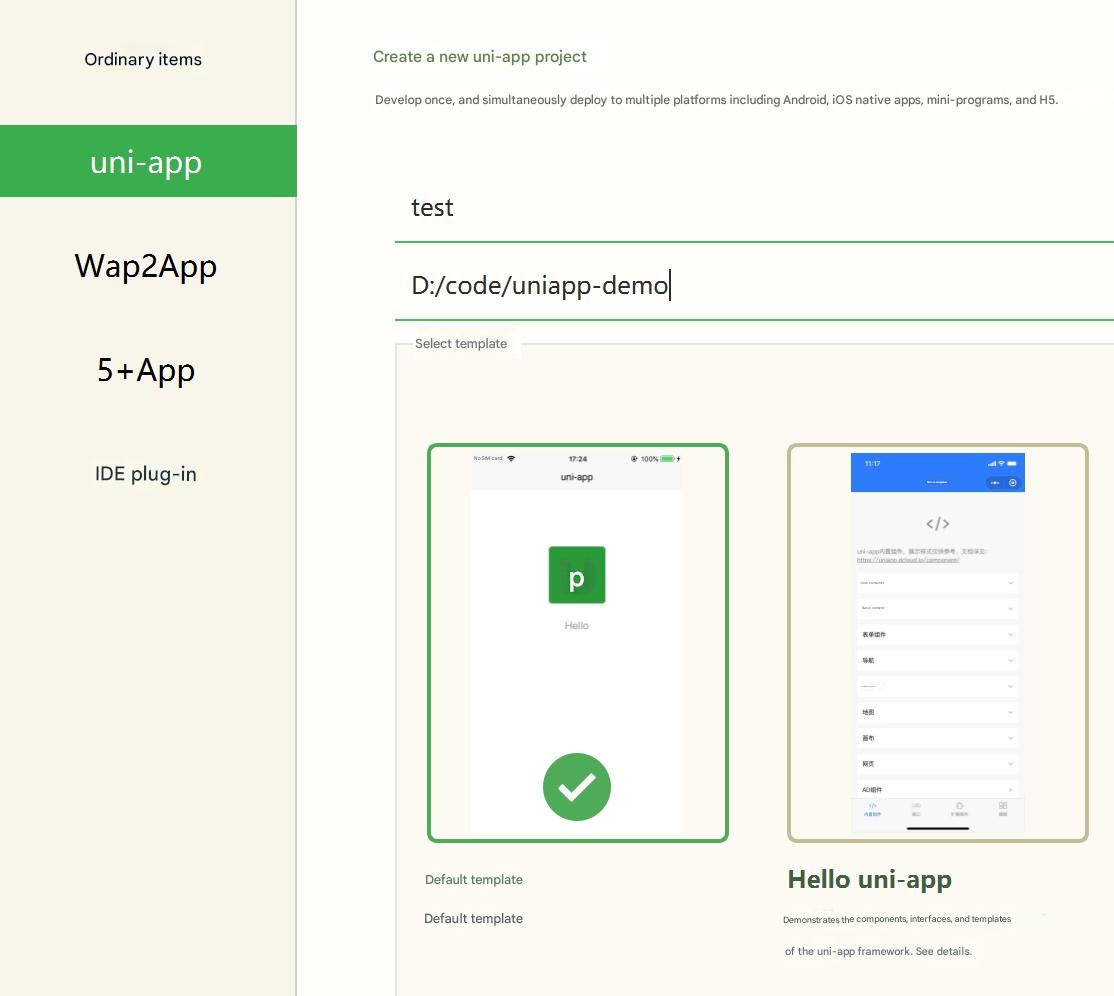
2. Create a uni-app application using the default template in HBuilderX (see the HBuilderX official website for details).
3. Choose File > New > Project. After creation is complete, the application will be a Vue-based project.
4. Copy the following code to replace the content of the pages/index/index.vue file, and modify the called post-policy interface link to point to your own server address (that is, the server interface in step 1).
PostObject Upload
PutObject Upload
<template>
<view class="content">
<button type="default" @click="selectUpload">Select Files to Upload</button>
<image v-if="fileUrl" class="image" :src="fileUrl"></image>
</view>
</template>

<script>
export default {
data() {
return {
title: 'Hello',
fileUrl: ''
};
},
onLoad() {

},
methods: {
selectUpload() {

var vm = this;

// url encode format for encoding more characters
var camSafeUrlEncode = function (str) {
return encodeURIComponent(str)
.replace(/!/g, '%21')
.replace(/'/g, '%27')
.replace(/\\(/g, '%28')
.replace(/\\)/g, '%29')
.replace(/\\*/g, '%2A');
};

// Obtain the upload path and upload credentials
var getUploadInfo = function (extName, callback) {
// Pass in the file suffix to let the backend generate a random COS object path, and return the upload domain name and policy signature required for the PostObject interface
// Server example reference: https://github.com/tencentyun/cos-demo/tree/main/server/post-policy
uni.request({
url: 'http://127.0.0.1:3000/post-policy?ext=' + extName,
success: (res) => {
// Check whether the return format is correct
console.log(res);
callback && callback(null, res.data);
},
error(err) {
callback && callback(err);
},
});
};

// Initiate the upload request using the PostObject interface with policy signature protection
// Interface documentation: https://www.tencentcloud.com/document/product/436/14690#.E7.AD.BE.E5.90.8D.E4.BF.9D.E6.8A.A4
var uploadFile = function (opt, callback) {
var formData = {
key: opt.cosKey,
policy: opt.policy, // This passes the base64 string of the policy
success_action_status: 200,
'q-sign-algorithm': opt.qSignAlgorithm,
'q-ak': opt.qAk,
'q-key-time': opt.qKeyTime,
'q-signature': opt.qSignature,
};
// If the server uses temporary key calculation, you need to pass x-cos-security-token
if (opt.securityToken) formData['x-cos-security-token'] = opt.securityToken;
uni.uploadFile({
url: 'https://' + opt.cosHost, // This is only an example, not a real interface address
filePath: opt.filePath,
name: 'file',
formData: formData,
success: (res) => {
if (![200, 204].includes(res.statusCode)) return callback && callback(res);
var fileUrl = 'https://' + opt.cosHost + '/' + camSafeUrlEncode(opt.cosKey).replace(/%2F/g, '/');
callback && callback(null, fileUrl);
},
error(err) {
callback && callback(err);
},
});
};

// Select file
uni.chooseImage({
success: (chooseImageRes) => {
var file = chooseImageRes.tempFiles[0];
if (!file) return;
// Obtain the local file path to be uploaded
var filePath = chooseImageRes.tempFilePaths[0];
// Obtain the file suffix to be uploaded, and let the backend generate a random COS object path
var fileName = file.name;
var lastIndex = fileName.lastIndexOf('.');
var extName = lastIndex > -1 ? fileName.slice(lastIndex + 1) : '';
// Obtain domain, path, and credentials for pre-upload.
getUploadInfo(extName, function (err, info) {
// Confirm whether the info format is correct
console.log(info);
// Upload documents.
info.filePath = filePath;
uploadFile(info, function (err, fileUrl) {
vm.fileUrl = fileUrl;
});
});
}
});
},
}
}
</script>

<style>
.content {
padding: 20px 0;
display: flex;
flex-direction: column;
align-items: center;
justify-content: center;
}

.image {
margin-top: 20px;
margin-left: auto;
margin-right: auto;
}
</style>
<template>
<view class="content">
<button type="default" @click="selectUpload">Select Files to Upload</button>
<image v-if="fileUrl" class="image" :src="fileUrl"></image>
</view>
</template>

<script>
export default {
data() {
return {
title: 'Hello',
fileUrl: ''
};
},
onLoad() {

},
methods: {
selectUpload() {
var vm = this;
// url encode format for encoding more characters
var camSafeUrlEncode = function (str) {
return encodeURIComponent(str)
.replace(/!/g, '%21')
.replace(/'/g, '%27')
.replace(/\\(/g, '%28')
.replace(/\\)/g, '%29')
.replace(/\\*/g, '%2A');
};
// Obtain the upload path and upload credentials
var getUploadInfo = function (extName, callback) {
// Pass in the file suffix to let the backend generate a random COS object path, and return the signature required for the PUT Object interface
// backend needs to return: cosHost, cosKey, authorization, securityToken (optional)
uni.request({
url: 'http://127.0.0.1:3000/put-signature?ext=' + extName,
success: (res) => {
// Check whether the return format is correct
console.log(res);
callback && callback(null, res.data);
},
fail(err) {
callback && callback(err);
},
});
};
// Read file as ArrayBuffer
var readFileAsArrayBuffer = function (filePath, callback) {
uni.getFileSystemManager().readFile({
filePath: filePath,
success: (res) => {
callback && callback(null, res.data); // res.data is ArrayBuffer
},
fail(err) {
callback && callback(err);
}
});
};
// Initiate the upload request using the PUT Object interface
// Interface documentation: https://www.tencentcloud.com/document/product/436/7749
var uploadFile = function (opt, fileData, callback) {
var headers = {
'Authorization': opt.authorization, // Signature
'Content-Type': opt.contentType || 'application/octet-stream'
};
// If the server uses temporary key calculation, you need to pass x-cos-security-token
if (opt.securityToken) {
headers['x-cos-security-token'] = opt.securityToken;
}
console.log('Upload request information:', {
url: 'https://' + opt.cosHost + '/' + opt.cosKey,
headers: headers
});

uni.request({
url: 'https://' + opt.cosHost + '/' + opt.cosKey,
method: 'PUT',
header: headers,
data: fileData, // in ArrayBuffer format
success: (res) => {
console.log('Upload response:', res);
if (![200, 204].includes(res.statusCode)) {
console.error('Upload failed, status code:', res.statusCode);
return callback && callback(res);
}
var fileUrl = 'https://' + opt.cosHost + '/' + camSafeUrlEncode(opt.cosKey).replace(/%2F/g, '/');
callback && callback(null, fileUrl);
},
fail(err) {
console.error('Upload request failed:', err);
callback && callback(err);
},
});
};

// Select file
uni.chooseImage({
success: (chooseImageRes) => {
var file = chooseImageRes.tempFiles[0];
if (!file) return;
// Obtain the local file path to be uploaded
var filePath = chooseImageRes.tempFilePaths[0];
// Obtain the file suffix to be uploaded, and let the backend generate a random COS object path
var fileName = file.name;
var lastIndex = fileName.lastIndexOf('.');
var extName = lastIndex > -1 ? fileName.slice(lastIndex + 1) : '';
// Obtain the domain, path, and signature for pre-upload
getUploadInfo(extName, function (err, info) {
if (err) {
console.error('Failed to obtain upload information:', err);
return;
}
// Confirm whether the info format is correct
console.log(info);
// Read file as ArrayBuffer
readFileAsArrayBuffer(filePath, function (err, fileData) {
if (err) {
console.error('Failed to read the file:', err);
return;
}
// Upload documents.
uploadFile(info, fileData, function (err, fileUrl) {
if (err) {
console.error('Upload failed:', err);
return;
}
vm.fileUrl = fileUrl;
console.log('Upload succeeded:', fileUrl);
});
});
});
}
});
},
}
}
</script>

<style>
.content {
padding: 20px 0;
display: flex;
flex-direction: column;
align-items: center;
justify-content: center;
}

.image {
margin-top: 20px;
margin-left: auto;
margin-right: auto;
}
</style>
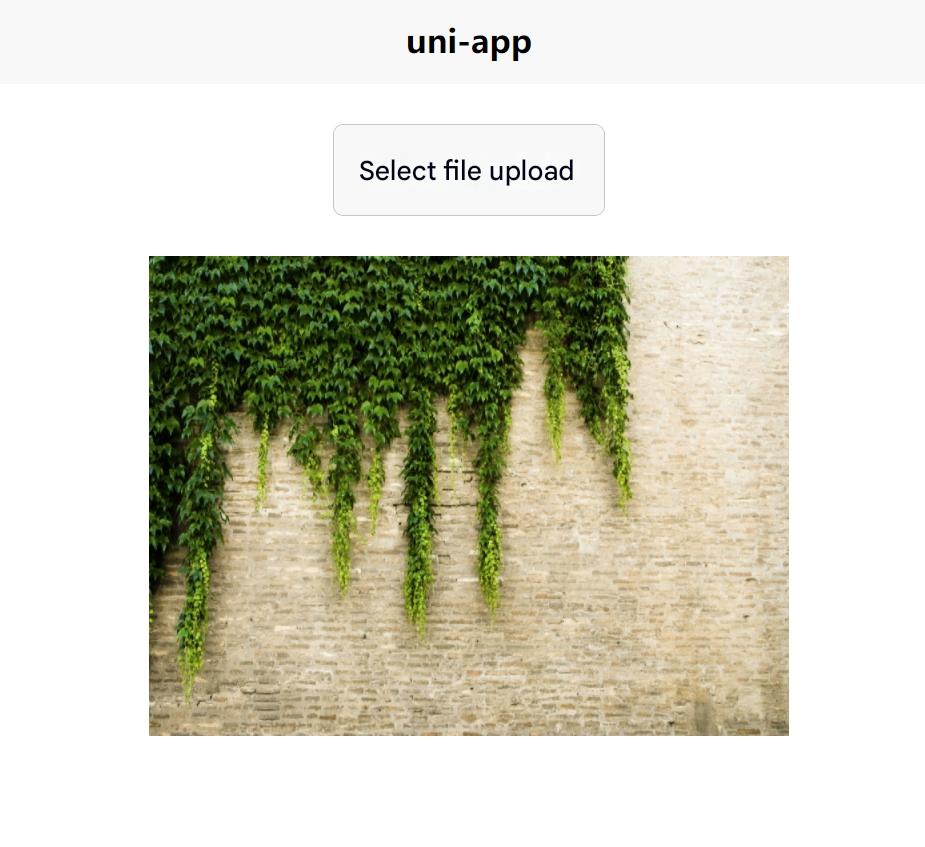
5. On HBuilderX, choose Run > Run to Browser > Chrome, then you can select files to upload in the browser.
6. The execution result is as shown in the figure below:
Create a project:
Create a uni-app project


Direct upload effect:
uni-app direct upload effect


References

Ajuda e Suporte

Esta página foi útil?

comentários