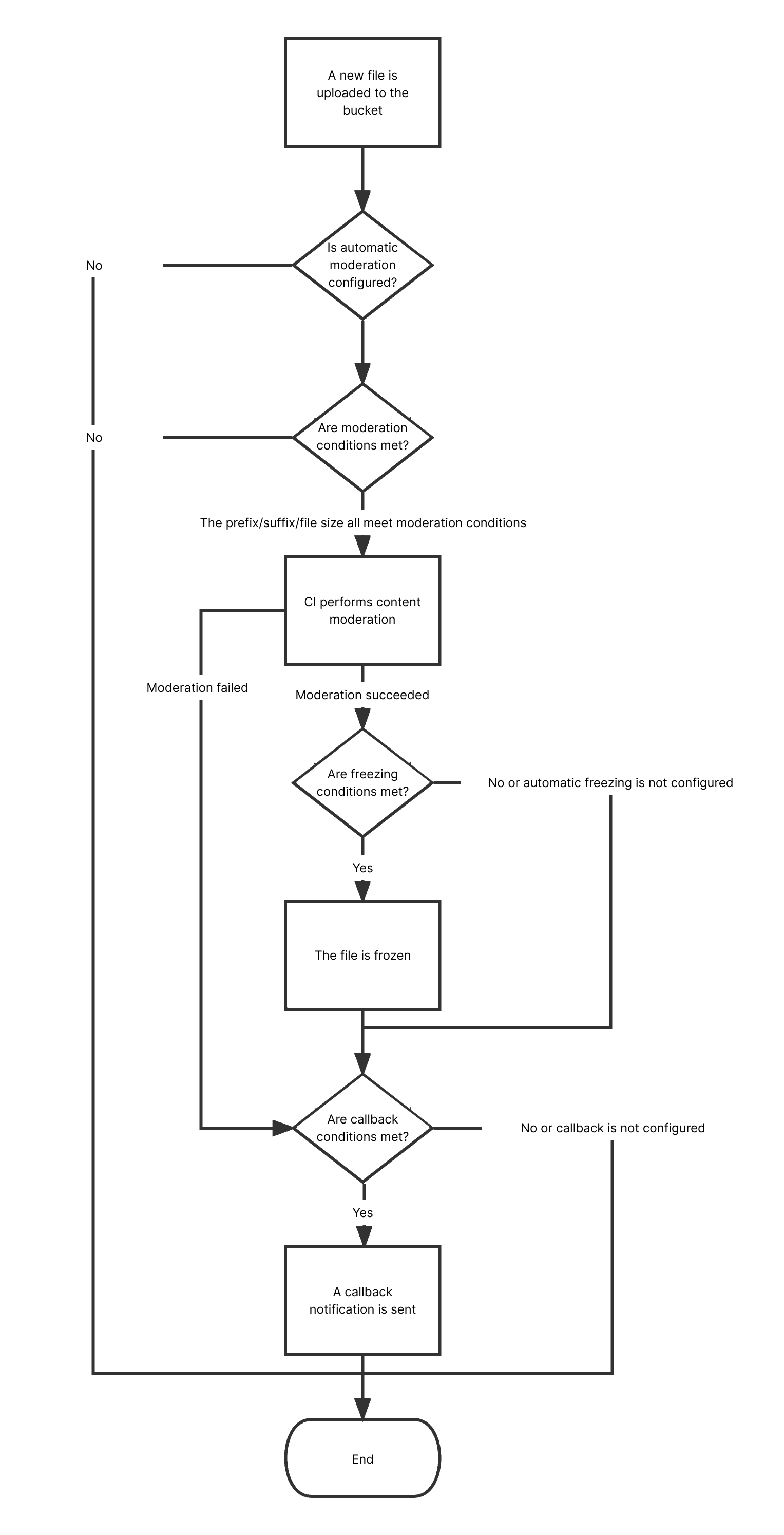
This document describes how to use the video moderation feature in the COS console. Detection scenarios include pornographic, illegal, and advertising information detection. After you enable video moderation, new videos uploaded to a bucket will be automatically moderated, and the identified non-compliant content can be automatically blocked (by denying public read access to the content).
Video moderation is conducted by capturing video frames and checking screenshots. You can select the frame capturing method when you enable video moderation. For more information, see the directions below.
The following video formats can be moderated: MP4, AVI, MKV, WMV, RMVB, FLV, M3U8, MOV, M4V, and 3GP. The video size cannot exceed 5 GB, and the number of captured frames cannot exceed 10,000.
Flowchart
Directions
1. Log in to the COS console. On the Bucket List page, click the target bucket to enter the bucket details page.
2. On the left sidebar, select Sensitive Content Moderation > Automatic Moderation Configuration and click Video Moderation.
3. Click Add Automatic Video Moderation Configuration and set the following configuration items:
Moderation Scope: You can select The whole bucket or Specified Range.
Path: If you select Specified Range, enter the path of the videos to be moderated.
Example 1: To moderate files in the test directory, set this field to test/.
Example 2: To moderate files prefixed with 123, set this field to 123.
Note:
You can add multiple moderation configurations, but the paths cannot be duplicate or have inclusion relationships. If you have configured to moderate the entire bucket, you cannot add a moderation configuration for a specific path in the bucket.
Moderation Suffix: Supported video formats are MP4 (including other formats under the same MP4 format source: MPG, MPEG, MPE, DAT, VOB, 3GP), WMV (including other formats under the same WMV format source: ASF), RMVB (including other formats under the same RMVB format source: RM), and FLV (including other formats under the same FLV format source: F4V). If you select the Without suffix option, the system will check the Content-Type header of files without extensions to determine whether they are videos. Multiple options can be selected.
Moderation Policy: Select a moderation policy. You can create different policies for refined moderation. Moderation scene options include Pornographic, Illegal, and Advertisement, and you can select one or multiple options. For detailed directions on how to configure a moderation policy, see Setting Moderation Policy.
Moderate: Video image and video sound can be moderated. To moderate video sound, you need to select it in the moderation policy.
Note:
The Moderate option should be used together with the moderation policy. If video sound is not set in the policy, you cannot select Video sound here.
Moderation Scene: Moderation scene options include moderation for pornographic, illegal, and advertising content, and you can select one or multiple options.
Frame Capturing Rule: Video moderation is conducted by capturing video frames and checking screenshots. You can select Fixed Time, Fixed Frame Rate, or Fixed Quantity for video frame capturing.
Fixed Time: This option indicates to capture images at fixed intervals to moderate. You can set the time interval and the maximum number of frames per video.
Fixed Frame Rate: This option indicates to capture a fixed number of frames per second to moderate. You can set the number of frames captured per second and the maximum number of frames per video.
Fixed Quantity: This option indicates to moderate a fixed number of captured images for the entire video according to the average percentage.
File block configuration: You can enable this service to authorize CI to perform automatic or human moderation and block the identified non-compliant files by denying public read access to them. After enabling this service, you need to select the block type.
Block mode: The following two block modes are supported:
Change the file ACL to private read: Doing so actually blocks the file. Then, a 403 status code will be returned when the file is accessed again, indicating that access is denied. For more information on file permissions, see ACL.
Transfer the file to the backup directory: Doing so actually blocks the file. Then, a 404 status code will be returned when the file is accessed again, indicating that the file does not exist. The backup directory is automatically generated by the backend at audit_freeze_backup/increment_audit in the current bucket.
Block Type: You can select a block type and mechanism. Machine moderation and block is selected by default. If you select Human moderation and block, Tencent Cloud security team will review suspiciously sensitive videos identified during machine moderation.
Callback: After callback is enabled, you will receive video moderation results. You need to select the moderation type and callback content and set the callback URL. For more information, see Video Moderation Callback Content.
4. After completing the configuration, click Save. Videos uploaded subsequently will be moderated.
Notes
1. Video moderation adopts a scoring mechanism, with a score between 0 and 100 returned for each captured video frame.
2. The confirmed part refers to the videos that are confirmed to be normal or sensitive (with a score in the range of [0,60] or (90,100]). For such images, no manual intervention is required.
3. The uncertain part refers to the videos that are suspected to be sensitive (with a score in the range of (60,90]). For such images, human moderation is recommended.