For existing files in a bucket, you can create a task to perform hash calculation on the files.
Note:
Hash calculation tasks only support calculating files less than 50 GB.
After creating a task, appropriate service fees will occur, which are collected by Cloud Infinite. For detailed billing information, see File Processing Fees.
File hash calculation provides computational operations for multiple hash algorithms and supports automatically adding to the custom header attribute of a file upon completion of the hash calculation.
2. In the left sidebar, click Bucket List to enter the bucket list management page.
3. Find the bucket that requires operation, click the Bucket Name, and go to the bucket management page.
4. In the left sidebar, select Task and Workflow > Task Management to enter the task management page.
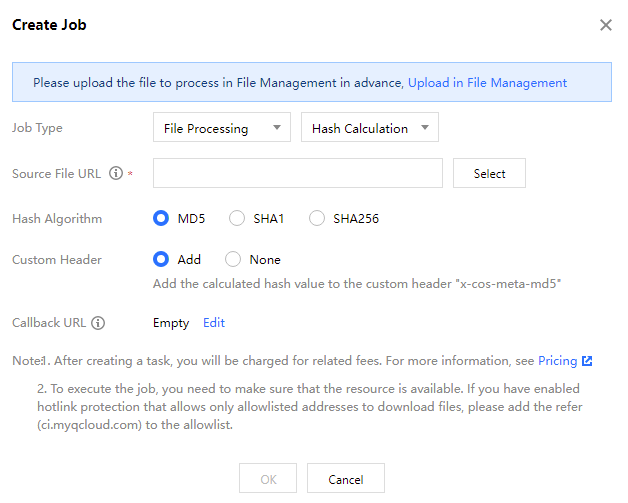
5. Select the File Processing tab, choose the Hash Calculation task type, click Create Job, and configure according to the following information:
Source File URL: Enter or select the path where the file to be processed is located. Note that the file path cannot start or end with /.
Hash Algorithm: Supports three hash algorithms: MD5, SHA1, and SHA256.
Custom Header: You can choose to automatically add it to the custom header after the hash calculation is complete.
Callback URL: The callback address information bound to the queue. For details, see Queues and Callbacks.
Viewing Tasks
You can view all tasks of different task types within a specified period on the task page. You can click Task Status to filter and view tasks in different statuses. You can also search for a specified task by task ID in the search box.