


Earlier this year, Business Insider reported a scene that sparked widespread discussion on social media: someone carefully carrying a half-open laptop through airports and coffee shops. They didn't dare close the screen because a long-running AI Agent was working in the background — the moment the lid closes and the laptop sleeps, the process stops.
In cross-border e-commerce, independent sites, and other overseas expansion businesses, this pain point is especially sharp: the daytime trading peak in US and European markets lands right in the middle of the night back home. If you rely on a personal computer left running overnight to monitor competitor pricing, check unpaid orders, or scrape leads, one laptop sleep or one network hiccup kills the process. The cost that follows is very real: you miss a competitor's midnight price change and lose orders, a best-seller runs down to zero stock with no warning and you get hit with out-of-stock penalties, or high-value orders miss the golden window for payment follow-up.
To keep an Agent online around the clock, the usual approach is to leave your laptop on all night, or buy a separate Mac mini or industrial PC to run it 24/7. But compared with a professional cloud environment, personal devices have plenty of hard limitations:
| Dimension | Personal laptop left running with the lid closed | Local home/office machine (Mac mini/industrial PC) | Tencent Cloud Lighthouse lightweight cloud server |
| Power and system scheduling | Closing the lid triggers system sleep: the network adapter drops and background processes are forced to suspend | Must stay powered on year-round, and is easily knocked out by a tripped breaker, a power cut, or a hardware restart at home or in the office | Online around the clock in the cloud, backed by a service level agreement (SLA) |
| Network and external connectivity | The network changes constantly as the device moves, and Wi-Fi fluctuations easily time out and drop long-lived connections | Relies on a dynamic home IP with no fixed public IP, so cross-border webhooks often get blocked | Comes with a dedicated fixed public IP that keeps cross-border messaging channels connected directly and reliably |
| System security and sandboxing | No security isolation: Agent scripts run directly on the host machine that holds your personal data and work assets | Exposed to LAN risks, and any contaminated environment means formatting and reinstalling | A built-in OS-level isolated sandbox: if anything goes wrong, roll back a snapshot from the console to rebuild it |
| Cost of ownership and operations | Speeds up battery swelling and hardware wear, and ties up your main personal machine long term | Requires a one-time hardware purchase of $500+ plus setting up dynamic DNS yourself | Delivered as a fixed monthly plan that locks in compute cost and removes hardware setup and network maintenance entirely |
Tencent Cloud Lighthouse comes with an official OpenClaw image. You only need to send instructions from a mobile chat app; the task keeps running in the cloud in the background, and the files it produces are saved straight to the cloud disk. Closing or shutting down your personal computer doesn't affect the cloud process at all.
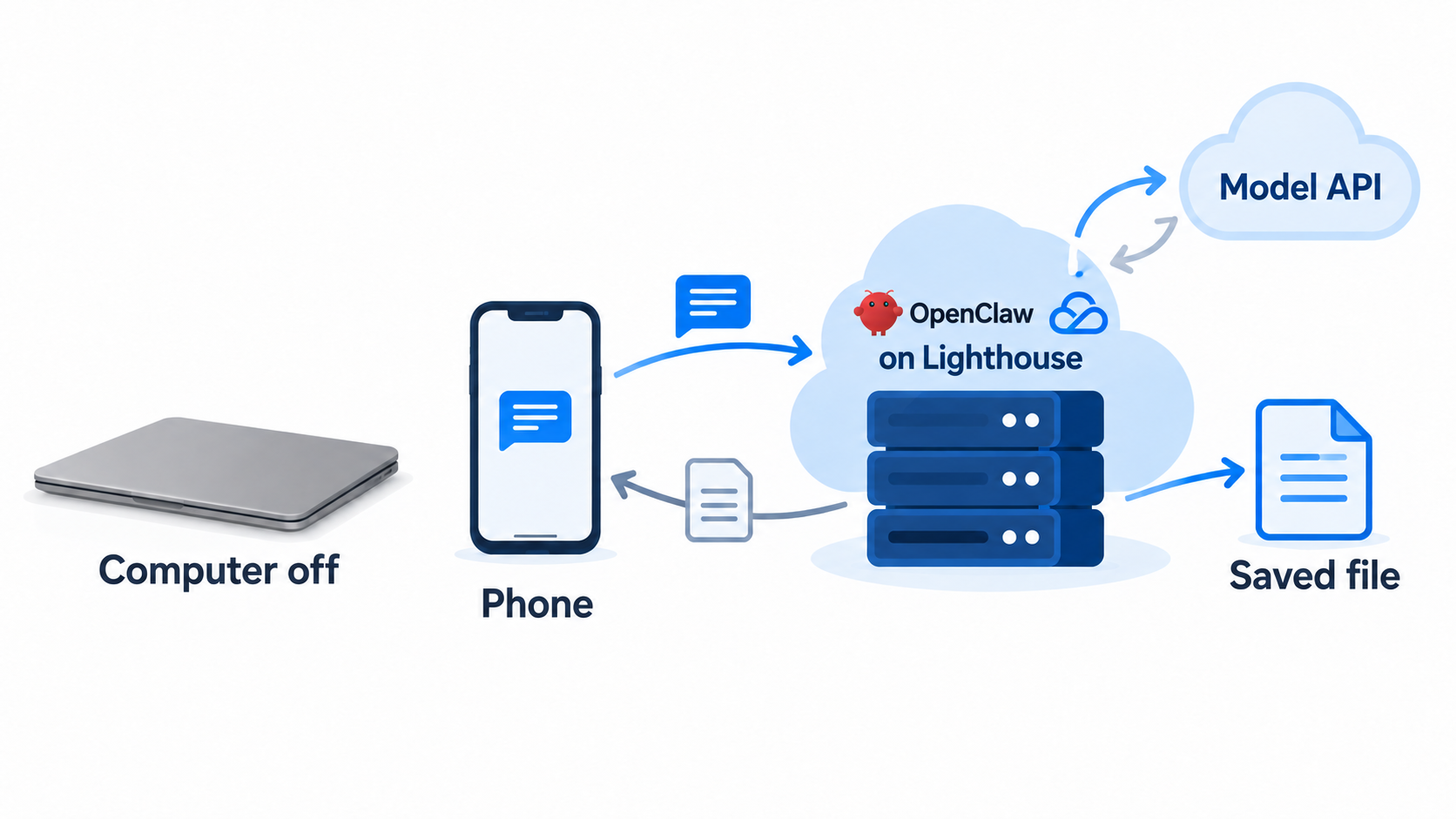
Your phone is the control point; OpenClaw runs on Lighthouse and saves output files on the instance.
3-Step Shutdown Test
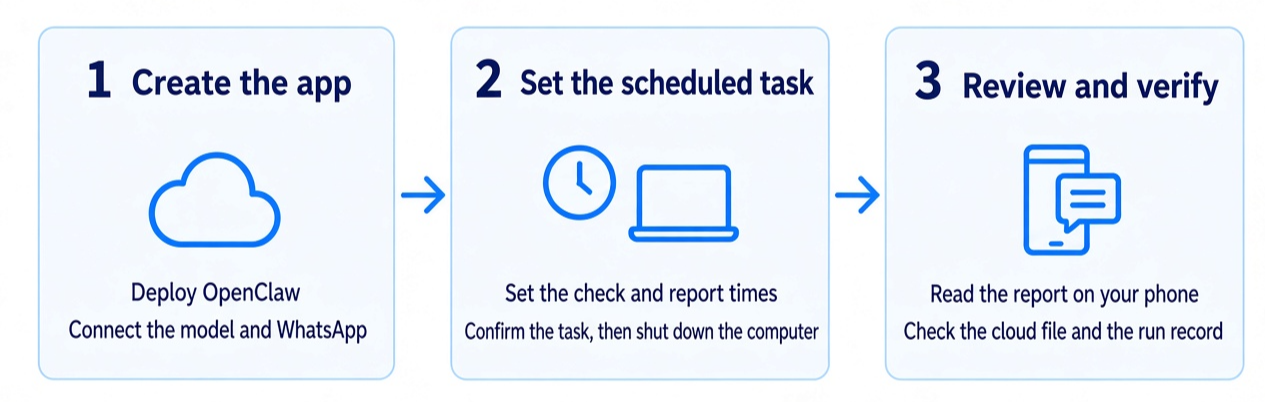
1. Create an OpenClaw application and connect a model
First create an OpenClaw application on a Tencent Cloud Lighthouse lightweight cloud server, then connect the large model and a chat channel. This tutorial uses WhatsApp as an example; once the setup is done, you can send instructions to the cloud Agent from your phone.
- Launch the application: Go to the Lighthouse console and select OpenClaw under "Application Template" when you create the instance. As a reference, use 2 CPU cores, 2GB memory, and a 40GB system disk, and adjust it to your actual workload; if you already have an instance running OpenClaw, just reuse it.
Region selection: If you use overseas apps such as WhatsApp, Telegram, or Discord, prefer an overseas region like Singapore or Frankfurt. Before you choose, make sure the region can both reach the chat app and access the model API you use. - Connect the model: Once the instance shows "Running", go to the "Pre-installed application" page, choose a model in the "Models" section, enter the matching API Key, and save.
- Bind a channel: In the "Channels" settings, select WhatsApp, click "Authorization Access", then scan the dedicated QR code on the page with WhatsApp on your phone to finish binding.
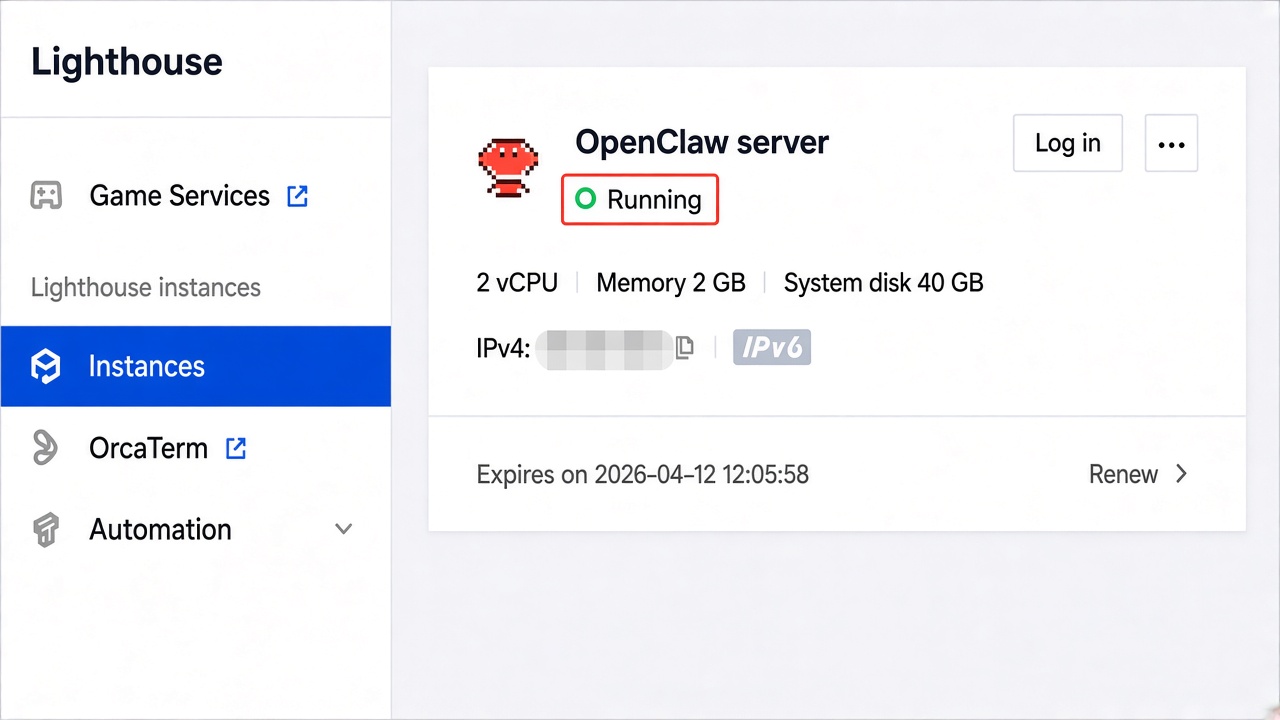
Confirm that the Lighthouse instance is running before continuing with setup.
Before moving on, make sure the instance is "Running", the model configuration is saved, and the WhatsApp channel is bound.
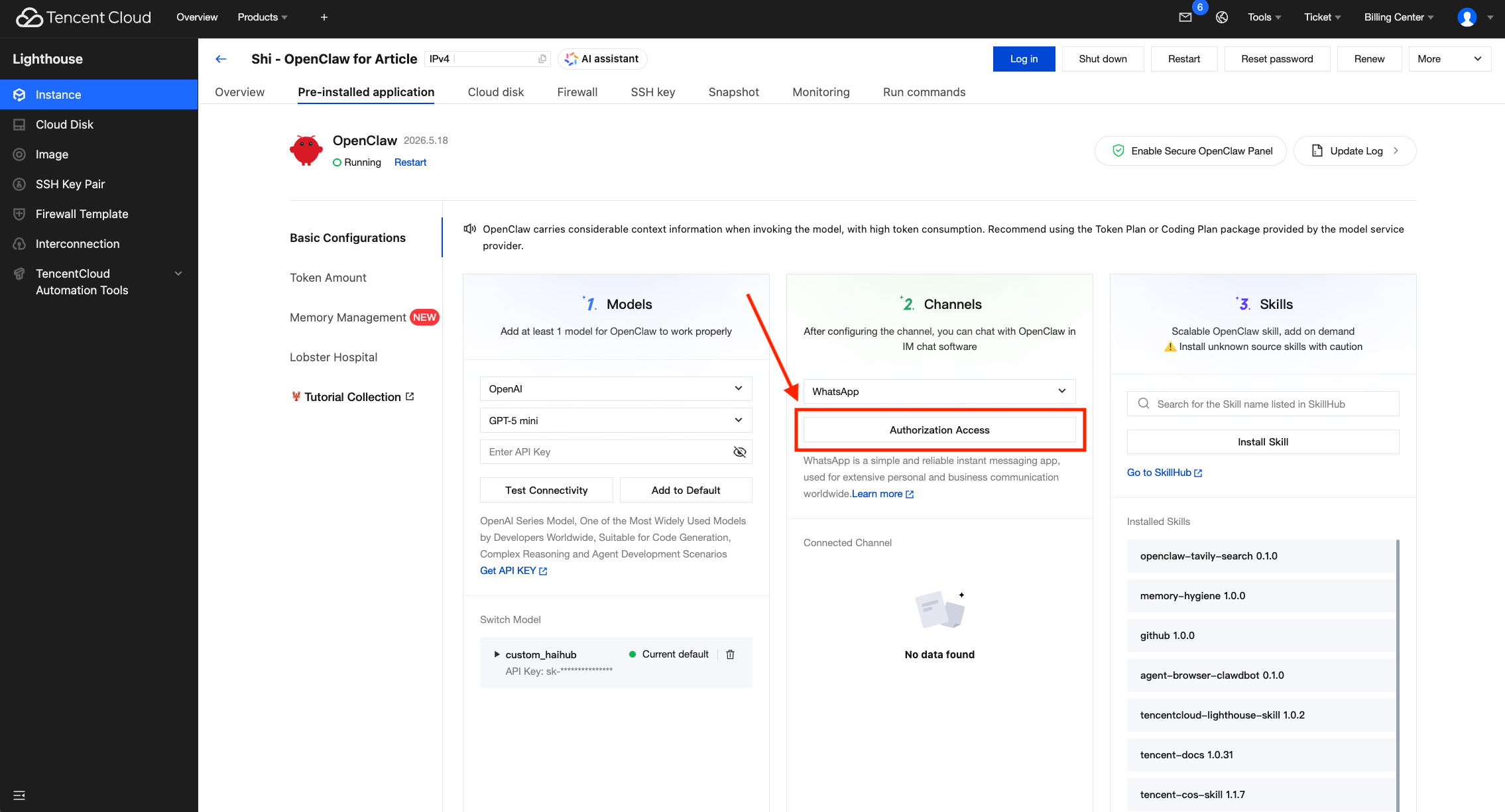
Use Authorization Access under Channels to link WhatsApp to your Lighthouse instance.
- Verify the link: In WhatsApp on your phone, send this to the connected chat: "Please reply with 'Connected successfully'." Once you get that reply, you know messages are going through in both directions, and you can carry on.
2. Set up an overnight check and a morning report task
Once you've confirmed the Agent can read competitor prices and US East warehouse inventory, have it check both in the early hours and send the results to your phone in the morning. Send this in WhatsApp:
Please create the following scheduled tasks, all in Beijing time (UTC+8), and run them for one night only:
Tomorrow 03:15:
1. Check competitor prices for key products, compare the latest prices with existing records, and list the changes.
2. Check US East warehouse inventory, find products with fewer than 50 units in stock, and list the product names and remaining quantities.
Tomorrow 08:00:
Send a summary of the check results to this WhatsApp chat and save the full results in the cloud with the file path.
If there are no price changes or inventory alerts, say so clearly. If any data can't be read, report the reason.
Then shut down your personal computer, keep the Lighthouse instance running and your phone online, and wait for the cloud to carry out the tasks on schedule.
3.Check the phone report the next day and verify the cloud results
-
Check the phone report the next morning
At the agreed time, open WhatsApp and look at the overnight check report the Agent sent. The example below shows price and inventory alerts followed by a morning summary.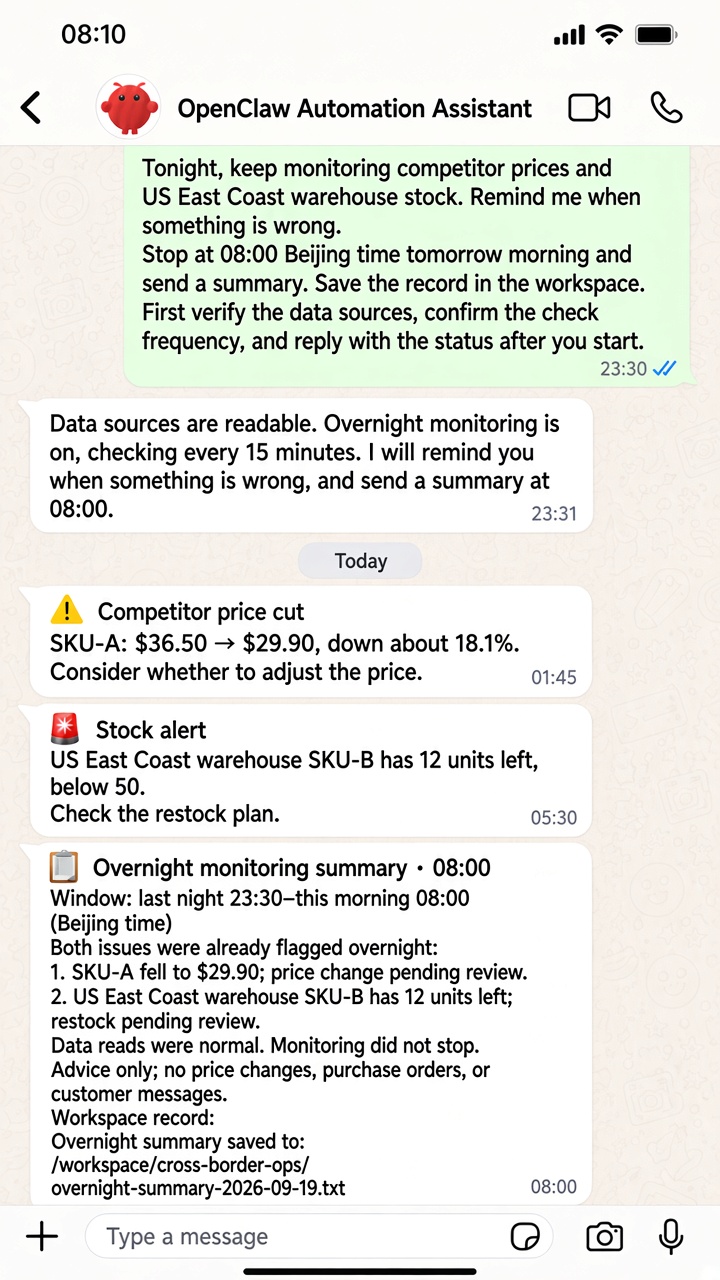
Illustrative WhatsApp report. Check times and alert frequency depend on your task settings (Beijing time, UTC+8).
-
Verify the cloud files and execution log
Open your computer again, sign in to the Lighthouse console, connect to the instance, and use the actual path returned in the report to find the action list. The path shown in the image is:/workspace/cross-border-ops/overnight-summary-2026-09-19.txt
Once the test passes, how do you keep it running?
After one overnight check, you can ask the Agent through WhatsApp to make the check and the report a daily routine: check competitor prices and inventory at 03:15 every day, send the results to this chat at 08:00, all in Beijing time, and adjust the check frequency and report time as your business needs change.
To make AI a productivity tool that truly never closes, the key is to free it from your personal computer's power limits with a stable, isolated lightweight cloud server. Tencent Cloud Lighthouse's international site is currently marking its 6th anniversary: new OpenClaw instances are 80% off, and renewals of existing instances are 40% off.
👉 Explore the Tencent Cloud Lighthouse 6th Anniversary Offers
More tutorials
You can refer to the tutorials in the complete guide collection for running OpenClaw in the cloud to connect more software apps, install and use various OpenClaw Skills, and explore more practical scenarios.
Community & Help
Run into problems or want to swap experiences with other users? Join our community:
- Discord community: Click to join
| WeCom | |
|---|---|
| Scan to join the WhatsApp group | Scan to join the WeCom group |
 |
 |