


It's late, and you're reading a school email. First come the lunch menu and a note that details of the parent meeting will follow. It looks like something you can finish tomorrow. Then you spot the line that matters: a parent needs to confirm Jason's basketball tryout registration and submit the required details by 9 a.m. the next morning. Miss the deadline, and Jason misses this round of registration.
If you're traveling, another parent may need to take over. Forwarding the email takes seconds. Finding the deadline, checking which details are missing, and figuring out where to submit them still takes work.
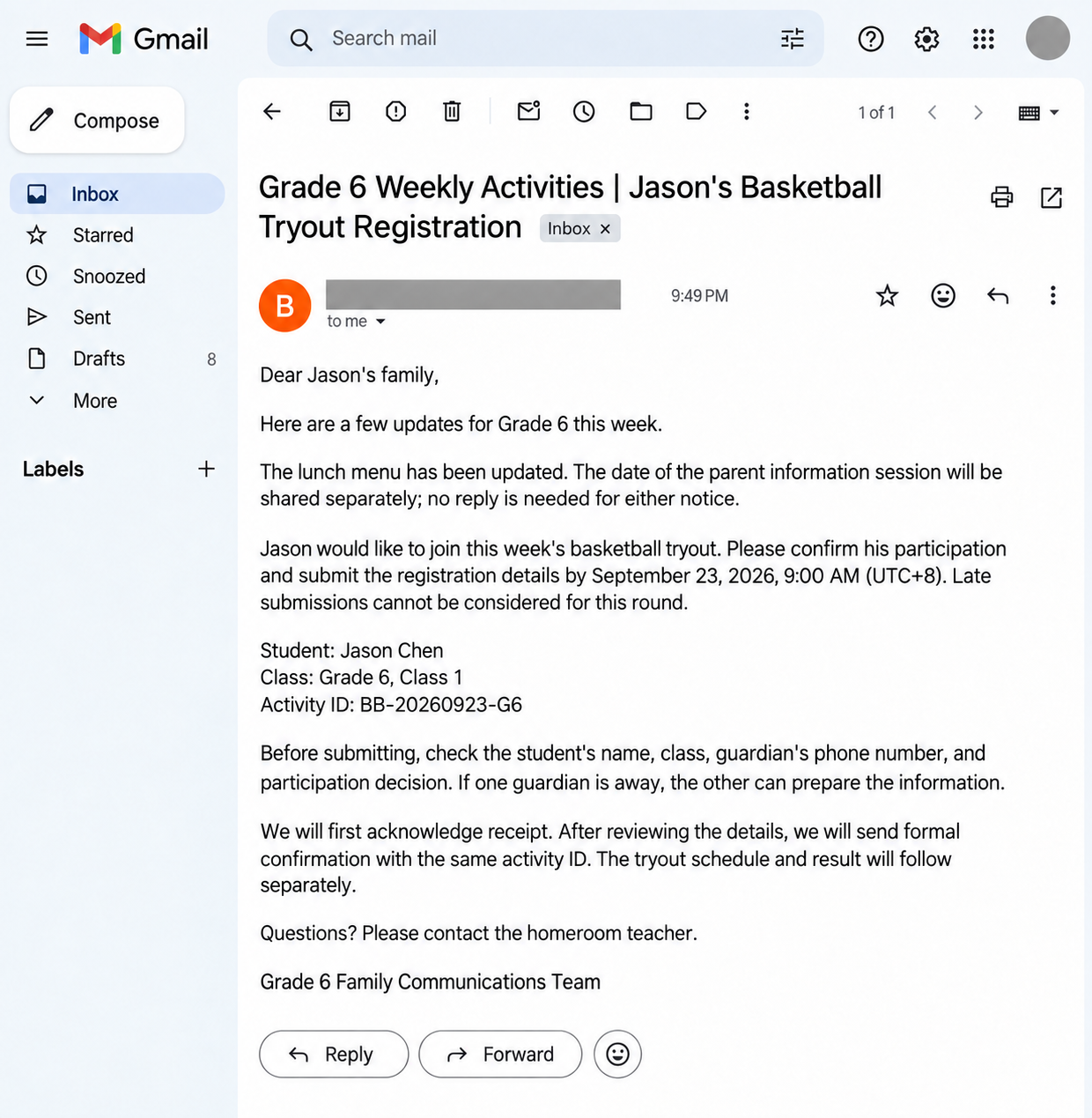
Figure 1: An English localization of the recorded school email. The sender is hidden; the lunch menu, parent meeting, and tryout registration appeared in the same message.
This tutorial shows how to hand that sorting job to WorkBuddy, an AI assistant you can give tasks to in a chat. WorkBuddy reads the email, pulls out the deadline and what the parent needs to do, and creates a one-page to-do list and an unsent reply draft. A parent checks both before deciding what to send or hand off. The other parent can open the list and see where to start.
WorkBuddy offers more than 100 built-in experts. Here, it reads the email, calls a tool, writes the to-do list, and drafts a reply. That tool is Jev, TypeSafe's judgment model. Give Jev a short piece of text and a specific question, and it returns a choice, probability, or score. In this run, Jev helps identify the type of notice, whether a parent needs to act, and how closely it relates to the registration. WorkBuddy uses those judgments alongside the original email. The deadline's urgency comes from the stated cutoff and the time of the check.
The division of work is clear: Jev handles focused judgments; WorkBuddy turns the source email and those judgments into files a parent can use.
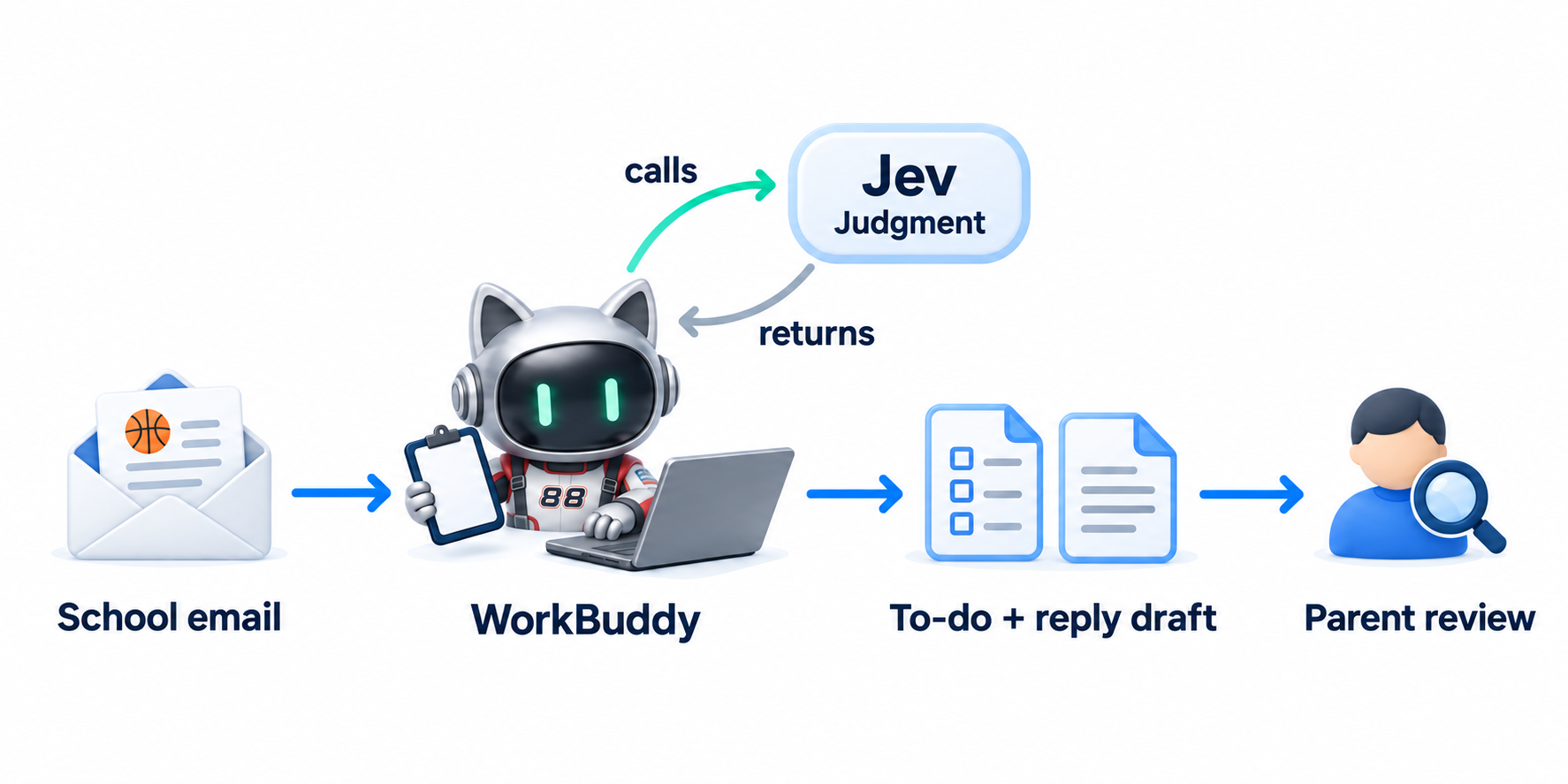
This walkthrough uses an example school notice about Jason, sent to a Gmail account authorized by its owner. The recorded run used the international WorkBuddy.AI 5.5.2 client on September 22, 2026. Account details are hidden in the screenshots.
Check a school email in three steps
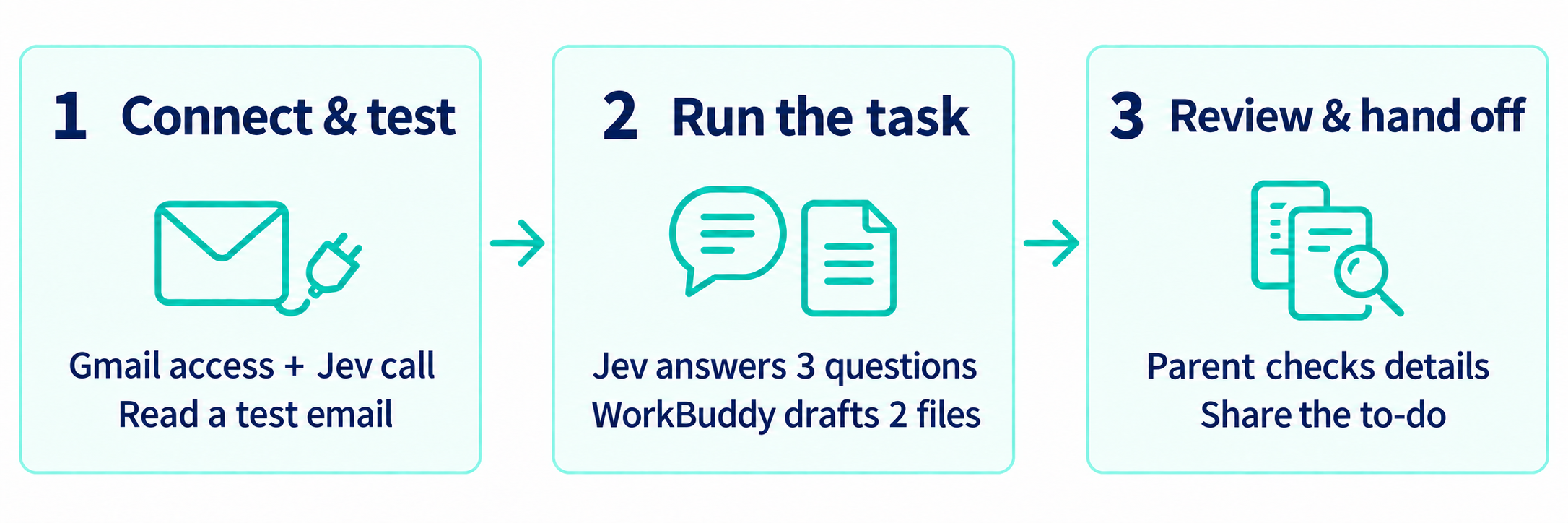
The path is connect and test → assign the task → review and hand off. You'll end up with a one-page parent to-do list and an unsent reply draft. If you're new to WorkBuddy, start at Step 1. If WorkBuddy can already read Gmail and call Jev, go to Step 2.
1. Open WorkBuddy and connect Gmail and Jev
You'll need the WorkBuddy AI desktop app, your Gmail account, and a TypeSafe API key to call Jev. You can get a key from the TypeSafe console. WorkBuddy and TypeSafe track usage separately.
- Start a setup task. Download and sign in to the international client from the WorkBuddy website. Select New Task, then choose a folder under Select Workspace—for example,
Jason school email. WorkBuddy will save the to-do list and reply draft there. - Connect your Gmail account. This walkthrough uses a mail tool called gog. Find it under Experts · Skills · Connectors → Skills in WorkBuddy, follow its installation instructions, and sign in and authorize access on Google's page. The gog project guide covers the initial setup. Once connected, ask WorkBuddy to read one specific email and return its subject and a few key lines. Compare them with the original.
- Add the TypeSafe skill. Install the official TypeSafe skill. The skill is a set of instructions that tells WorkBuddy how to use Jev; it appears in the interface as
typesafe-ai. Type/typesafein the task input to select it. This walkthrough also uses a custom connector to call TypeSafe's service. Installing the skill alone does not make the API connection.
You can give WorkBuddy this setup request so it checks what is already configured and tells you what still needs attention:
I'm new to WorkBuddy. Help me set up this school-email task.
Check whether Gmail can read the specific email I choose. If it isn't connected, explain the authorization steps in the official gog guide. Do not change anything in my mailbox.
Install typesafe-ai following https://github.com/typesafe-ai/skills and prepare the Jev connection.
If an API key is needed, use a local hidden-input method. Do not display the key in the chat or in screenshots.
Ask Jev three separate questions about the same email: What kind of notice is this? Does a parent need to take a new action? How closely does it relate to the specified registration? Keep each judgment focused; put independent questions about this one email in a single request.
First make a test call using a short, non-personal text sample. Show the actual result and model version. If a step fails, tell me where it failed and stop until it is fixed.
For this recorded run, a custom local connector was configured beforehand. To reproduce the Jev call, configure a working connection in your workspace using TypeSafe's API reference. The skill provides guidance for the agent, and the setup request asks WorkBuddy to check the connection. The selected email content needed for Jev's judgments is sent to TypeSafe through that connector. You're ready for Step 2 when all three checks pass: WorkBuddy can show the body of the specified email, you can select the typesafe-ai skill, and an actual Jev call returns a model version and judgment values.
If WorkBuddy cannot read the email, find the skill, or call Jev, ask it for the error. Check Gmail authorization, skill installation, and connector or key settings for the failed step, then repeat that read or test call.
This run was scoped to Jason's basketball registration email. For your own task, update the connector's allowed email scope to cover the message you want it to read.
2. Select the skill and give WorkBuddy the task
Return to the same workspace and choose New Task for the email itself. Type /typesafe, select typesafe-ai, and paste this request. Replace the subject with your own email's subject, and make sure the connector is allowed to read it:
Read the Gmail message titled “Grade 6 Schedule for This Week | Registration for Jason's Basketball Tryouts”. Use the connected Jev service to judge what a parent needs to address.
Using the actual current time, list the deadline, time remaining, required details, and next steps. Create a one-page parent to-do list and a reply draft. Do not send the reply.
Use only this original email, not previous output files. Hide real account details in anything you display.
The quoted subject stays in Chinese because it is the exact text in the original Gmail inbox. The images translate it for English readers. For your own email, use the subject as it appears in your inbox.
The task names the email, requests two deliverables, and explicitly leaves the reply unsent.
Notice that the prompt does not supply a deadline or a list of required details. WorkBuddy has to find those in the original email, and you should check its output against that email.
In this recorded run, the time check was September 22, 2026, at 22:32 (UTC+8). The 9 a.m. deadline was about 10 hours and 27 minutes away. WorkBuddy showed a task duration of 2 minutes and 5 seconds, excluding the earlier connection setup. A later run needs to recalculate the remaining time; after the it should say the deadline has passed.
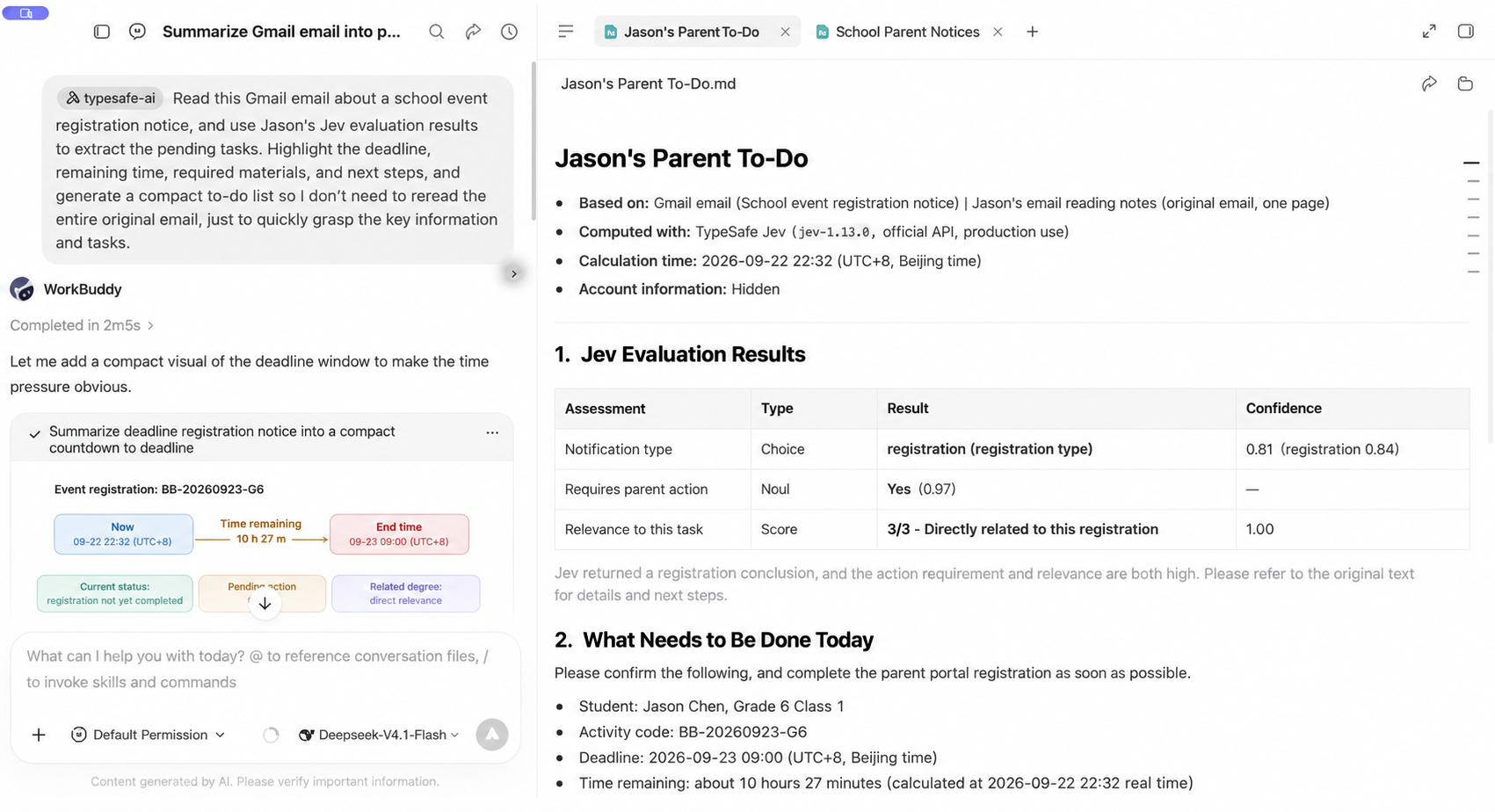
Original WorkBuddy interface from the recorded run: the task is on the left, and the reviewed to-do file is on the right. The Jev values were not edited.
Start with the file: the student, activity ID, cutoff, and requested details should each trace back to the school email. The time remaining also needs its calculation timestamp. Then read Jev's three judgments:
- What kind of notice is it (Choice)? Jev assigned
registrationa probability of 0.84. - Does a parent need to act (Noul)? It assigned “yes” a probability of 0.97.
- How closely does it relate to the registration (Score)? The result was 3.0, the highest level defined for this example. It signals a direct connection to the registration or its receipt. Judge urgency from the email's deadline and the time of the check, rather than treating this score as a deadline calculation.
The recorded Jev model was jev-1.13.0. In its result, 0.84 is the probability assigned to the registration option. The separate 0.81 value is the Choice answer's confidence. These values describe one model response; they are not a measure of the chance that registration will succeed. The required details come from the email, and the remaining time is calculated separately.
3. Open the to-do list and reply draft, then review and hand off
You should now see two files in the workspace: Jason's parent to-do list and a draft reply for a parent to review. Check them before passing them to someone else.
This run shows why. The school email said to complete the registration details but did not say where to submit them. The initial reply draft already asked the teacher about the submission route, while a related checklist line treated that route as if it had been verified. During review, that line was corrected to “ask the teacher where to submit the details.” We also made clear that a formal confirmation email bearing the same activity ID is the evidence for marking the submission confirmed; an acknowledgment alone does not suffice. Jev's returned values were left as they were.
Check these five things against the original email:
- The right activity. Match the student, class, and activity ID. This example uses
BB-20260923-G6. - The right time. The email gives a cutoff of September 23, 2026, at 09:00 (UTC+8). Record when you calculated the remaining time.
- The full set of details. The email asks the parent to verify the student's name, class, guardian phone number, and whether Jason wants to take part.
- An actionable next step. List missing details and the unknown submission route. Let the parents decide who will handle each item; keep the owner as “unassigned” until they do.
- Evidence before marking it confirmed. Use a formal confirmation email with the same activity ID. An acknowledgment only shows the school received the information. The tryout schedule and selection result will come from the school separately.
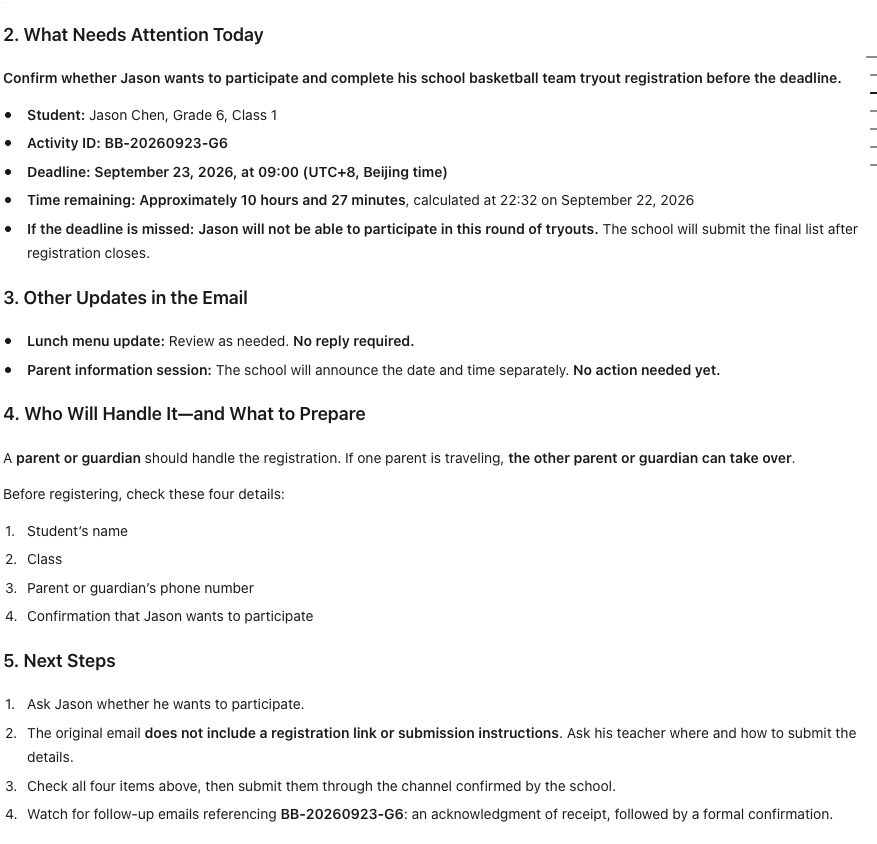
Original WorkBuddy view of the reviewed to-do. It records the student, activity ID, deadline, and time remaining; check each against the school email.
The submission route is still unknown. The draft reply asks the teacher where and how to send the details; a parent decides whether to send it after confirming Jason's participation. Whether another parent has already submitted anything is also unknown. The notice does not show whether someone has submitted the form, so keep the status as “check whether already submitted” to avoid duplicate registration.
Once the details are checked, share the to-do list with the parent taking over and add an owner and status. Keep the reply as a draft until a parent approves and sends it. This run stopped after creating and reviewing the files. It did not email the school or submit a registration.
What about the next email from school?
You can continue in the same task when a follow-up arrives. First make sure the connector can read that message, then use this prompt:
Check for new emails about this basketball registration. Match them by activity ID and update the existing to-do list.
Distinguish between “application received,” “more details needed,” and “formally confirmed.” Keep the supporting email for each status change.
Tell me the next step if the school requests more information or a parent needs to decide something. Do not send a reply or register on my behalf.
This follow-up prompt is provided for reuse; it was not tested in this run. Try it manually first and check the source email and the updated status. If you later set up a recurring check with WorkBuddy Automation, verify the next scheduled time and the first run record.
To receive results on your phone, you would also need to configure an Assistant channel. The path described here runs on the local computer, which must stay on, connected to the internet, and running WorkBuddy. See the Automation guide and Assistant guide for setup.
As related emails arrive, update the same to-do list: details to complete, submission method to confirm, application received, or registration submission formally confirmed. Keep the supporting email for every change so the parent taking over can see why the status changed.
Back to that late night away from home: instead of forwarding a long school email and asking someone else to untangle it, you can hand over one page that says what's missing, who will do the next step, and which email supports it. Pick one notice that needs follow-up and try the three steps: test the connection, make the judgments, and review the to-do list.
You can try this agent workflow yourself with WorkBuddy and a specialized judgment model. Explore WorkBuddy: Your Scenario-Ready AI Suite.
More resources
- WorkBuddy website: Download the client and explore its features.
- gog project guide: Set up Gmail authorization and read a specified message.
- Official TypeSafe skill: Install the skill and read the API instructions.
Community & Help
Run into problems or want to swap experiences with other users? Join our community:
- Discord community: Click to join
| WeCom | |
|---|---|
| Scan to join the WhatsApp group | Scan to join the WeCom group |
 |
 |