tencent cloud

Media Processing Service

Release Notes and Announcements
Release Notes
Announcements
Product Introduction
Overview
Features
Strengths
Use Cases
Purchase Guide
Billing Overview
Purchase Instructions
Top Up and Purchase
Overdue Payments
Refund
Getting Started
Console Guide
Overview
Creating Tasks
Tasks
Orchestrations
Templates
Resource Packs
Video Evaluation
AIGC Content Generation
Terminal SDK
Subtitle Editing Tool
Usage Statistics
Cloud Access Management Sample
Integration Tutorials
Audio/Video Transcoding Integration
Audio/Video Enhancement Integration
Audio Separation Integration
Integration of Digital and Visible Watermarks
Media AI Integration Tutorial
Media Quality Inspection Integration
Terminal SDK integration
MPS Live Stream Recording integration
DRM integration
Other tutorials
Application Scenario and Practical Tutorial
Image Quality Improvement Scenario
Audio/Video Cost Optimization Scenario
Short Drama Translation Scenario
AI-Generated Content Scenario
Online Education Scenarios
API Documentation
History
Introduction
API Category
Making API Requests
Processing Task Initiation APIs
Task Management APIs
Transcoding and Enhancement Template APIs
Watermark Template APIs
Screenshot Template APIs
Media AI Template APIs
Media AI—Hotword Lexicon APIs
Media AI—Sample Management APIs
Media Quality Inspection Template APIs
Live Streaming Recording Template APIs
Orchestration Management APIs
Data Statistics APIs
StreamLink—Security Group Management APIs
Other APIs
Image Processing Template APIs
AI Generation APIs
Other APIs
Data Types
Error Codes
Other Documents
WebSocket Protocol for Recognition
FAQs
Basics
Account Authorization
Task Configuration
Task Initiation
Task Result Viewing
Related Agreement
Service Level Agreement
Privacy Policy
Data Processing And Security Agreement
Contact Us
Glossary

LLM Summarize Tutorial

PDF
Focus Mode
Font Size
Last updated: 2025-08-20 17:48:58

Free Trial

Note:
The function of the MPS Demo is relatively simple, only for experiencing the basic effect, please use the API access to test the complete effect.
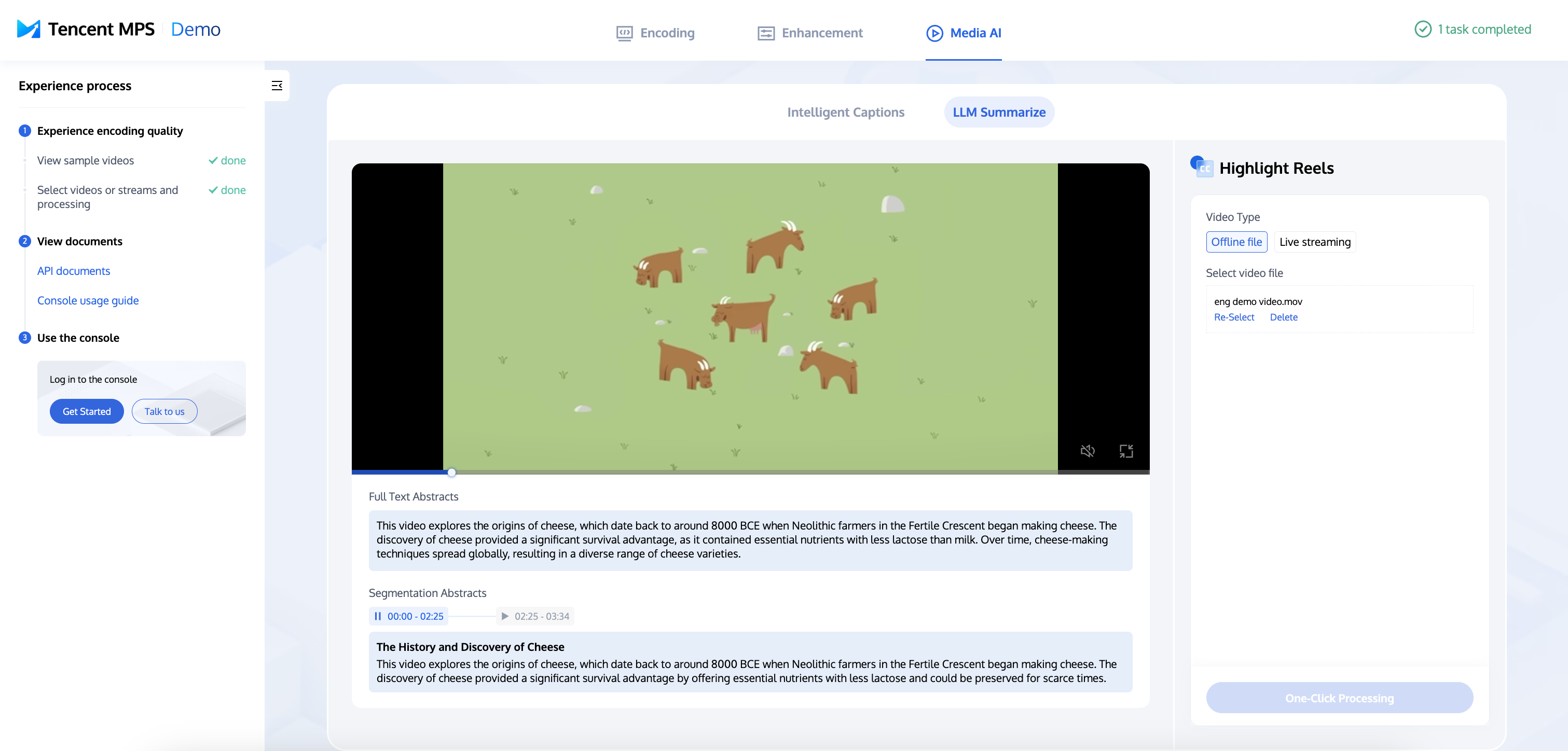
1. Open MPS.LIVE, enter the LLM Summarize experience page, select Offline Video (Offline File) or Live Streaming, and click One-Click Processing.
2. Once the processing is complete, you can view the results.


API Integration

Initiating a Summary Task

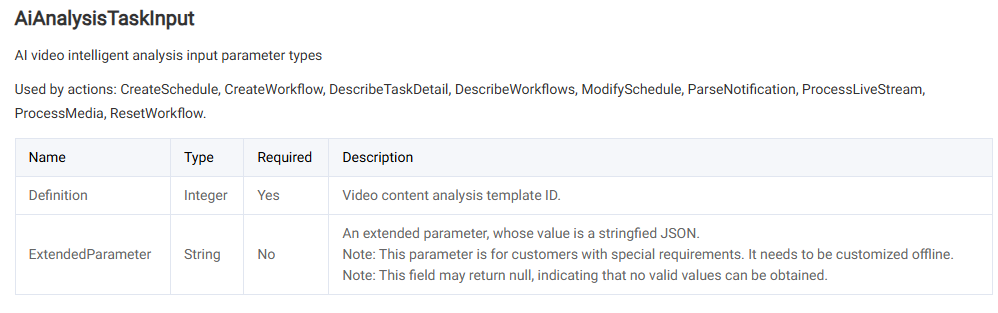
Call the Media Processing Service (MPS) API, select AiAnalysisTask, set Definition to 22 (preset large language model (LLM) summarize template), and enter extended parameters in ExtendedParameter for specific capabilities. For details, see Extended Parameter Description below.


Example:
{
"InputInfo": {
"Type": "URL",
"UrlInputInfo": {
"Url": "https://facedetectioncos-1251132611.cos.ap-guangzhou.myqcloud.com/video/xxx.mp4" // Replace it with the URL of the video to be summarized.
}
},
"AiAnalysisTask": {
"Definition": 22, //Preset LLM summarize template ID.
"ExtendedParameter": "{\\"des\\":{\\"split\\":{\\"method\\":\\"llm\\",\\"model\\":\\"deepseek-v3\\"}}}"
},
"OutputStorage": {
"CosOutputStorage": {
"Bucket": "test-mps-123456789",
"Region": "ap-guangzhou"
},
"Type": "COS"
},
"OutputDir": "/output/",
"TaskNotifyConfig": {
"NotifyType": "URL",
"NotifyUrl": "http://qq.com/callback/qtatest/?token=xxxxxx"
},
"Action": "ProcessMedia",
"Version": "2019-06-12"
}

API Explorer Quick Verification

You can perform quick verification through API Explorer. After filling in relevant parameter information on the page, you can initiate an online API call.

Extended Parameter Description

ExtendedParameter is used to personalize the summary task, which can be left unfilled, combined with the default effect, and used on-demand for directions that need to be improved.
Note:
API Explorer will automatically convert the format. You only need to enter the corresponding ExtendedParameter in JSON format without converting it to a string. If calling the API directly, you need to escape the JSON string.
For the complete list of ExtendedParameter's optional parameters and their descriptions, refer to the following table:
{
"des": {
"split": {
"method": "llm",
"model": "deepseek-v3",
"max_split_time_sec": 100,
"extend_prompt": "This video is a medical scenario video, which is segmented according to domain-specific medical knowledge points."
},
"need_ocr": true,
"ocr_type": "ppt",
"only_segment": 0,
"text_requirement": "summary is within 40 characters",
"dstlang": "zh"
}
}

Parameter
Required
Type
Description
split.method
No
string
Segmentation Method: llm indicates Large Language Model-based segmentation, nlp indicates traditional NLP-based segmentation. The default value is llm.
split.model
No
string
Segmentation llm: Available options include Hunyuan, DeepSeek-V3, DeepSeek-R1. The default value is DeepSeek-V3.
split.max_split_time_sec
No
int
Forces the maximum segmentation time in seconds to be specified. It is recommended to use it only if necessary, it may affect the segmentation effect. The default value is 3600.
split.extend_prompt
No
string
Requirements for segmentation task prompts. For example: "This instructional video is segmented by knowledge points". It is recommended to initially leave blank for testing and supplement prompts only when results fall short of expectations.

need_ocr
No
bool
Whether to use Optical Character Recognition (OCR) to assist segmentation, true means enabled. The default value is false.
If disabled, the system only recognizes the video's speech content to assist in video segmentation; if enabled, it also recognizes the text content on the video image to assist in video segmentation.
ocr_type
No
string
OCR auxiliary type:
ppt: Processes on-screen content as PowerPoint slides and segments videos based on slide transitions.
other: Applies alternative segmentation methods.
The default value is ppt.
only_segment
No
int
Whether to only segment without generating a summary. The default value is 0.
1: Only segment without generating a summary.
0: Segment and generate a summary.
text_requirement
No
string
Requirements for generating a summary. For example, the character limit is "summary is within 40 characters".
dstlang
No
string
Title and summary language. The default value is "zh".
"zh": Chinese.
"en": English.

Querying Task Results

Task callbacks: When initiating an MPS task using ProcessMedia, you can set callback information through the TaskNotifyConfig parameter. After the task is completed, the task results will be called back through the configured callback information. You can parse the event notification results through ParseNotification.
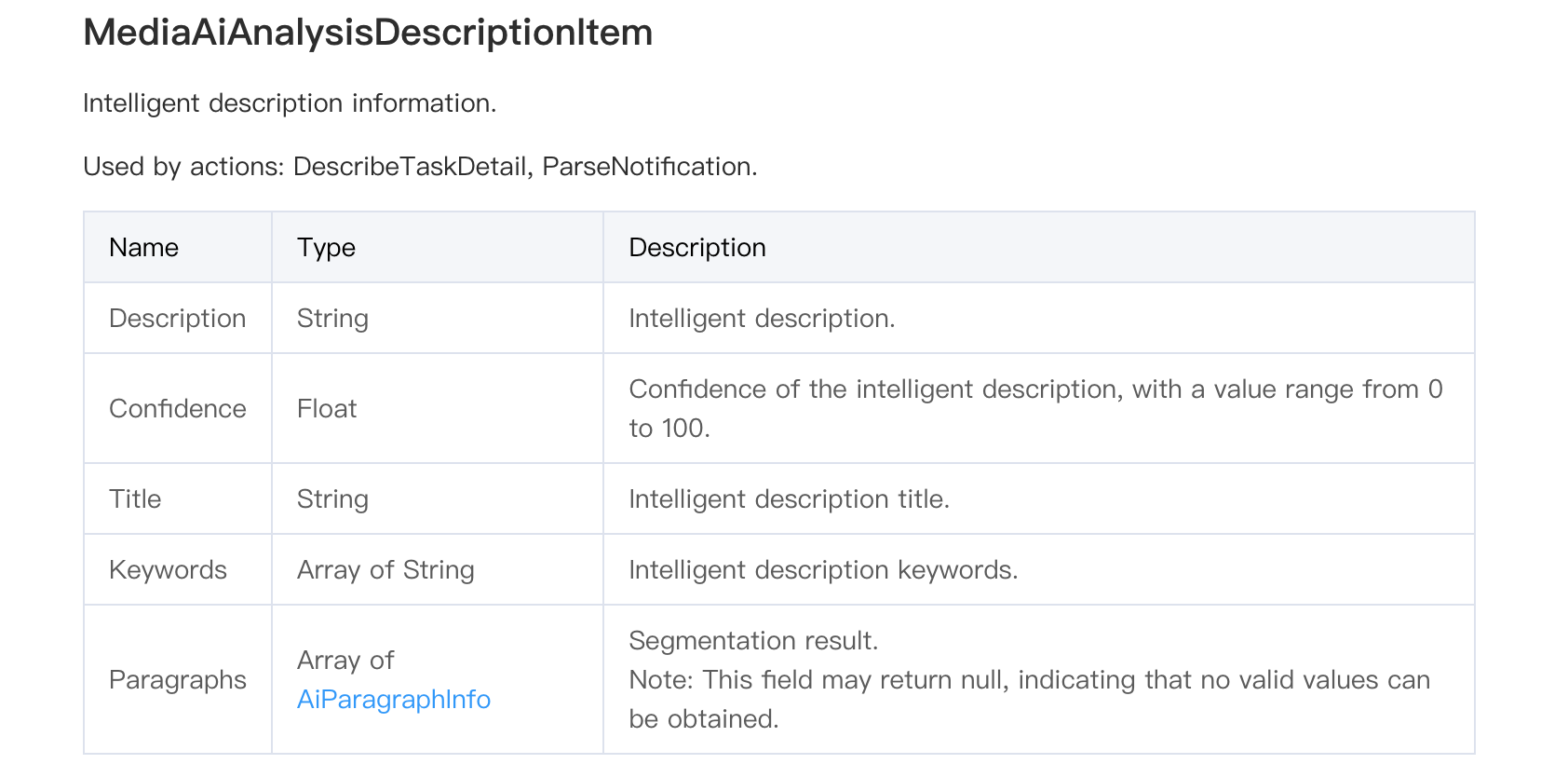
Use the TaskId returned by ProcessMedia to call the DescribeTaskDetail API to query the task processing results. Parse WorkflowTask > AiAnalysisResultSet > DescriptionTask > Output > DescriptionSet > MediaAiAnalysisDescriptionItem.

Description corresponds to the entire video summary, and Paragraphs corresponds to the intelligent segmentation results of the entire video and the summary of each segment.


Help and Support

Was this page helpful?

Help us improve! Rate your documentation experience in 5 mins.

Feedback