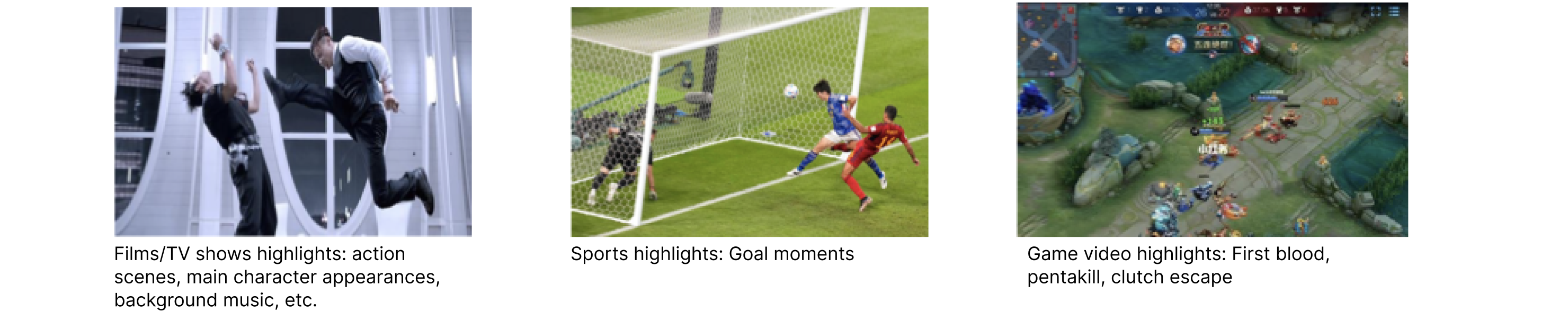
The Intelligent Highlights feature uses intelligent algorithms to automatically capture and generate video highlights, providing users with quick review and sharing to enhance post-production efficiency.
Highlight Scenarios and Billing
Media Processing Service (MPS) Intelligent Highlights supports the following editions, which are suitable for different video scenarios. For detailed pricing, see Pay-As-You-Go.
Processing Type
Intelligent Highlights Edition
Description
Supported Video Scenarios
Billing
Process offline files
Intelligent Highlights - Large Model Edition
This edition leverages large model-based video understanding to automatically analyze video content and extract key scenes and highlight moments. Video understanding prompts are customizable.
Custom scenarios
Panoramic camera and VLOG videos
Short dramas, films, and TV series
Charged under "Intelligent Highlights - Large Model Edition".
Intelligent Highlights - Advanced Edition
Advanced algorithms are used in this edition, primarily tailored for sports events and esports videos.
Football matches
Basketball matches
Esports videos
General scenarios
Charged under "Intelligent Highlights - Advanced Edition".
Intelligent Highlights - Basic Edition
As of December 2025, this edition has been decommissioned and is now only available to existing customers.
Charged under "Intelligent Highlights - Basic Edition".
Process live streams
Intelligent Highlights - Live Stream Processing
Built on large model-based video understanding, this edition provides targeted model optimizations for live streaming scenarios.
Broadcast and new media live streaming
Online education live streaming
Live shopping
Financial live streaming
Football/basketball match live streaming
Charged under "Intelligent Highlights - Large Model Edition".
Demo
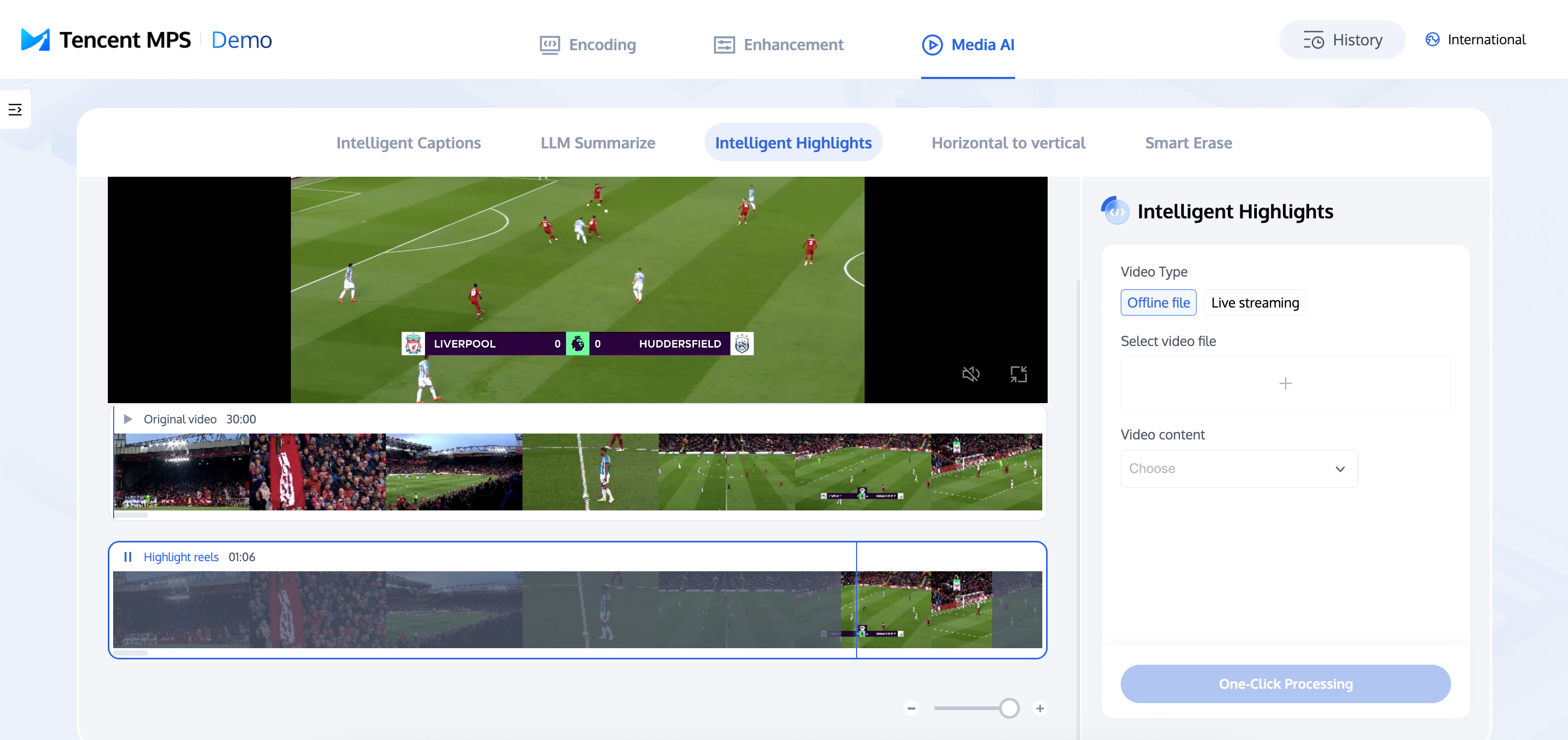
1. Access the Experience Center to navigate to the Intelligent Highlights page. On the right side, select either an offline video file or a live stream, specify the video content category, and click One-Click Processing.
2. Once the processing is complete, you can view the results.
Note:
The function of the MPS Demo is relatively simple, only for experiencing the basic effect, please use the API access to test the complete effect.
Pre-integration Prerequisites
Before integrating Intelligent Highlights, you need to complete the following prerequisites to use MPS: register and log in to a Tencent Cloud account, activate MPS, and grant permissions to the service role.
Using Preset Template No. 26 for Intelligent Analysis
To use Intelligent Highlights, you need to initiate a task using preset template No. 26 under "Intelligent Analysis" in MPS. Custom templates are not supported for highlight parameter adjustment. To specify an Intelligent Highlights edition or video scenario, you need to pass extended parameters when initiating a task. For details, see Highlight Scenarios & Examples of Extended Parameters below.
Specifying Offline Highlight Scenarios & Examples of Extended Parameters
Currently, only preset template No. 26 can be used to initiate Intelligent Highlights tasks. Custom templates are not supported for highlight parameter adjustment. To specify an Intelligent Highlights edition or video scenario, you need to pass extended parameters when initiating a task. The following are common highlight scenarios and corresponding examples of extended parameters.
Note:
This section describes the offline file processing scenarios supported by Intelligent Highlights, along with corresponding examples of extended parameters. For instructions on how to initiate a task and pass extended parameters, see the description about initiating a processing task below. For detailed field definitions of extended parameters, see the appendix below.
The example parameters may not produce optimal highlights. It is recommended to fine-tune them based on the video characteristics. For professional support, please contact us.
Intelligent Highlights - Large Model Edition
Custom Scenarios
multimodal_prompt accepts your custom prompts. Example extended parameters:
//Example prompt. Customize as needed. For detailed field definitions, see the appendix below.
{"hht":{"top_clip":5,"force_cls":10020,"prompts":{"multimodal_prompt":"Skiing scenario, output character highlights"},"scenario":"Skiing","model_segment_limit":[3,6]}}
Panoramic Camera and VLOG Videos
Built on large model-based video understanding and fine-tuned for various scenarios including VLOG videos, sports videos, landscape videos, and drone panoramic videos, this edition accurately identifies and generates high-quality highlights from captured footage. Example extended parameters:
//2D video highlights. For detailed field definitions, see the appendix below.
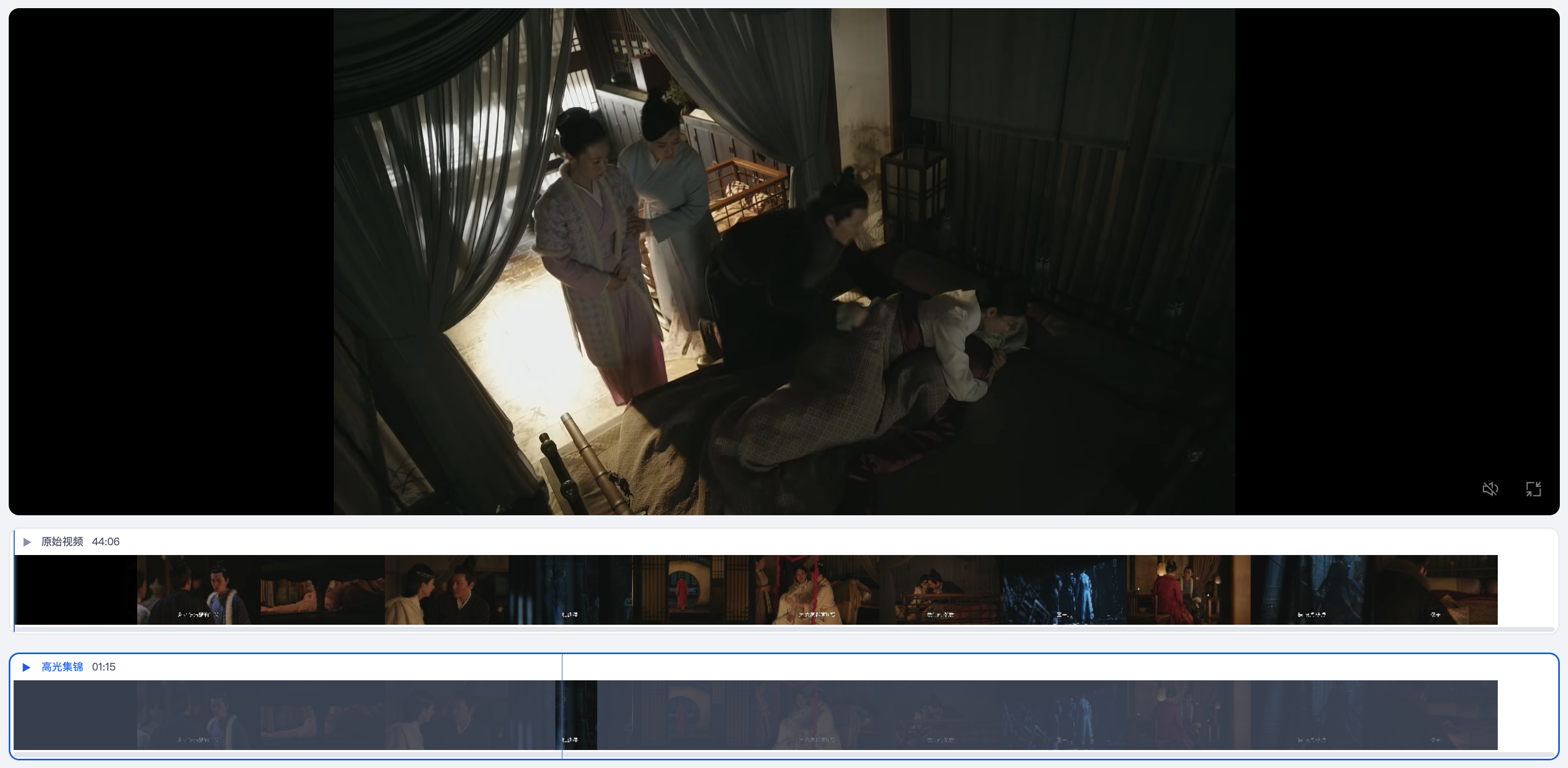
Built on large model-based video understanding and fine-tuned for short dramas, films, and TV series, this edition automatically extracts highlights such as character entrances and BGM moments to enhance post-production efficiency.
{"hht":{"force_cls":"10010","merge_type":0,"need_vad":1,"top_clip":100,"res_save_type":1,"scenario":"TV series highlights"}}
Intelligent Highlights - Advanced Edition
Football Matches
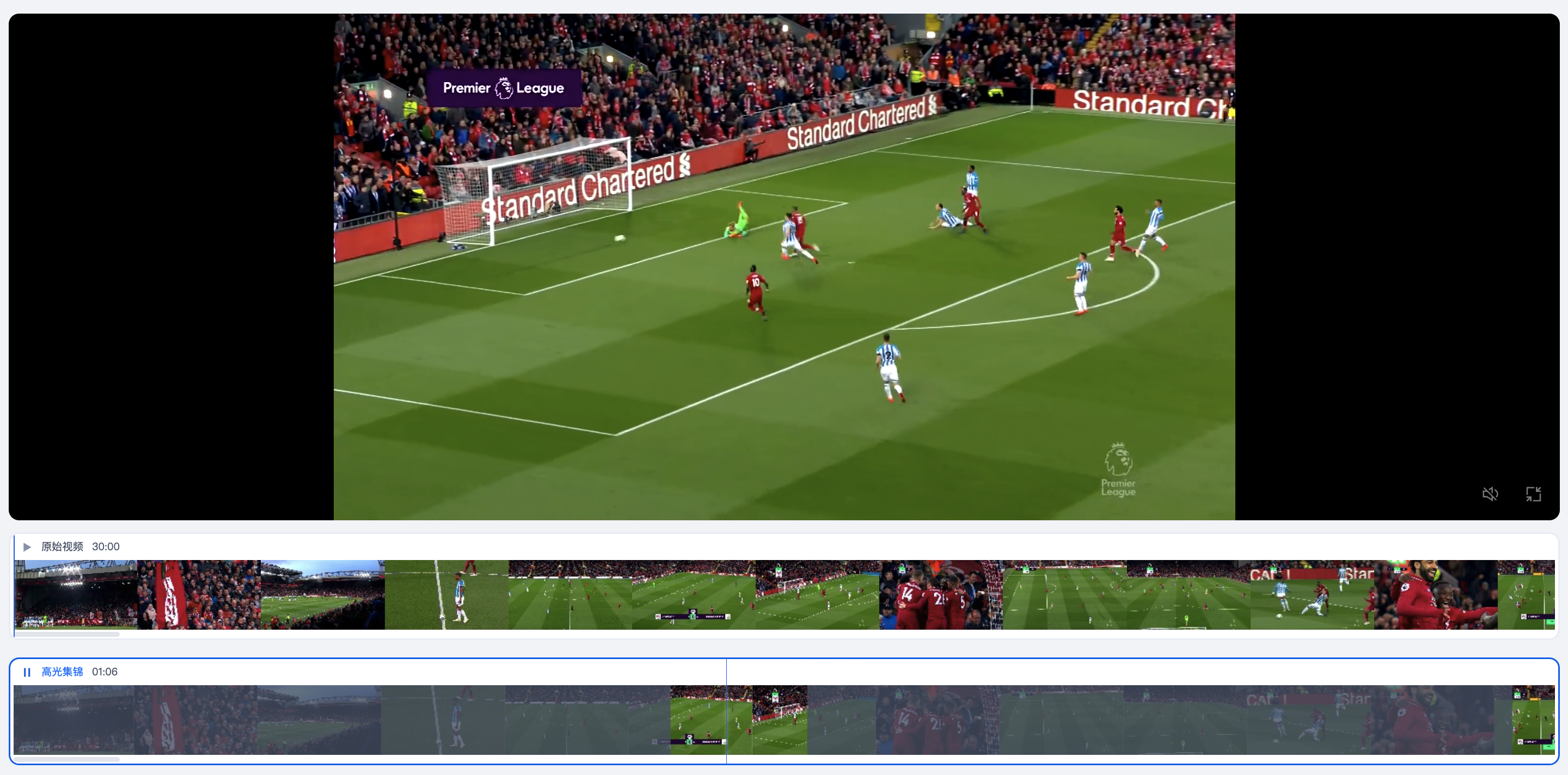
Based on video content understanding, this edition automatically identifies and extracts key events in football match videos, including shots, goals, penalties, red cards, yellow cards, and replays.
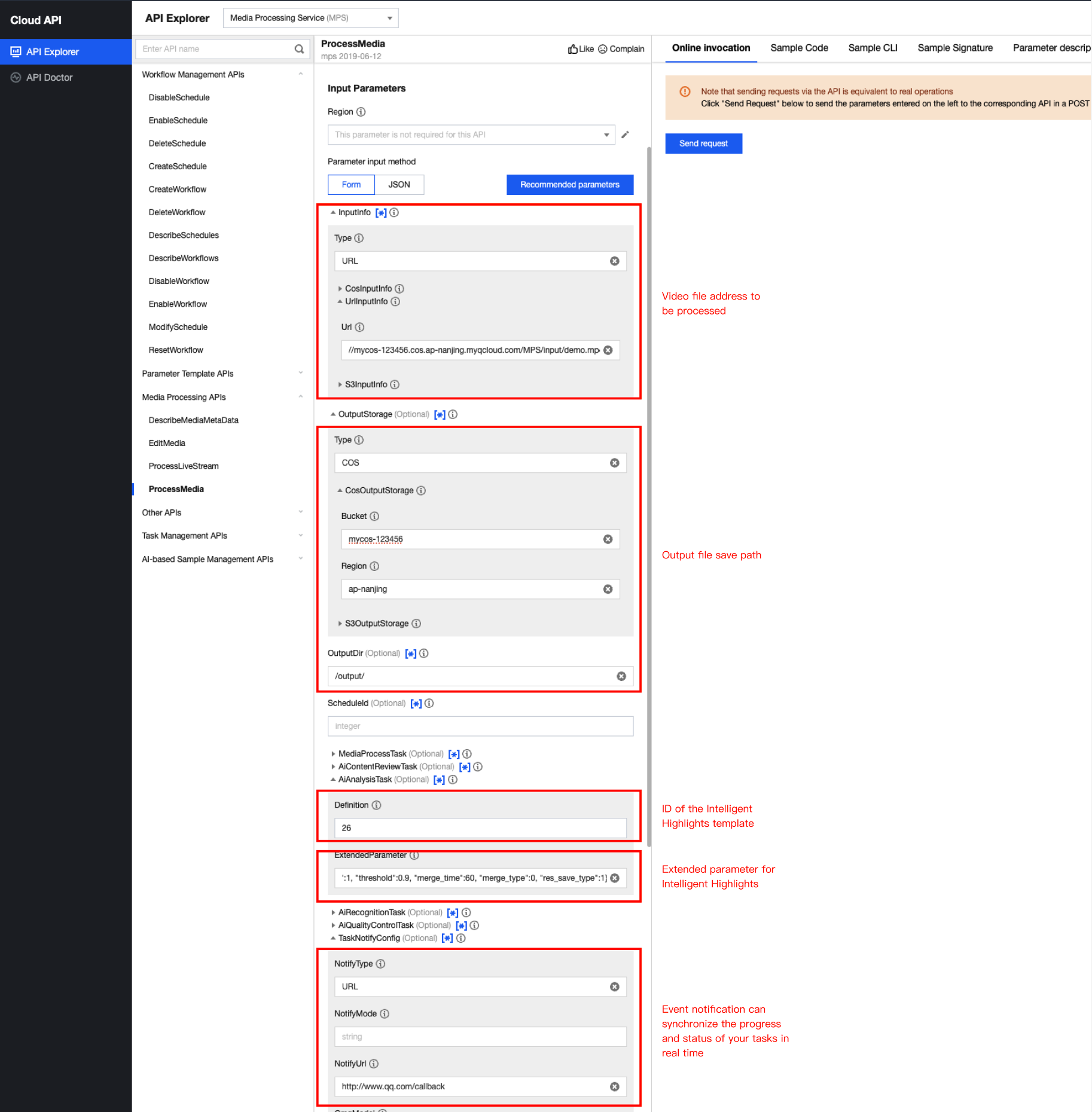
Go to the MPS API Explorer online debugging page and select the ProcessMedia API from the API list on the left. Refer to the figure below to configure parameters such as input path, output path, and template ID. In the AiAnalysisTask configuration, set Definition to 26 (preset Intelligent Highlights template) to initiate an Intelligent Highlights task. ExtendedParameter is an Intelligent Highlights extended parameter, used to specify different highlight scenarios and enable specific capabilities. For details, see Highlight Scenarios & Examples of Extended Parameters.
Note:
API Explorer automatically escapes JSON strings. You can directly enter the JSON data in the ExtendedParameter field without manually escaping it. However, if you call the API directly, you need to escape the JSON string.
2. Initiating via API
The above explained how to use the API Explorer to call and debug the interface online. You can also directly initiate a POST request to Tencent Cloud. API request domain: mps.tencentcloudapi.com. While initiating a POST request, the definition is the preset intelligent highlight template ID (26). Below is a reference example for the ProcessMedia request:
Note:
When directly calling the API, you need to escape the JSON string when inputting the ExtendedParameter parameter.
"Definition":26,//26 indicates using the Intelligent Highlights feature.
"ExtendedParameter":"{\\"hht\\":{\\"top_clip\\":5,\\"force_cls\\":10020,\\"prompts\\":{\\"multimodal_prompt\\":\\"Skiing scenario, output character highlights\\"},\\"scenario\\":\\"Skiing\\",\\"model_segment_limit\\":[3,6]}}"//Extended parameters for specifying highlight scenarios and enabling specific capabilities. See relevant documentation for parameter details.
Initiating a task from the console requires a preset template (preset intelligent highlights parameters). Due to some special parameters in the highlights that cannot be configured in the template, it may affect the effect of the Intelligent Highlights. Therefore, it is recommended to use the API integration.
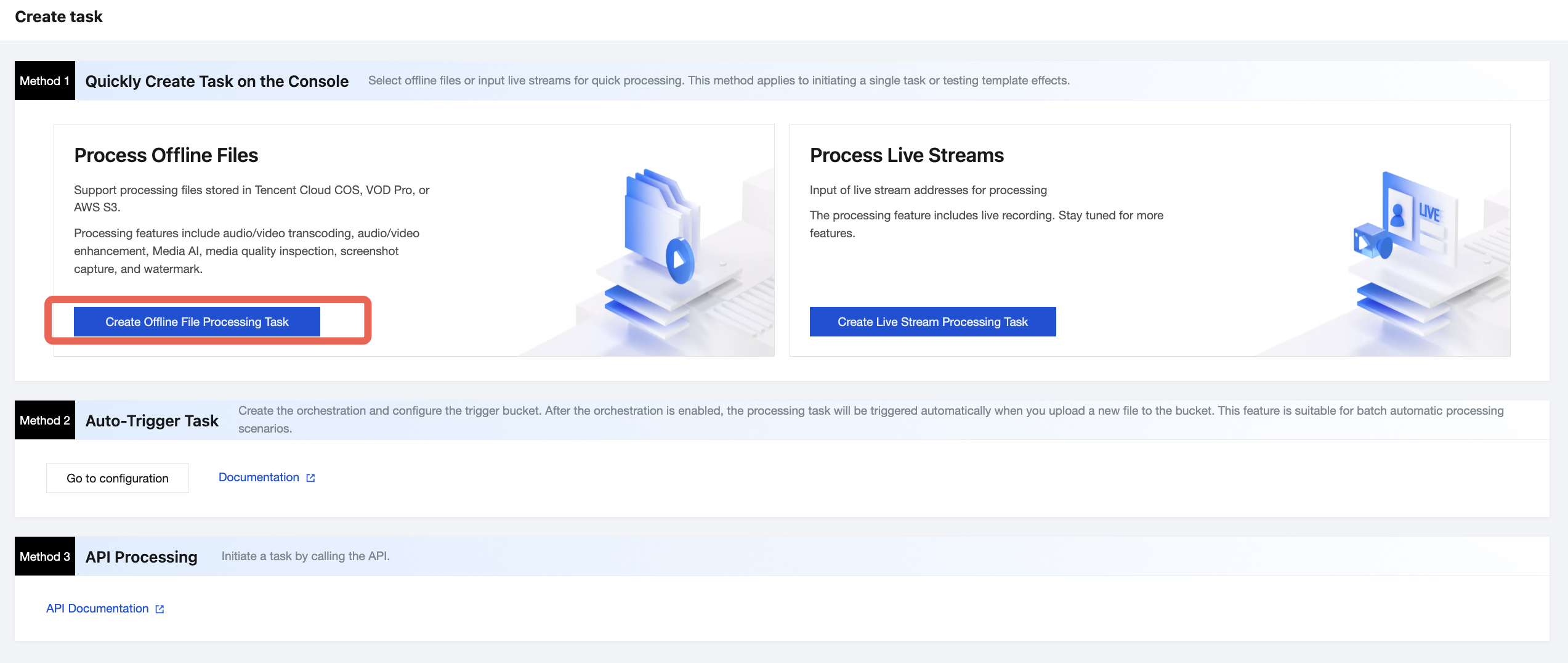
1. Go to the MPS console and click Create Task > Create Offline File Processing Task.
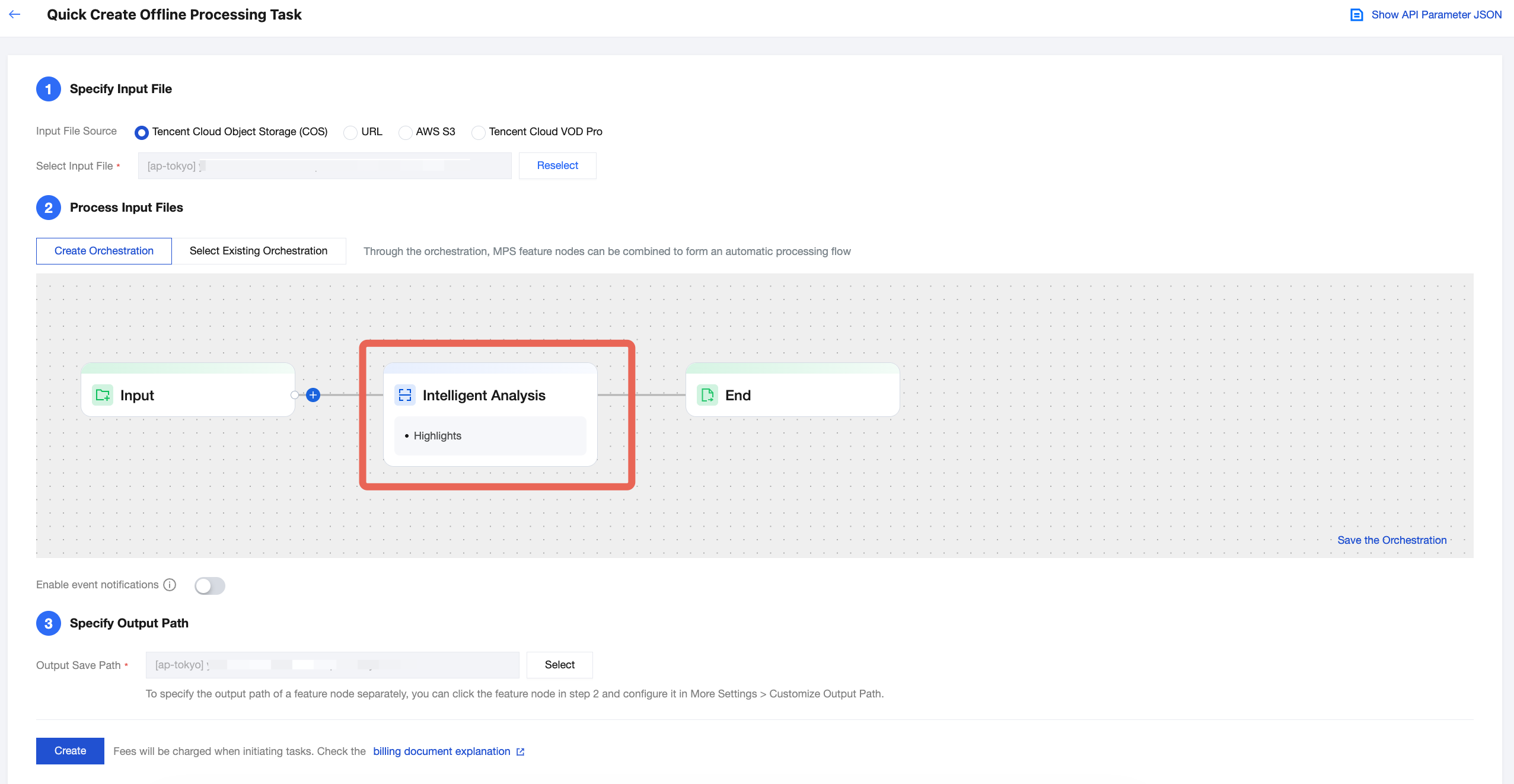
2. First, specify the input video file. The Intelligent Highlights feature currently does not support AWS S3 as an input source.
3. Then, add an Intelligent Analysis node at the "Process Input File" step.
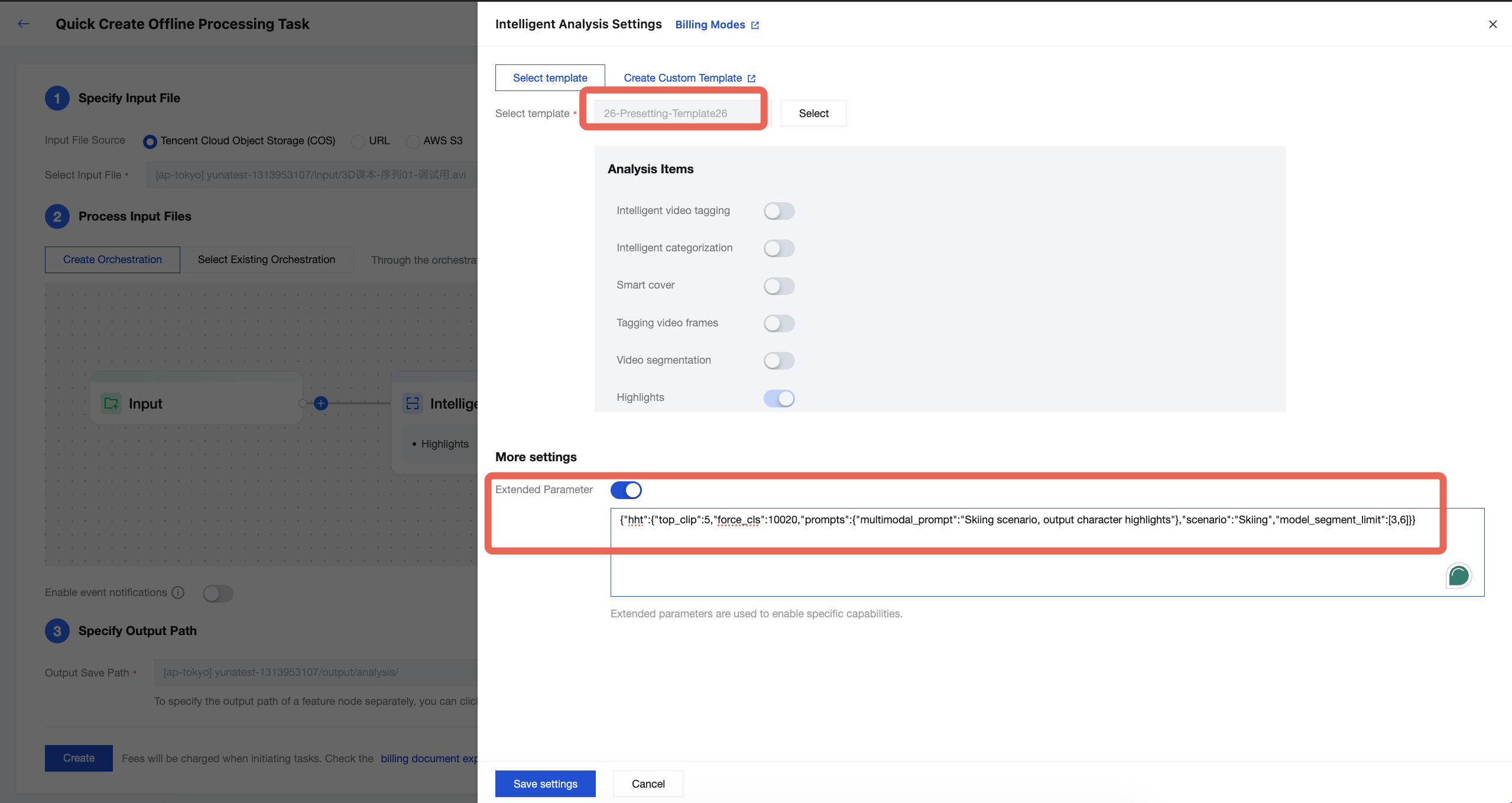
In the Intelligent Analysis Settings drawer that appears, select the Intelligent Highlights preset template (template ID: 26). You can enable Extended Parameters under More Settings and pass extended parameters as described in this documentation to specify a highlight scenario and achieve better highlights.
4. Finally, after specifying the output video storage path, click Create to initiate the task.
Method 3: Automatically Triggering a Task
If you want to upload a video file to the COS bucket and achieve automatic Smart Erase according to preset parameters, you can:
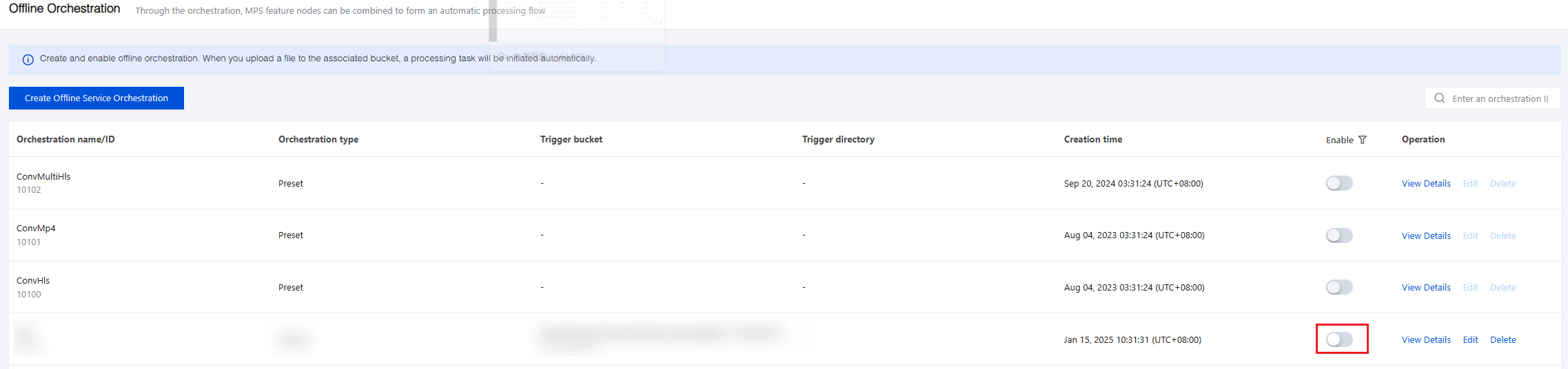
1. Click Save the Orchestration when creating the task, and configure the Trigger Bucket, Trigger Directory, and other parameters in the pop-up window.
2. Then, go to the Offline Orchestration, find the newly created orchestration, and enable it by clicking the Enable button. As for the subsequent new video files in the Trigger Directory, tasks will be automatically triggered according to the preset process and parameters in the orchestration, and the processed video files will be saved to the output path configured by the orchestration.
Note:
It takes 3-5 minutes to take effect after the orchestration is successfully enabled.
Querying Task Results
Querying Results in the Console
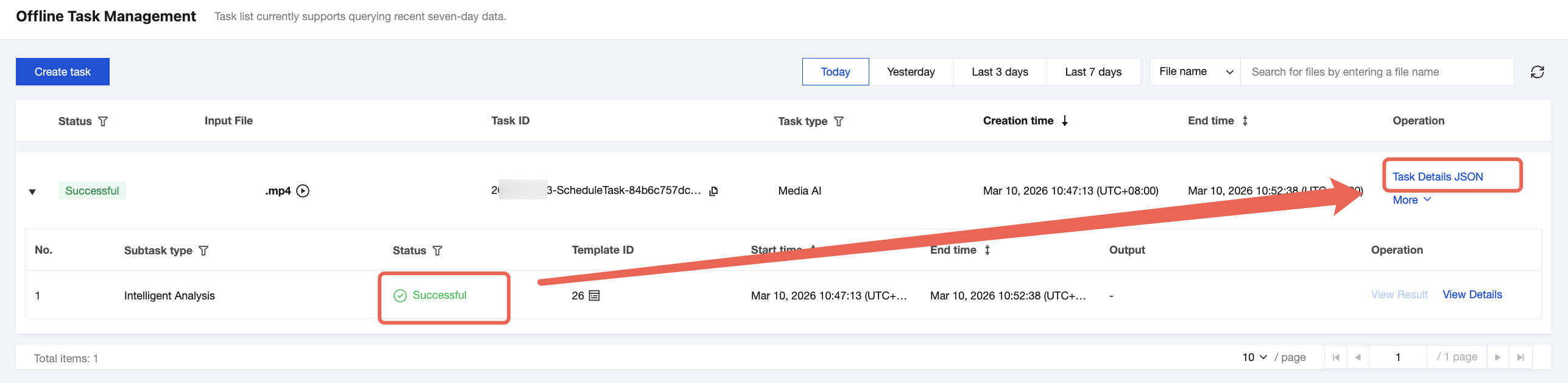
1. You can check the task status on the Task Management page in the console. When the subtask status is "Successful":
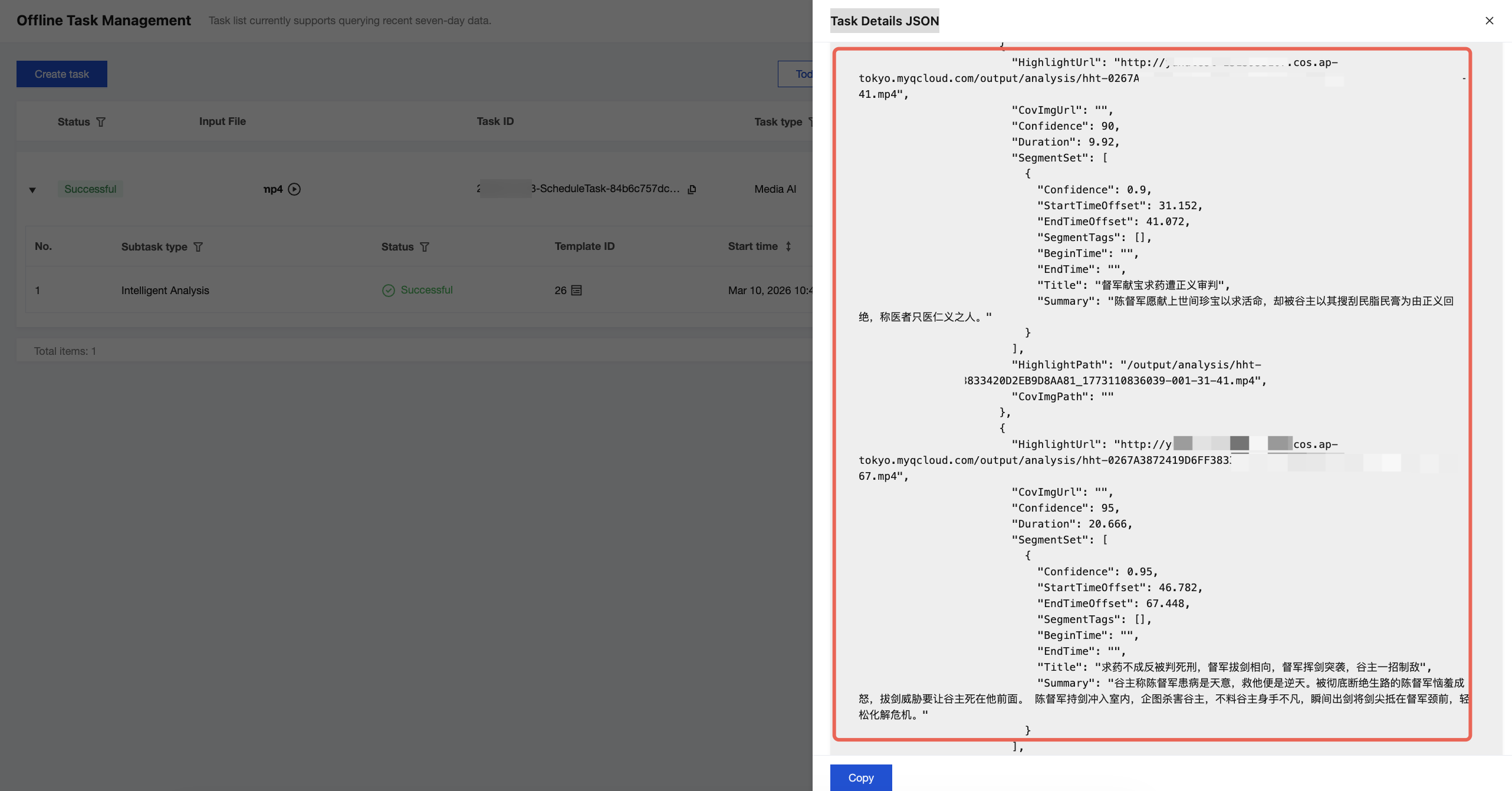
2. Click Task Details JSON to view the output result and output file path in the output message.
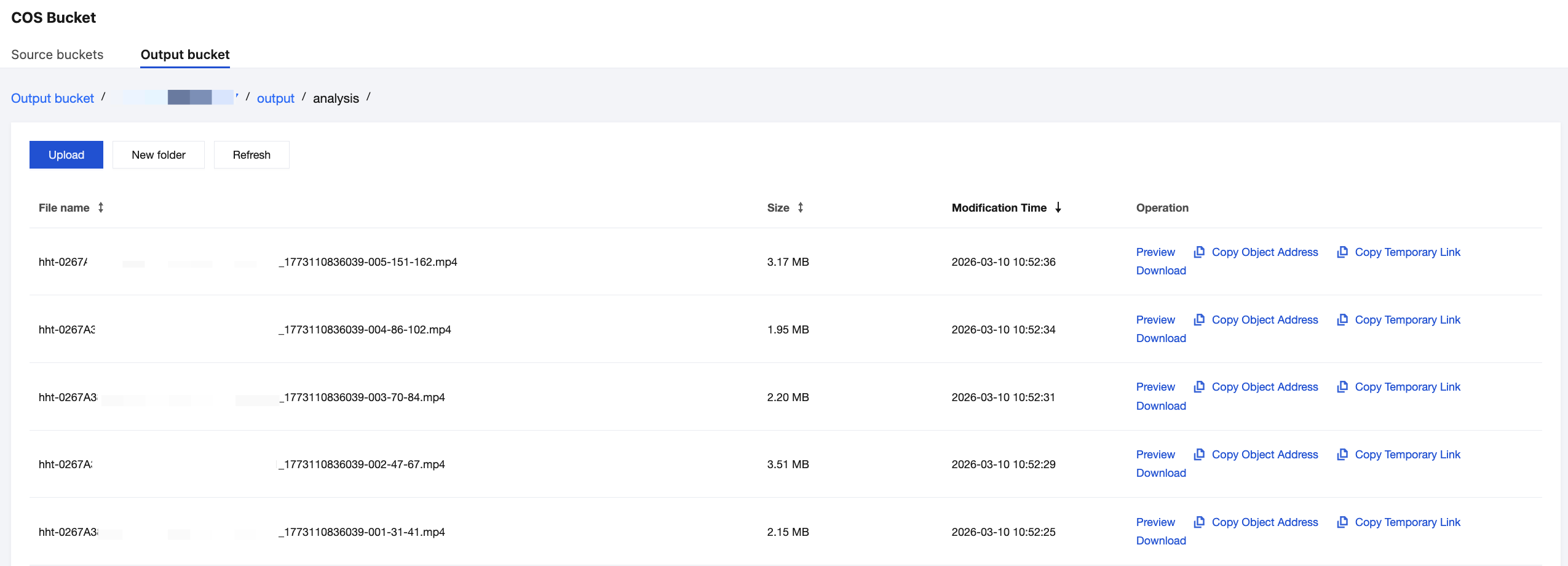
3. If you use COS as the output path, go to the COS Bucket > Output Bucket page in the MPS console to find your output directory. Files prefixed with hht in this directory are the Intelligent Highlights output files, including the video and cover image for each highlight clip.
Note:
Text content, such as titles and summaries, is not output to the bucket. It must be retrieved via event callback or API queries.
Event Notification Callback
When you use ProcessMedia to initiate an MPS task, you can configure the event callback via the TaskNotifyConfig parameter. After the task is completed, the task result will be returned via the configured callback. You can parse the event notification result using ParseNotification.
Querying Task Results by an API
After you initiate an MPS task with ProcessMedia, a task ID (TaskId) is returned, for example: 24000022-WorkflowTask-b20a8exxxxxxx1tt110253 or 24000022-ScheduleTask-774f101xxxxxxx1tt110253. Call the DescribeTaskDetail API and pass the task ID to obtain the task result. You need to parse the WorkflowTask ->AiAnalysisResultSet field to obtain the task result.
Initiating a Live Stream Processing Task
Using Preset Template No. 26 for Intelligent Analysis
To use Intelligent Highlights, you need to initiate a task using preset template No. 26 under "Intelligent Analysis" in MPS. Custom templates are not supported for highlight parameter adjustment. To specify an Intelligent Highlights edition or video scenario, you need to pass extended parameters when initiating a task. For details, see Highlight Scenarios & Examples of Extended Parameters below.
Specifying Live Streaming Highlight Scenarios & Examples of Extended Parameters
Currently, only preset template No. 26 can be used to initiate Intelligent Highlights tasks. Custom templates are not supported for highlight parameter adjustment. To specify an Intelligent Highlights edition or video scenario, you need to pass extended parameters when initiating a task. The following are common live streaming highlight scenarios and corresponding examples of extended parameters.
Note:
This section describes the live stream processing scenarios supported by Intelligent Highlights, along with corresponding examples of extended parameters. For instructions on how to initiate a task and pass extended parameters, see the description about initiating a processing task below. For detailed field definitions of extended parameters, see the appendix below.
The example parameters may not produce optimal highlights. It is recommended to fine-tune them based on the video characteristics. For professional support, please contact us.
Currently, live stream processing tasks can only be initiated via an API.
Initiating a Request via API Explorer
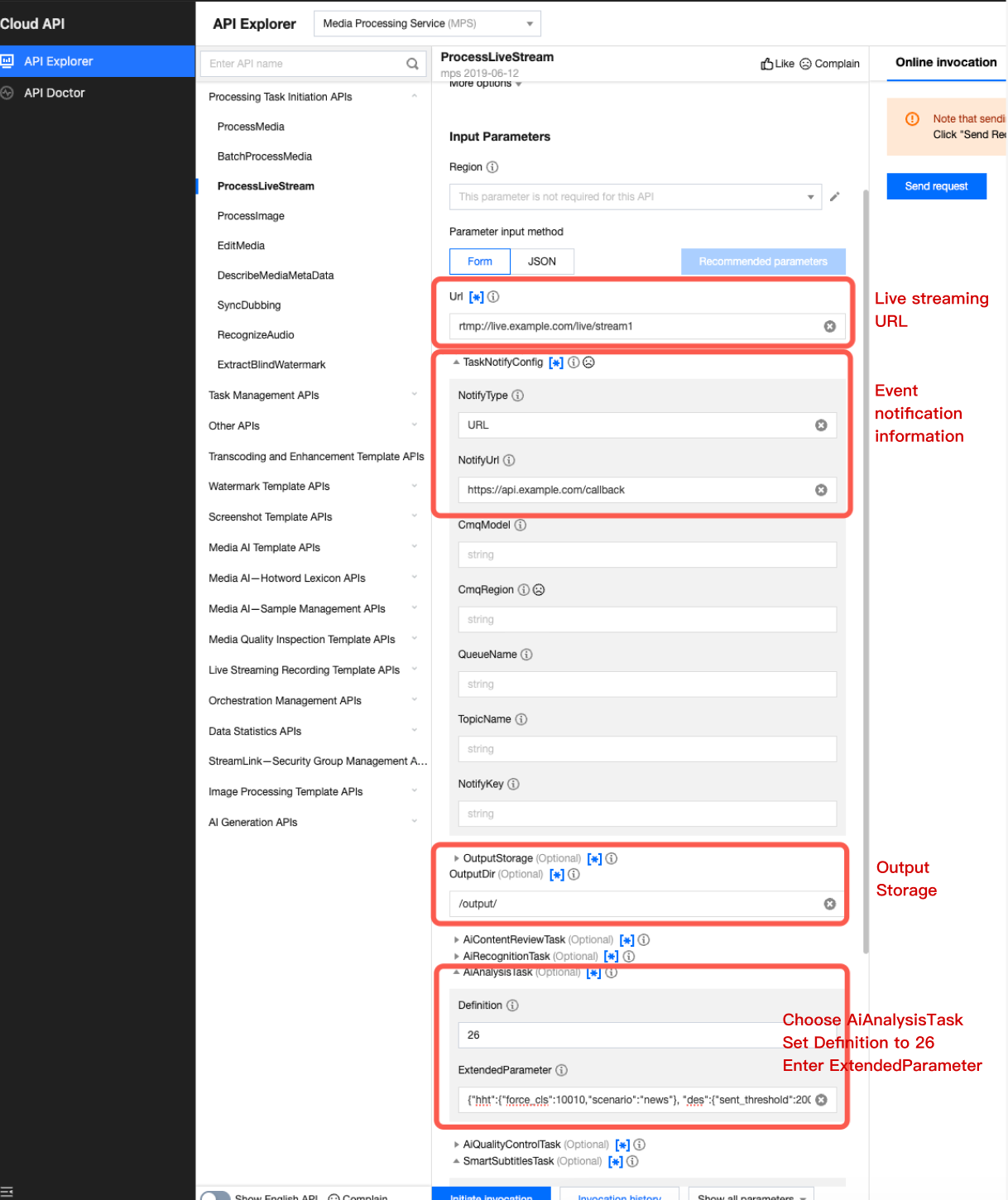
For details on calling an API to initiate a live stream processing task, see ProcessLiveStream. In the document, click API Explorer Debugging in the description to go to the page, fill in the required parameters, and initiate an online call.
Set Definition to 26, which specifies preset template No. 26 for intelligent analysis to initiate a highlight task. ExtendedParameter is used to specify a highlight scenario. For parameter examples, see Specifying Live Streaming Highlight Scenarios & Examples of Extended Parameters above. Note that when using API Explorer, you can enter JSON directly in ExtendedParameter without escaping.
Initiating a Request via an API
Send a POST request directly to Tencent Cloud. Note that when calling the API directly, you need to escape the JSON string in ExtendedParameter. Below is a sample request:
Note: Only available in offline scenarios. Do not merge for the default value 5003, and merge in other scenarios.
Whether to merge the results into one video:
1: Merge (top_clip parameter does not take effect)
0: Do not merge (merge_time parameter does not take effect)
merge_time
No
int
Note: Only available in offline scenarios. The default value 5003 is the actual output and the time shall not be longer than one hour in other scenarios.
Specify the video output length when merging into one video.
prompts
No
Object
Prompt definition list. You can specify prompts to customize the output. For usage, refer to the large model examples.
scenario
No
string
Specifies a scenario. This parameter is valid only when force_cls is 10020.
model_segment_limit
No
Array
Note: This parameter controls the model output duration. The actual output is ultimately determined by the model.
Output video length limit. This value is passed to the model as a reference and is not mandatory. This parameter is valid only when force_cls is 10020. Example:
"model_segment_limit":[3,6] // Suggests that the large model output segments be 3 to 6 seconds long.