The TDSQL-C for MySQL console provides the list of logical backup files that can be downloaded. They may then be used to restore data from one database to another (such as a self-built database or a database provided by another cloud vendor).
File Types Supported for Download, Decompression, and Deletion
|
Data backup | Logical backup | Full backup | Manual | ✓ | ✓ | ✓ |
|
|
| Automatic | ✓ | ✓ | x |
Log backup | Binlog backup | Incremental backup | Automatic | ✓ | ✓ | x |
Downloading a Data Backup File
2. Select a region at the top and perform operations based on the actual console view mode.
Click the target cluster in the cluster list on the left to enter the cluster management page.
Find the target cluster in the cluster list on the left, and click Cluster ID or Operation column's Management option to enter the cluster management page.
3. On the cluster management page, select Backup Management > Data Backup List to view the backup file.
4. In the Operation column of a data backup file, click Download.
5. In the pop-up window, click Copy to get the file download address for fast download by running the wget command, or directly click Download.
Note:
If the cluster and CVM instance are in the same region, the wget command can be used for fast download over the private network, no matter whether they are in the same or different VPCs.
If the cluster and CVM instance are in different regions, fast download over the private network is not supported, and the public IP must be enabled for the CVM instance before the wget command can be used for download.
The download address is valid for 12 hours, after which you will need to enter the download page again to get a new one.
The URL must be enclosed with quotation marks when the wget command is used to download.
wget command format: wget -c " " -O .xb
Downloading a Binlog Backup File
2. Select the region at the top, find the target cluster, and click the Cluster ID or Manage in the Operation column to enter the cluster management page.
3. On the cluster management page, select Backup Management > Binlog Backup List to view the backup file.
4. In the Operation column of a data backup file, click Download.
5. In the pop-up window, click Copy to get the file download address for fast download by running the wget command, or directly click Download.
Note:
If the cluster and CVM instance are in the same region, the wget command can be used for fast download over the private network, no matter whether they are in the same or different VPCs.
If the cluster and CVM instance are in different regions, fast download over the private network is not supported, and the public IP must be enabled for the CVM instance before the wget command can be used for download.
The download address is valid for 12 hours, after which you will need to enter the download page again to get a new one.
The URL must be enclosed with quotation marks when the wget command is used to download.
wget command format: wget -c " " -O .xb
Decompressing a File
To save storage space, TDSQL-C for MySQL data and binlog backup files will be compressed with qpress and then packed with xbstream offered by Percona. Therefore, downloaded backup files can be imported to the target database only after being unpacked and decompressed.
Unpacking a backup file
Unpack the backup file with xbstream.
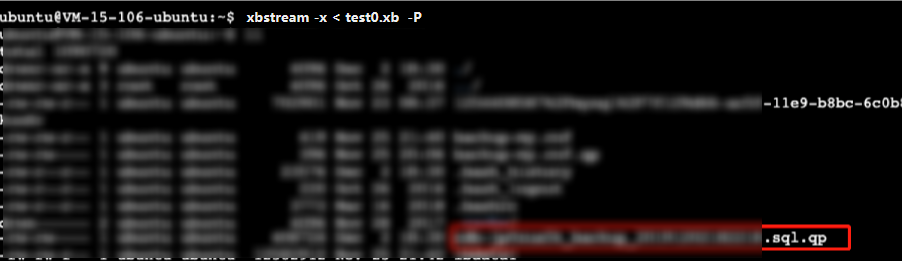
xbstream -x < test0.xb -P
Note:
Replace test0.xb with your backup file name.
The unpacking result is as shown below:
Decompressing a backup file
1. Download qpress by running the following command.
wget -d --user-agent="Mozilla/5.0 (Windows NT x.y; rv:10.0) Gecko/20100101 Firefox/10.0" https://docs-tencentdb-1256569818.cos.ap-guangzhou.myqcloud.com/qpress-11-linux-x64.tar
2. Extract the qpress binary files by running the following command:
tar -xf qpress-11-linux-x64.tar -C /usr/local/bin
source /etc/profile
3. Decompress the backup file with qpress.
qpress -d /<Backup file directory>/<Backup file> <Decompression directory>/
Example
qpress -d /backup/data_backup_286*_2024*.sql.qp sql/
Note:
After decompression, the backup file is in the form of a logbin file.
<Backup file directory>: Replace it with the directory where the corresponding backup file is unpacked, and remove the angle brackets <> in the command.
<Backup file>: Replace it with the name of the corresponding unpacked backup file. Remove the angle brackets <> and keep only the actual parameter.
<Decompression directory>: Replace it with the target path (it should immediately follow the unpacked backup file name) where you want to decompress the files and remove the angle brackets <> in the command.
Related APIs
|
| This API (DescribeBackupDownloadUrl) is used to query the download URL of cluster backup files. |
| This API (DescribeBinlogDownloadUrl) is used to query the binlog download URL. |