This document takes Windows Server 2012 R2 operating system as an example to demonstrate the troubleshooting methods and solutions for failed or ineffective password resets on Windows Tencent Cloud Lighthouse instances.
Symptom
After the instance password reset, you receive the message **Due to system congestion, your instance password reset failed (7617d94c)**.
After the instance password reset, the new password does not take effect, and the login password is still the original one.
Possible Causes
The possible causes for failure or ineffectiveness of instance password reset are as follows:
The cloudbase-init component in Tencent Cloud Lighthouse is damaged, modified, disabled, or not started.
If third-party security software such as 360 Total Security or Huorong Security is installed on Tencent Cloud Lighthouse, the cloudbase-init component for password reset may be blocked, resulting in instance password reset failures.
If Tencent Cloud Lighthouse has been invaded and encrypted causing the password to be invalid, it is recommended that you back up the data and reinstall the system.
Directions
Based on the possible reasons for the unsuccessful password reset, two verification methods are provided:
Checking the cloudbase-init Service
2. On the operating system interface, right-click and choose Run from the pop-up menu. 3. In the Run dialog box, enter services.msc and press Enter to open the Services window.
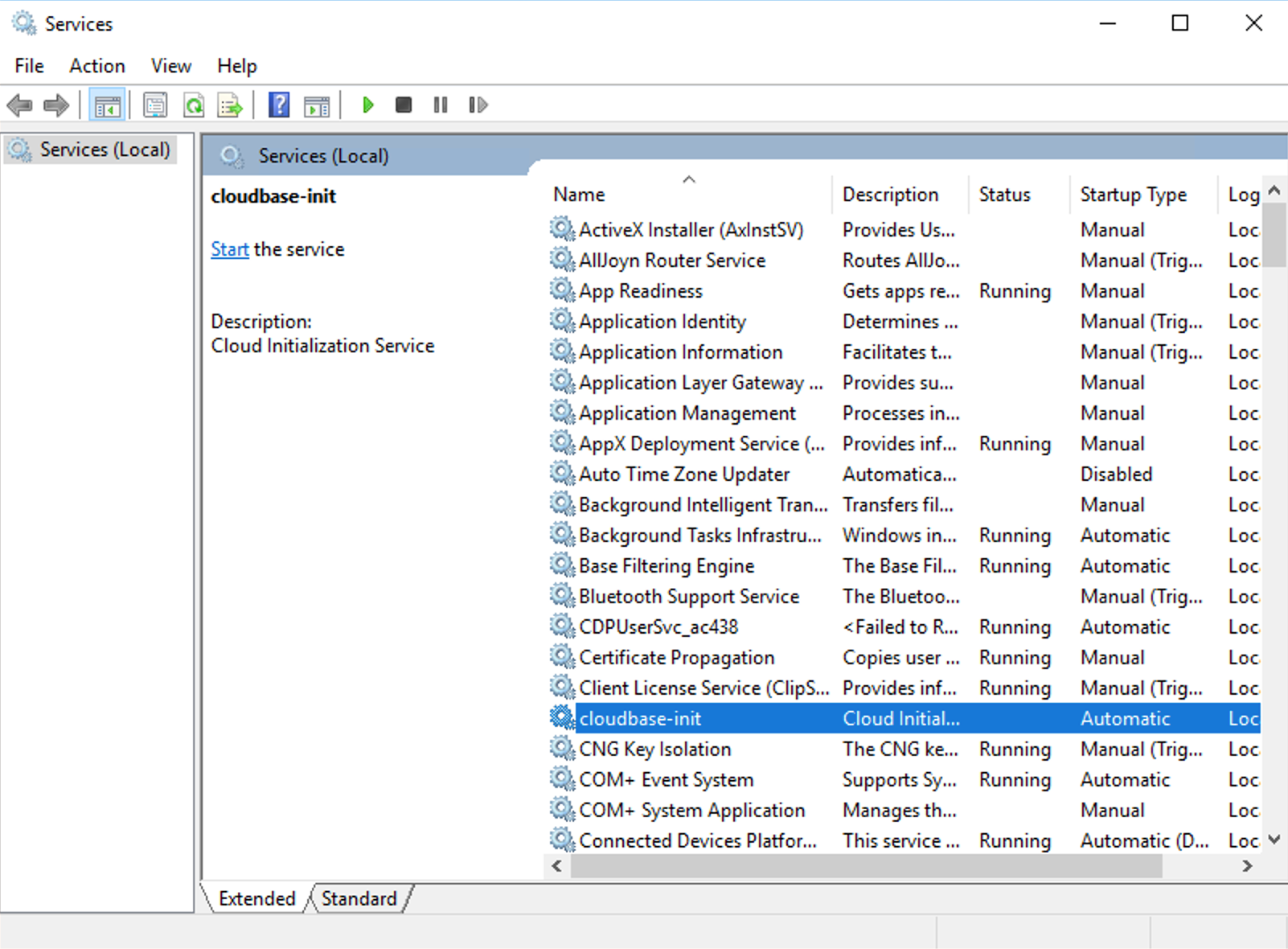
4. In the Services window, check whether the cloudbase-init service exists. See the following figure:
If yes, proceed to the next step.
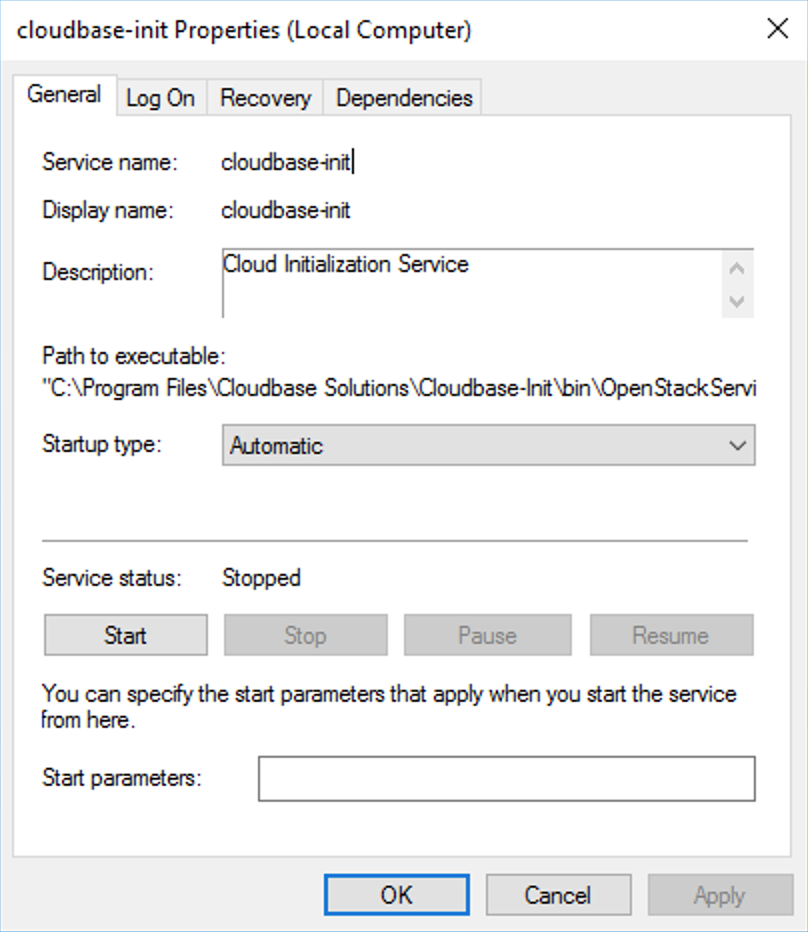
5. Double-click to open the properties of cloudbase-init. See the following figure:
6. Select the General tab and check whether startup type of cloudbase-init is set to Automatic.
If yes, proceed to the next step.
If no, set startup type of cloudbase-init to Automatic.
7. Switch to the Log On tab and check whether the login identity of cloudbase-init has been set to Local System account.
If yes, proceed to the next step.
If no, set the login identity of cloudbase-init to Local System Account.
8. Select the General tab and click Start under Service Status to manually launch the cloudbase-init service and check whether there are any errors.
If no, proceed to the next step.
9. On the operating system interface, right-click and choose Run from the pop-up menu. 10. In the Run dialog box, enter regedit and press Enter to open the Registry Editor window.
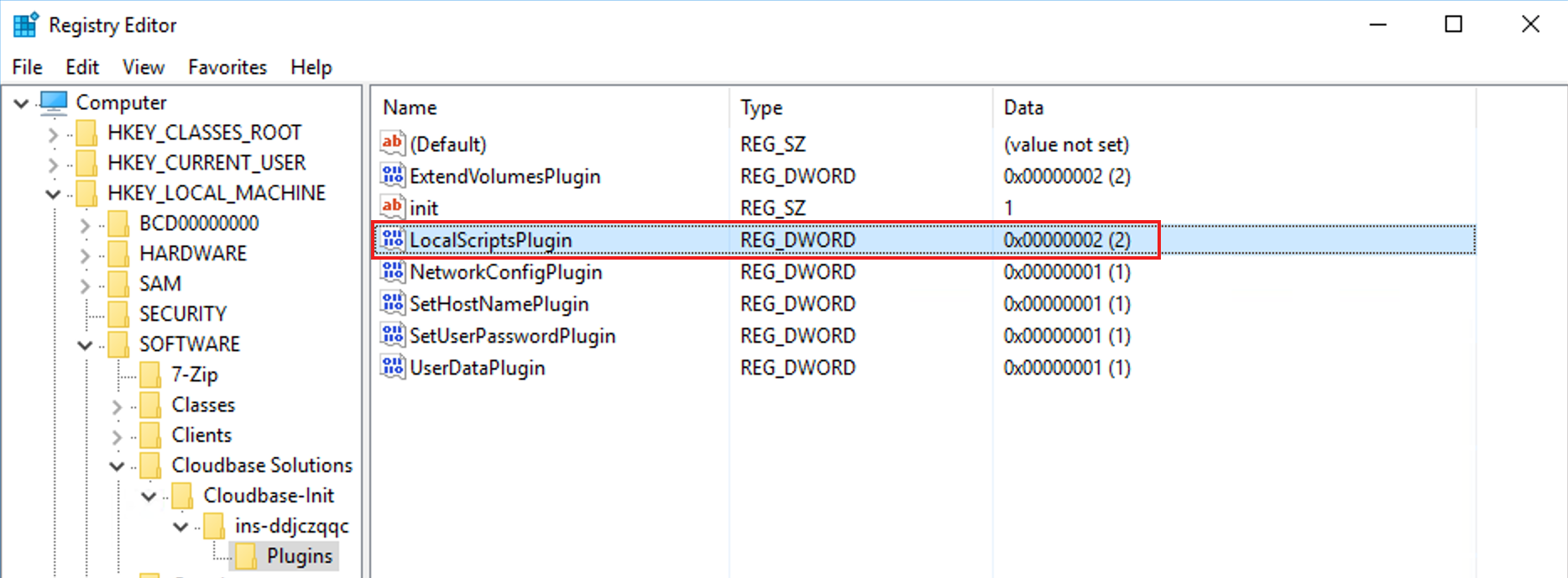
11. In the Registry Editor window, in the registry navigation pane on the left, expand the directory of HKEY_LOCAL_MACHINE > SOFTWARE > Cloudbase Solutions > Cloudbase-Init.
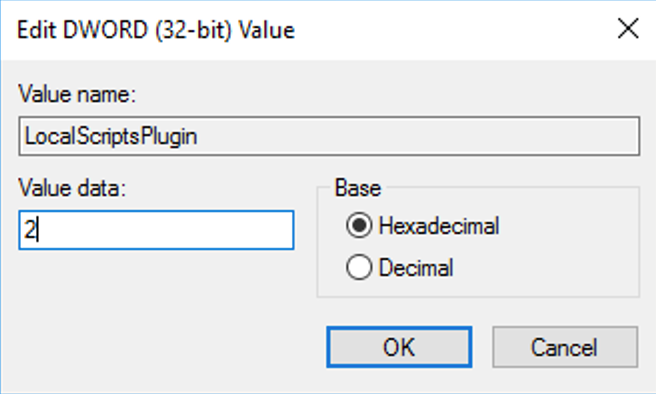
12. Find and double-click all LocalScriptsPlugin registry keys under ins-xxx, and then check whether the value of LocalScriptsPlugin is 2. See the following figure:
If yes, proceed to the next step.
If no, set the LocalScriptsPlugin value to 2.
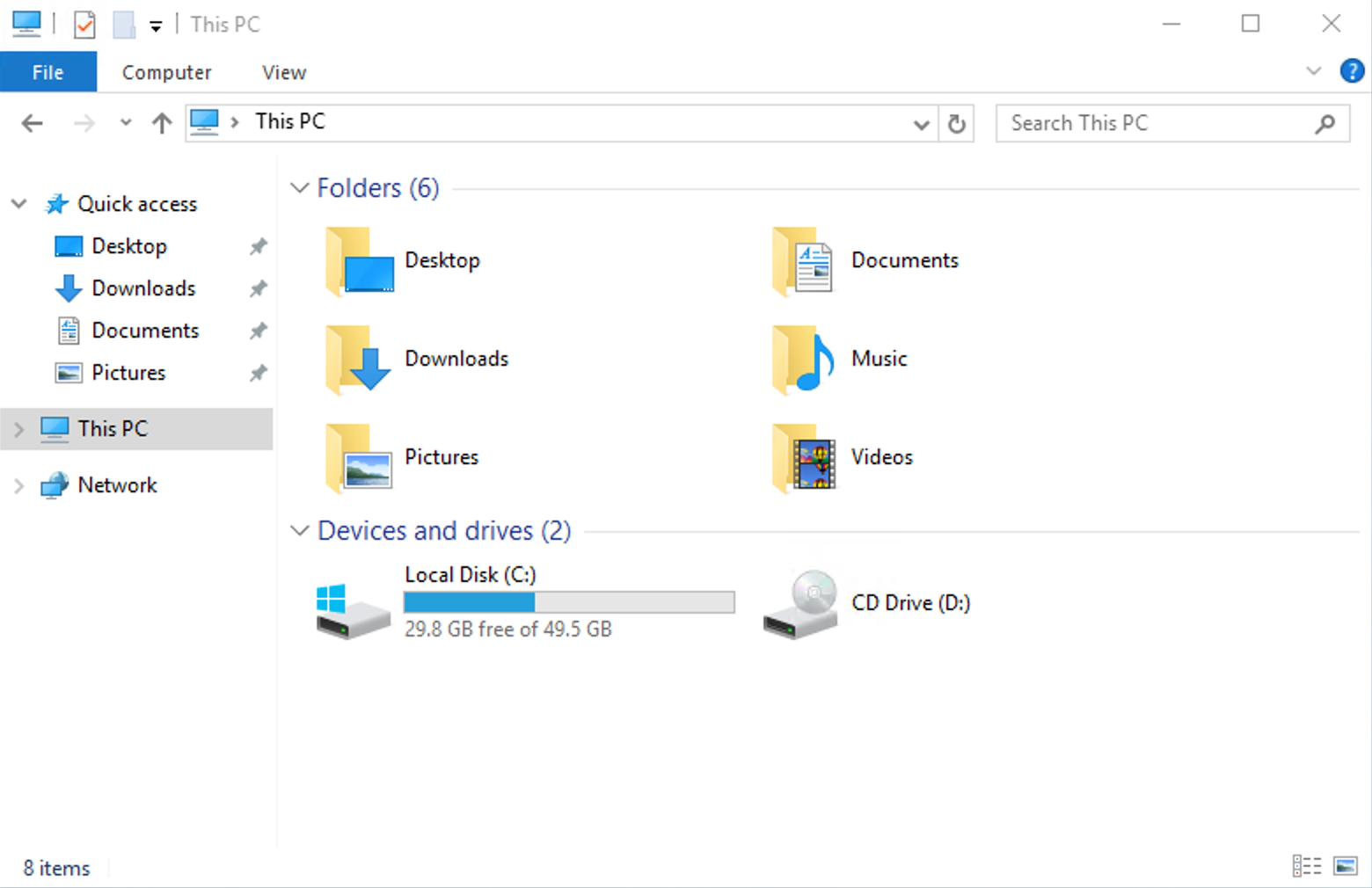
13. In the operating system interface, click , choose This PC, and check whether the CD drive is loaded in the device and drive. See the following figure:
If no, start the CD-ROM drive in Device Manager.
Checking the Security Software Installed on Tencent Cloud Lighthouse
Use the installed security software to conduct a full scan, and check whether Tencent Cloud Lighthouse has vulnerabilities and whether the core components of cloudbase-init are blocked.
If Tencent Cloud Lighthouse has vulnerabilities, rectify them.
If core components are blocked, unblock them.