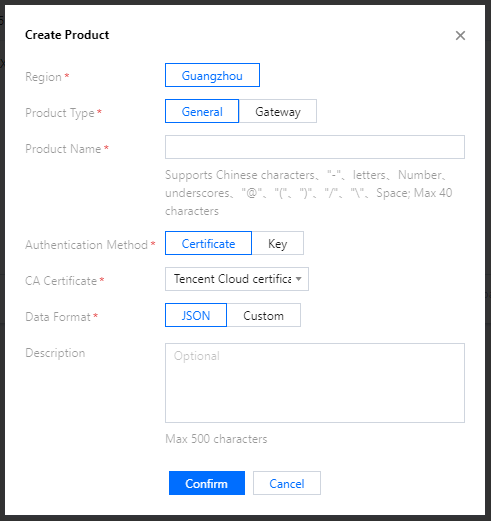
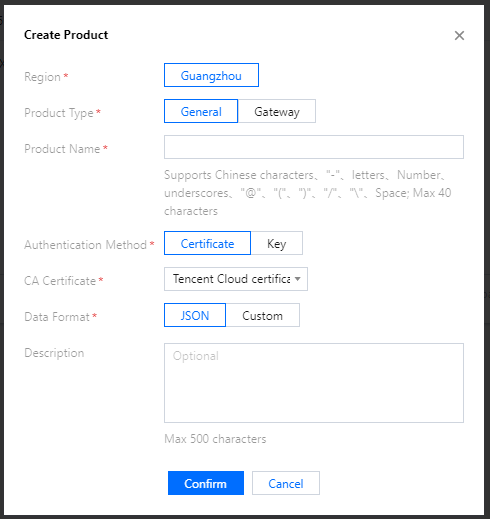
When Custom is selected as the data format, the parsing may fail, resulting in garbled characters. In such cases, you are advised to create the product again and select JSON as the data format.
4. After successful creation, you can view the basic information of the product.
5. Click the door product (Door), select the Devices tab, and create a device (door1).
Note:
A device key will be returned after device creation under asymmetric encryption, and will be used for device communication. The key will not be stored in the IoT Hub backend. Keep it properly.
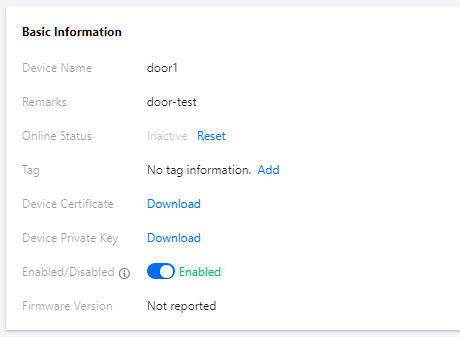
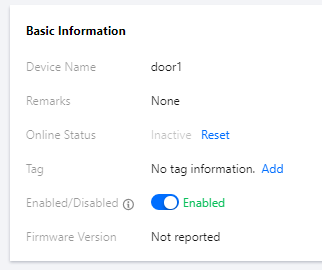
6. Click Manage to view the device information.
Certificate authentication:
Key authentication:
Creating Air Conditioner Product and Device
1. Log in to the IoT Hub console and click Products on the left sidebar.
2. On the product list page, click Create Product.
3. Create an air conditioner product (AirConditioner), select the authentication method, enter the product description, and click Confirm.
4. After successful creation, you can view the basic information of the product.
5. Create a device (airConditioner1) on the Devices tab page.
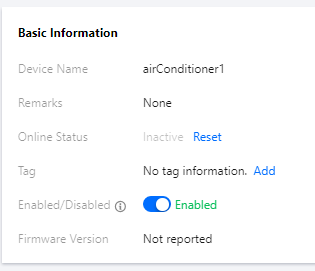
6. Click Manage to view the device information.
In the device information page, device certificate and device private key are used for MQTT over TLS asymmetric encryption. Symmetric key is used for symmetric encryption (for the differences between the two communication methods, see Feature Components - Device Connection).
Note:
The creation of the above resources can be done by the backend through RESTful APIs. For more information, please see API Overview.
Creating Rule
1. Log in to the IoT Hub console and click Rule Engine on the left sidebar.
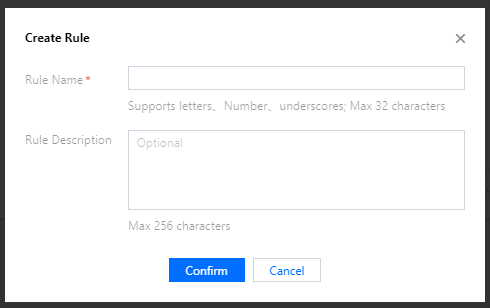
2. On the rule engine page, click Create Rule, enter the rule name, and click Confirm.
Rule Name: it can contain up to 32 letters, digits, and underscores (the name cannot be modified once confirmed).
Rule Description: 0–256 characters. This can be modified.
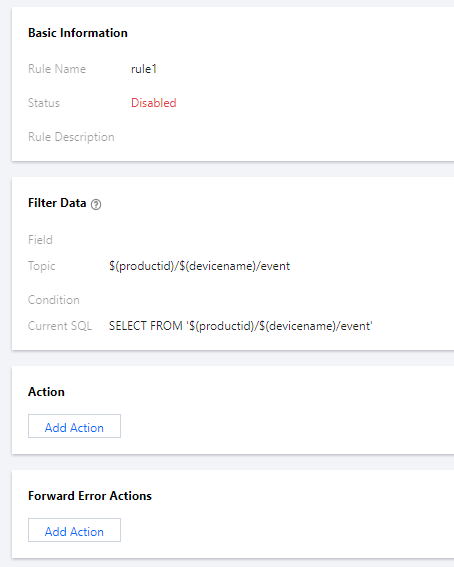
3. After the rule is created successfully, you will be automatically redirected to the rule details page.