Data Import/Export
ダウンロード
フォーカスモード
フォントサイズ
The SQL window supports data import and export.
Use Limits
The SQL window supports importing or exporting files up to a maximum size of 10 GB at a time.
A root account or a sub-account can run up to seven import/export tasks simultaneously with the status set to Executing or Pending Execution. Among them, large tasks (files larger than 500 MB) can have a maximum of two tasks with the status set to Executing or Pending Execution running simultaneously.
Prerequisites
Creating a Data Import Task
1. Click Import/Export in the upper-right corner of the page.
2. On the import and export page, click Data Importing.
3. In the pop-up dialog box, select the target database, import collection, file type, import method, and import file, and then click OK.
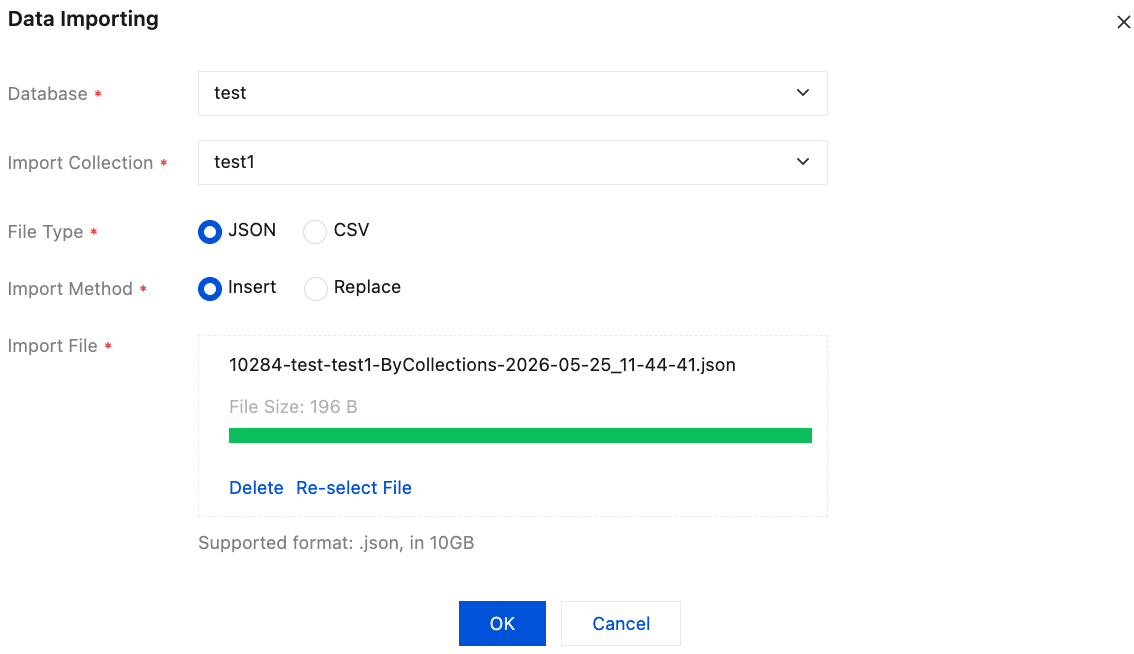
The parameter description is shown in the following table.
Parameter | Description |
Database | Supports selecting the database to be executed. |
Import Collection | Supports selecting the collection to be imported. |
File Type | Supports JSON and CSV file types. |
Import Method | Supports Insert or Replace import methods. |
Import File | Local file: Click Click to upload to upload a local file or drag and drop the file into the designated area. Only files up to 10 GB are allowed. |
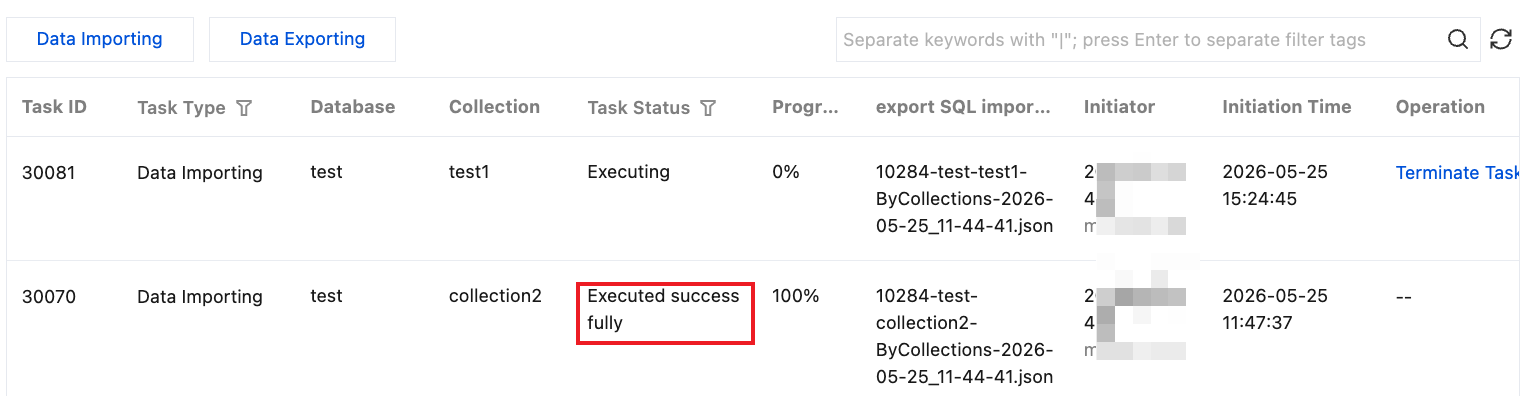
When the task status changes to Executed successfully, it indicates that the data import was completed successfully.
Creating a Data Export Task
1. Click Import/Export in the upper-right corner of the page.
2. On the import and export page, click Data Exporting.
3. In the pop-up dialog box, select the target database, file type, and export plan, and then click OK.
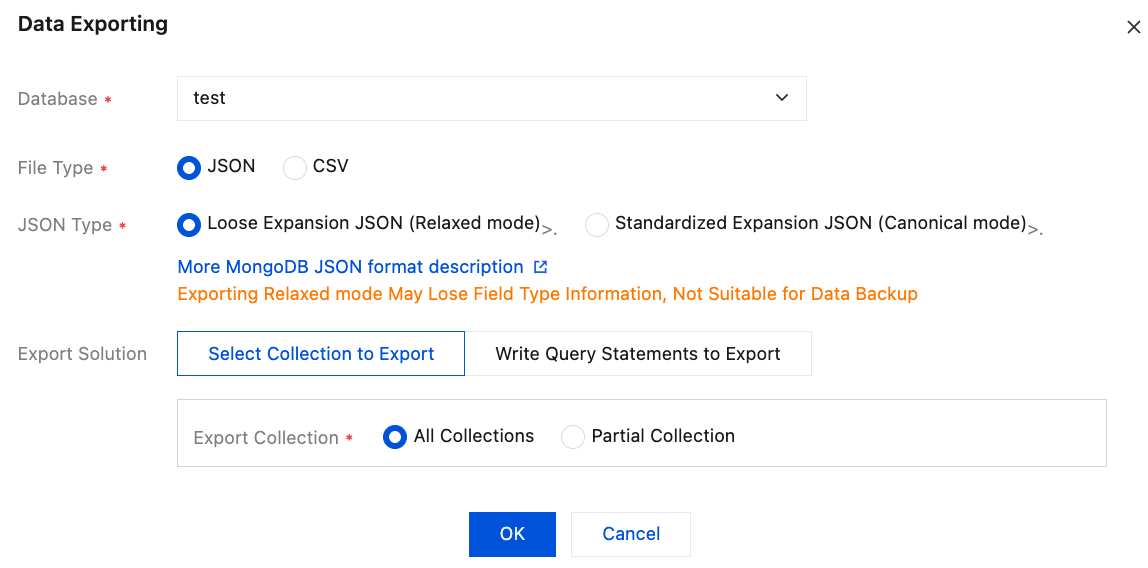
The parameter description is shown in the following table.
Parameter | Description |
Database | Supports selecting the database to be executed. |
File Type | The file types include JSON and CSV. JSON: After selecting the file type, choose the JSON format. Relaxed extended JSON (Relaxed mode) Example: {"Int32Val":42, "Int64Val":42, "DoubleVal":42.42} Canonical extended JSON (Canonical mode) Example: {"Int32Val":{"$numberInt":"42"},"Int64Val":{"$numberLong":"42"},"DoubleVal":{"$numberDouble":"42.42"}} CSV Note: When Relaxed Extended JSON (Relaxed mode) or CSV format is selected for export, field type information may be lost, making it unsuitable for data backup. For more information on MongoDB JSON formats, see MongoDB Extended JSON (v2). |
Export Scheme | Supports exporting by selecting a collection or writing a query statement. Collection export: You can choose to export all collections or specific collections. Note: Exporting all collections is only supported for databases with 100 or fewer collections. A maximum of 100 collections can be selected for partial collection export. Write query statement export: Exports data based on query statements, supporting only find and aggregate statements, with a maximum of 10 query statements allowed. Reference syntax: db.users.find({age:{$gt: 18}}) or db.users.aggregate([ { $match: { age: { $gt: 18 } } }, { $limit: 10 }, { $group: { _id: null, names: { $push: "$name" }}}]); |
4. When the task status changes to Executed successfully, click Download in the Operation column.
5. In the pop-up dialog box, download the file.
Click Copy Download Link, paste the link into a new browser tab, and download the file in .zip format.
Click Download to directly download the file in .zip format.
Related Documentation
During the execution of an import/export task, if you want to terminate the task, click Terminate Task in the Operation column.
フィードバック