Face Liquify uses brushes that can be freely positioned and applied multiple times. The area beneath each brush is deformed based on the brush's settings, allowing you to either expand or shrink specific regions. Face Liquify is essential for creating playful and exaggerated face filters.
Basic Usage
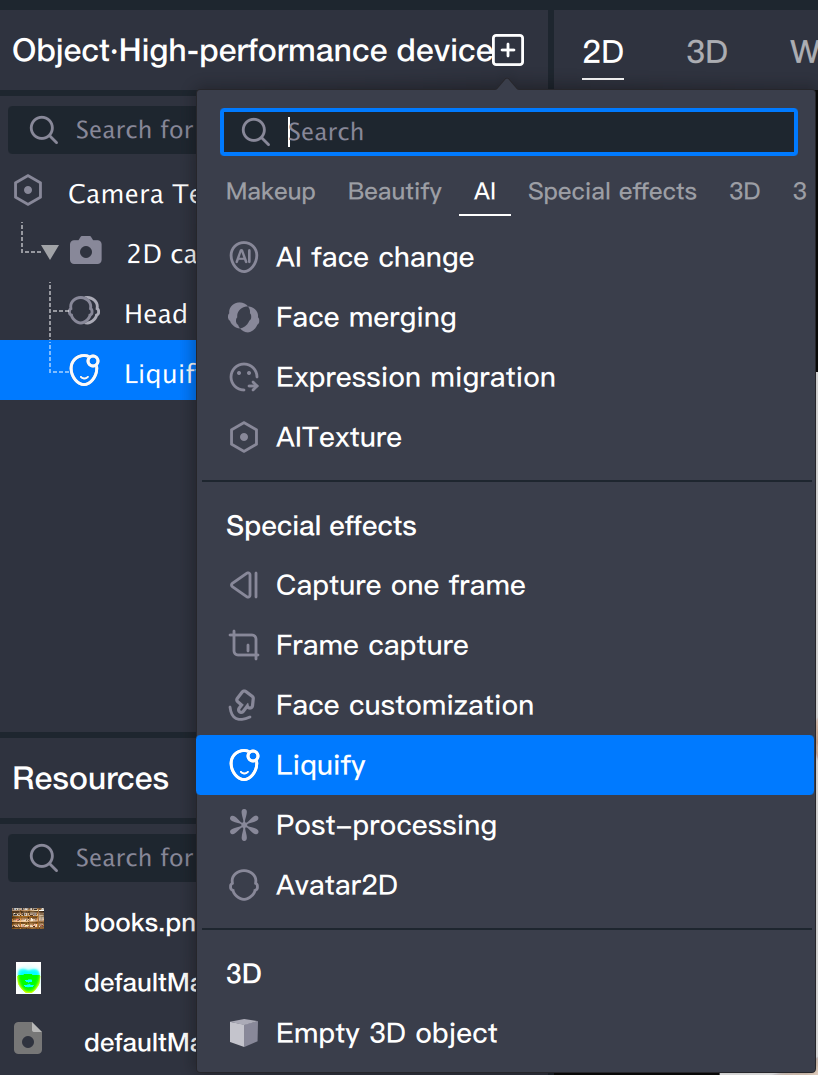
Step 1: Add a Face Liquify Object
Add a Face Liquify object from the Object panel.
Step 2: Adjust Parameters
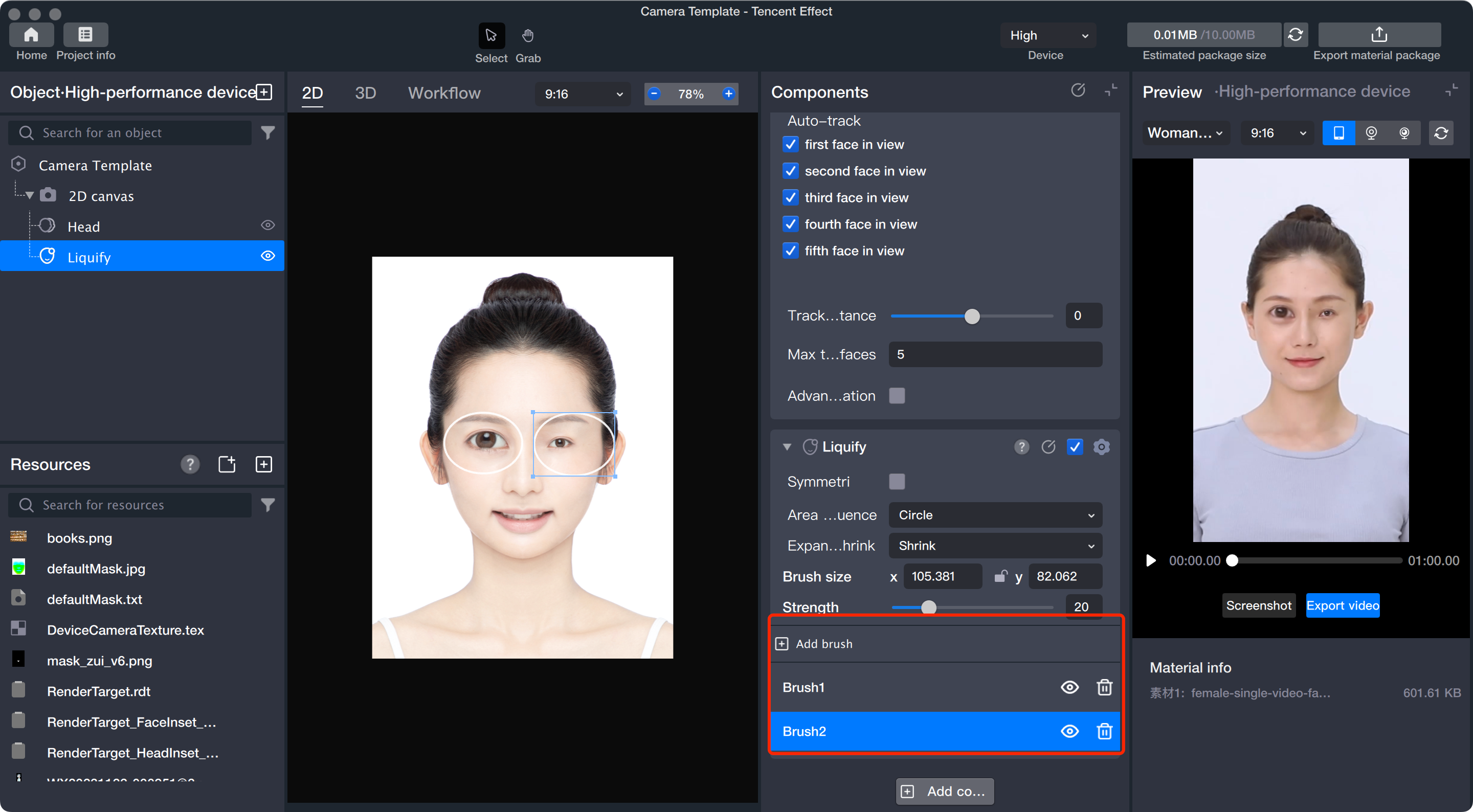
Add Brush: In the Face Liquify component panel, click Add Brush to create a new brush.
Brush Scaling: Resize the brush directly in the Scene panel by dragging its edge—drag outward to increase size, drag inward to decrease size. You can also adjust brush size in the Face Liquify component. Click the center lock button to maintain the aspect ratio for proportional scaling.
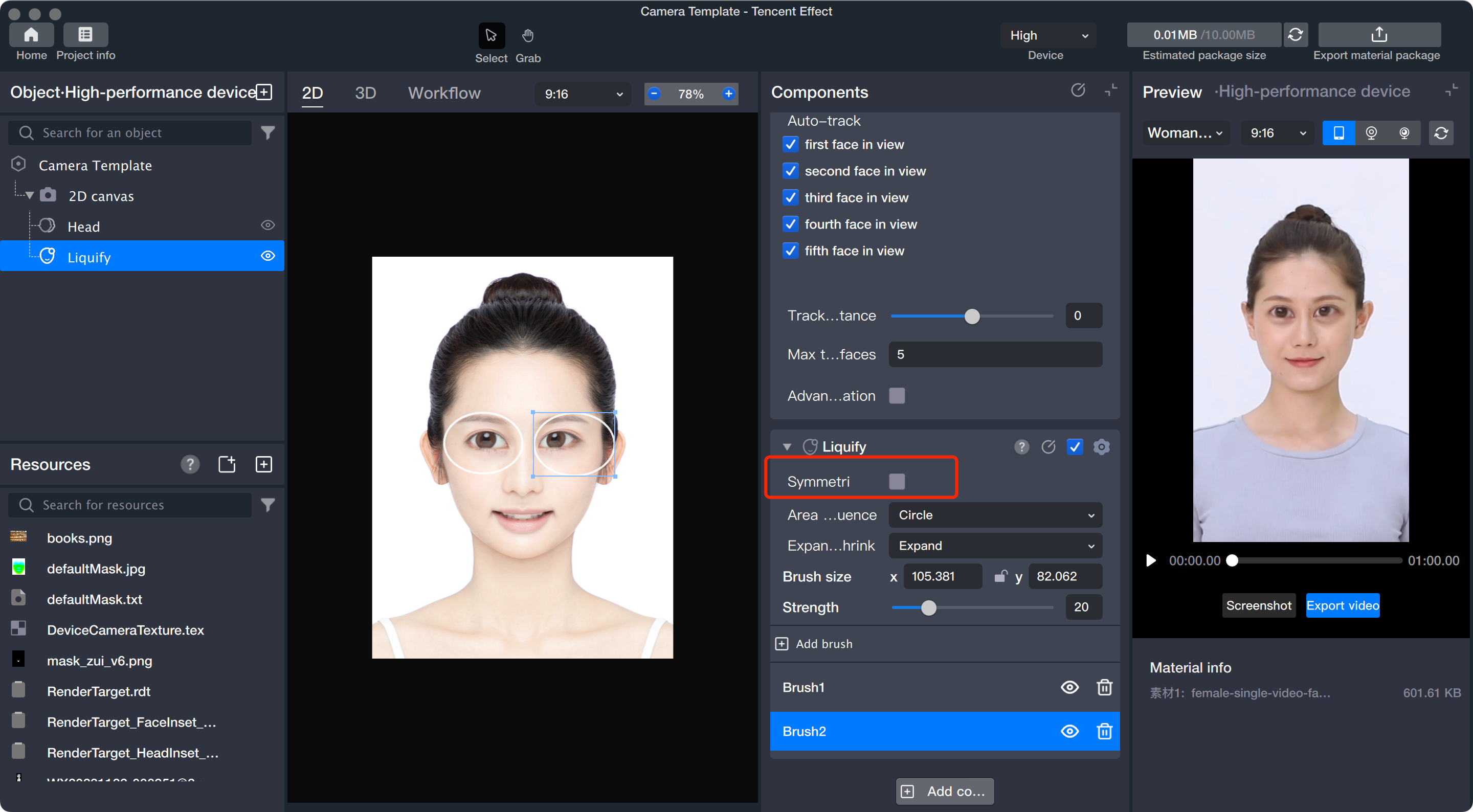
Left-Right Symmetry: When left-right facial symmetry is disabled, only one circular brush appears in the Scene panel. Dragging this circle deforms the local region. When enabled, two circles display: a solid and a dashed circle. Dragging the solid circle applies the deformation to the dashed circle in a mirrored manner.
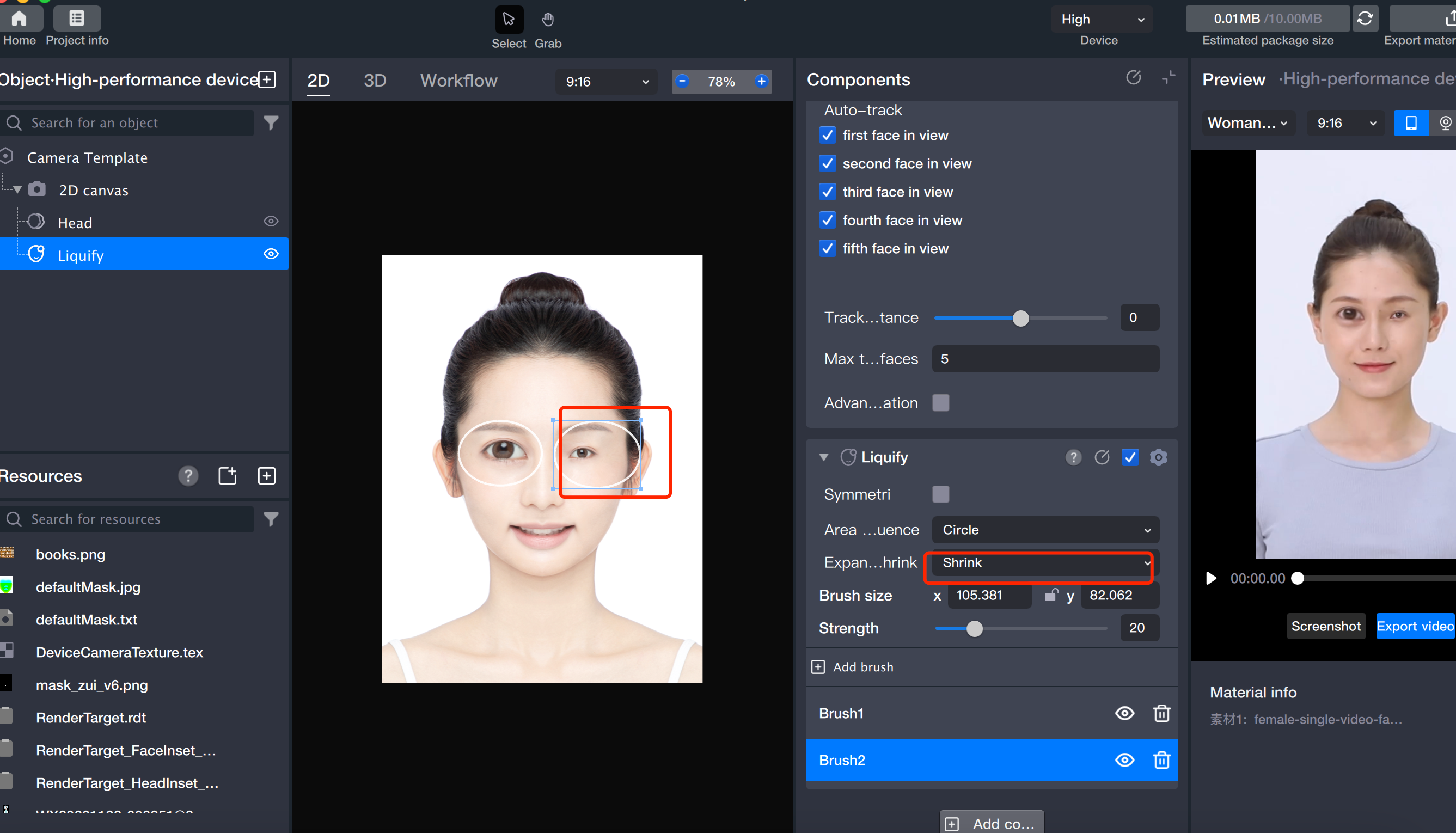
Expand/Shrink: Use this slider to control the deformation effect. Moving the slider toward "Expand" enlarges the local area; moving it toward "Shrink" reduces the area.
Brush Strength: This parameter determines the intensity of the expansion or shrinkage effect.
Add Multiple Brushes: The Face Liquify tool allows you to add multiple brushes within the same component. All brushes simultaneously deform the face, and overlapping regions will combine their effects.