tencent cloud

Tencent Effect SDK

Release Notes and Announcements
Release Notes
Tencent Effect SDK V3.5 Version Released
Tencent Effects SDK V3.0 Version Related API and Material Changes
Product Introduction
Overview
Features
Basic Concepts
Strengths
Use Cases
Purchase Guide
Pricing Overview
Purchase Guide
Payment Overdue and Refund
Tutorial
Demos
Free Trial License
Licenses
Adding and Renewing a License (Mobile)
Adding and Renewing a License (Desktop)
Adding and Renewing a License (Web)
FAQs
SDK Download
Features
SDK Download
Version History
SDK Integration Guide(No UI)
General Integration of Tencent Effect
Integrating Capabilities
SDK Integration Guide(Including UI)
General Integration of Tencent Effect
Integrating Tencent Effect into MLVB SDK
Integrating Tencent Effect into TRTC SDK
Integrating Tencent Effect into UGSV SDK
Virtual Avatars
API Documentation
iOS
Android
Flutter
Web
Feature Guide
Reducing SDK Size
SDK Integration Issue Troubleshooting
Performance Fine-Tuning
Effect Fine-Tuning
Material Usage
Effect Parameters
Recommended Parameters in Beautification Scenarios
UGSV Enterprise Edition Migration Guide
Integrating Tencent Effect for Third-Party Publishers (Flutter)
Integrating Beauty AR Web into Mini Programs
Tencent Effect Studio Usage
Beauty AR Web
Overview
Quick Start
SDK Integration
Parameters and APIs
Console Guide
Demos
Preset Effect List
Practical Tutorial
FAQs
FAQs
General
Technical
License
Legacy Documentation
Recommended Parameters in Beautification Scenarios
Beauty Parameters Table
One-Minute Integration of TRTC
One-Minute Integration of Live Streaming
TE SDK Policy
Privacy Policy
Data Processing And Security Agreement
Contact Us

Freeze Frame & Frame Capture

PDF
Focus Mode
Font Size
Last updated: 2024-03-25 11:43:19

Introduction

capture one frame is similar to frame capture, which means capturing the result image of a certain rendering for other processing. capture one frame only captures one frame at a specific time, while frame capture captures multiple frames based on conditions. The captured result can be considered as a simple image, which can be used for Foreground Sticker, Tracking Sticker, and any other components that require input images.


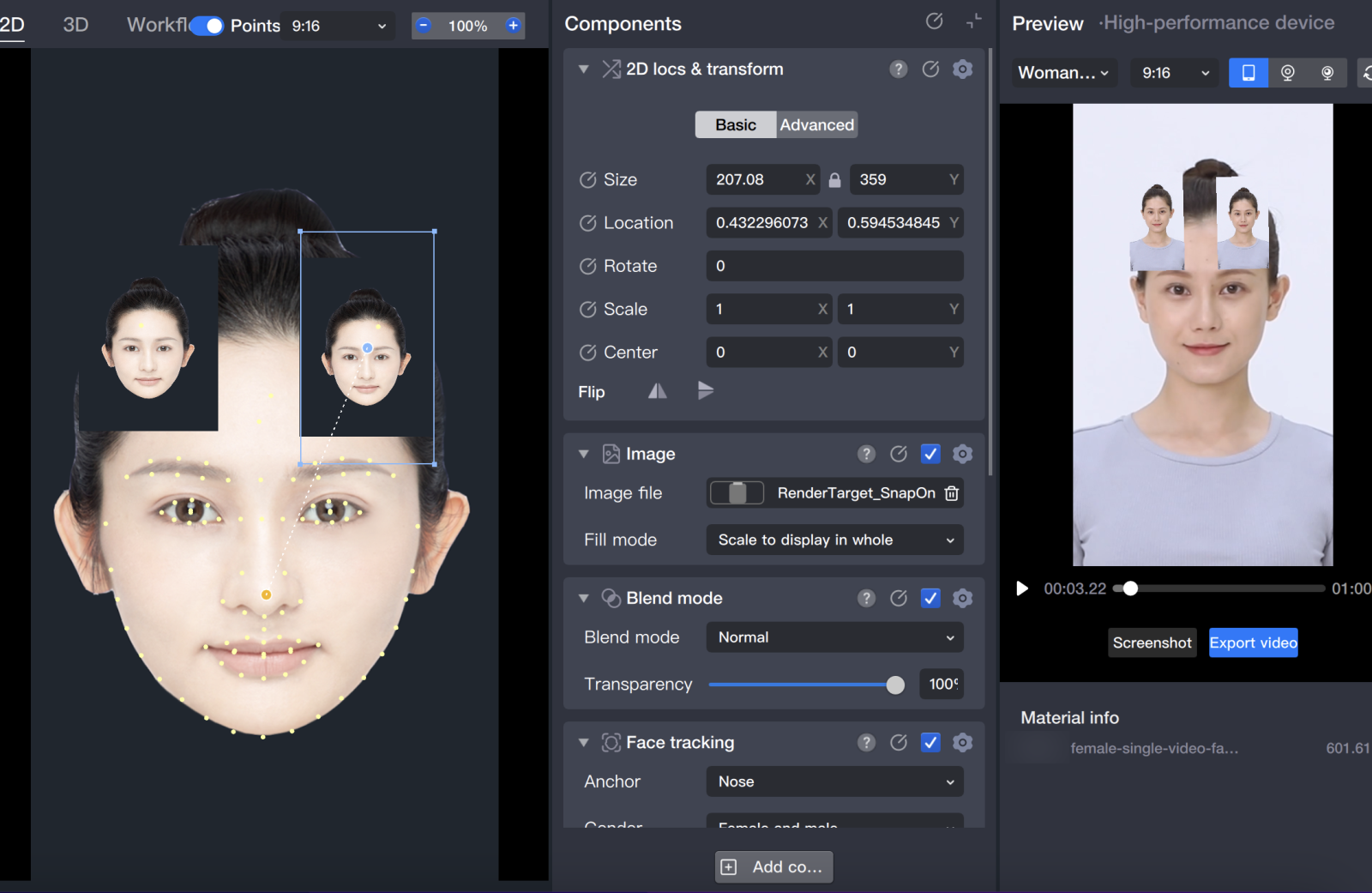
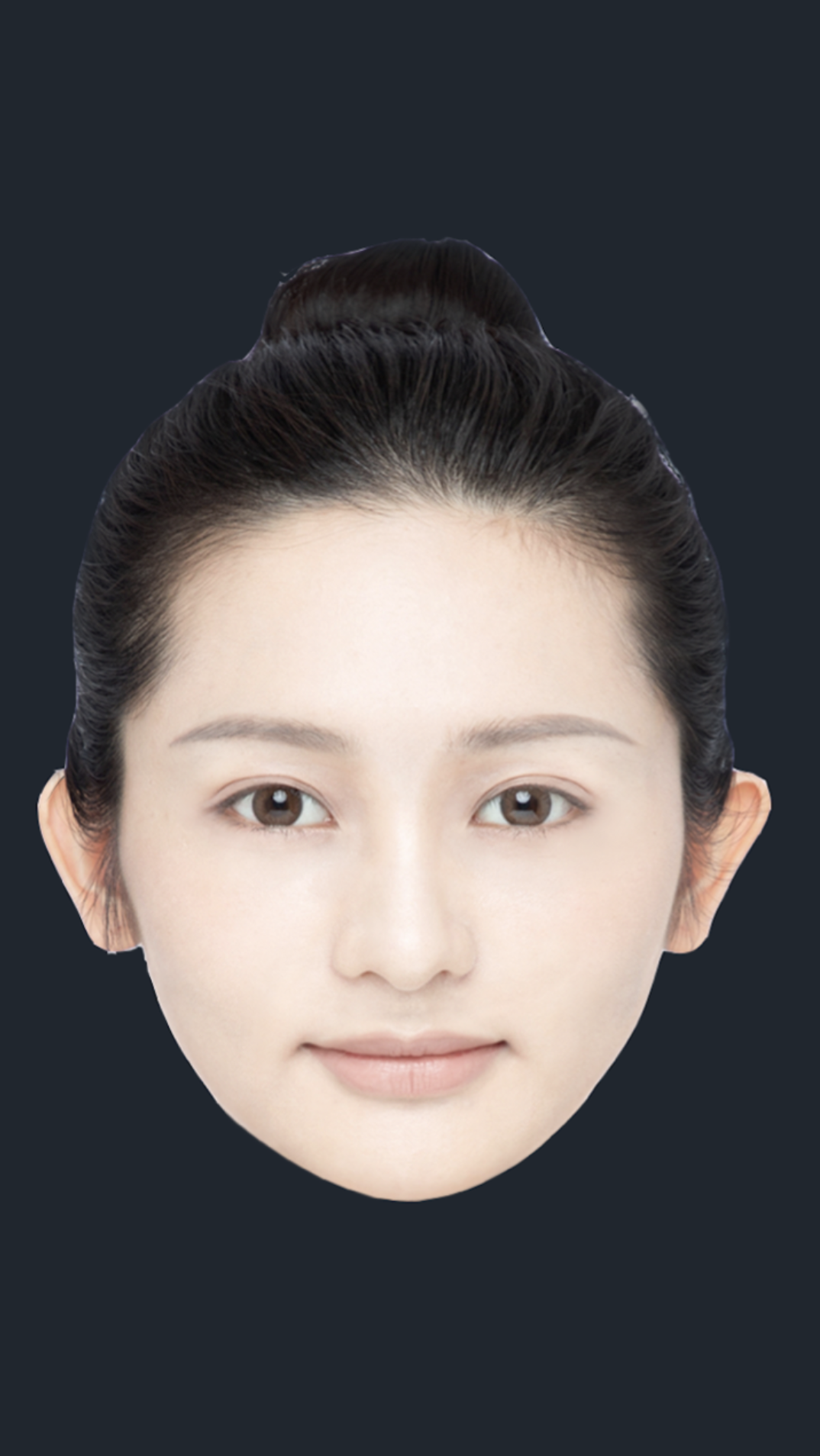
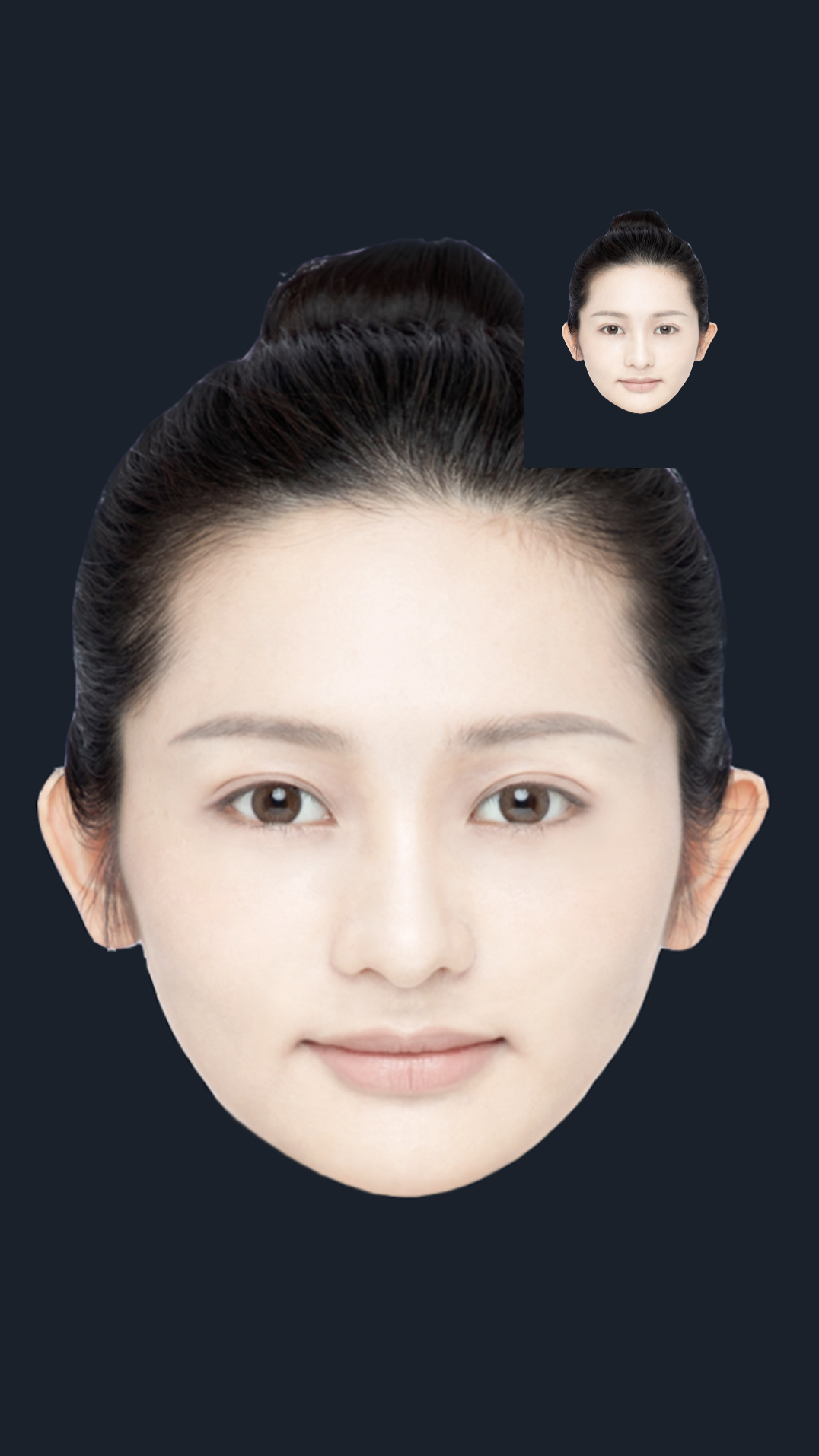
Original Image After adding frame capture

Basic usage of capture one frame.

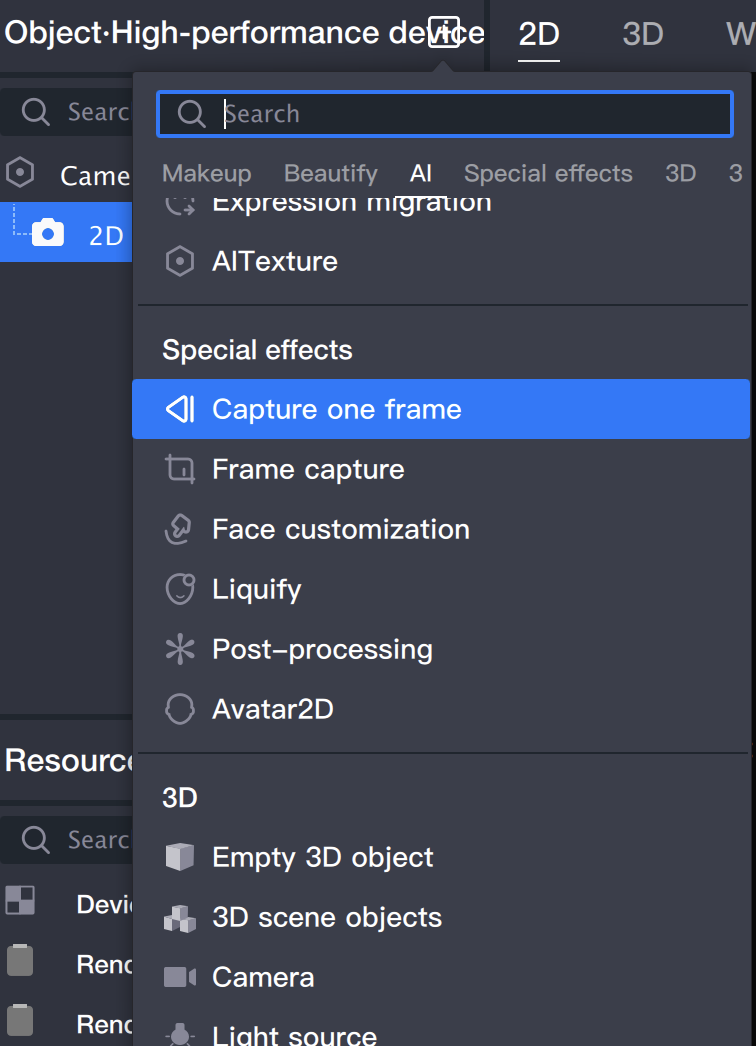
1. Add a capture one frame Object.

1.1 Add "capture one frame" in the Object Panel.


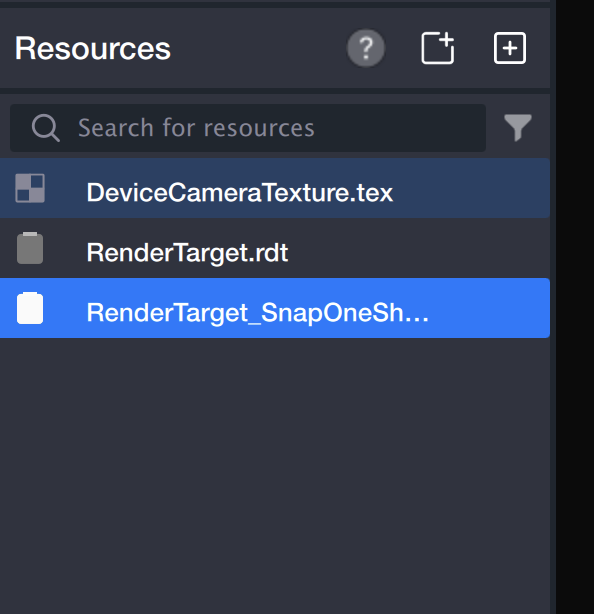
1.2 After creating a capture one frame Object, you can see that a RenderTarget_SnapOneShot_2.rdt will be automatically added to the Resource Panel. This file serves as the output of the capture one frame Object.


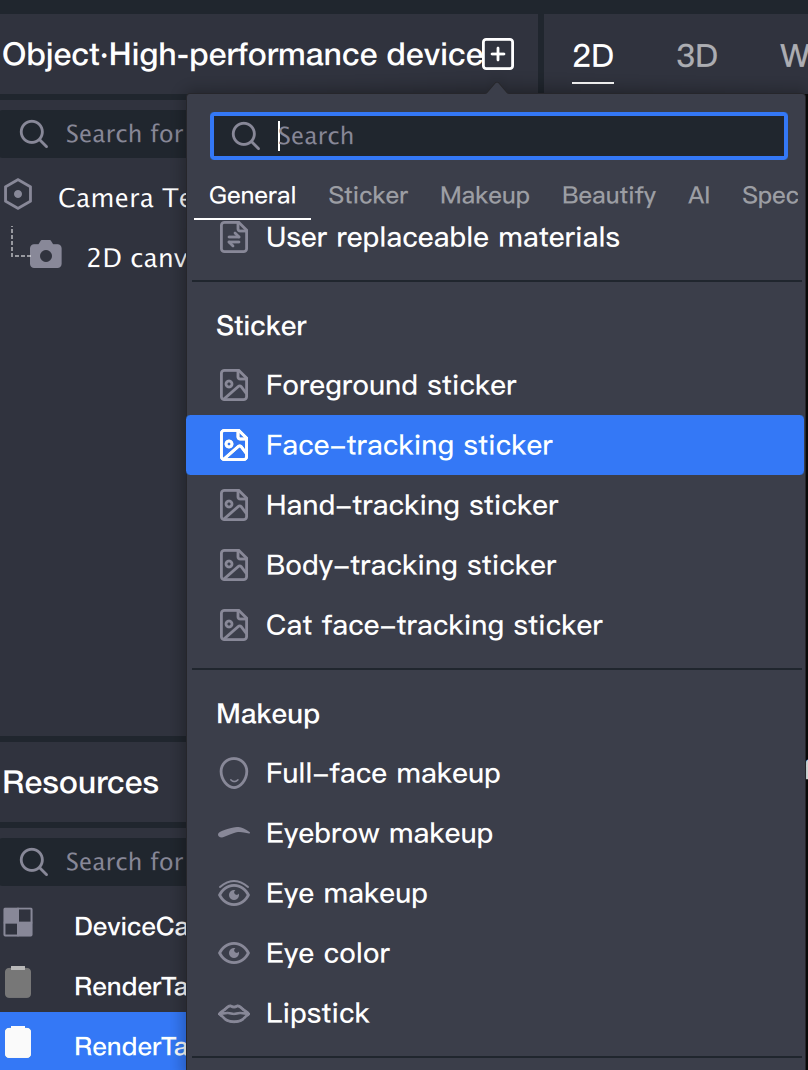
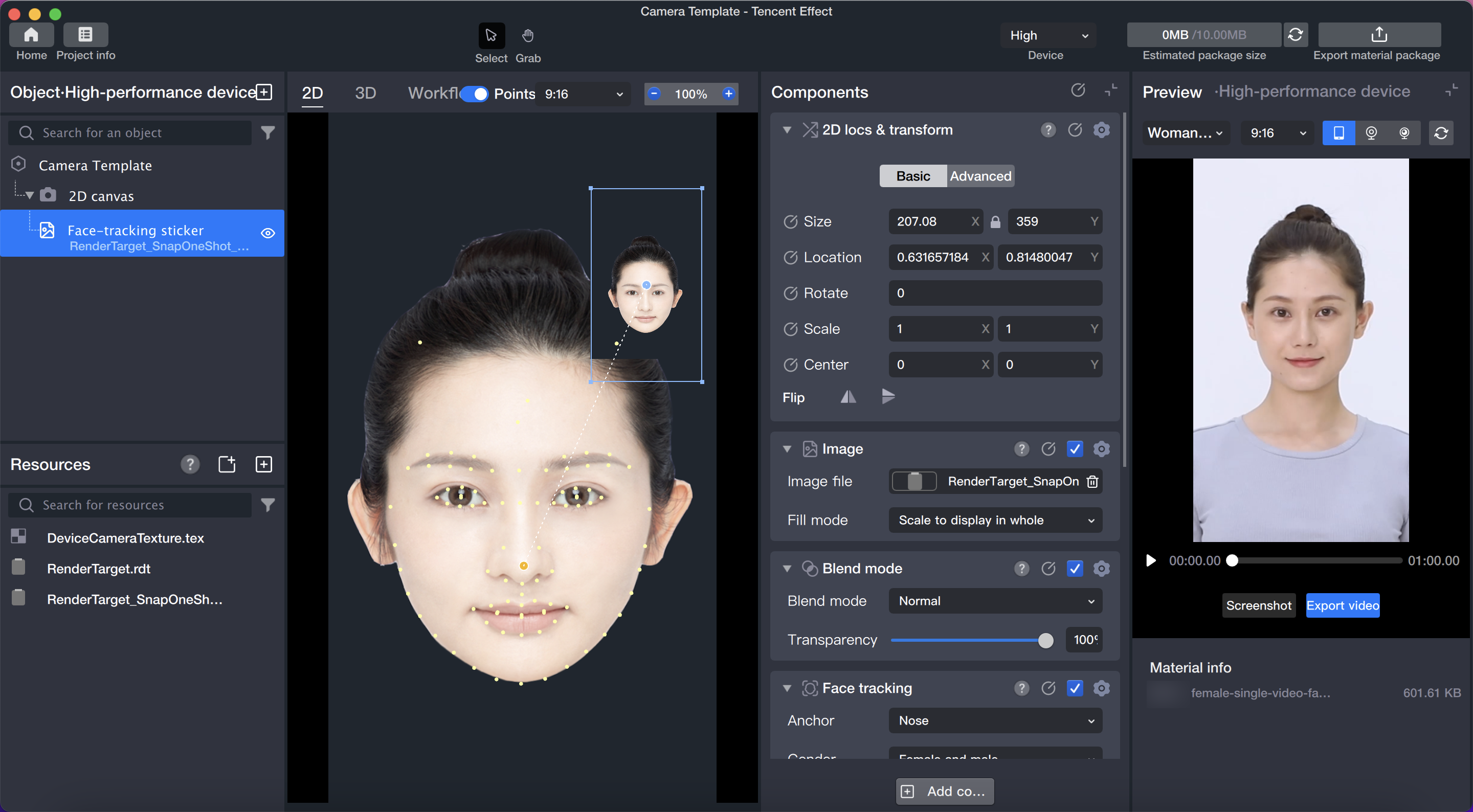
2. Add a Face-following Sticker to the output image.

2.1 Add "Face-following Sticker" in the Object Panel.


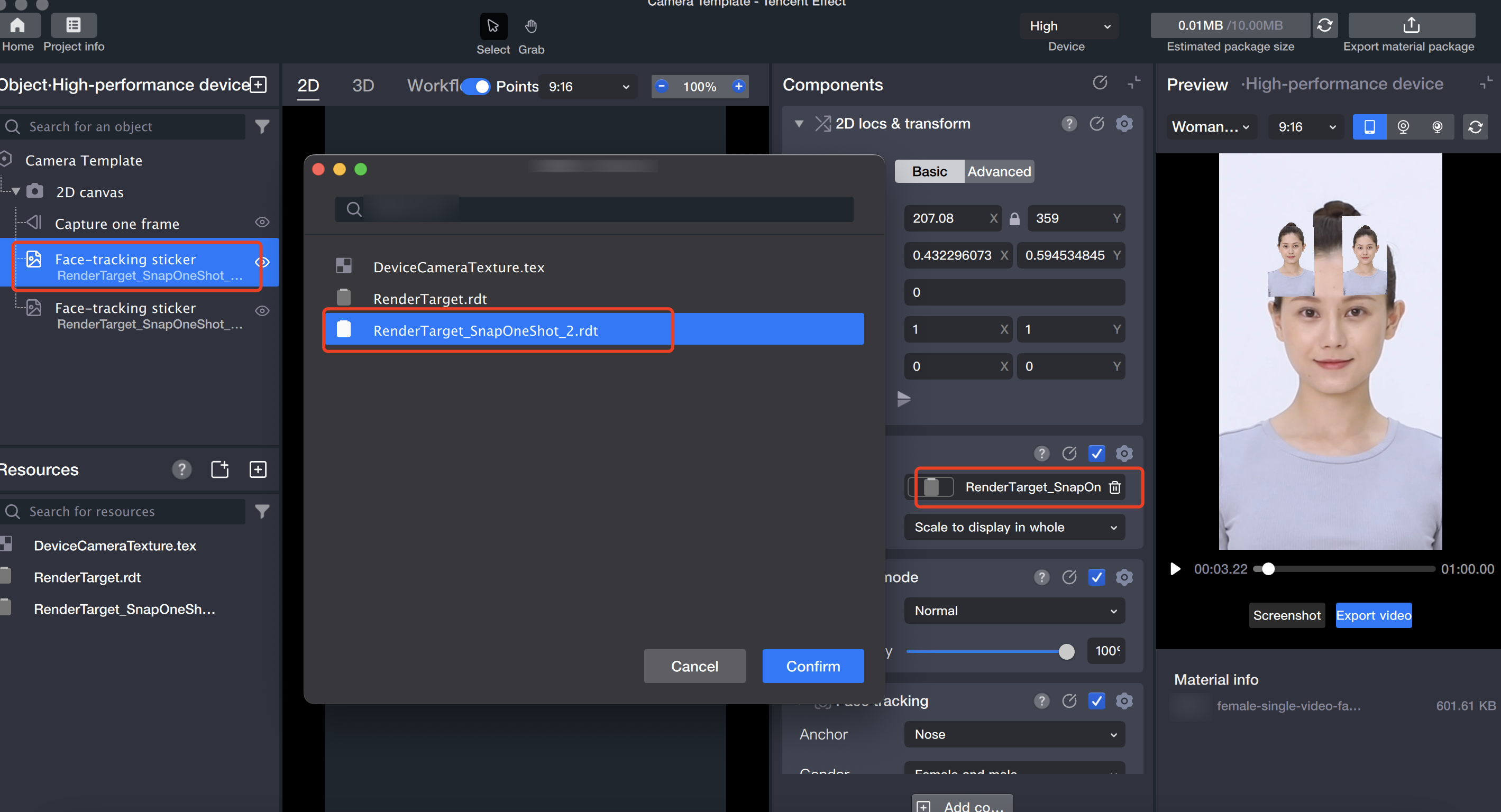
2.2 Select the output image of the capture one frame in the image file.


2.3 Adjust the size and position of the output image of the capture one frame.


the output image:


Basic usage of frame capture

Similar to the usage of capture one frame, the difference is that the added object is "frame capture", and the generated file in the Resource Panel is RenderTarget_frame capture_1.rdt.
The difference is that the frame capture Object will continuously capture images, so you can see in Tencent Effect that the image of the Face-following Sticker (input as the captured image of the frame capture Object) also changes over time.
Help and Support

Was this page helpful?

Help us improve! Rate your documentation experience in 5 mins.

Feedback