Background
If your origin server is a Tencent Cloud COS server, when there is an update of files with the same name or non-compliant resources requiring deletion on the origin server, it is usually necessary to also delete the resources from the EdgeOne node to avoid users still accessing old resources or non-compliant contents. However, cache purging requires you to manually go to the EdgeOne console or call the API interface to submit the URL requiring cache purge after you update or delete files on COS. This method can easily lead to omissions and may delay the completion of the purge due to manual operation.
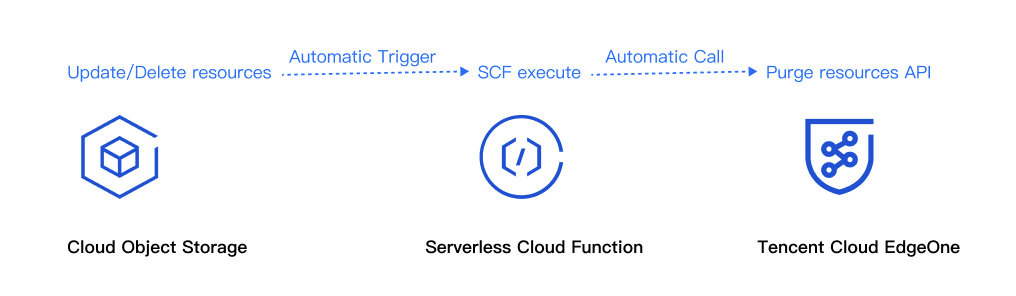
After files are uploaded to Tencent Cloud COS, automatic cache purge can use Tencent Cloud SCF to help you automatically detect and call EdgeOne's cache purge API interface to automatically purge the node cache. This ensures that after your files are updated or deleted, users can immediately access the latest resources, thus enhancing user experience.
Note:
Tencent Cloud COS is a paid feature. Any possible fee incurred in use will be charged by Tencent Cloud COS. For specific charging details, refer to Overview of COS Billing. SCF is a paid feature. Any possible fee incurred in use will be charged by SCF. For specific charging details, refer to Overview of SCF Billing. Scenarios
Scenario 1: Updating a file with the same name
After a file is uploaded to Tencent Cloud COS and the file content is updated, re-uploading a file with the same name to COS will immediately make the latest resources accessible to users even before the CDN cache expires.
Scenario 2: Deleting a non-compliant file
A file uploaded to COS may certain a non-compliant content and need to be deleted from the COS bucket so that users cannot access the resource before the CDN cache expires.
Directions
Sample Scenario
Assume you are a game developer and have connected the site domain name www.example.com to EdgeOne Acceleration, with the origin server being Tencent Cloud COS and located at: purge-cos-1251558888.cos.ap-guangzhou.myqcloud.com. Since multiple game APKs need frequent updates, you want the cache on the EdgeOne node to be automatically purged when files change.
Preparations
1. COS and SCF have been activated, and the bucket name and region information are recorded. 2. A site is added according to the Site Access guide, the EdgeOne package is purchased, and the site ID is obtained. The site ID can be viewed and copied in the site list after site access. For example: zone-26v607hq8d3m. Step 1: Create and Deploy an SCF for Automatic Cache Purge on EdgeOne
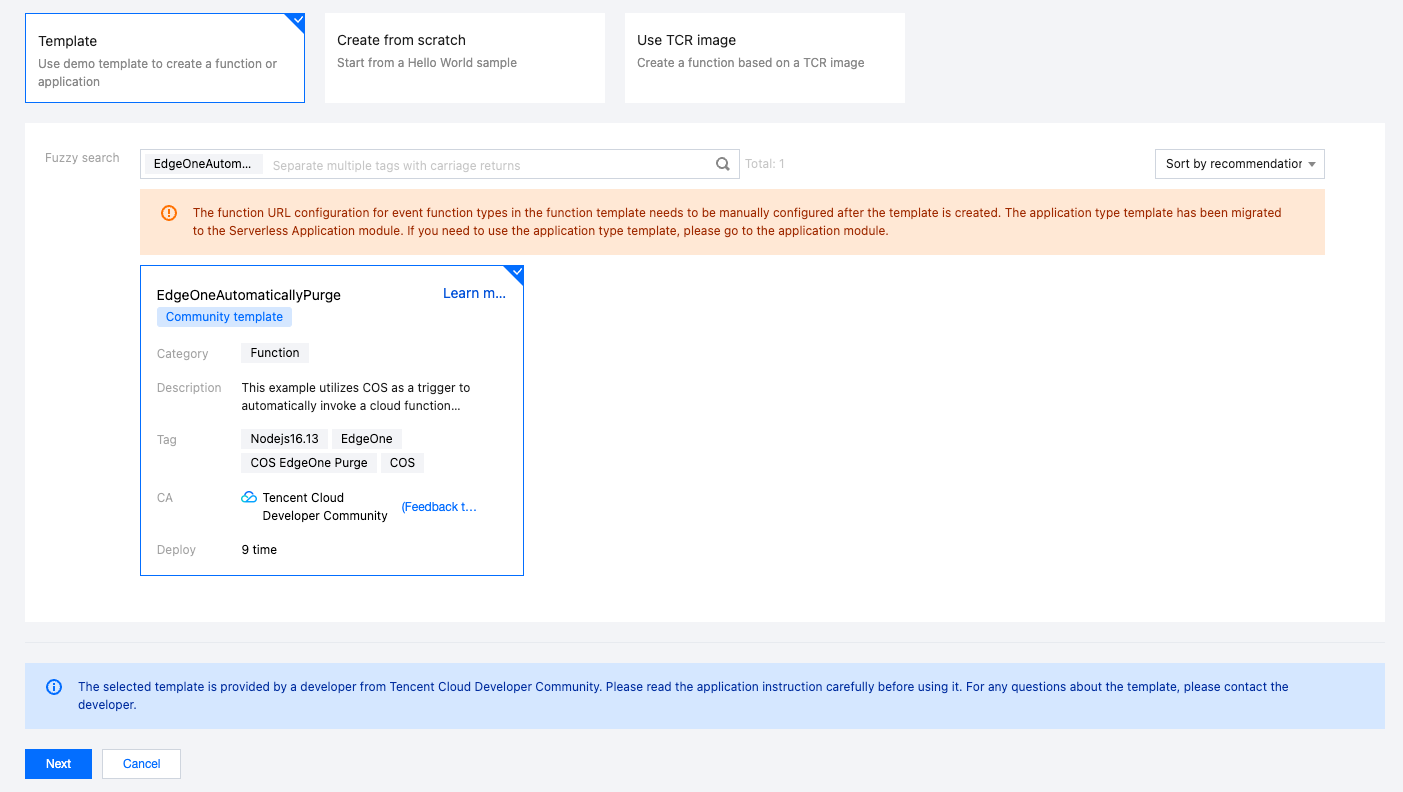
2. On the Function Services page, click Create, select Template, enter EdgeOneAutomaticallyPurge in the fuzzy search input box, select it, and click Next.
3. On the "Function Configuration" page, the following configurations are required. It is recommended to keep the default values for other configuration items.
Basic configuration
Function name: A function name will be automatically generated when the function is created. You can choose to change it to an easily recognizable function name.
Region: Select the region where the COS bucket is located. For example: Guangzhou.
Time zone: SCF uses UTC time by default. You can change it by configuring the TZ environment variable. After selecting a time zone, the corresponding TZ environment variable will be added automatically.
Function code: The template already includes default function code to implement EdgeOne automatic cache purge, without any modification.
Advanced configuration:
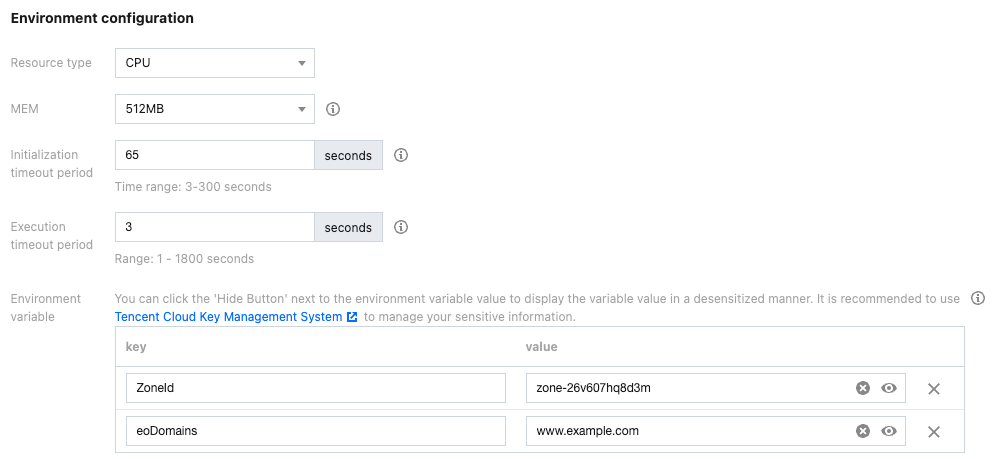
Click Advanced Configuration, find Environment Configuration, and add the following keys and corresponding values to the environment variables. Keep the rest of the configurations as default:
ZoneId: Enter the ZoneId of the domain name site example.com where automatic cache purge is required. Refer to Preparations for how to obtain the site ID. eoDomains: Enter the acceleration domain name added under ZoneId, such as: www.example.com.
Note:
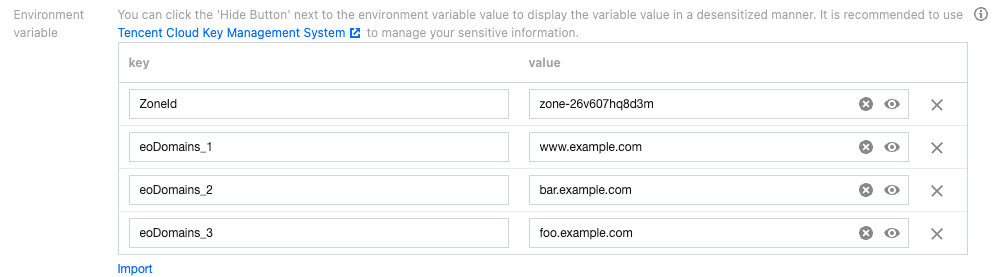
If origin servers of multiple domain names within the same site use the same COS bucket and you expect multiple domains to trigger automatic cache purge, you can add multiple environment variables starting with eoDomains when configuring the environment. For example: eoDomains_1, eoDomains_2, as shown below:
Permission configuration: Check Enable for the execution role. Select an execution role from the drop-down box (ensure the existing role includes the QcloudCOSFullAccess and QcloudTEOFullAccess preset policies). Otherwise, Create execution role.
Trigger configurations
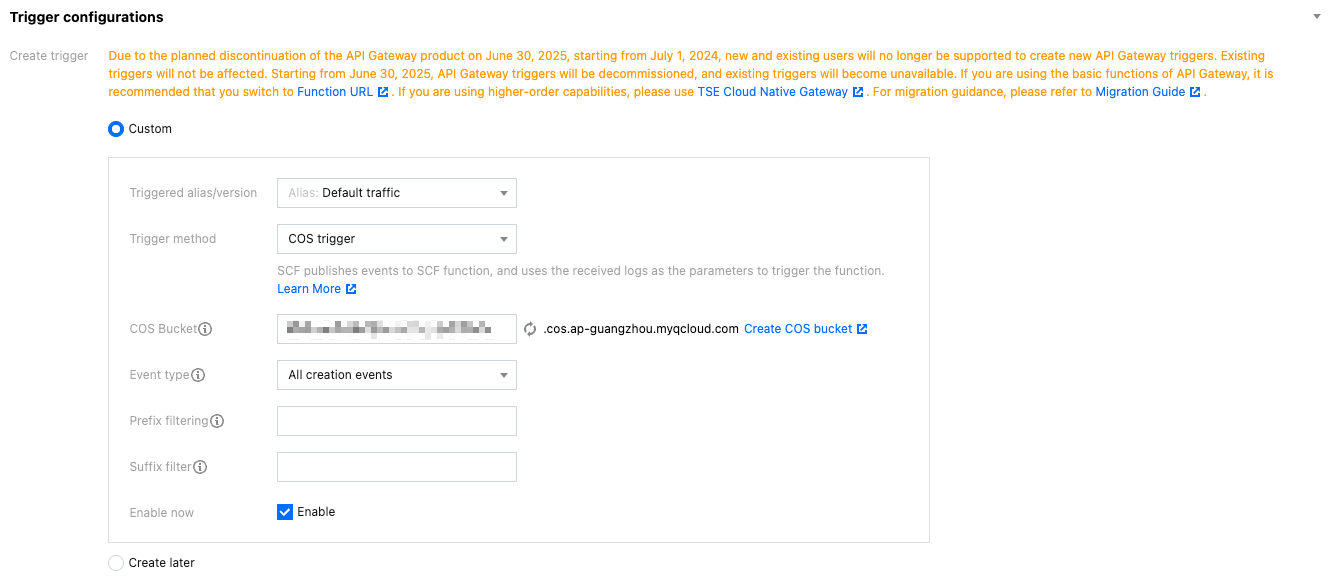
Take the all creation events event type as an example (if you need to create the all deletion events event type, refer to the configuration). In the trigger configurations, choose Custom. The COS Bucket should be in the same region as this SCF. You can input the bucket name for fuzzy search. For example: purge-cos-1251558888.cos.ap-guangzhou.myqcloud.com. Keep other configuration items as default.
4. Click Finish to finish creating the EdgeOne automatic cache purge function.
Step 2: Verify the Result
1. Log in to the COS console. In the left menu, click Bucket List. 2. On the Bucket List page, click the Bucket Name used for storing APK base packages.
3. On the File List page, go to the root directory of purge-cos-1251558888.cos.ap-guangzhou.myqcloud.com.
4. Click Upload Files, choose a file with the same name, such as: v2_src.apk, and then click Upload.
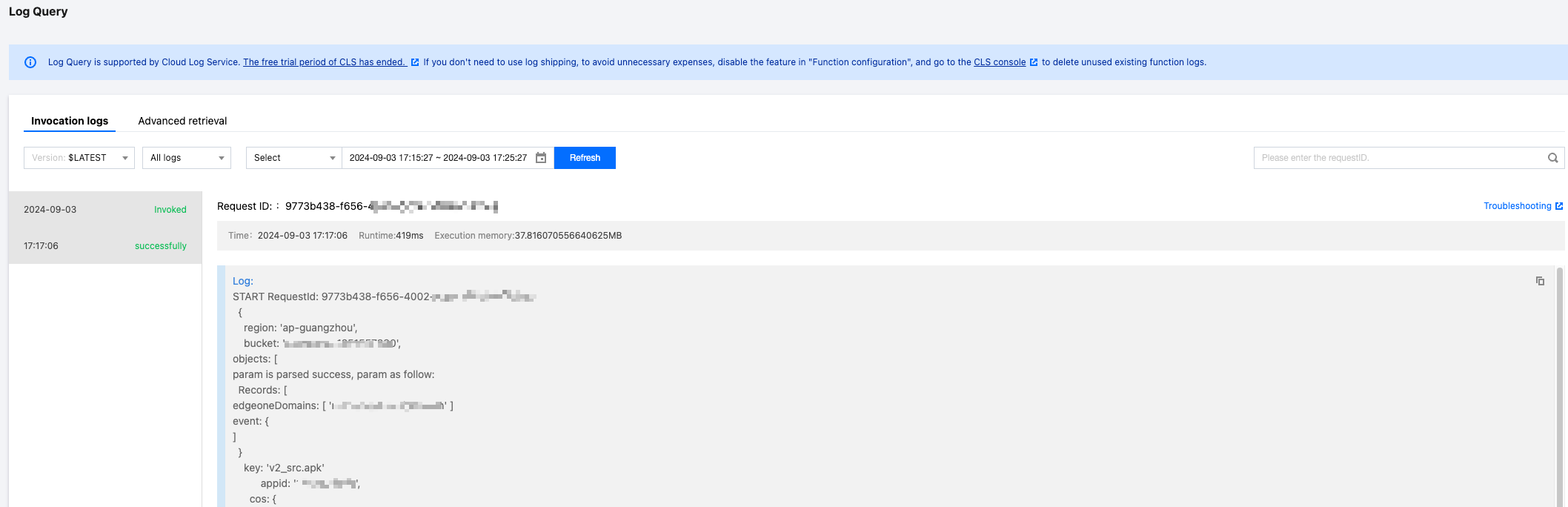
5. After the file is uploaded successfully, go to the SCF console, and click the Function Name in Step 1. 6. On the Function Management page, select Log Query > Invocation Logs to get the log information of the function execution. If the invocation is successful and the key information in the log matches the name of the uploaded file, it means that the file upload to COS has triggered the SCF to call the EdgeOne cache purge API successfully.
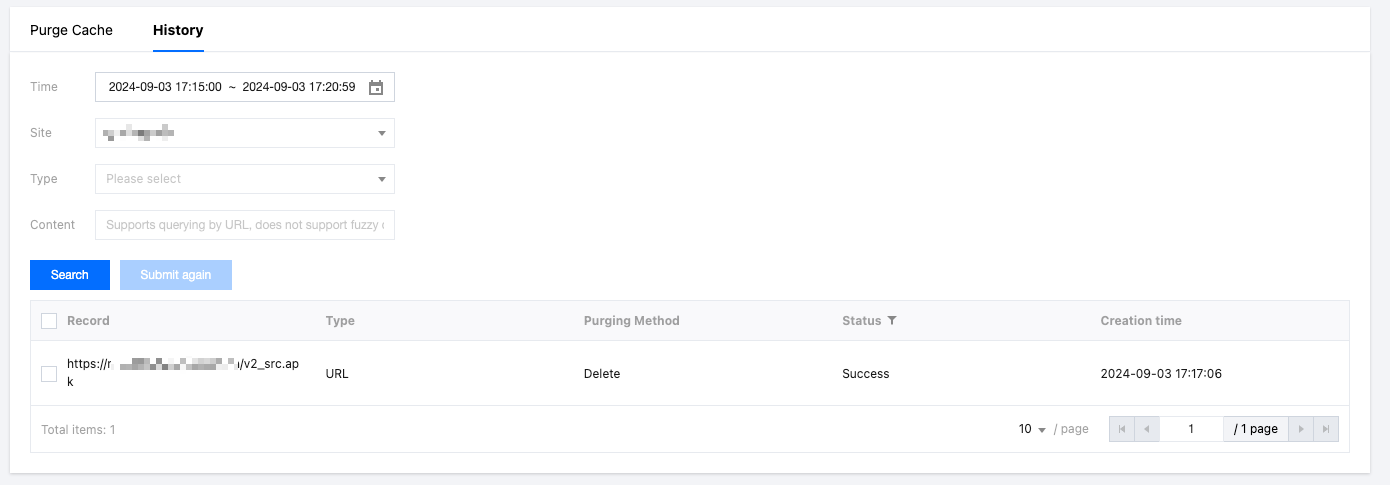
7. Go to the EdgeOne console. In the primary navigation bar, click Toolset and then click Purge Cache. 8. In the Purge Cache page, click History to check whether the cache purge task succeeded. If it shows that the task succeeded, it means the cache has been purged.
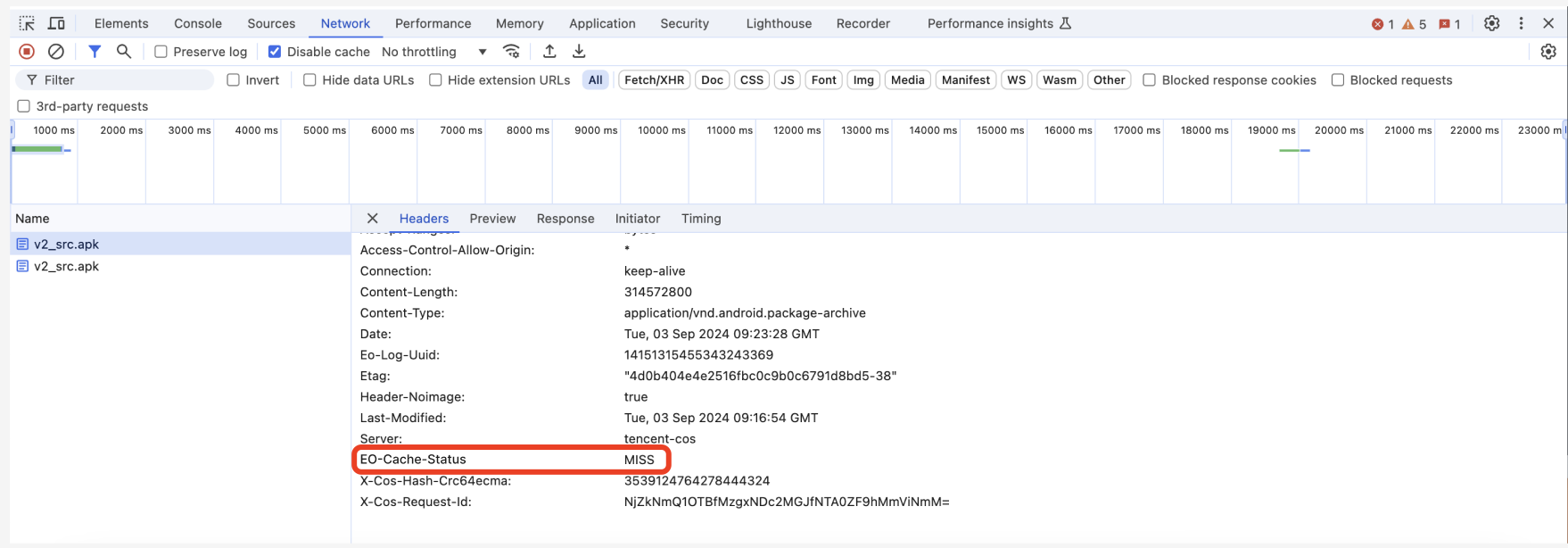
9. After opening the Developer Tools in the browser, enter the access path of the file, such as: www.example.com/v2_src.apk. Check the EO-Cache-Status value in the response header. If the cache is not purged, the old cache will be hit when the resource is accessed. As shown in the image below, if MISS is displayed, it means the resource has been cleared from the EdgeOne node, and the user request will pull the latest resource from the origin.
Monitoring Alarm (Recommendation)
For Cache Purge tasks that exceed the quota limit, an error will be triggered when calling the Cache Purge cache API, and the final execution status of the SCF will be "calling failure". To promptly address this issue, it is recommended to configure SCF monitoring alarms through Cloud Monitor. For configuration methods, refer to: Configuring SCF Alarms, SCF Metric Descriptions.