tencent cloud

Bastion Host

Product Introduction
Overview
Strengths
Scenarios
Differences between SaaS BH Standard Edition and Pro Edition
Purchase Guide
Billing Overview
Purchase Method
Upgrade Subscription Plan
Upgrade Bandwidth
Upgrade Extension Pack
Renewal
Payment Overdue
Refund
Getting Started
First Login of Admin
Admin Manual
First Login of Ops Engineer
Ops Engineer Manual
Operation Guide
Admin Guide
Operations Guide
Practical Tutorial
Blocking High-risk Commands
File Transfer Control
Tracing Security Incidents
Cross-VPC Asset Management
Access Bastion Host O&M Page Via Intranet Domain
Troubleshooting
Windows Resource Login Connection Timeout
Windows Resource Login Prompting Wait Active
Linux Resource Login via Mac Prompting No Matching Host Key Type Found
Windows Resource is Inaccessible for Mac Users
iTerm Client Displaying Unrecognizable Characters to Mac Users During Ops
Unable to Invoke Local XShell or SecureCRT
Ops Members Cannot Receive SMS Verification Code
Ops Members Cannot Load the Account When Logging in to Resources
Linux Resource Login Prompting Host Unreachable
Linux Resource Login Failure Prompting Password Error
FAQs
Usage
Consultation
BH Policy
Privacy Policy
Data Processing And Security Agreement

Templates

PDF
Focus Mode
Font Size
Last updated: 2025-04-18 10:58:50

Overview

Templates are collections of rules, and can be configured as the instructions in this document.
Note
Currently, only MySQL databases are supported.

Directions

1. Log in to the BH console.
2. In the left sidebar, choose Permission Mgmt > Database Access Control.
3. On the Database Access Control page, click the Templates tab.
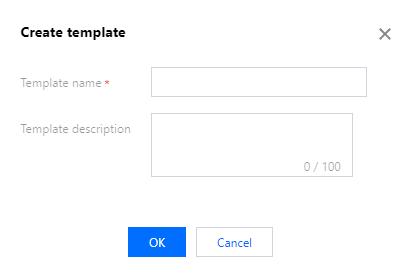
4. On the Templates page, click Create template.
5. In the Create template window, enter the template name and description, and click OK.

6. Select the created template and click Rules in the action column to view the rules associated with the template.

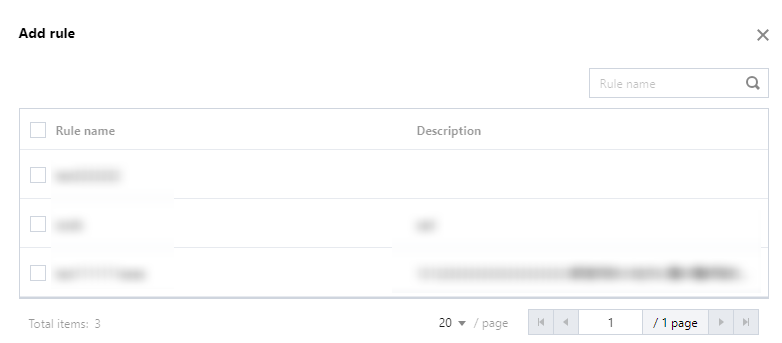
7. On the Rules page, click Add rule to add associated rules, then click OK to save the changes.

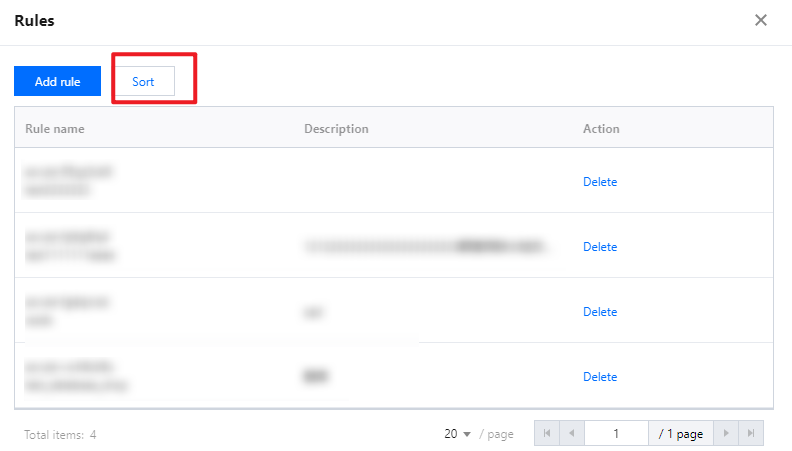
8. On the Rules page, click Sort, then drag the rules using the

to adjust their order (rules are prioritized from highest to lowest). Click Save.

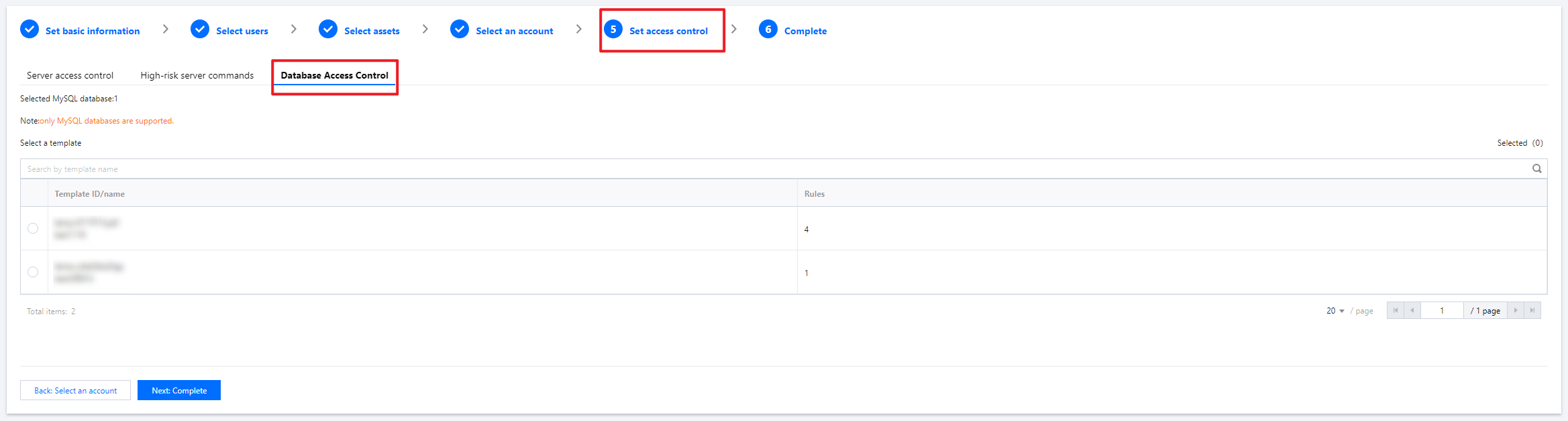
9. After creating the template, you need to associate it with access permissions on the access permission configuration page.
10. Click Edit in the action column of the access permission to be associated, and associate the template in Step 5 (you need to switch to Database Access Control to enable the association).

11. After completing the association, click Next: Confirm and then Submit to save the access permission configuration.

Help and Support

Was this page helpful?

Help us improve! Rate your documentation experience in 5 mins.

Feedback