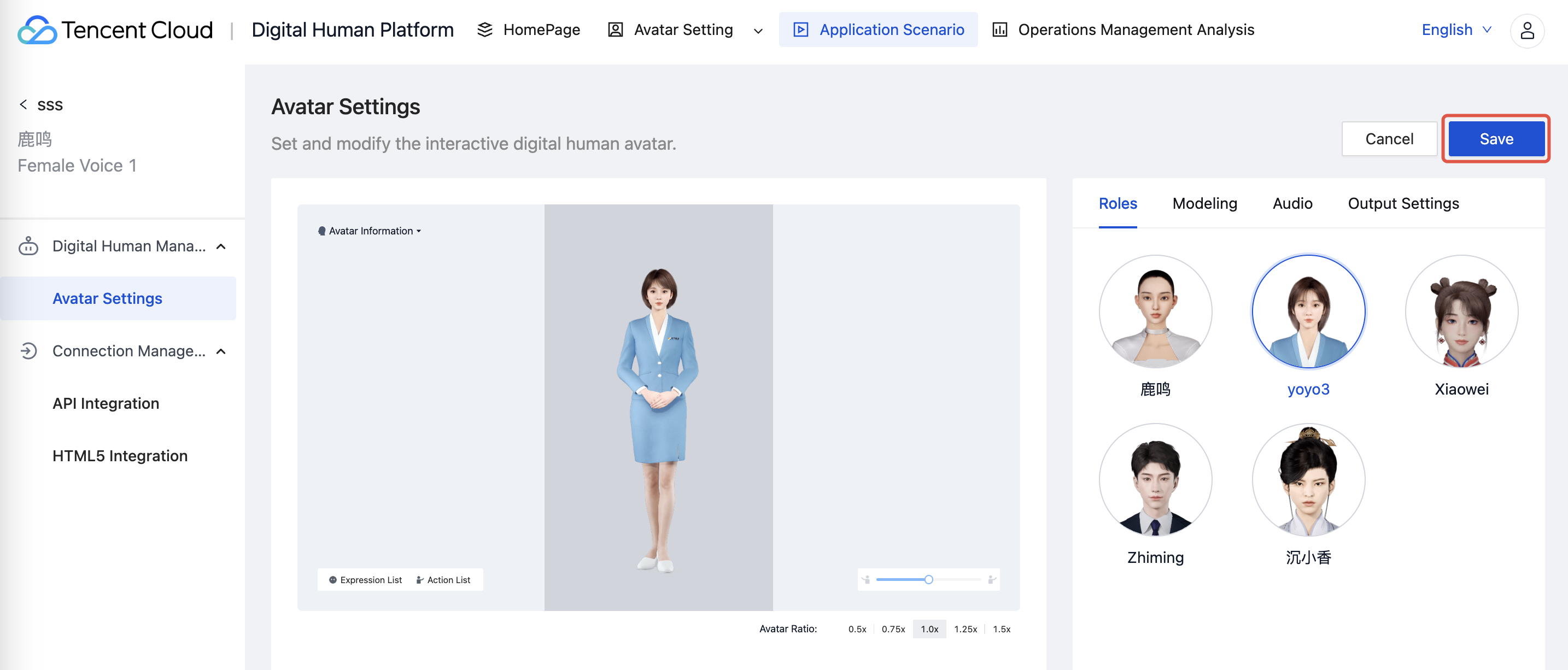
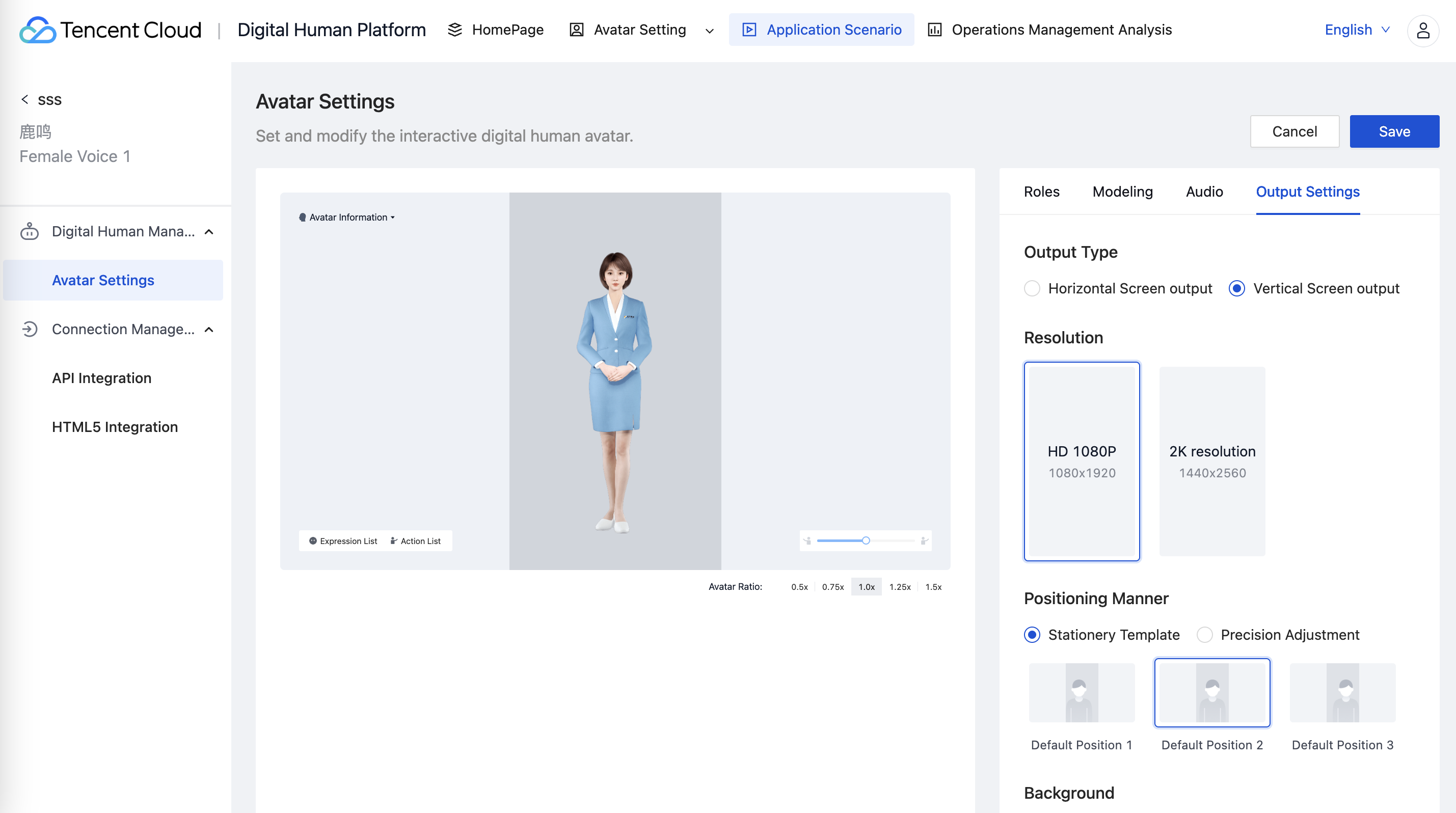
Image settings page allows for the configuration of the digital human's role, sound, and space.
For a newly created digital human project, you need to click in the upper right corner Save to perform the initial information configuration before you can proceed with API integration, mini program scan to experience, etc.
1. Role Selection
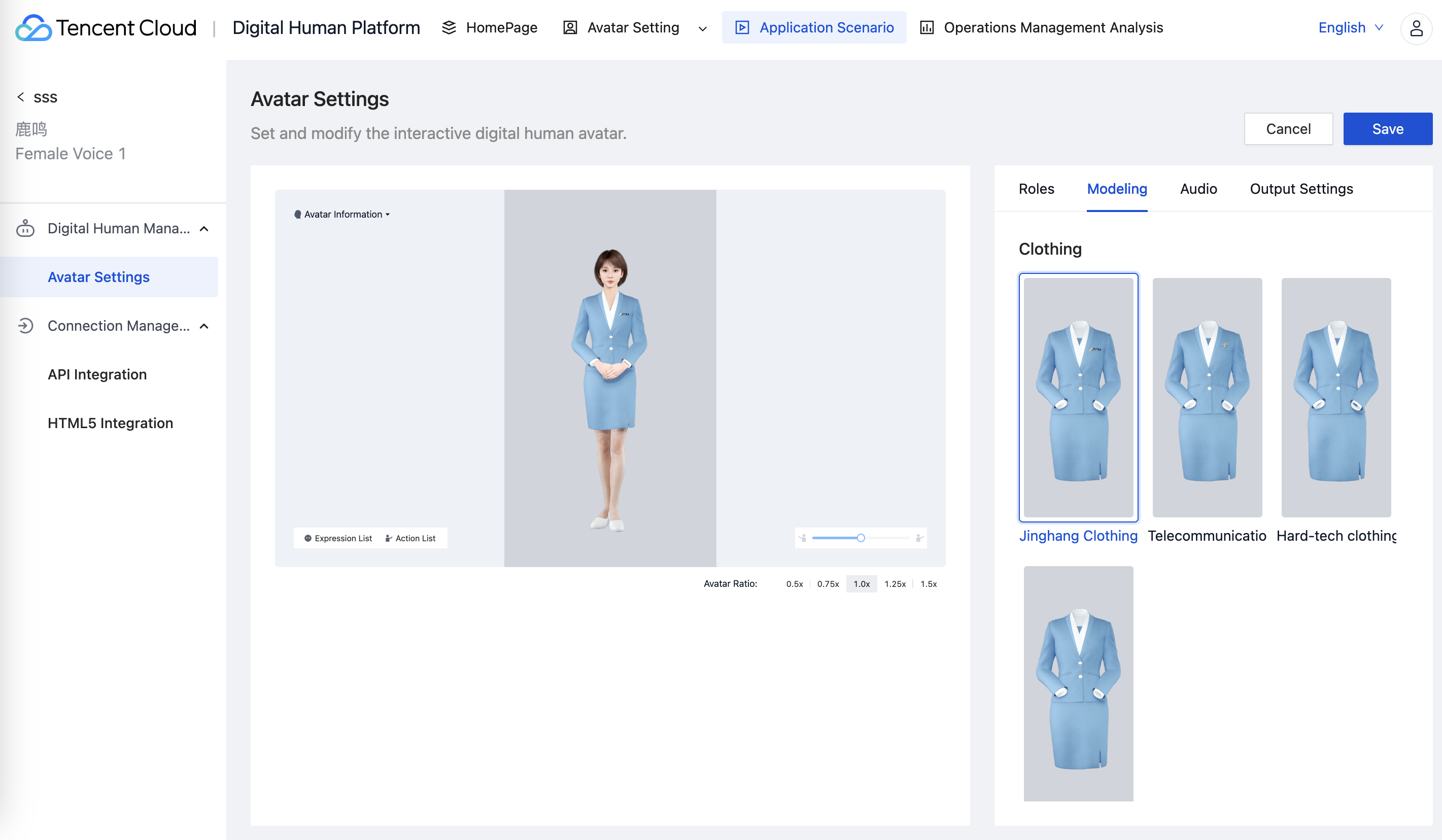
Here, you can switch the role, clothing, and pose of the digital human. The changes take effect immediately after toggling. Users can only switch the digital human avatar units they are authorized to access.
The main adjustable parameters are:
Role: typically the name of a digital human, such as Yani, Yunxuan, Bidaixun, etc.
Clothing: Each role has 1 to n sets of fixed and switchable clothing.
Pose: It can be divided into full body standing pose, half-body standing pose (also known as 2/3 standing pose), and seated posture.
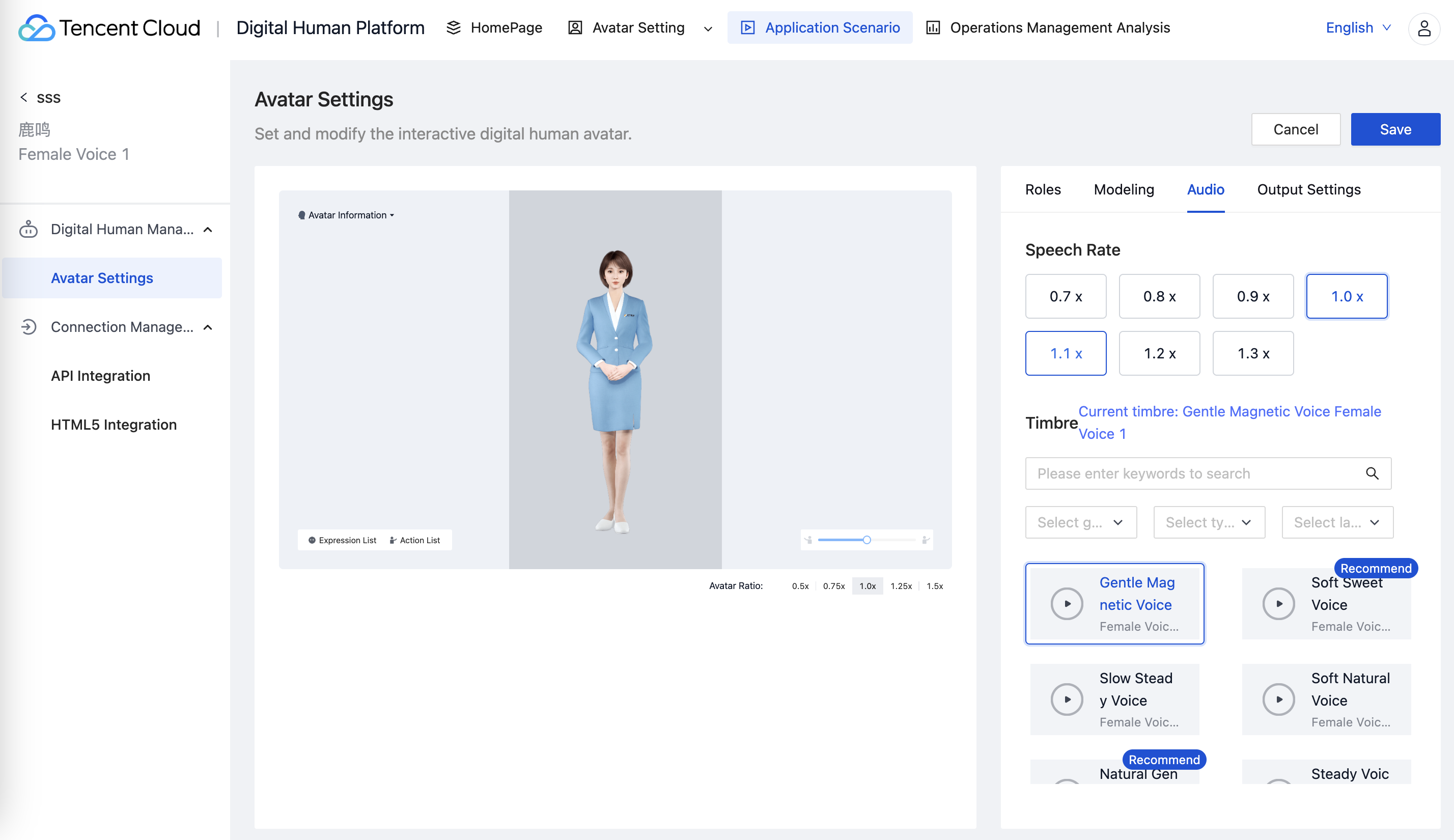
2. Sound Switching
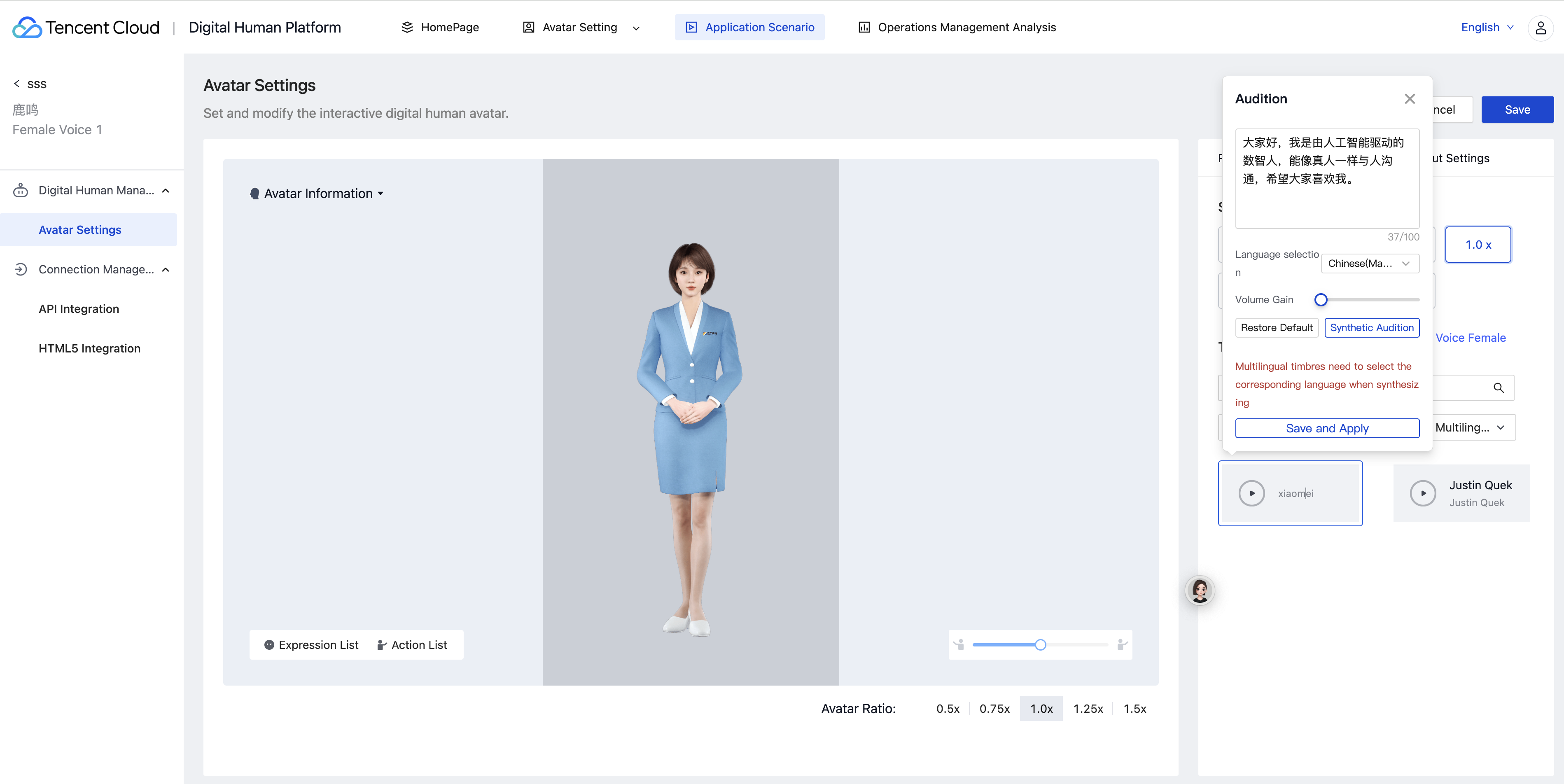
After selecting the role of the digital human, you can switch the supported voice types and speaking rates of the role here, and audition is supported. When clicking on Audition, you can adjust the emotional style, intensity of emotion, and volume gain of the voice type.
The voice type and speaking rate are currently bound to the digital human. Some digital human roles support one, while others support multiple. Full voice type auditions can be performed in the Standard Avatar Album.
Notes:
After the permission is authorized, all resolutions that can be switched here are authorized; currently, they are all resolutions supported by the role.
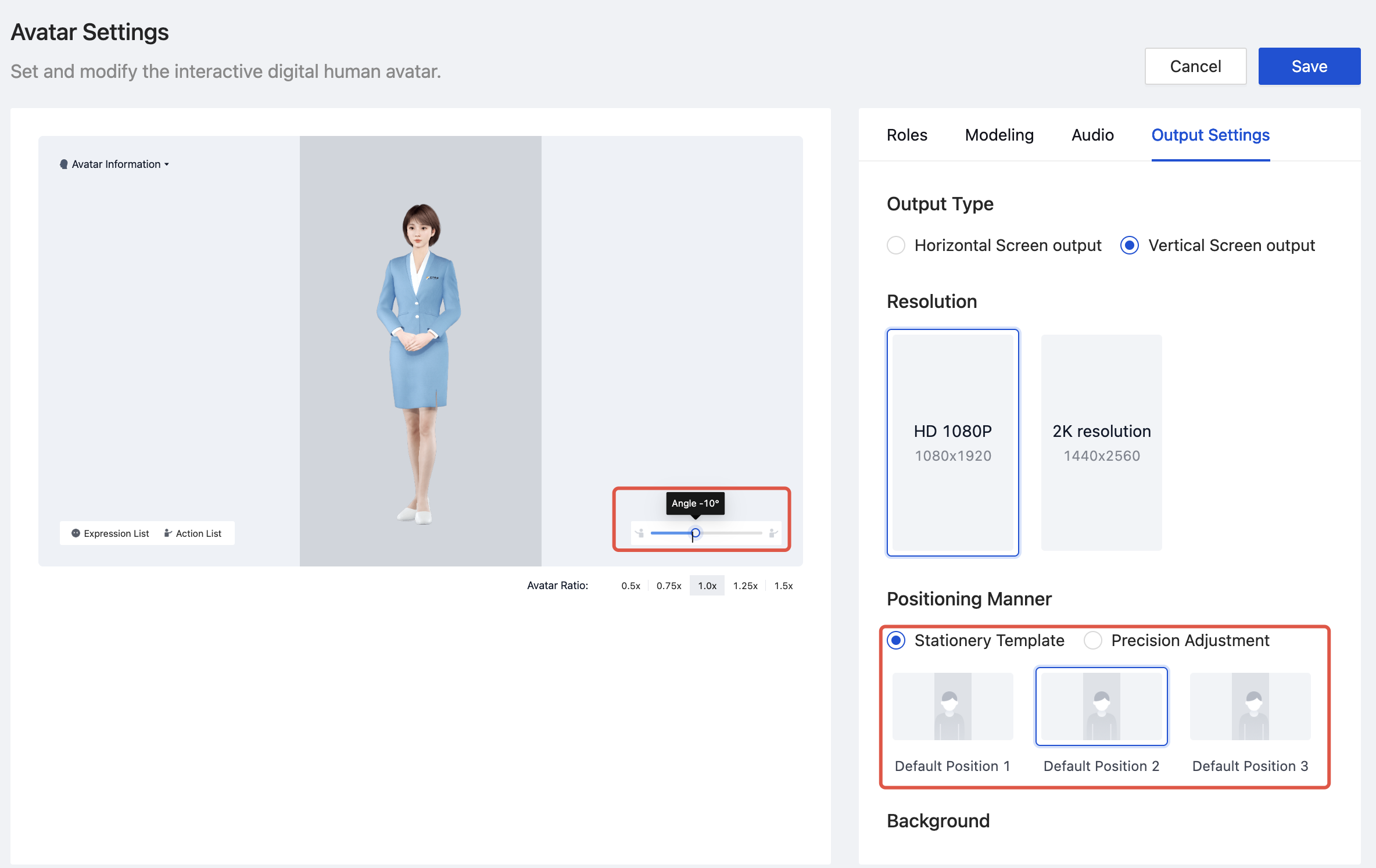
3. Character Angle
For 3D avatars, it can support adjusting the character angle.
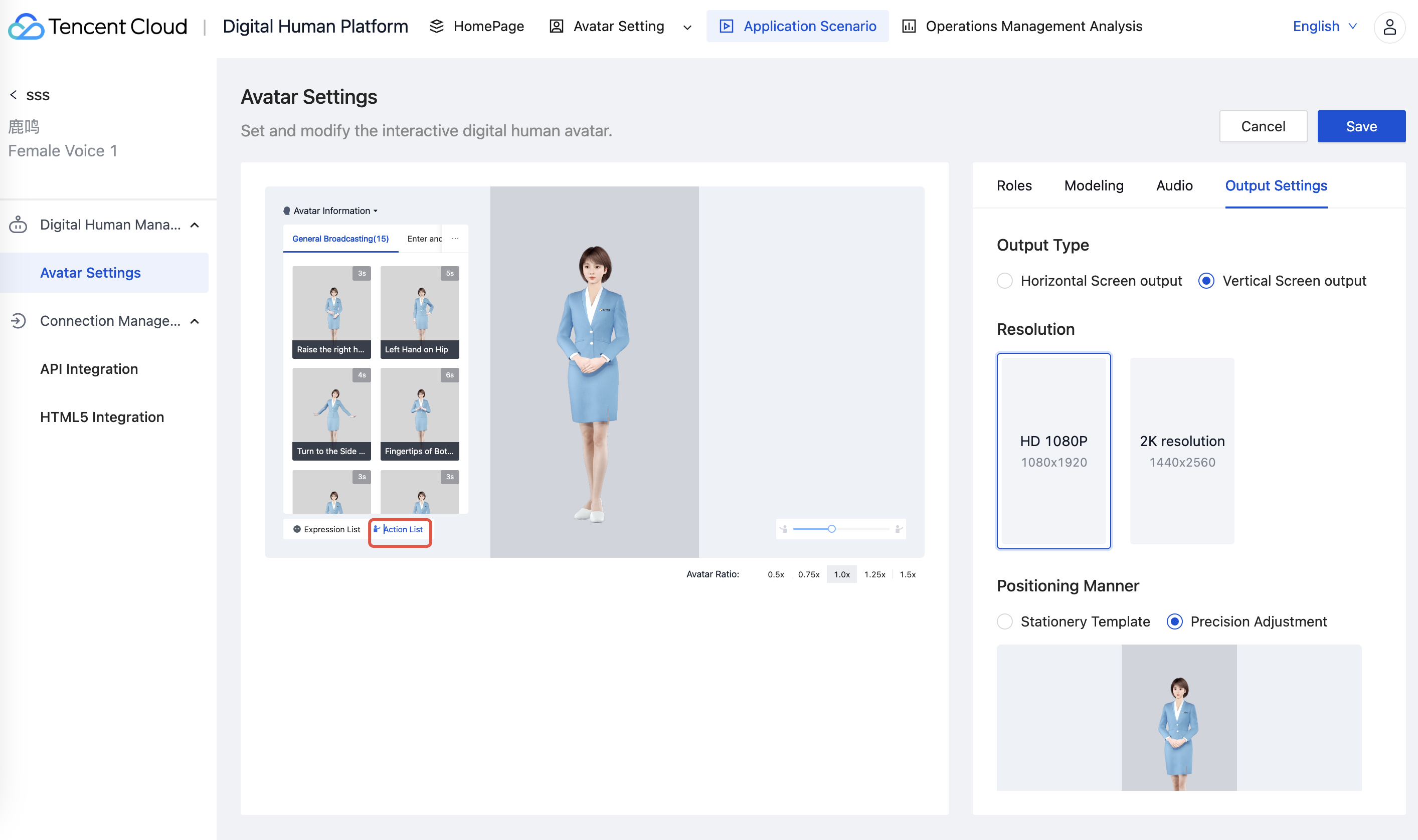
4. Digital Human Expressions & Action List
In the avatar settings interface, you can click Emoji List or Action list to preview the actions supported by the avatar.
Output Settings
Adjustable output type/resolution/positioning manner/background related parameters.