Product Introduction
Feature Introduction
The 2D Avatar Client-Side Rendering SDK is a digital human development solution provided by Tencent Cloud Intelligence. It supports low-cost rapid integration in the terminal and enables real-time driving of the digital human through speech. After integration, portrait and lip-sync rendering can be completed on the user terminal, making it suitable for digital human interactive scenes with high concurrency volume.
Currently provides two authorization modes:
Authorization Mode | 2D Rendering SDK Annual License - by Application | 2D Rendering SDK Annual License - by Device |
Applicable Scenario | Supports mobile terminals (Android and iOS devices). Recommended devices: 1. smartphone 2. Tablet (8 - 13 inches) 3. Smart screen in small size (below 16 inches) | Supports Android devices for large screens. Recommended devices: 1. Smart screen 2. Large screen ad display |
Supported Resolution | 540p,720p | 1080p |
Supported Number of Devices | Purchase one "2D Rendering SDK Annual License - By App" to cover both Android and iOS, with support for unlimited device usage. | Purchase N "2D Rendering SDK Annual License - Per Device" packages. The quantity N equals the number of terminal devices, allowing on-demand purchase based on usage. |
This SDK only supports audio-driven input and requires a separate purchase of Tencent Cloud audio service. It also supports using the SDK through third-party audio input.
Core Features
Feature | Feature Description |
Digital Human lip-sync driver | Supports input of streaming PCM audio to real-time drive Digital Human lip-sync. |
Digital Human rendering | 1. Support loading and rendering the digital human model on the client to output a digital human video stream with transparent background. 2. Users can flexibly configure the digital human background, adjust its position, and perform free zoom based on their own scenario on the client. |
Order Placement Process and Integration Instruction
Step One: Purchase Resource Package
1. Currently available in the 2D avatar interface > select configuration 2D endpoint rendering, purchase page address: proceed to purchase.
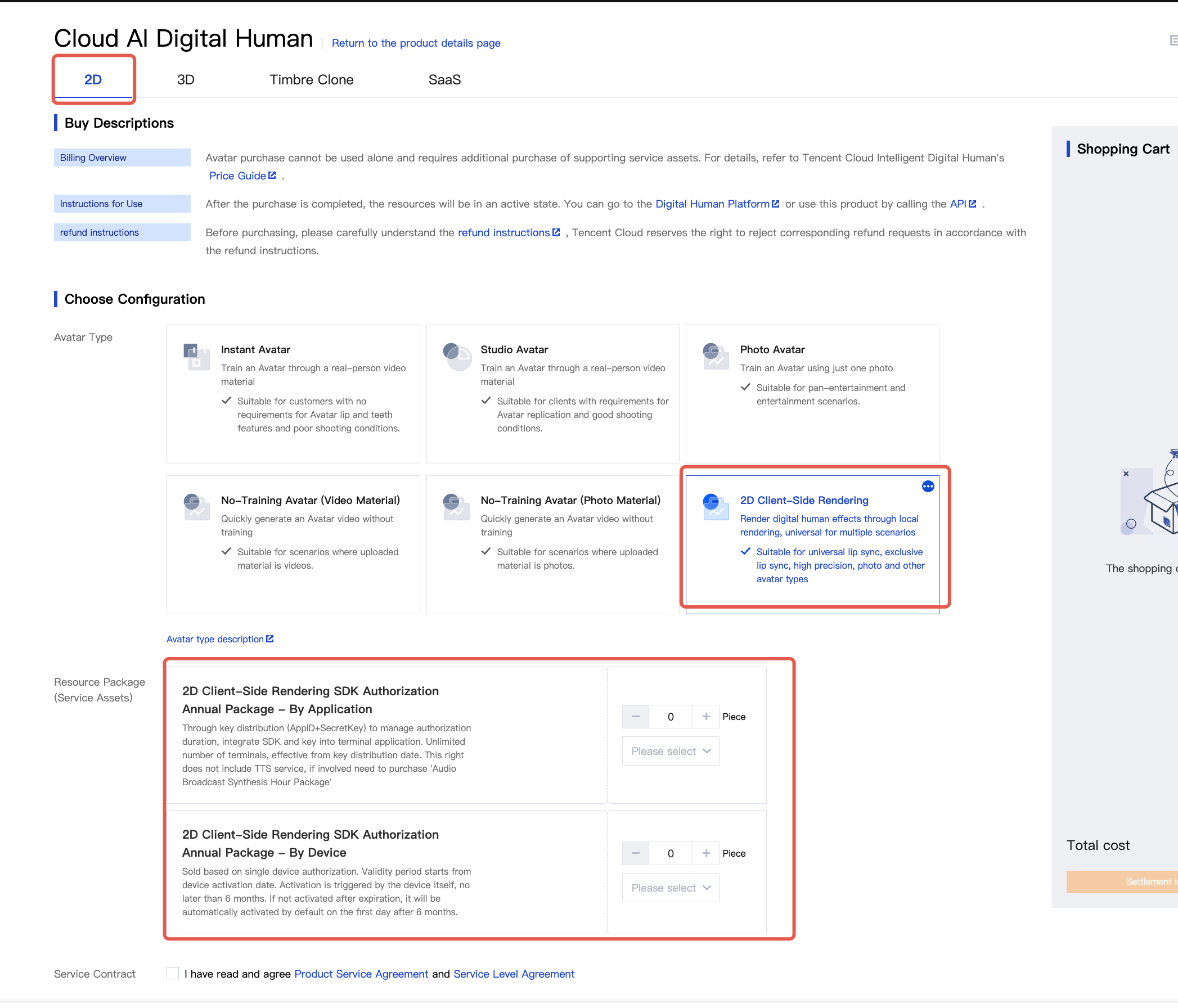
2. Locate the "2D Rendering SDK Annual License" resource pack, choose appropriate authorization mode, then click Purchase Now, as shown below:
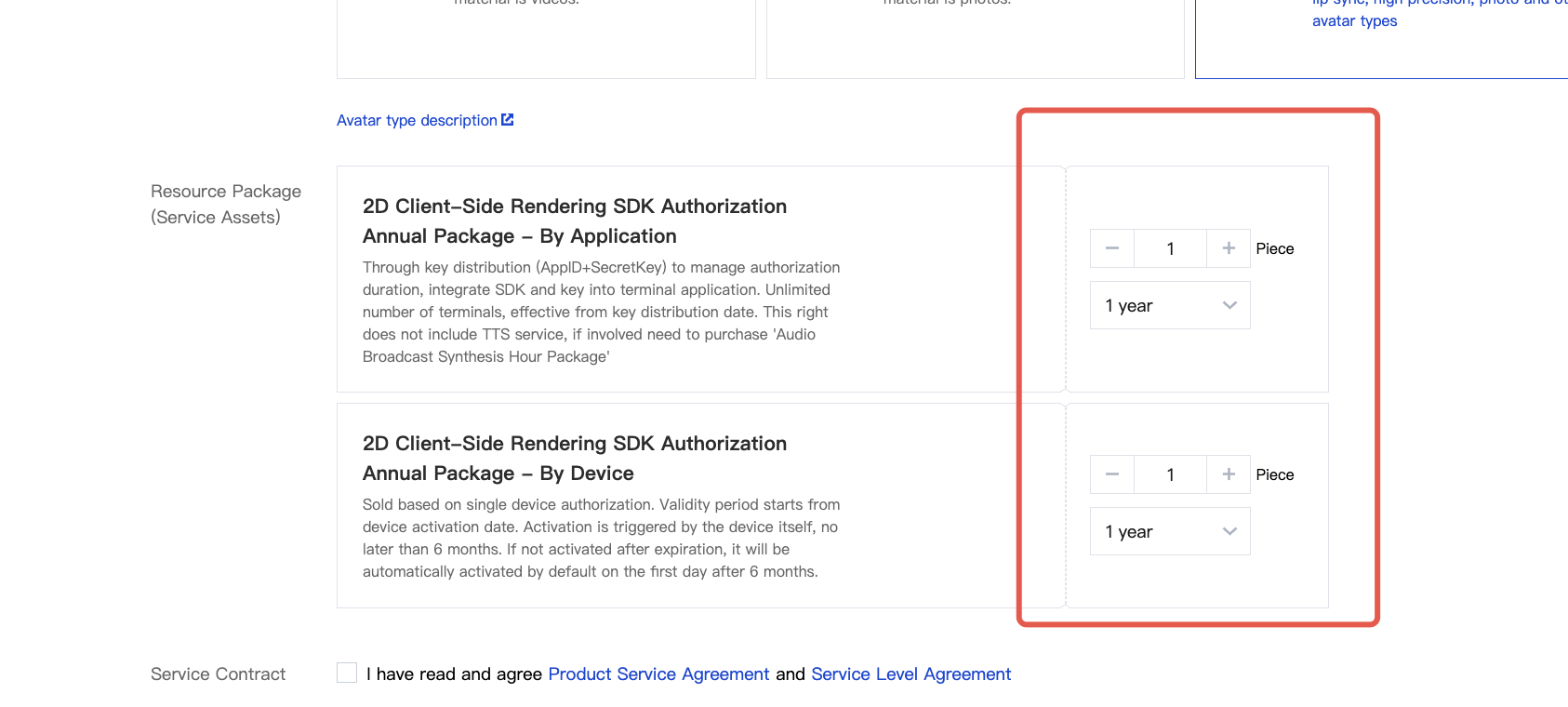
Step Two: Obtain Authorization and SDK File
License file acquisition process varies according to testing scenario and official scenario.
Test Scenario
Since there is no order information in the testing scenario, the information related needs to be sent offline in the form of emails. We will configure the authorization file and reply by email upon receiving the mail immediately.
In the testing scenario, for authorization by application, the default valid period is 30 days (permission to deploy on 10 devices simultaneously), counted after the delivery date. For device-based authorization, each application provides authorization information for 10 devices with a default valid period of 30 days, counted after the device is proactively activated. Reapplication is required after the valid period expires.
Email application format reference as follows:
Test License authorization application process (by email)
Email address:
txc_avatar@tencent.comEmail Subject: 2D Rendering SDK Application - By App (Trial) or 2D Rendering SDK Application - By Device (Trial)
Email content:
Tencent Cloud root account:
Usage scenario:
iOS device please enter Bundle ID: (can be empty for device-based authorization)
Android device please enter Application ID: (can be empty for device-based authorization)
Formal Scenario
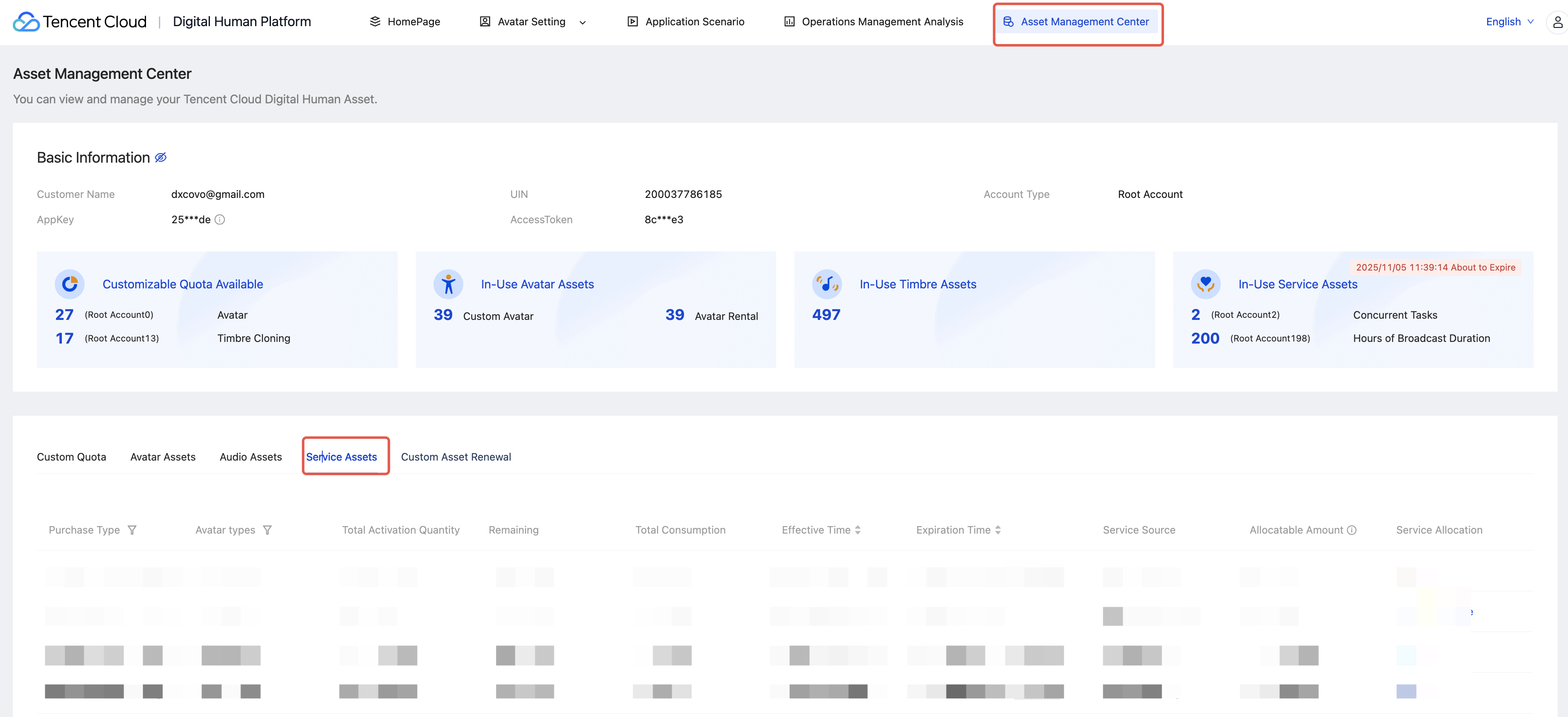
1. Follow the "place orders on the official website" guide. After completing the order, log in to the digital human platform and locate the corresponding order information by following "Management Center > Service Asset > Inactive", as shown below:
2. Select different authorization modes, refer to the following steps:
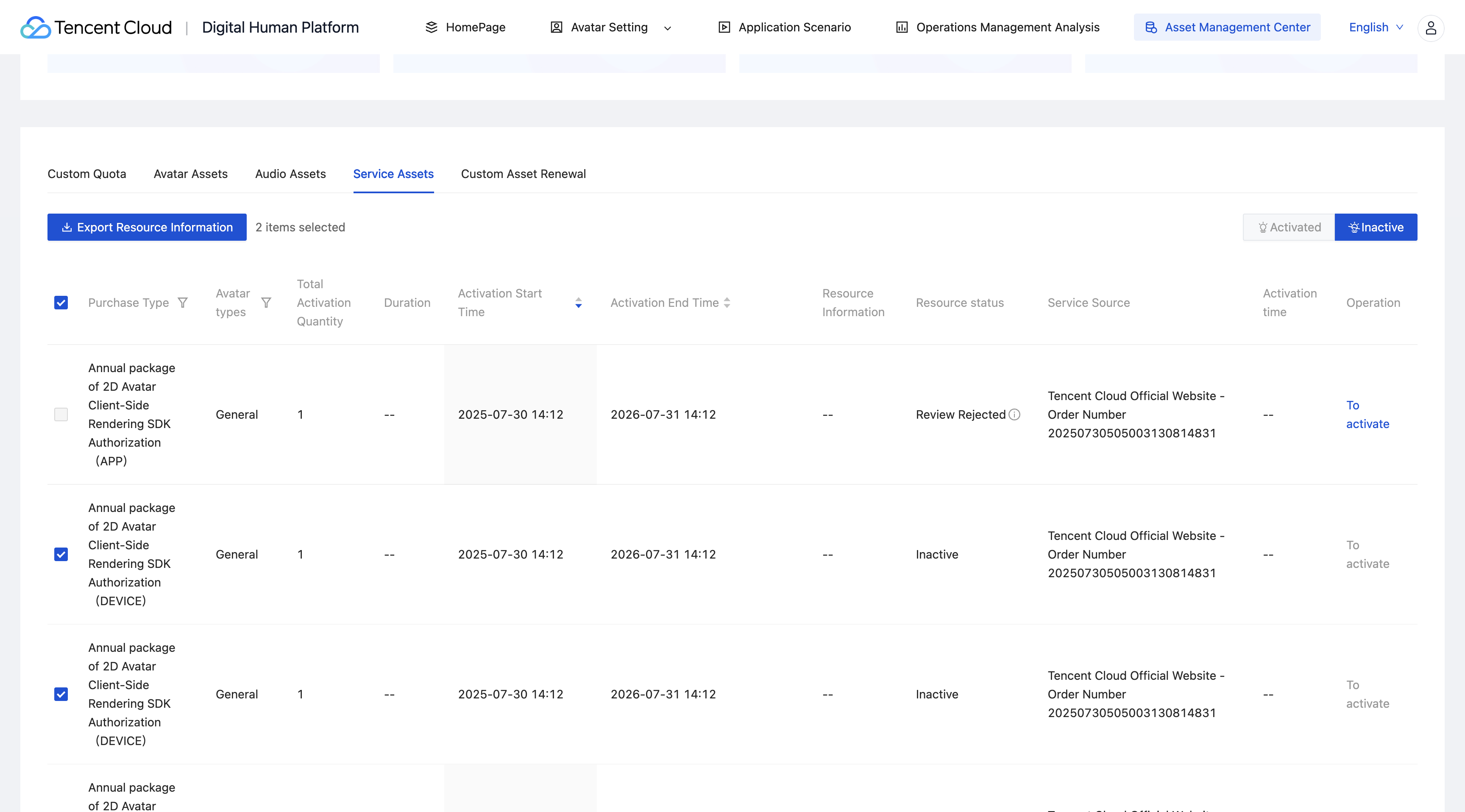
When selecting device authorization mode:
For device-based authorization, the licenseID and secretKey are automatically generated and can be copied or downloaded directly. Alternatively, batch copy and download can be performed via checkboxes, as shown in the figure below:
The activation status is triggered by the device going online, with no need for additional configuration on the platform. Once activated, you can view information such as the validity period on the activated page.
When selecting application authorization mode:
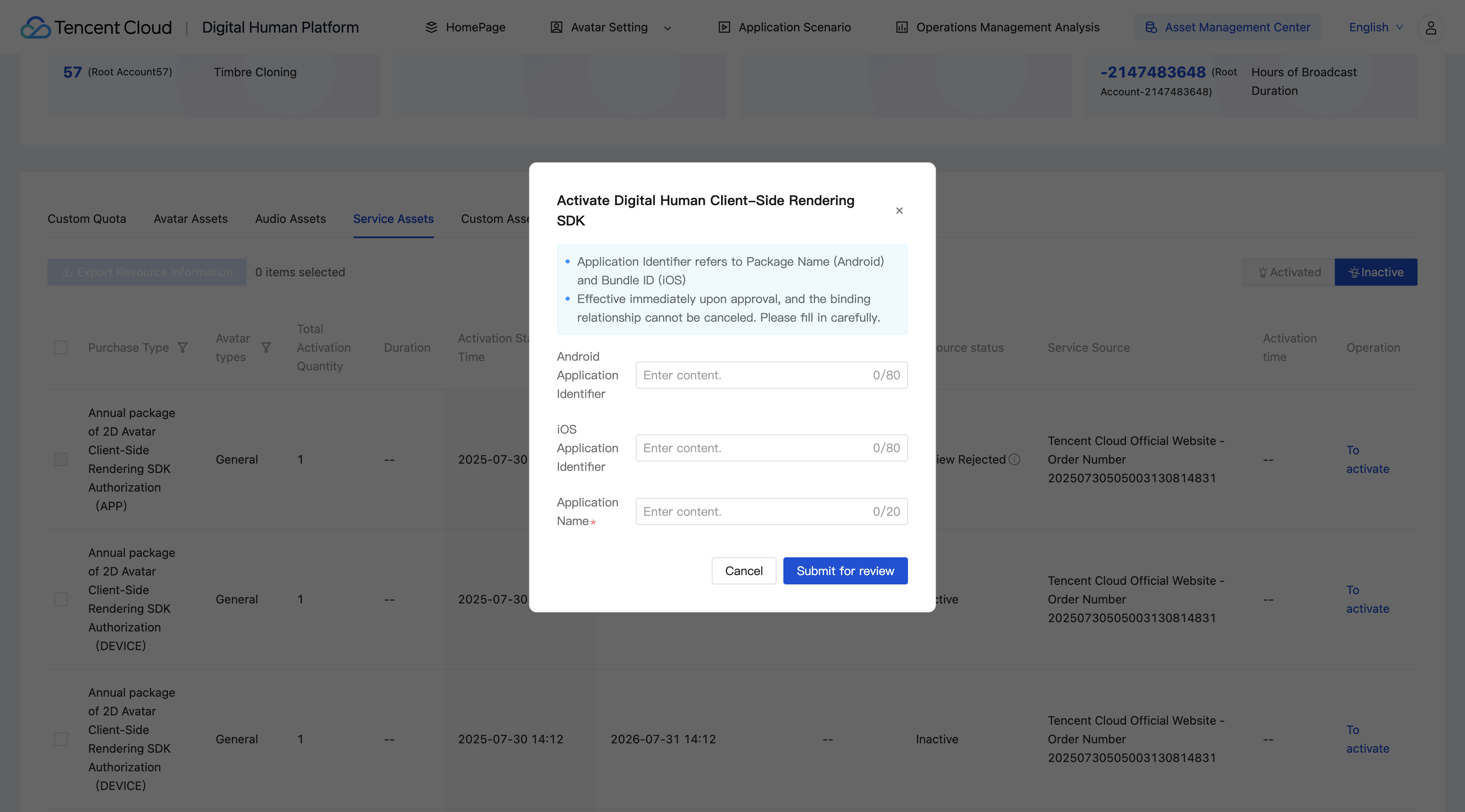
For application-based authorization, users need to independently upload application information. The licenseID and secretKey will be generated after the review is passed. The specific process is: click Activate > Enter application information > Submit for review (as shown in the figure below).
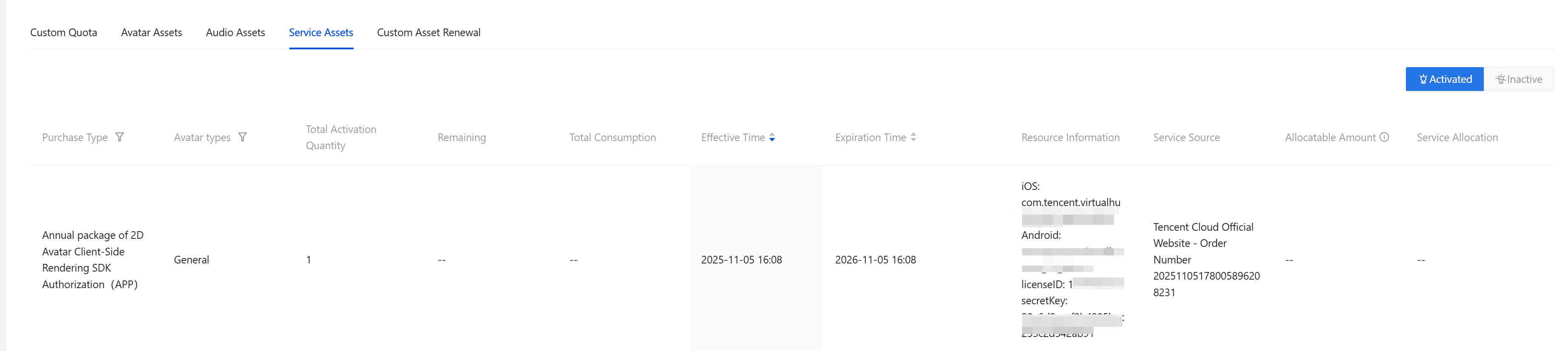
After the review is passed (normally processed within 1 business day), the platform will auto-generate key information. Users can manually copy and download the key info. Path: Management Center > Service Asset > Activated. As shown below:
Step Three: Quick Access
After obtaining authorization and the SDK file, see the following documents for integration development:
Mobile terminal Android SDK: Mobile terminal Android SDK integration
Mobile terminal iOS SDK: Mobile terminal iOS SDK integration
Large-screen Android SDK: Large-screen Android SDK integration
Package Size Detail
Basic Package (Rendering Engine)
Integrate into code and directly affect installation package size
Platform | Before Compression Size | Compressed Size | Description |
Android(APK) | 24MB | 7.5MB | Optimized with ZIP compression to reduce download size. |
iOS(IPA) | 38.8MB | 12.5MB | |
Model Package
Dynamic download and load to mobile phone storage space as needed, unaffected initial installation package size.
Base Model Package (essential component)
Type | Before Compression Size | Compressed Size | Description |
2D rendering engine | 82MB | 58MB | Support all digital human avatar foundation rendering. |
Digital Human Avatar Package
Avatar Type | Before Compression Size | Compressed Size | Resolution | Content Description |
Photo avatar | 38MB | 25MB | 540p | An avatar modeled based on a static photo. |
SDK Default Avatar | 60MB | 43MB | 540p | 1 minute 30 seconds of video footage. |
Custom avatar | 30 - 200MB | - | - | Size positively correlates with material resolution and duration. Each avatar is packaged separately. |
SDK Upgrade Record
SDK version. | Upgrade Points | SDK Name and Avatar Package Version |
V1.0 | 1. Capacity expansion | SDK version ends with 1.0.*; compatible avatar package version ends with V1. |
V1.1 | 1. Enhance SDK stability | SDK version ends with 1.1.*; compatible avatar package version ends with V2. |
V1.3 | 1. First frame delay reduced from 1450ms to 450ms 2. Basic package and model package size reduced by half | SDK version ends with 1.3.*; compatible avatar package version ends with V3. |
FAQs
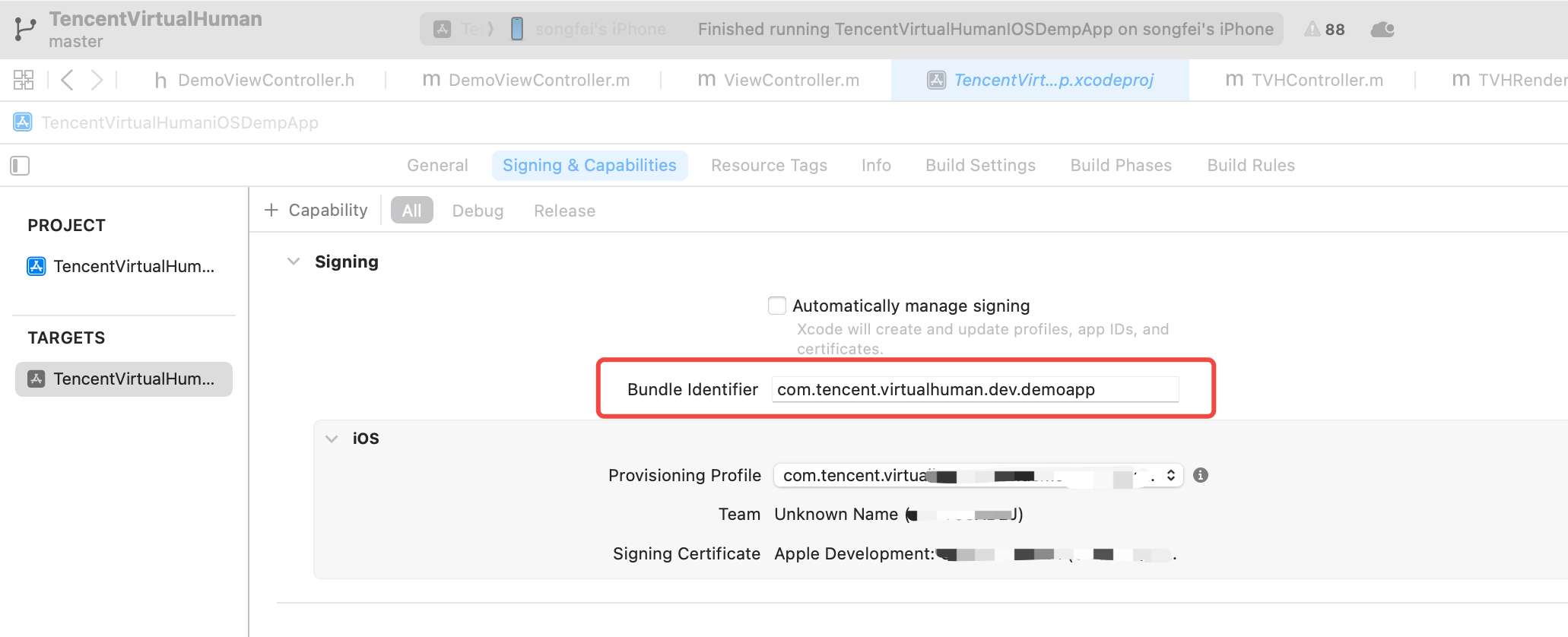
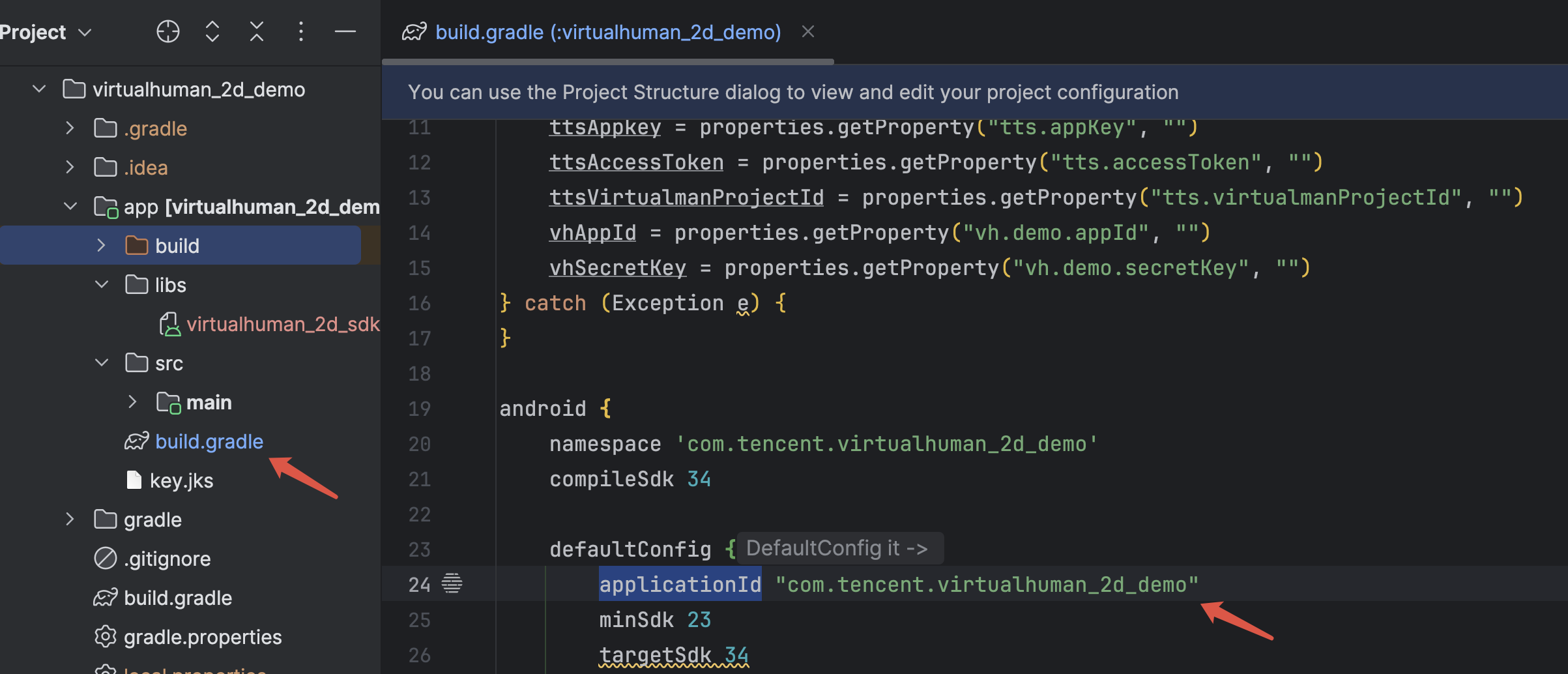
1. Where can I get the Bundle ID for iOS devices and the Application ID for Android devices?
Bundle ID for iOS devices can be found in App Settings under Signing & Capabilities in Xcode, as shown below:
Application ID for Android devices can be found in the build.gradle file in the project directory, as shown below:
2. Is custom avatar supported for 2D small sample endpoint rendering?
Supported. Currently, the following 3 customization types are applicable to the rendering SDK:
2D small sample general lip movement
2D small sample Studio Lip-Sync
2D small sample image
Customization methods:
Self-service procurement and customization of 2D small sample digital human: Complete avatar customization via custom asset management.
Retrieve custom avatar model package: After customization completion, send email (txc_avatar@tencent.com) to obtain the avatar model package offline.
3. Digital Human Endpoint Rendering SDK Log Management and Troubleshooting Guide
To help customers with seamless integration and troubleshooting, the Digital Human rendering SDK provides a flexible log output configuration API. See the following guide to perform log management and troubleshoot.
Log level description
Log level | iOS Severity Flag | Android Severity Flag | Use Cases | Output Frequency | Storage Usage |
Close logs | TVHLogLevelOff | 0 | Not recommended | No output | No |
Error logs | TVHLogLevelError | 1 | Major issue in live production environment | extremely low | Ignored |
Warning logs | TVHLogLevelWarn | 2 | Recommended default level for production environment | Moderately Low | Ignored |
Log information | TVHLogLevelInfo | 3 | Recommended daily debug level | Moderate | <1MB/day |
Debug Logs | TVHLogLevelDebug | 4 | Problem localization in the development phase | Moderately high | 1-5MB/day |
Trace logs | TVHLogLevelTrace | 5 | Issue recurrence in extreme cases | Extremely high | >100MB/day |
Digital Human SDK log configuration principle
Required settings before initialization: Log level must be configured before SDK initialization and cannot be modified at runtime.
Recommended level: Set it to Warn or Info for daily use to ensure key log output while avoiding excessive logs.
Use Trace with caution: Avoid enabling Trace level for long-term to prevent excessive storage usage and performance degradation.
Do not disable for long: Setting to Off level in production environment is not recommended, otherwise key issue logs cannot be obtained.
Issue feedback: When receiving user feedback, please provide Info-level logs to assist in problem localization.
Cloud control debugging: In specific cases, temporarily enable Trace-level logs via cloud control, then report log files after problem reproduction.
Log collection: Implement log upload feature to automatically or guide users to report log files to the background for analysis when receiving user feedback.
Help and Support
Was this page helpful?
You can also Contact sales or Submit a Ticket for help.
Help us improve! Rate your documentation experience in 5 mins.
Feedback