Deleting a GWLB Instance
When you confirm that a GWLB instance has no traffic and is no longer needed, you can delete it via the GWLB console.
Once deleted, the instance will be completely terminated and cannot be recovered. It is strongly recommended to unbind all target groups from the instance and observe for a while before deleting it.
Note:
After deletion, the GWLB instance itself and related configurations will be completely cleared and cannot be recovered. Please proceed with caution.
Individual Deletion
1. Log in to the GWLB console.
2. Locate the GWLB instance you want to delete and then click Delete in the rightmost operation column.
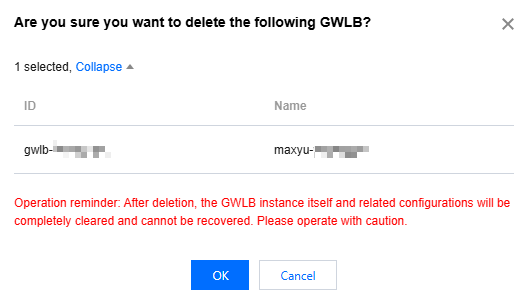
3. In the pop-up dialog box for final confirmation, read the operation security prompt and then click OK to confirm the deletion.
Note:
The dialog box is shown below. It is recommended to unbind all target groups from the instance and then delete it.
Batch Deletion
1. Log in to the GWLB console.
2. Select the GWLB instances you want to delete and then click Delete at the top of the list page.
3. In the pop-up dialog box for final confirmation, read the operation security prompt and then click OK to confirm the deletion.
Deletion via an API
Help and Support
Was this page helpful?
You can also Contact sales or Submit a Ticket for help.
Help us improve! Rate your documentation experience in 5 mins.
Feedback