For Tencent Cloud GooseFSx resources, between different enterprises or between multiple teams in the same enterprise, you need to configure different access permissions for different teams or individuals. You can use Cloud Access Management (CAM) to set different operation permissions for GooseFSx, enabling different teams or individuals to collaborate with each other.
For terms related to CAM such as root account, sub-account (user), and user group, as well as detailed configuration descriptions, please see the Glossary in access management.
Root Account
Root account is also known as the developer. When a user applies for a Tencent Cloud account, the system creates a root account identity for logging into Tencent Cloud services. The root account is the basic entity for metering and billing Tencent Cloud resource usage.
The root account has by default full access to its owned resources, including accessing billing information, changing user password, creating users and user groups, and accessing other cloud service resources. By default, resources can only be accessed by the root account, and any other user access requires authorization from the root account.
Sub-accounts (users) and user groups
A sub-account is an entity created by a root account, with a definite identity ID and credentials, and has the permission to log in to the Tencent Cloud console.
Sub-accounts do not own resources by default and must be authorized by the root account to which they belong.
One root account can create multiple sub-accounts (users).
A sub-account can belong to multiple root accounts, and assist multiple root accounts in managing their respective cloud resources. However, a sub-account can only log in to one root account at a time to manage the cloud resources of the root account.
Sub-accounts can switch developers (root accounts) through the console, and switch from one root account to another.
When a sub-account logs in to the console, it will automatically switch to the default root account and have the access permissions granted by the default root account.
After switching developers, the sub-account will have the access permissions authorized by the root account it switches to, and the access permissions granted by the root account before the switch will become invalid immediately.
A user group is a collection of multiple users (sub-accounts) with the same function. You can create different user groups based on business needs and associate appropriate policies with user groups to assign different permissions.
Authorize Sub-Accounts to Read-Write GooseFSx Permissions
1. Log in to the CAM console using the Tencent Cloud Main Account.
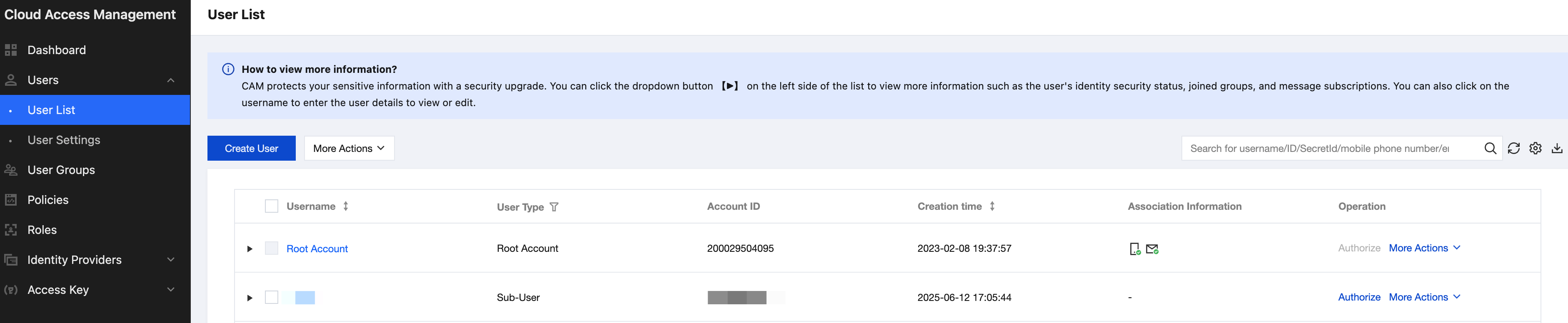
2. Select User > User List to enter the user list page.
3. Select the sub-user that requires authorization, and click the Authorize operation on the right. If there is no sub-user, please refer to the Create Sub-user document to create one.
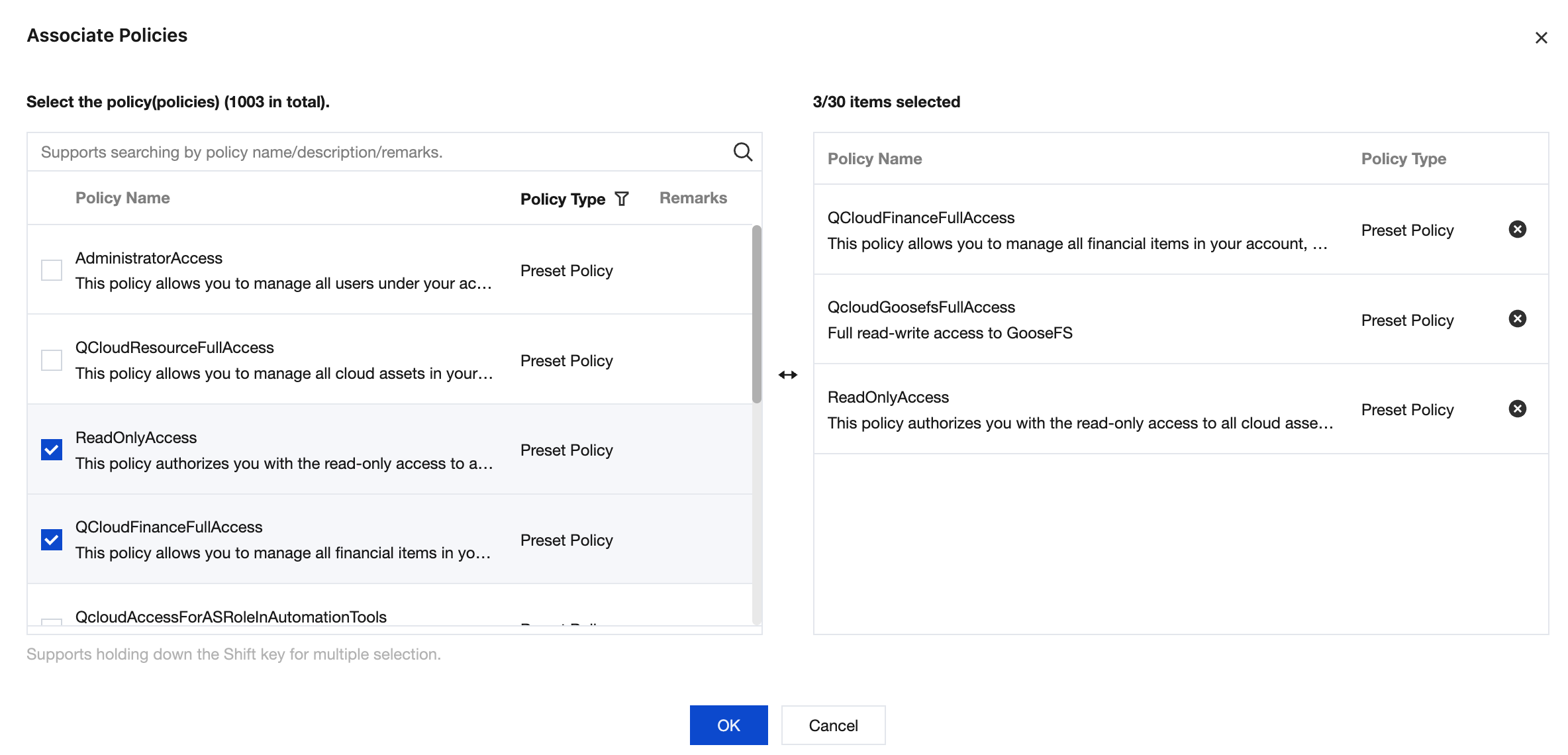
4. In the Associate Policy window, search for and select the following preset policy, then click OK.
QcloudCamReadOnlyAccess
QcloudVPCReadOnlyAccess
QcloudCVMReadOnlyAccess
QcloudTATReadOnlyAccess
QcloudAPIReadOnlyAccess
QcloudGoosefsFullAccess
QCloudFinanceFullAccess
5. After authorization is completed, log in using a sub-account.
Authorize Sub-Accounts to Read GooseFSx Permissions
1. Log in to the CAM console using the Tencent Cloud Main Account.
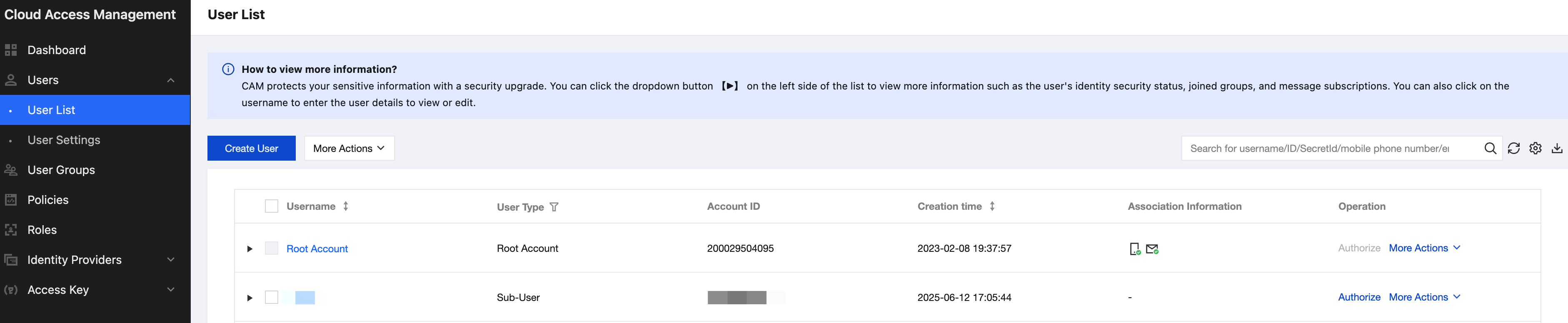
2. Select User > User List to enter the user list page.
3. Select the sub-user that requires authorization, and click the Authorize operation on the right. If there is no sub-user, please refer to the Create Sub-user document to create one.
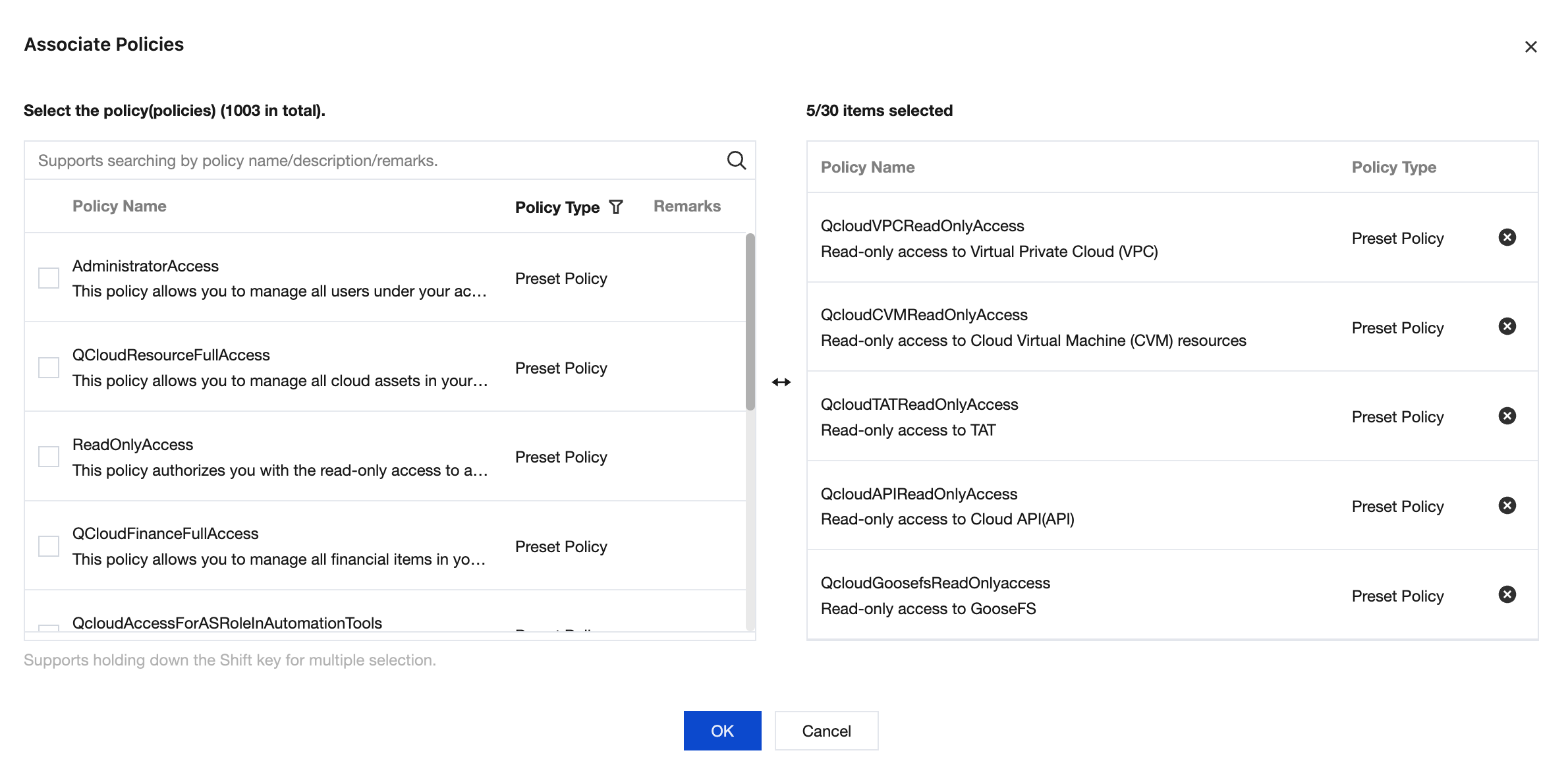
4. In the Association Policy window, search and select the following preset policies, then click Confirm to complete.
QcloudVPCReadOnlyAccess
QcloudCVMReadOnlyAccess
QcloudTATReadOnlyAccess
QcloudAPIReadOnlyAccess
QcloudGoosefsReadOnlyaccess
5. Authorization completed, just log in with a sub-account.