The GooseFS-Lite tool supports mounting COS (Cloud Object Storage) buckets locally, allowing you to directly operate on objects in Tencent Cloud COS as if using a local file system. Compared to the COSFS tool, GooseFS-Lite delivers higher read/write speeds for large files, free from local disk performance limitations. GooseFS-Lite supports key POSIX file system features, such as sequential and random file reads, sequential writes, and directory operations.
Use Limits
GooseFS-Lite is only suitable for simple file management after mounting and does not support some feature usages of the local file system.Please note the following usage limitations:
No support for random write and truncate operations on files.
Multiple clients mount the same COS storage bucket, depending on user self-coordination of the behavior of multiple clients. For example, avoid multiple clients writing the same file.
rename operation of files/folders is a non-atomic operation.
No support for reading and renaming files being written to the current mount point.
Metadata operations such as listing directories have poor performance because they require remote access to the COS server.
No support for soft/hard links.
Append writing has poor performance, involving server-side data copy and downloading the appended file.
Not recommended for use in low-memory scenarios, such as when container memory or CVM memory is less than 2 GB.
Install GooseFS-Lite to the current directory, and create a symbolic link for goosefs-lite to /usr/bin/goosefs-lite for direct use of the goosefs-lite command.
In the goosefs-lite-<version number> directory (for example, in the goosefs-lite-1.0.6 directory for version 1.0.6), use the following command to install KonaJDK under /usr/local/konajdk11:
As shown below, there are two methods to choose from:
Two methods are available: 1. Use the KonaJDK download link. 2. Manually download the KonaJDK installation package to a specified directory. Then, use the following command to install it, which will enable goosefs-lite to automatically use this Java runtime environment.
For a more flexible Java environment installation, you can refer to Manually Installing JDK. Then, modify the environment variables in conf/goosefs-env.sh to make them take effect.
Step 4: Modifying the Configuration File
Under the goosefs-lite-<version number> directory (for example, under the goosefs-lite-1.0.6 directory for version 1.0.6), there are two ways to modify the configuration file:
Use sed to modify the following three parameters, where SECRET_ID, SECRET_KEY, and REGION should be filled in according to the actual situation:
Configure fs.cosn.userinfo.secretKey as the Tencent Cloud Key.
Configure fs.cosn.userinfo.secretId as Tencent Cloud SecretID.
Configure fs.cosn.bucket.region as the bucket region.
sed -i '/<name>fs.cosn.userinfo.secretId<\\/name>/{N;s/<value>[^<]*<\\/value>/<value>$SECRET_ID<\\/value>/}' conf/core-site.xml
sed -i '/<name>fs.cosn.userinfo.secretKey<\\/name>/{N;s/<value>[^<]*<\\/value>/<value>$SECRET_KEY<\\/value>/}' conf/core-site.xml
sed -i '/<name>fs.cosn.bucket.region<\\/name>/{N;s/<value>[^<]*<\\/value>/<value>$REGION<\\/value>/}' conf/core-site.xml
You can also use vim to edit the conf/core-site.xml file and modify parameters.
Configure fs.cosn.userinfo.secretKey as the Tencent Cloud Key.
Configure fs.cosn.userinfo.secretId as Tencent Cloud SecretID.
Configure fs.cosn.bucket.region as the bucket region.
Configuration File Description
In the goosefs-lite-<version number>/conf directory (for example, in the goosefs-lite-1.0.6/conf directory for version 1.0.6), you can see the following files:
acl-site.properties: Specifies permissions, usernames, group names, and values such as 0755 (similar to Linux POSIX semantics), uid, gid, and so on, for directories.
Notes:
The format for acl-site configuration is path=mode:user_name:group_name. For example, to configure the path /mnt/goosefs-lite/test_dir with mode 755, user root, and group root, add /mnt/goosefs-lite/test_dir=755:root:root to the configuration file.
To use ACL configurations, include the -o default_permissions parameter during mounting. This enables the kernel (VFS) to perform standard Unix permission checks based on the file metadata's mode, uid, and gid. Additionally, before mounting, modify or add the configuration item goosefs.lite.posix.acl.manager.enabled to true in the goosefs-lite.properties configuration file. For example, the command to mount testbucket-1250000000 to /mnt/datadisk0/goosefs-lite-mnt is as follows: ./bin/goosefs-lite mount -o "allow_other,default_permissions" /mnt/datadisk0/goosefs-lite-mnt cosn://testbucket-1250000000/
core-site.xml: Configuration file for Hadoop-COS (The data stream of goosefs-lite is based on Hadoop-COS, so the parameters and configuration files are almost common)
goosefs-env.sh: Environment variables, such as JVM parameters.
log4j.properties: Logging configuration. To enable debug logs, uncomment the last line of the file and remount.
Notes:
It is recommended that users avoid using permanent keys in configurations. Using sub-account keys or temporary keys helps improve business security. When granting permissions to a sub-account, grant only the necessary operations and resources to prevent unexpected data leaks.
If you must use a permanent key, it is recommended to restrict its permission scope. You can enhance usage security by limiting the key's allowable operations, resource scope, and conditions (such as access IP address).
Step 5: Mounting the Bucket to a Local Directory
Execute the following command in the goosefs-lite-<version number> directory (for example, in the goosefs-lite-1.0.6 directory for version 1.0.6) to mount the bucket configured in the key file to a specified directory:
<MountPoint> is the local mounting directory (for example /mnt/goosefs-lite-mnt-dir). This directory must be empty; otherwise, it cannot be mounted.
<BucketName> is the bucket name (for example examplebucket-1250000000).
Example:
mkdir -p /mnt/goosefs-lite-mnt
./bin/goosefs-lite mount /mnt/goosefs-lite-mnt/ cosn://examplebucket-1250000000/
View the local mount point and the corresponding COS storage bucket. The output information is displayed in the order of process ID, local mount point, and COS path.
If you need to specify multiple mount parameters in a command, you can separate them with commas. For example, the following command makes the mount point read-only and allows other users to access it:
./bin/goosefs-lite mount -o "ro,allow_other" mnt/ cosn://examplebucket-1250000000/
Among them:
-o allow_other: If you want to allow other users to access the mount folder, you can specify this parameter when running GooseFS-Lite.
-o ro: Set the mount point to read-only, disallowing write and delete operations.
Notes:
Specify a single parameter using -o, for example -o ro. For multiple parameters, separate them with commas, for example -o "ro,allow_other".
Step 6: Unmount the Mount Point
Notes:
Unmounting a GooseFS-Lite mount point immediately interrupts all read and write operations accessing COS through that path. Before performing this operation, ensure that no business processes are currently using the mount directory.
Under the goosefs-lite-<version number> directory (for example, under the goosefs-lite-1.0.6 directory for version 1.0.6), execute the following command to uninstall the mount point:
$ ./bin/goosefs-lite umount /mnt/goosefs-lite-mnt
Unmount fuse at /mnt/goosefs-lite-mnt/ (PID: 17206).
# If uninstallation is abnormal, you can use the following command to forcefully uninstall
$ sudoumount -l /mnt/goosefs-lite-mnt
Step 7: Parameter Tuning
GooseFS-Lite includes two configuration files, namely conf/core-site.xml and conf/goosefs-lite.properties.
You can optimize upload and download bandwidth by modifying conf/core-site.xml. Common parameters are as follows. More parameters can be found in the Hadoop-COS documentation.
Attribute Key
Description
Default Value
Required
fs.cosn.useHttps
Whether to use HTTPS as the transport protocol for communicating with the COS backend.
true
No
fs.cosn.upload.part.size
The size of each part in a multipart upload. Since COS supports a maximum of 10,000 parts for a multipart upload, you need to estimate the maximum possible size of a single file. For example, when the part size is 8 MB, a single file up to 78 GB can be uploaded. The part size can be up to 2 GB, meaning a single file can be up to 19 TB.
8388608(8MB)
No
fs.cosn.upload_thread_pool
The number of concurrent threads when files are uploaded to COS through streams.
32
No
fs.cosn.read.ahead.block.size
The size of the pre-read block.
1048576(1MB)
No
fs.cosn.read.ahead.queue.size
The length of the read-ahead queue.
6
No
You can adjust the behavior of GooseFS-Lite by modifying conf/goosefs-lite.properties. The common parameters are as follows:
Required
Description
Default Value
Required
goosefs.fuse.list.entries.cache.enabled
Whether to enable client-side List caching
true
No
goosefs.fuse.list.entries.cache.max.size
Maximum number of entries cached in the client-side List, unit: entries
Validity period of the client-side List cache, unit: ms
15000
No
goosefs.fuse.async.release.max.wait.time
Time to wait for write operations to complete when a file is being written during open or rename operations, unit: ms.
5000
No
goosefs.fuse.umount.timeout
Time to wait for pending operations to complete when the file system is unmounted, unit: ms
120000
No
When your read and write concurrency is high, you can adjust the maximum JVM runtime memory of GooseFS-Lite by the following methods to avoid FullGC and OutOfMemoryError. The default JVM values are -Xmx512m -XX:MaxDirectMemorySize=512m -XX:+UseG1GC -XX:G1HeapRegionSize=32m. The adjustment method is as follows:
exportJAVA_OPTS=" -Xms2G -Xmx2G"
./bin/goosefs-lite mount /mnt/goosefs-lite-mnt/ cosn://examplebucket-1250000000/
ps -ef|grep goosefs-lite|grep -v grep
FAQs
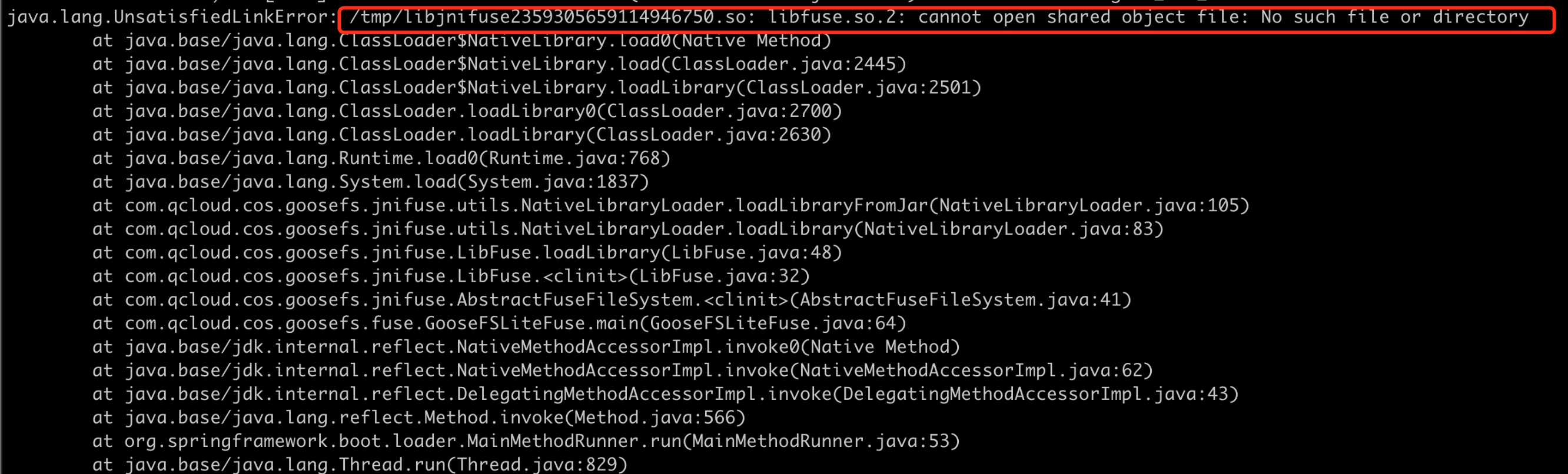
Missing libfuse Library File, What Should Be Done?
Install libfuse. Please refer to the following steps for operation:
Method one
1. Execute the following command to install fuse-devel.
If it is a CentOS or TencentOS system, execute the following command:
yum install fuse-devel
If it is an Ubuntu system, execute the following command:
aptinstall libfuse-dev
2. After installation, execute the following command to check whether the installation is successful.
find / -name libfuse.so*
Method 2
Update the older version libfuse.so.2.9.2. The installation steps are as follows:
1. Edit the file /usr/lib/systemd/system/goosefs-lite.service and add the following content. You can replace examplebucket-1250000000 with your bucket. Note: The memory values configured for -Xms and -Xmx in the following JAVA_OPTS must not exceed 50% of the physical memory limit of the node. For example, if a node has 16GB of physical memory, it is recommended to configure at most -Xms8G -Xmx8G.
The following uses goosefs-lite-1.0.6 version as an example:
[Unit]
Description=The Tencent Cloud GooseFS Lite for COS
2. Execute the following command to execute the mount command and view the process status of the backend Daemon.
# Make the goosefs-lite systemd configuration effective
systemctl daemon-reload
# Start the background Fuse process
systemctl start goosefs-lite
# View the background Daemon process status
systemctl status goosefs-lite
# View mount point list
/usr/local/goosefs-lite-1.0.6/bin/goosefs-lite stat
# If you modify the systemd configuration, reload and restart it after the modification.
Set to try mounting at boot:
systemctl enable goosefs-lite
3. Unmount the mount point, reboot the machine, and check the Fuse process status.
# Execute uninstallation. Note: Do not uninstall during data write; otherwise, it will cause incomplete data.
systemctl stop goosefs-lite
# Restart the operating system. Operate with caution. Do not affect business operations.
reboot -h now
# View the background Daemon process status
systemctl status goosefs-lite
# View mount point list
/usr/local/goosefs-lite-1.0.6/bin/goosefs-lite stat
High CPU Utilization of GooseFS - Lite at a Certain Time Every Day, and It Sends a Large Number of Head and List Requests to COS, Generating a Large Amount of Request - Count Costs. How Should This Be Handled?
This is usually caused by the scheduled disk scan task on your machine. The common disk scan program on Linux systems is updatedb. You can add the GooseFS-Lite mount point directory to the PRUNEPATHS configuration item in the updatedb configuration file /etc/updatedb.conf to avoid the scanning behavior of this program. In addition, you can use the Linux tool auditd to find programs that access the GooseFS-Lite mount point.
Directions:
1. Install auditd.
If it is an Ubuntu system, execute the following command:
apt-getinstall auditd -y
If it is a CentOS system, execute the following command:
yum install audit audit-libs
2. Start up the auditd service.
systemctl start auditd
systemctl enable auditd
3. Monitor the mount directory.
Notes:
-w specifies the GooseFS-Lite mount directory, and -k is the key output in the audit log.
Log directory for audit: /var/log/audit The query command is as follows:
ausearch -i|grep'goosefs_lite_mnt'
5. Stop auditd service.
If you need to stop the auditd service, use the following command:
/sbin/service auditd stop
Notes:
If a program accessing the mount point is already running, a newly started auditd will not monitor its access behavior. For multiple calls to the mount directory within the program, only the first call is recorded.
Error "cannot allocate memory" Occurs during GooseFS-Lite Installation. What Should Be Done?
This error primarily occurs due to an exception in memory allocation during GooseFS-Lite operation, typically when the requested memory exceeds the actual available memory.
You can go to the ./bin/goosefs-lite file to modify the JAVA_OPTS parameter to a reasonable memory value. Ensure that the requested memory amount is less than the available memory of the instance.
How to View the Latest Package Version?
Execute the following command; the return value is the latest version number.
Problem troubleshooting relies on logs. The following is the location of the related logs.
For goosefs-lite version 1.0.3 and later, the default log directory is located under /data/goosefs/logs/fuse.
For example: If the user who mounts goosefs-lite is root and the mount point path is /data1/data2, then the log path is: /data/goosefs/logs/fuse/root/data1/data2.
For goosefs-lite versions 1.0.0-1.0.2, the default log directory is located under /data/goosefs/logs.
Another way to view the mount point log path is to first remount, then run ps aux | grep ${MOUNT_POINT}. From the output, you can see Error_File or goosefs.logs.dir. The parent directory of this path is the location where all logs of this mount point are stored.
System logs: For CentOS or tlinux systems, the path is /var/log/message*; for Ubuntu, it is /var/log/syslog.
If you need to enable debug logs, enter conf/log4j.properties, comment out the last line, and remount.
Notes:
Enabling debug logs impacts performance and is unnecessary under normal circumstances.
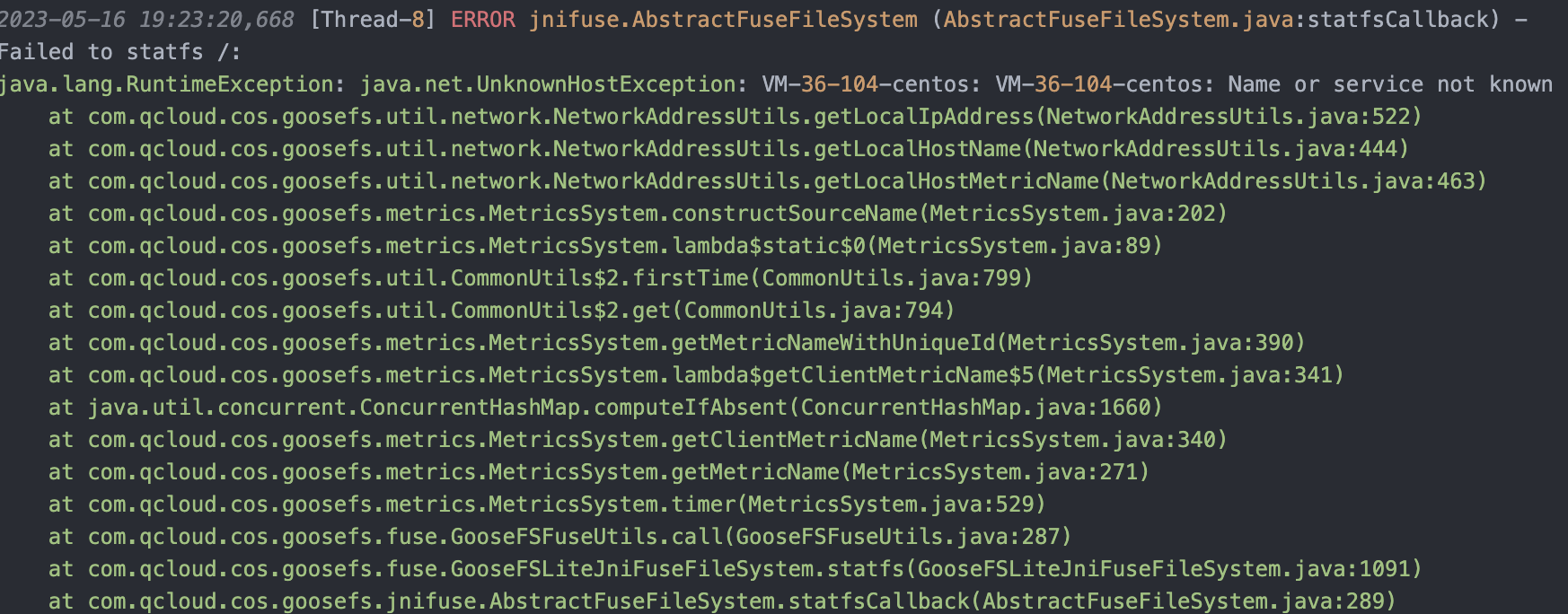
Mount Failure Error "Name or service not known", How to Handle?
Usually because it is unable to resolve the domain name. You can try pinging the corresponding domain name. As shown above in the error message, you can execute the following command:
ping VM-36-104-centos
If the failure persists, you can configure the corresponding IP address by modifying the /etc/hosts file. Typically, you can set it to 127.0.0.1.
Directions:
1. Add a row in the /etc/hosts file. Replace VM-36-104-centos here with your hostname.
127.0.0.1 VM-36-104-centos
2. Then retest with ping, and remount after confirming it can be parsed normally.
How to Use GooseFS-Lite When the Default Environment JDK Is Not KonaJDK11?
1. Download the package of KonaJDK11 and unzip it.
2. Copy the absolute path of the java binary program in konajdk. For example, the extracted jdk is under /root/konajdk11.
# Determine the java Version
/root/konajdk11/bin/java -version
# Modify the JAVA environment variables for the current shell without affecting other shells or processes.
exportJAVA=/root/konajdk11/bin/java
# Mount.
goosefs-lite mount /mnt cosn://bucket-appid
3. Use ps aux | grep goosefs-lite. You can see the process starts with /root/konajdk11/bin/java, indicating the specified Java version has been used. Operation completed.
Mount Point Was Normal but Suddenly Became Unusable during Use, What Should Be Done?
Assume the current mount point is /tmp/mount_point.
1. First, use ps aux | grep /tmp/mount_point to check whether there is currently a process using this mount point, including goosefs-lite. If there is, use the kill command to terminate the corresponding process.
2. Use ls to attempt to access the mount point. If it returns empty, the mount point has been successfully uninstalled. Next, remount.
ls /mount_point
3. If an error such as transport is not connected is thrown, you need to execute umount -l /mount_point for forced uninstalling. (This command execution requires root privileges)
This type of situation is usually caused by a process being killed with kill -9 or the system's oom-killer. It can be found in system logs or goosefs-lite logs.
4. Observe the log directory of the mount point (/data/goosefs/logs/fuse/$USER/$MOUNT_POINT) for any logs starting with hs_error (the file describes the stack and reason before program exit).
Throw Exception: Unsupported or unrecognized SSL message, How to Handle?
Current environment does not support disabling https mode. Configuration changes are necessary. The solution is to add the following content in the core-site.xml configuration file:
<property>
<name>fs.cosn.useHttps</name>
<value>false</value>
</property>
Using GooseFS-Lite to Access COS Using Intranet Domain Name
In the core-site.xml configuration file, remove the fs.cosn.bucket.region property and add the fs.cosn.bucket.endpoint_suffix parameter. If you are using goosefs-lite version 1.0.12 or later, add the fs.cosn.custom.endpoint_suffix parameter instead.
To learn more about parameters, you can read the following documents:
Mounting or Using Process Encounters 403 Forbidden, How to Handle?
Normally, ERROR-type logs in logs describe what permissions are missing. Supplement as needed.
Note: For head bucket permissions, you must set them at the bucket level, not just the path level. For example, a path like cosn://bucket-appid/path is not valid; it must be cosn://bucket-appid. This permission does not expose which objects are inside the bucket.
Handling the Error "fuse: failed to open /dev/fuse Operation not permitted"
1. Check root privileges.
2. If it is in a container, check whether the container is started with --privileged. If not, add it.
3. Check if the FUSE kernel module is installed: Run the command lsmod | grep fuse, check whether there is a returned result. If not, it indicates that the FUSE kernel module is missing.
Handling the Error "part num: 10001, the parameter partNumber is not valid." When File Writing Fails
This situation indicates that the number of parts for multipart upload exceeds the limit. COS supports a maximum of 10,000 parts for upload. Therefore, goosefs-lite defaults to supporting files up to 8MB * 10,000 (approximately 78GB). If you need to support larger files, you need to adjust the parameter fs.cosn.upload.part.size. For example, changing fs.cosn.upload.part.size to 16,777,216 (i.e., 16MB) allows supporting large files of 16MB * 10,000.