A WebSocket service can be configured in the same way as a normal HTTP (HTTPS) service. When the gateway is accessed using the WebSocket protocol, it automatically upgrades the protocol to WebSocket. Users do not need to explicitly specify the WebSocket protocol. This document quickly guides you on how to access APIs whose backend services are of the WebSocket type in a cloud-native gateway.
Operation Steps
Step 4: Testing the WebSocket Service
Refer to Create Gateway to create a cloud-native gateway.
Step 2: Defining Backend Service Information
1. Click the ID of the created gateway instance to enter the instance details page.
2. In the top menu bar, choose Service & Route > Service and click Create in the service list.
3. On the Create Service page, configure related parameters and click Submit.
Note:
When creating a gateway service, select HTTP as the service protocol if the backend WebSocket service uses the WS protocol. Select HTTPS as the service protocol if the backend service uses the WSS protocol. The service type can also be a K8S service/IP list, or other options.
Step 3: Configuring Routing for the Backend Service
1. After the backend service is added, click the backend service name to enter the Service & Route > Route page.
2. Click Create and set routing information.
Request Method: Set it to ANY.
Request Path: Set it to /websocket.
3. Click Next.
4. Configure the backend service information of the route, confirm that the backend service information is correct, and click Submit to complete route creation.
Step 4: Accessing the WebSocket Service
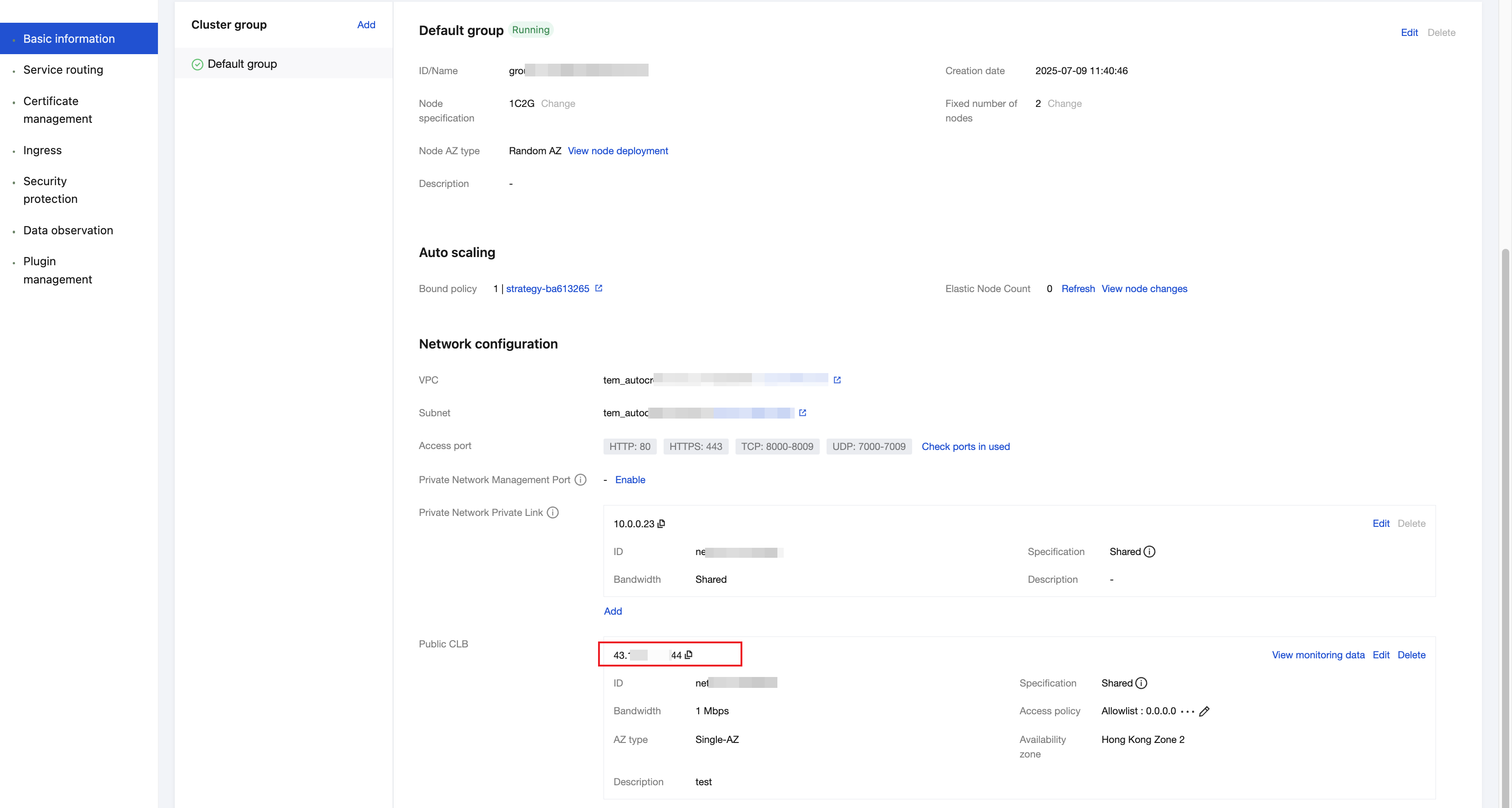
1. Go to the Basic Information page of the cloud-native gateway and obtain the CLB address.
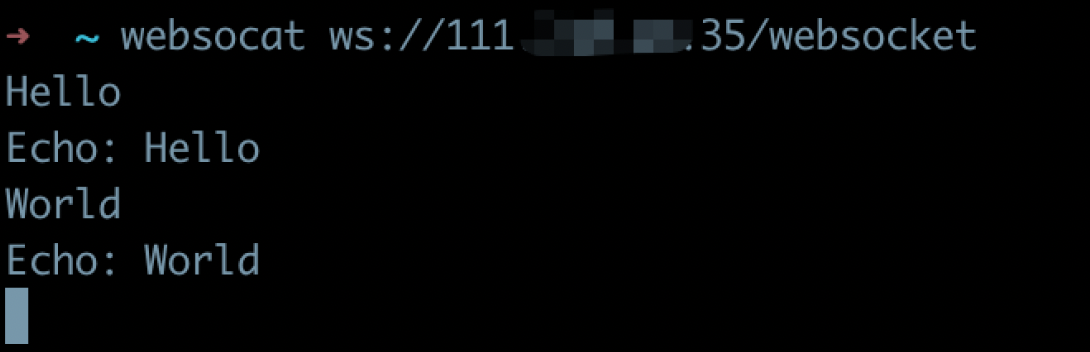
2. Use the CLB IP address and configured routing path to access the route.
Access the gateway using the WS protocol: websocat ws://<GWLB IP address or domain>/websocket.
Access the gateway using the WSS protocol: websocat wss://<GWLB IP address or domain>/websocket -k.